Set up your club
Six steps, about 40 minutes, and you're ready to take payments and check people in.
Six steps
1. Create your club
5 minAt app.ipponboard.com/register, tap Create Club. The wizard asks for your club name and address; its other steps are optional.
More detail →2. Connect payments
10 minSettings → Payment Provider: connect Stripe or Square so members can pay by card. Cash and bank transfer work without it.
More detail →3. Add your plans
5 minMembership Plans: what members pay (monthly, per term, a drop-in) and which classes each plan covers.
More detail →4. Add your classes
5 minClasses: your weekly timetable, so members see it and you can check people in.
More detail →5. Staff and a front-desk device
5 minInvite your coaches and managers, and make a front-desk login for the tablet at the door (it can check people in and take payments, nothing more).
More detail →6. Import or add your members
10 minImport your members from a spreadsheet (Members → Import members, or in the club wizard), or add them one at a time with Add Member, or send your sign-up link and let them join themselves.
More detail →
Then: running the front desk, for taking payments and checking people in each day.
Creating your club, step by step
Start the club wizard
Go to app.ipponboard.com/register. Under Creating a New Club?, tap Create Club.
Your Account
Type your name and email, then sign in with a passkey or set a password. If you already have an account, tap Sign in first and the wizard skips this step. If it asks for an invitation code and you don't have one, tap Request an invitation.
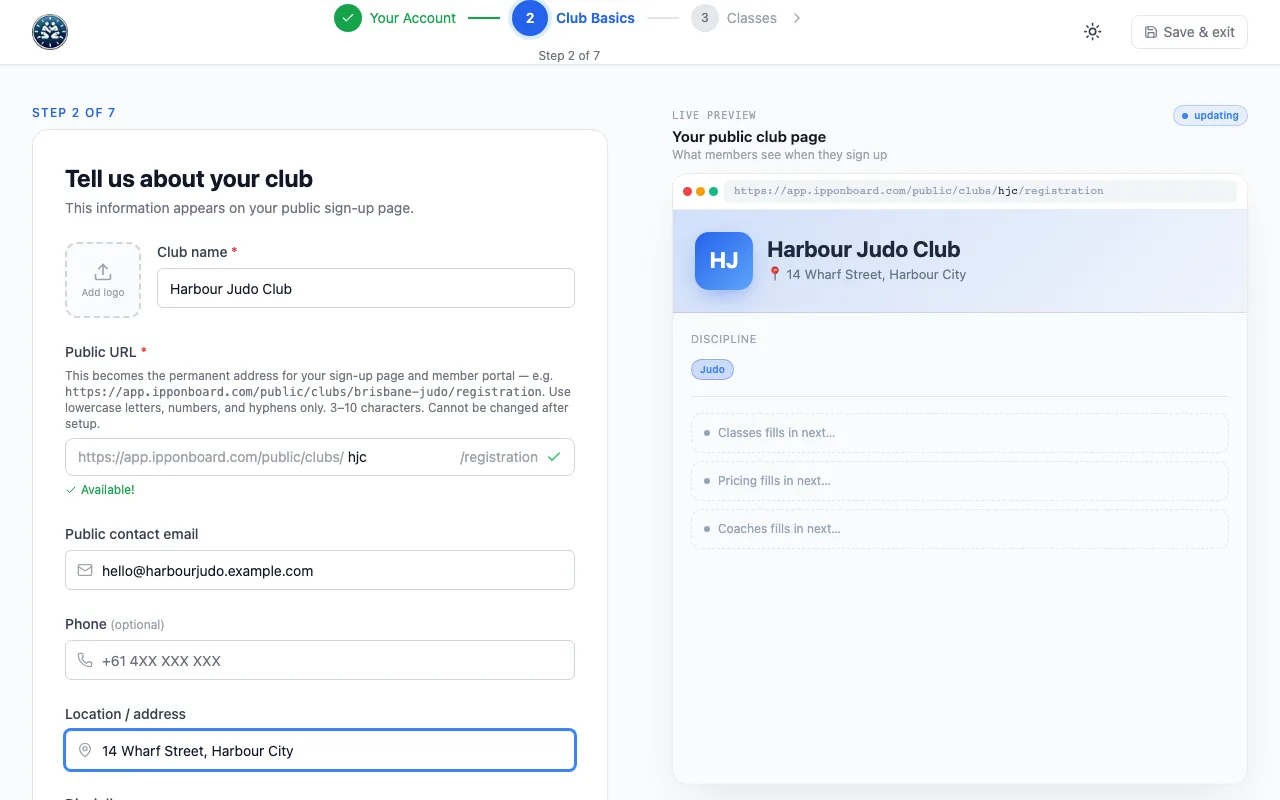
Club Basics
Type the Club name and check the Public URL (it fills in from the name; a green tick means it's free). Add a Public contact email, your Location / address and a logo if you have one. These show on your public sign-up page.
Classes, Pricing, Waiver, Sign-up Link and Team
These five steps are optional: fill them in now or tap Skip. The wizard can set up your classes, your membership plans, a liability waiver, your sign-up page and invites for your staff. Everything can be changed later.
Create my club
On the last step, tap Create my club. The next screen shows what's set up and what's left. Tap Open my club dashboard to start.
The rest of the setup
- Club details (logo, timezone, currency): Set up your club details
- The liability waiver members sign when they join: Waiver templates
- Your public sign-up page: Public registration
- Square instead of Stripe, or a card reader at the desk: Square
Where the app helps you
- Suggestions. The dashboard and other pages show cards like Connect your payment provider or Upload your club logo, each with a button that takes you straight there. They go away once that thing is done.
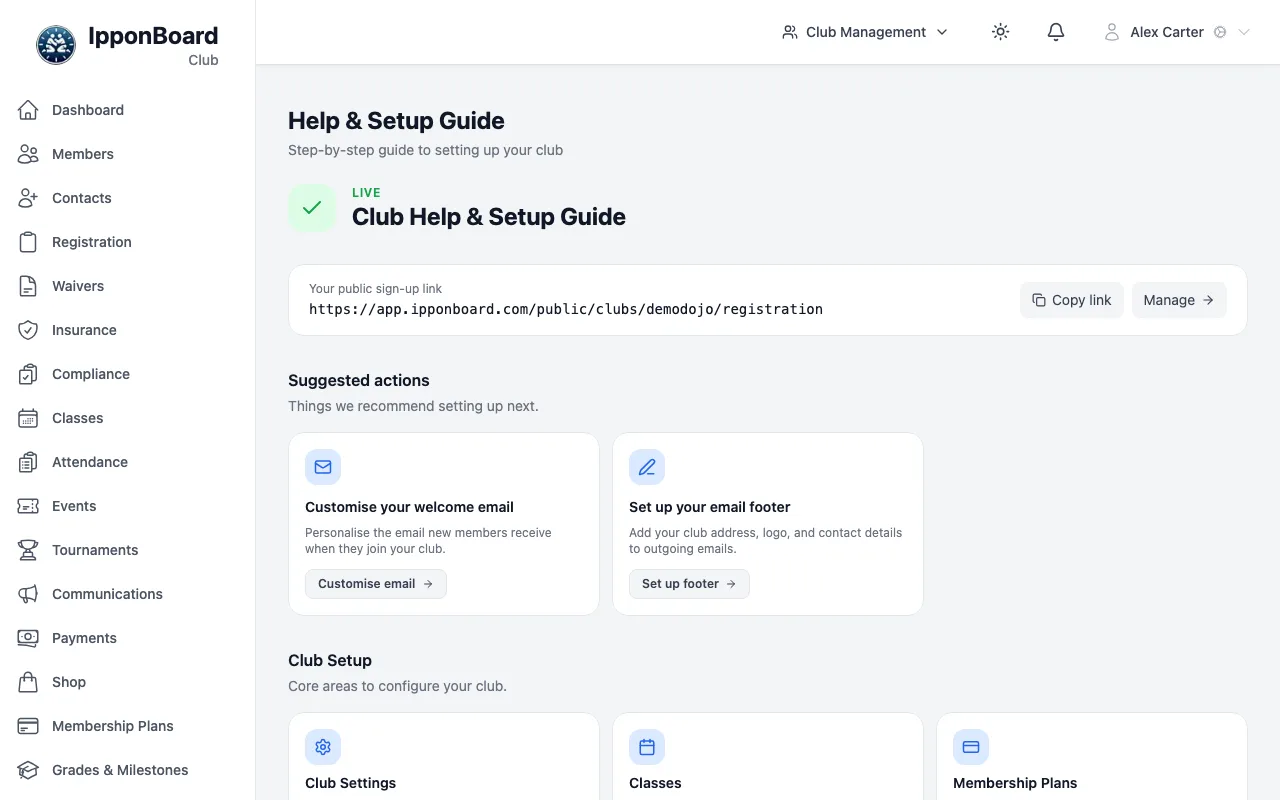
- Help page. In the sidebar, Help opens the Club Help & Setup Guide: your public sign-up link, the suggested actions, and a card for each area with Go to page and Docs.
- Guided tours. Most management pages have a ? button at the top right that walks you through that page.
When you're set up
- Run the front desk: payments, check-ins, drop-ins.
- Create events such as gradings, camps and seminars.
- Email your members and send announcements.
- Track insurance for your members.
- Record grades and milestones.
- Sell gear in the shop.
- See reports on revenue, attendance and members.