Get started with tournaments
For organisers running a judo (or wrestling, BJJ…) tournament at app.ipponboard.com. Set it up, run the day with a scoreboard on each mat, and hand out the medals.
You'll need an account that can run tournaments for a club or an organisation. The scoring happens on the IpponBoard app at each mat; everything else happens here, in the browser, under Tournaments in the sidebar.
Track A
Set up your first tournament
Create it, add competitors, make divisions, weigh in, draw.
Track B
Run the day
Boards on the mats, the Control page, correcting a result.
Track C
After the event
Results, medals, exports and the public results.
A. Set up your first tournament
From an empty tournament to a drawn one, laid out on the mats. Here it is in under a minute:
Start a tournament
Go to Tournaments and click Create Tournament. The Set up a tournament wizard opens. Under Start from, pick the nearest starting point (for example Open tournament, Kids' tournament, Team event or Come-and-try day): it fills in the sport and the age groups, and you can change all of it.
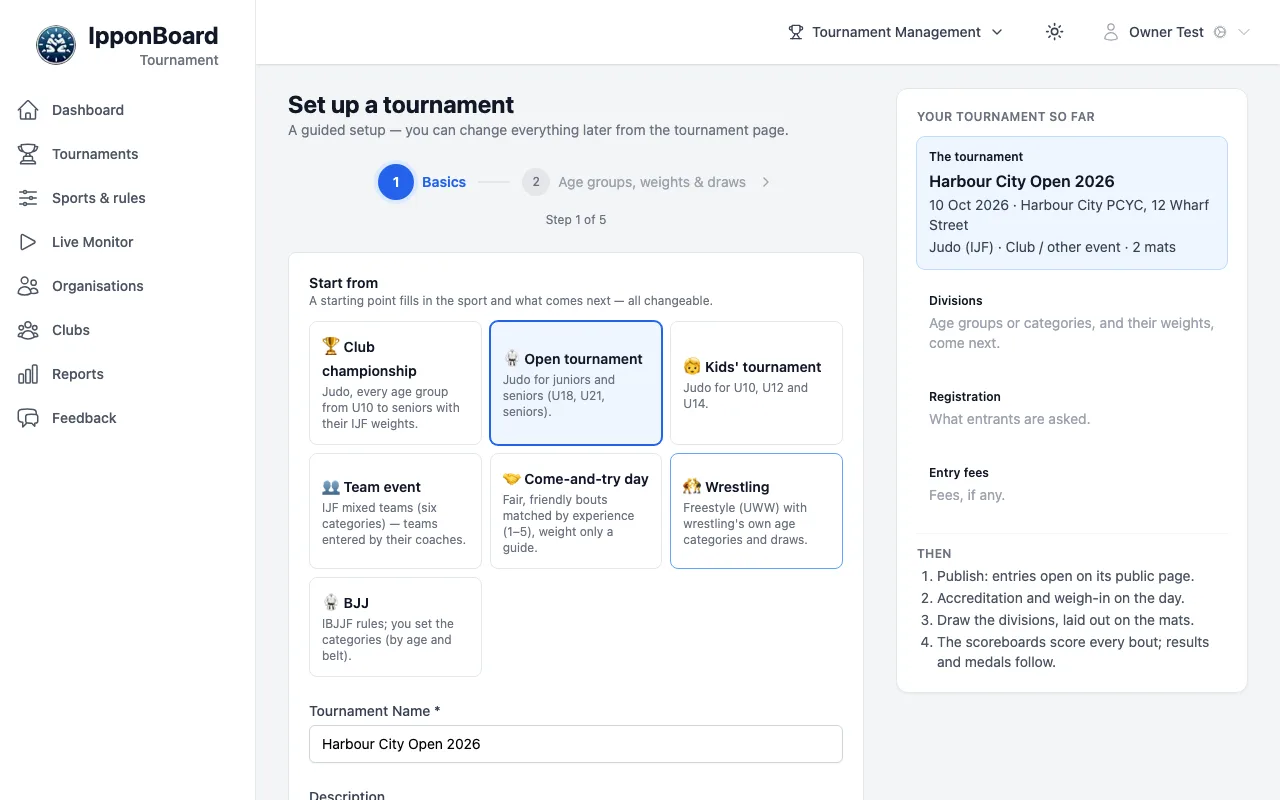
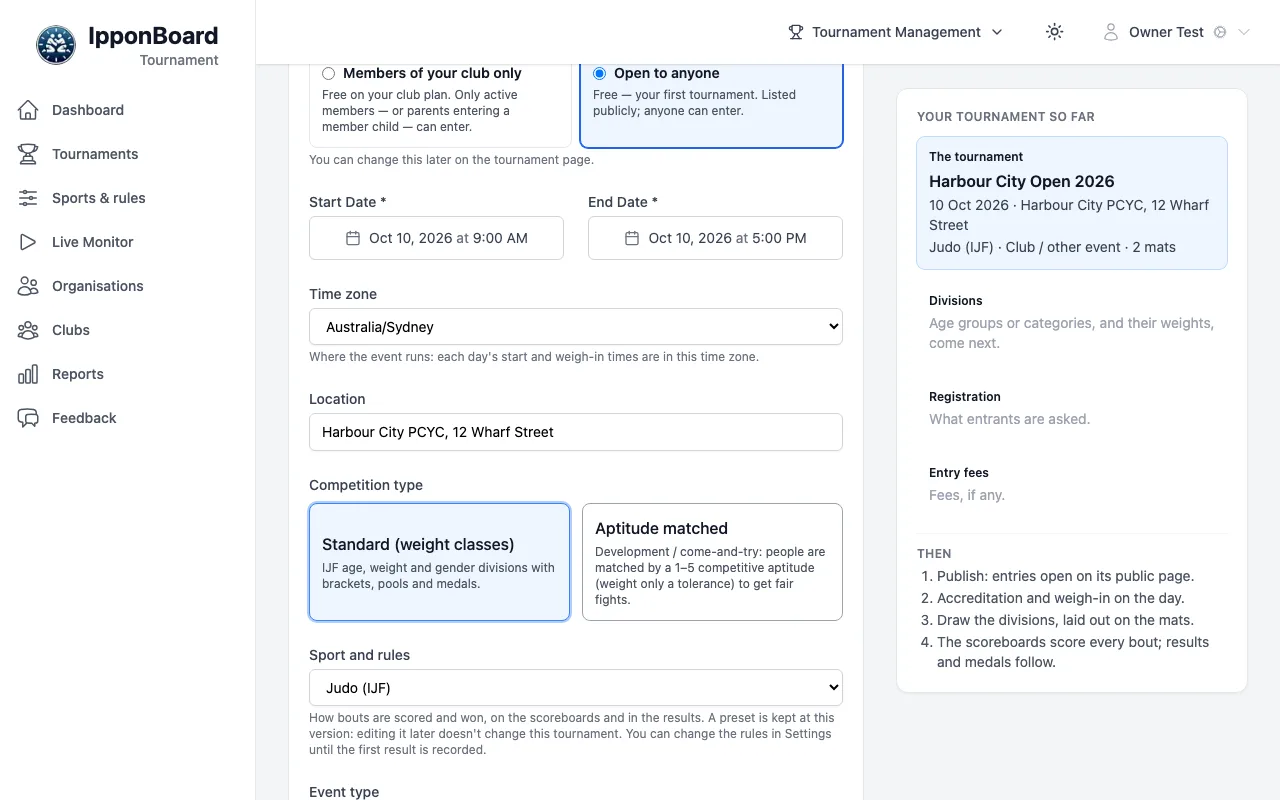
Then fill in Tournament Name, Organised by (your club or organisation), Who can enter (Members of your club only or Open to anyone), the Start Date and End Date, Time zone, Location, Competition type, Sport and rules, Event type and Number of Mats. Click Create & continue setup.
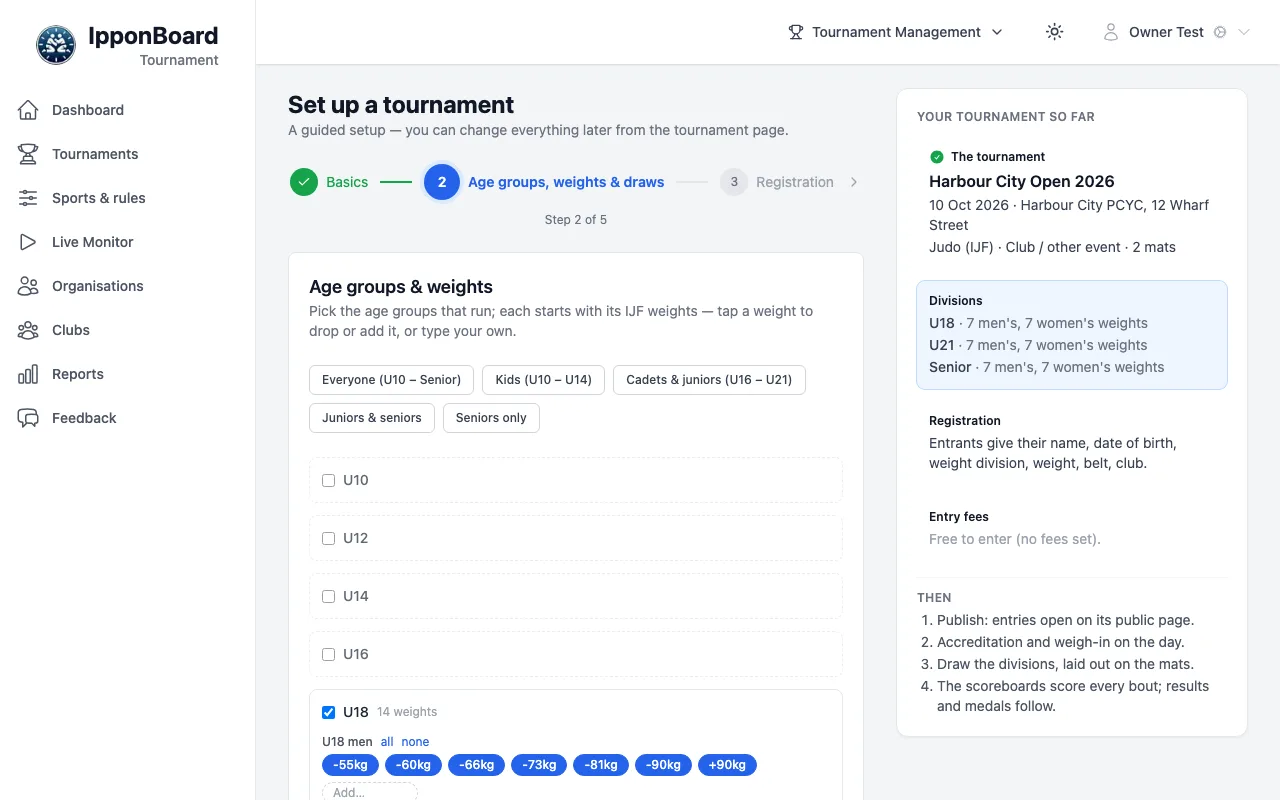
Age groups, weights and draws
Step 2 lists the age groups that run, each with its IJF weights: tap a weight to drop it or add it back, or type your own. Below that is how each division is drawn (you can change any single division later). Click Next.
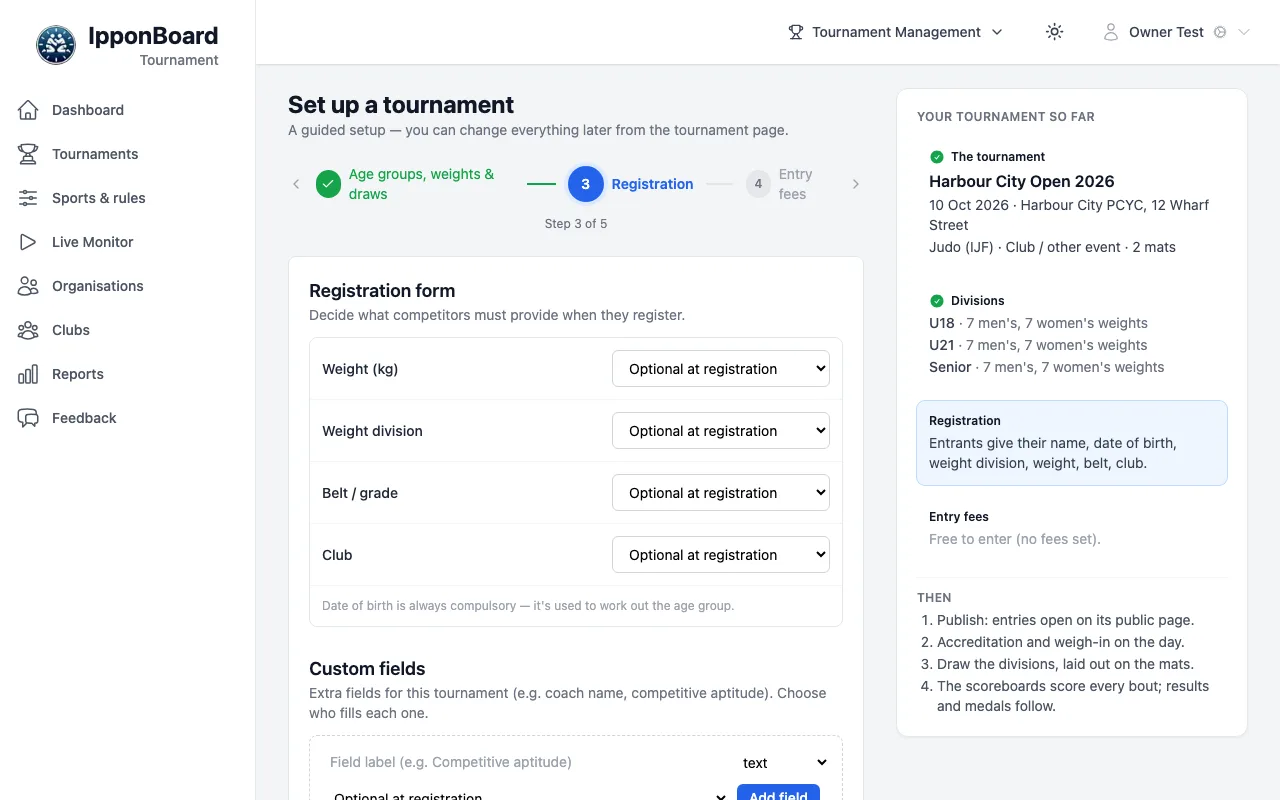
Registration and entry fees
Step 3, Registration, sets what entrants are asked (weight, weight division, belt, club, and your own custom fields). Step 4, Entry fees, sets your rates if you charge (see Payments & Accreditation). Both can be left as they are and changed later on the tournament's Registration tab.
Publish
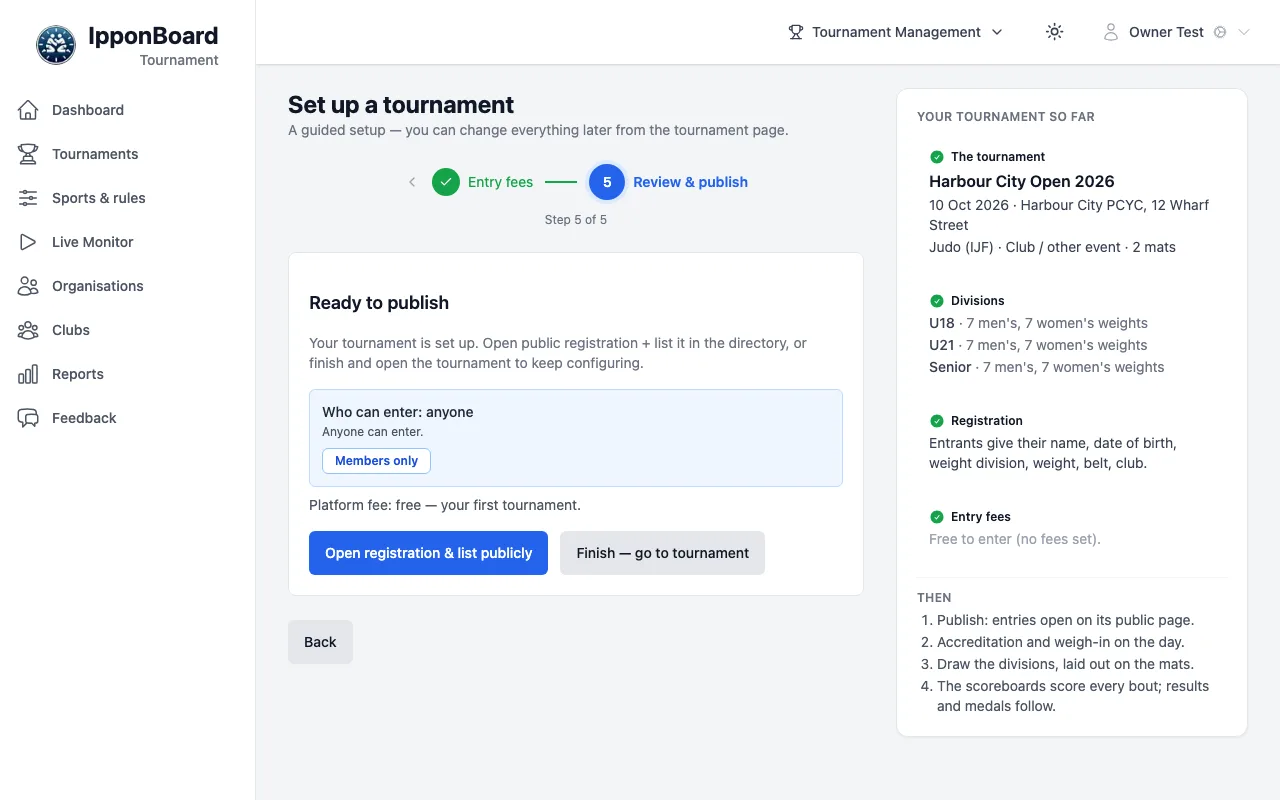
On Review & publish, Open registration & list publicly publishes the tournament, opens entries on its public page and lists it in the directory. Finish — go to tournament leaves it as a draft for now. The Platform fee line says what publishing costs.
Add your competitors
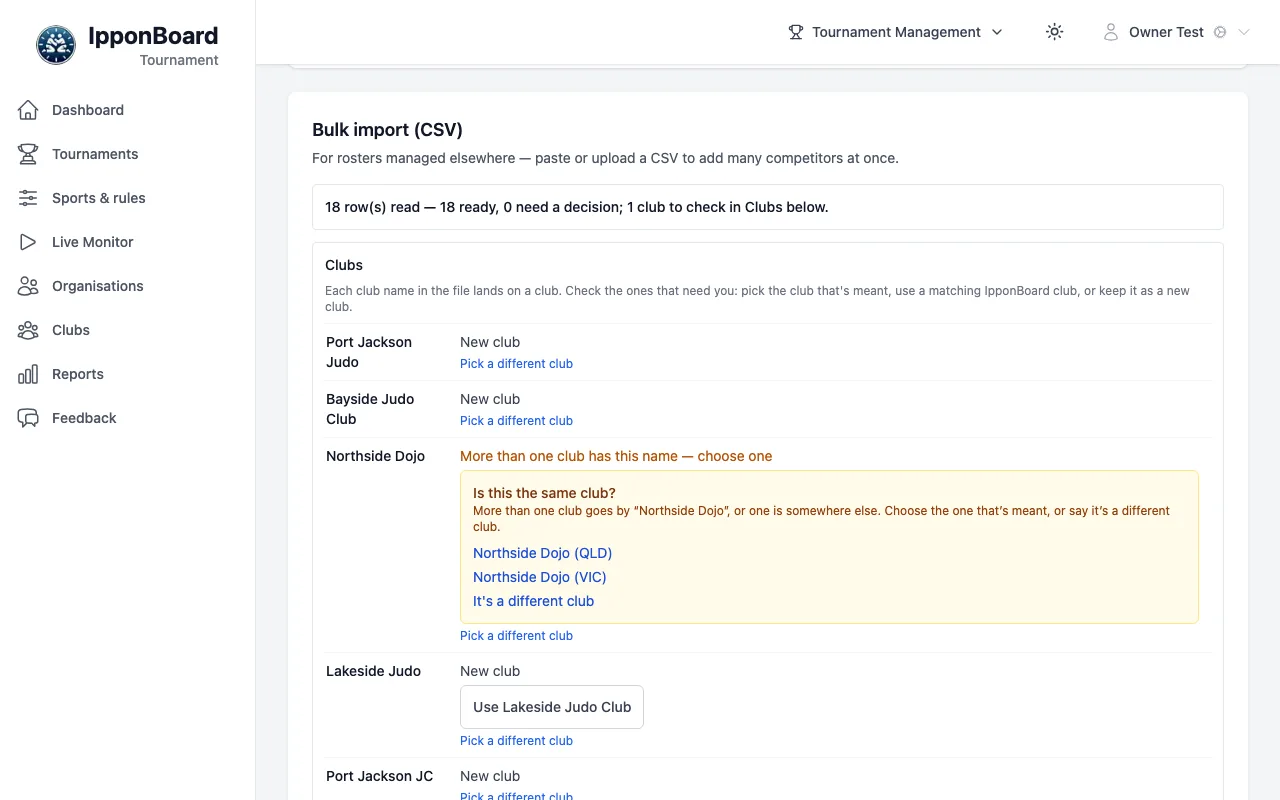
On the tournament's Athletes tab, click Import CSV. Paste your roster (or upload the file) under Bulk import (CSV), click Review import, check the rows and the Clubs step (answer Is this the same club? where it asks), then click Import 18 competitor(s) (your number). For one person, use Add Athlete instead. Entries made on the public page arrive here too.
Group them into divisions
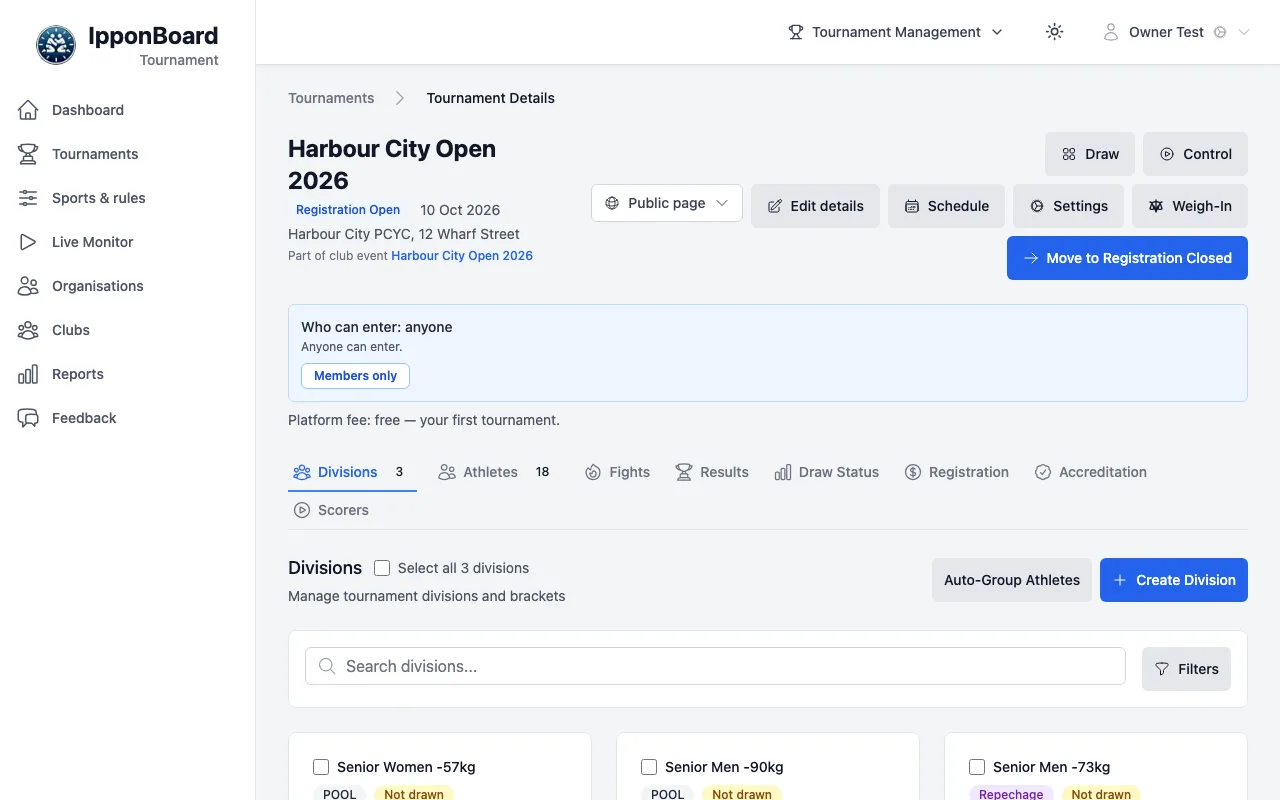
On the Divisions tab, click Auto-Group Athletes. It sorts everyone by age group, gender and weight. If you're grouping before the weigh-in, untick Respect weigh-in status. Click Create Divisions. Create Division makes one by hand.
Accreditation and weigh-in
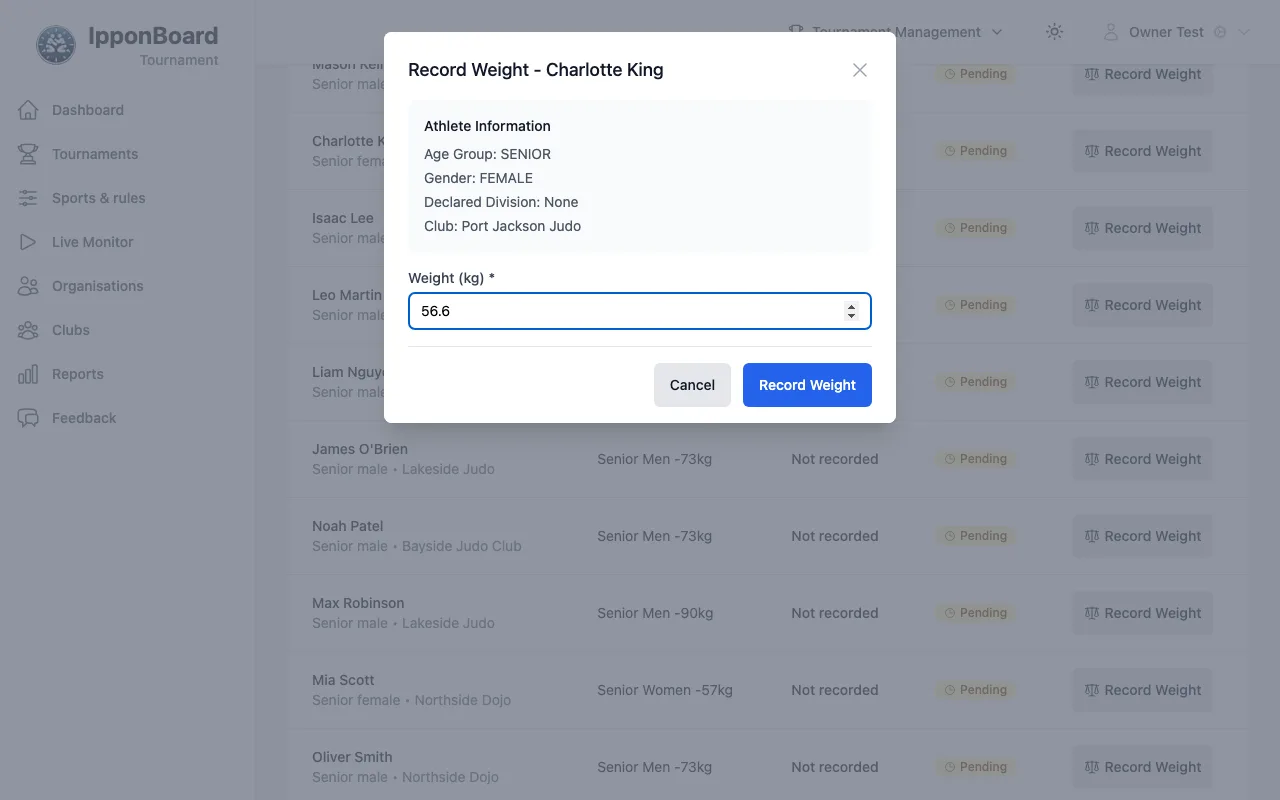
When athletes must pass accreditation, only accredited athletes are weighed in and drawn. On the Accreditation tab, click accredit beside each person as they arrive, or Accredit everyone who has paid. Then click Weigh-In at the top of the tournament page and use Record Weight for each athlete.
Set the day's schedule
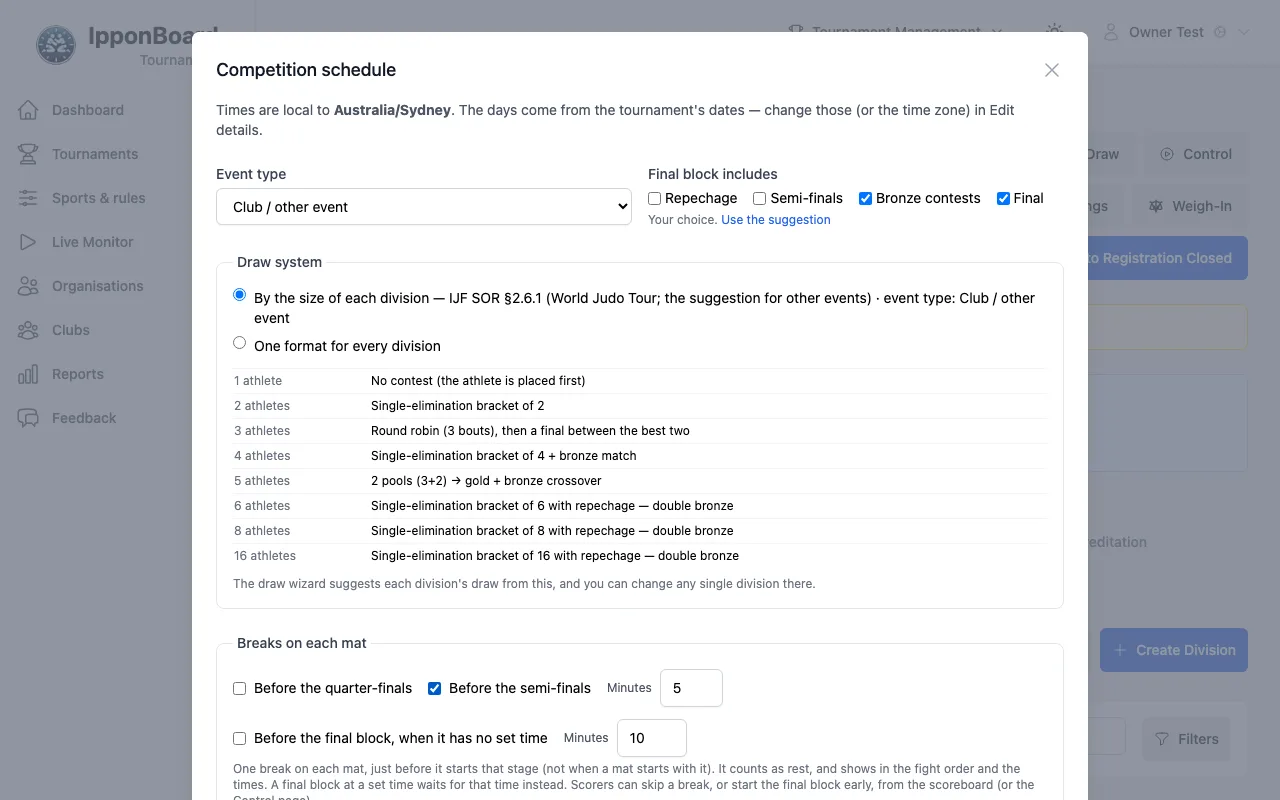
Click Schedule. In Competition schedule, set each day's Start and Mats in use, what the Final block includes and when it starts, the breaks on each mat, and the rest between contests. Click Save schedule. More in Schedule, Rules & Weigh-in.
Draw the tournament
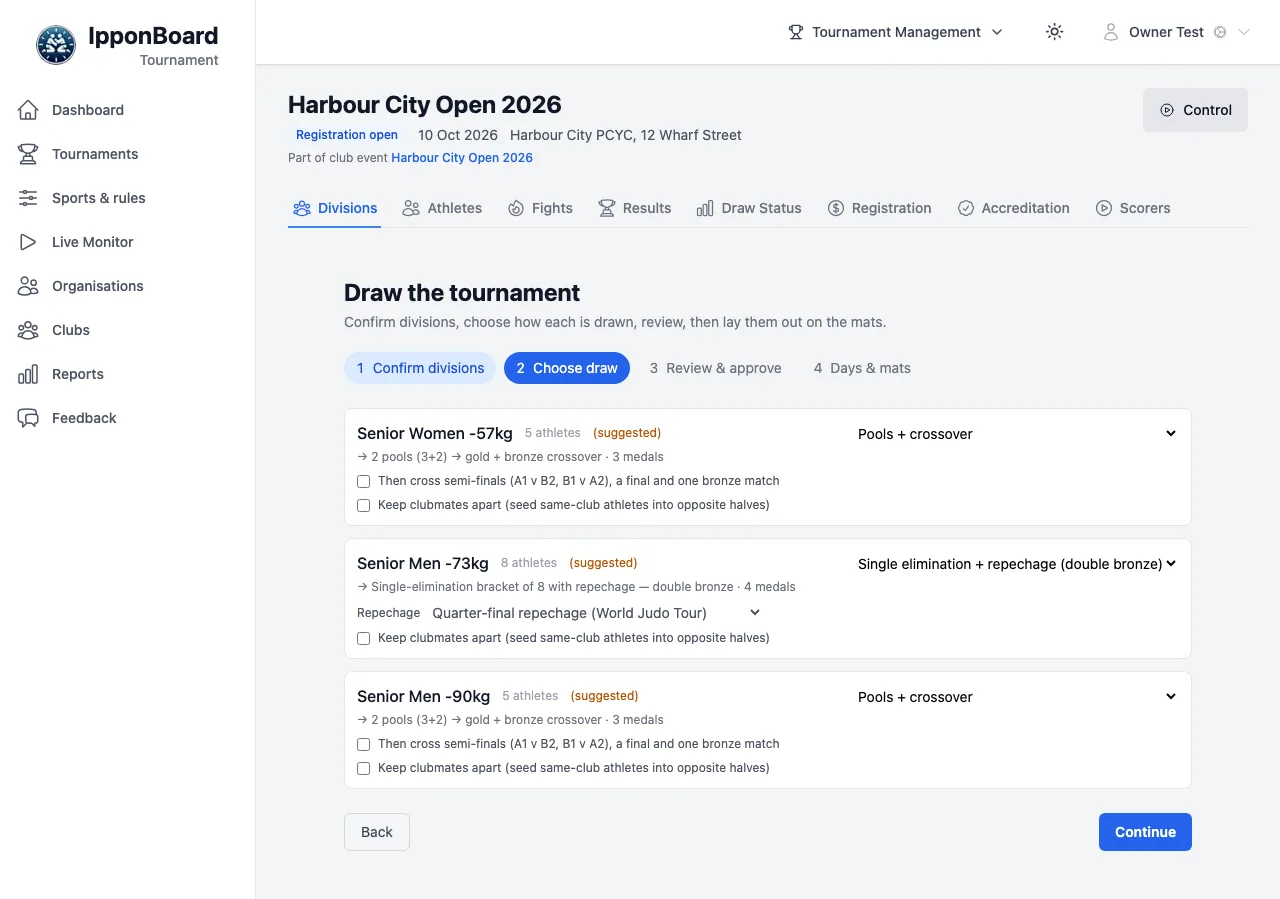
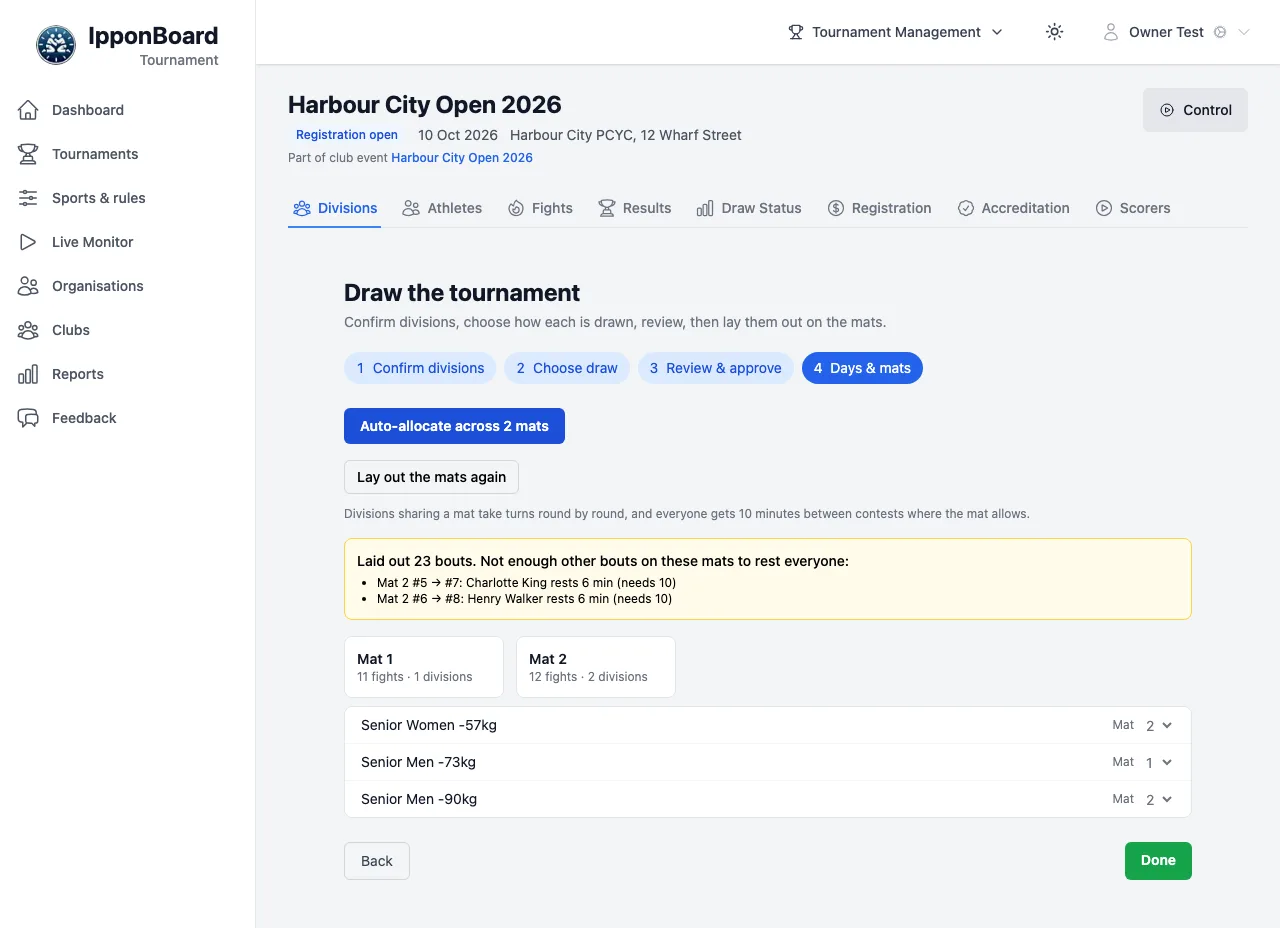
Open the draw wizard, Draw the tournament, with Draw at the top of the tournament (or Draw the tournament on the Draw Status tab). Its four steps are Confirm divisions, Choose draw, Review & approve (click Generate all draws) and Days & mats (click Auto-allocate across 2 mats, your number), then Done.
Without the wizard, tick divisions on the Divisions tab and click Draw Selected, or open a division and click Draw division. See Drawing the Tournament.
Check and share the fight order
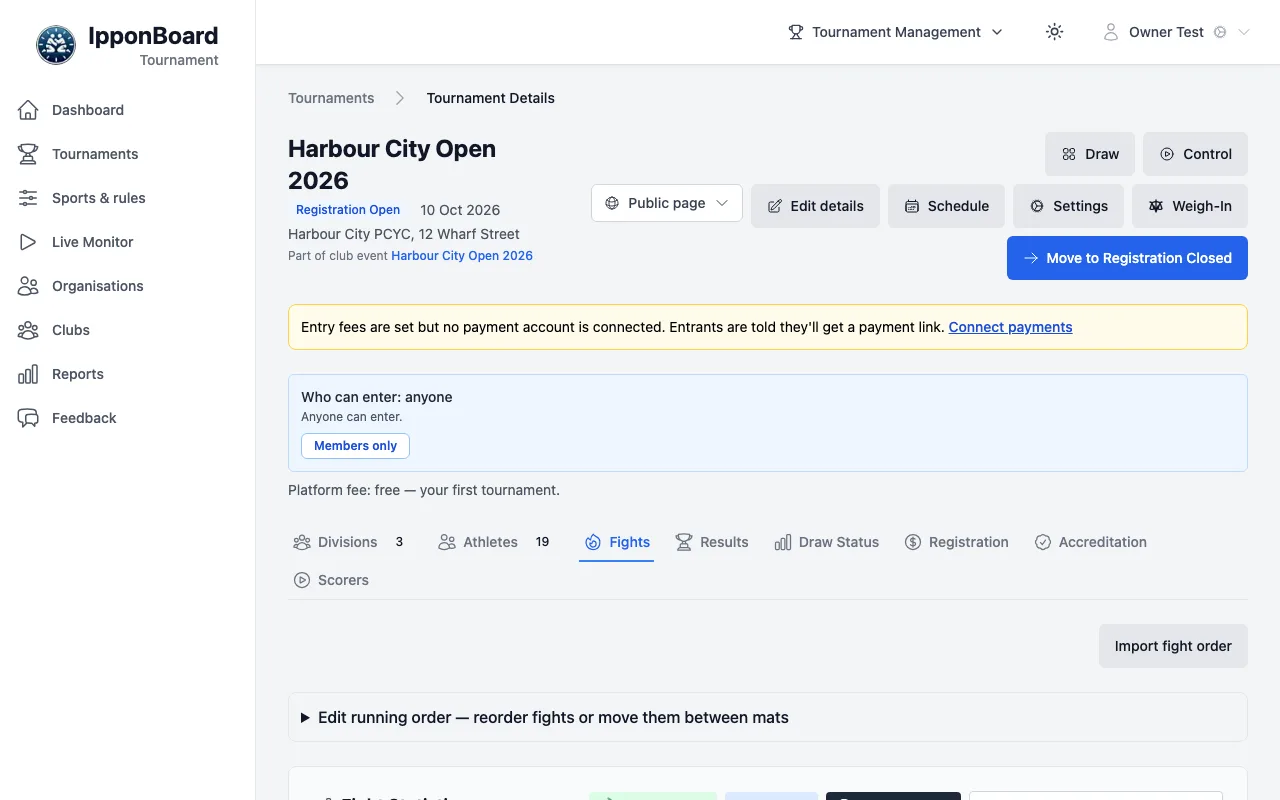
The Fights tab shows every bout, with Schedule PDF, Import fight order and Edit running order — reorder fights or move them between mats. To share it, click Public page at the top, then Share fight order: anyone with the link sees each mat's bouts and times.
B. Run the day
Each mat has a scoreboard running the IpponBoard app. The boards score the bouts; you watch the mats and step in from the Control page. Here's a morning in 40 seconds:
Put a board on each mat
On each mat's board, sign in, pick the tournament and choose the mat. That's Get started with IpponBoard, Track B and Connecting the Scoreboard. The board waits on its mat (Mat 1 starts at 9:00) and can practise until then.
Open the Control page
Click Control at the top of the tournament to open Tournament Control, the Control page. Organisers, the organisation's scorers and the club's coaches can open it.
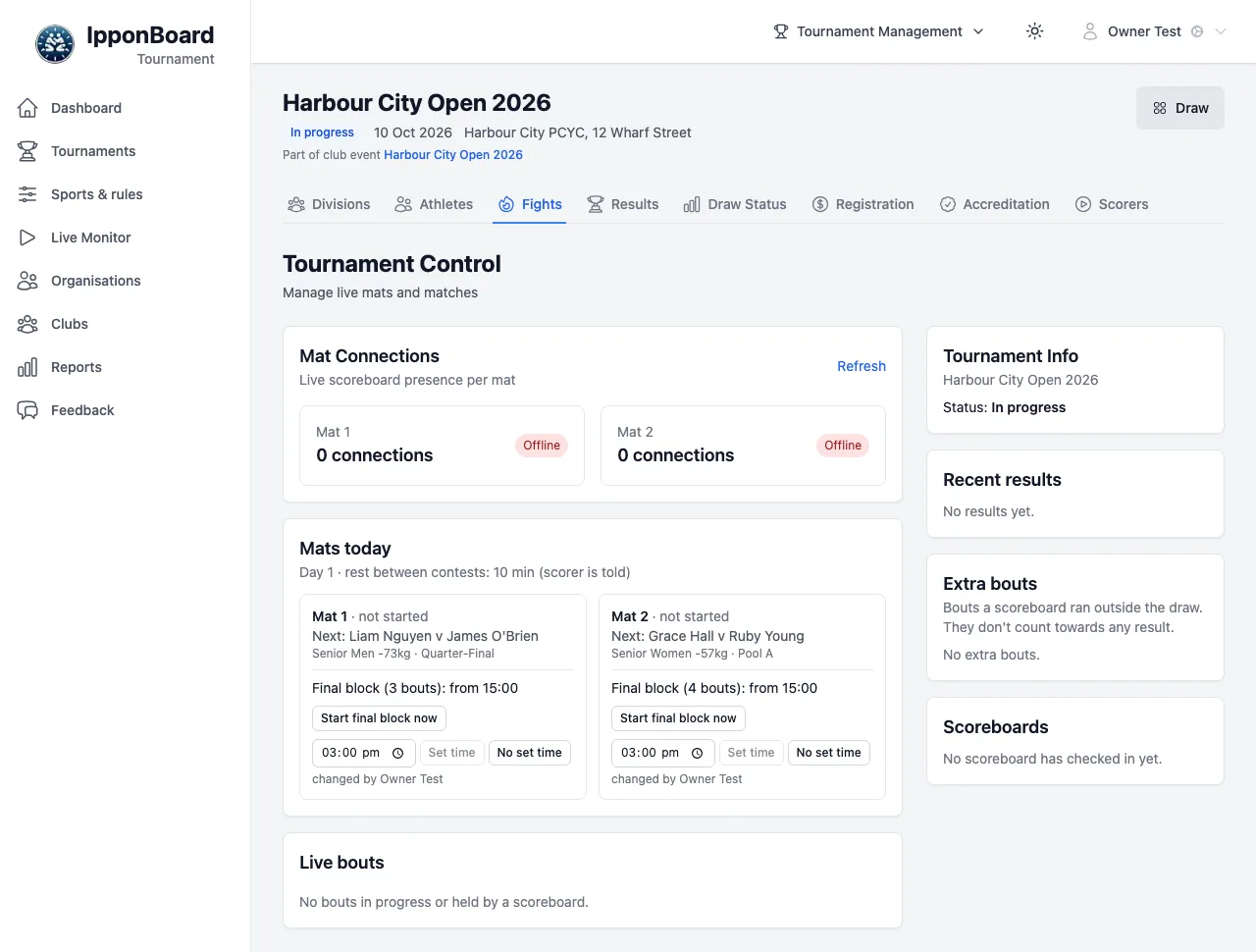
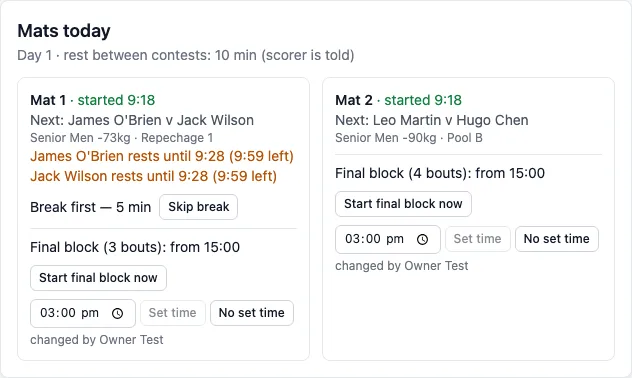
The mats start
Each board starts its own mat (Start Mat 1 on the board). Mats today then shows Mat 1 · started and the time, the next bout, who is still resting, a break coming up (Skip break) and the final block (Start final block now, or set its time).
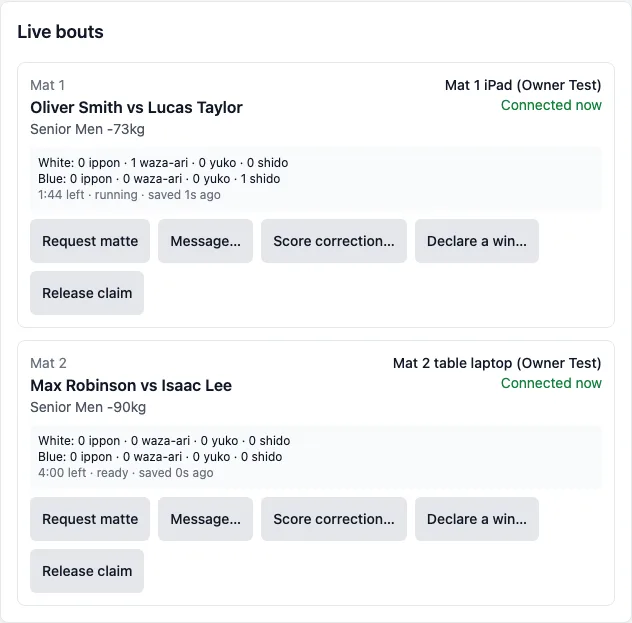
Follow the bouts
Live bouts shows each bout a board is scoring, which board holds it and its score. From there you can send that board Request matte, Message…, Score correction… or Declare a win…; the table applies it. Scoreboards lists every board and whether it's connected. The page doesn't update by itself: click Refresh.
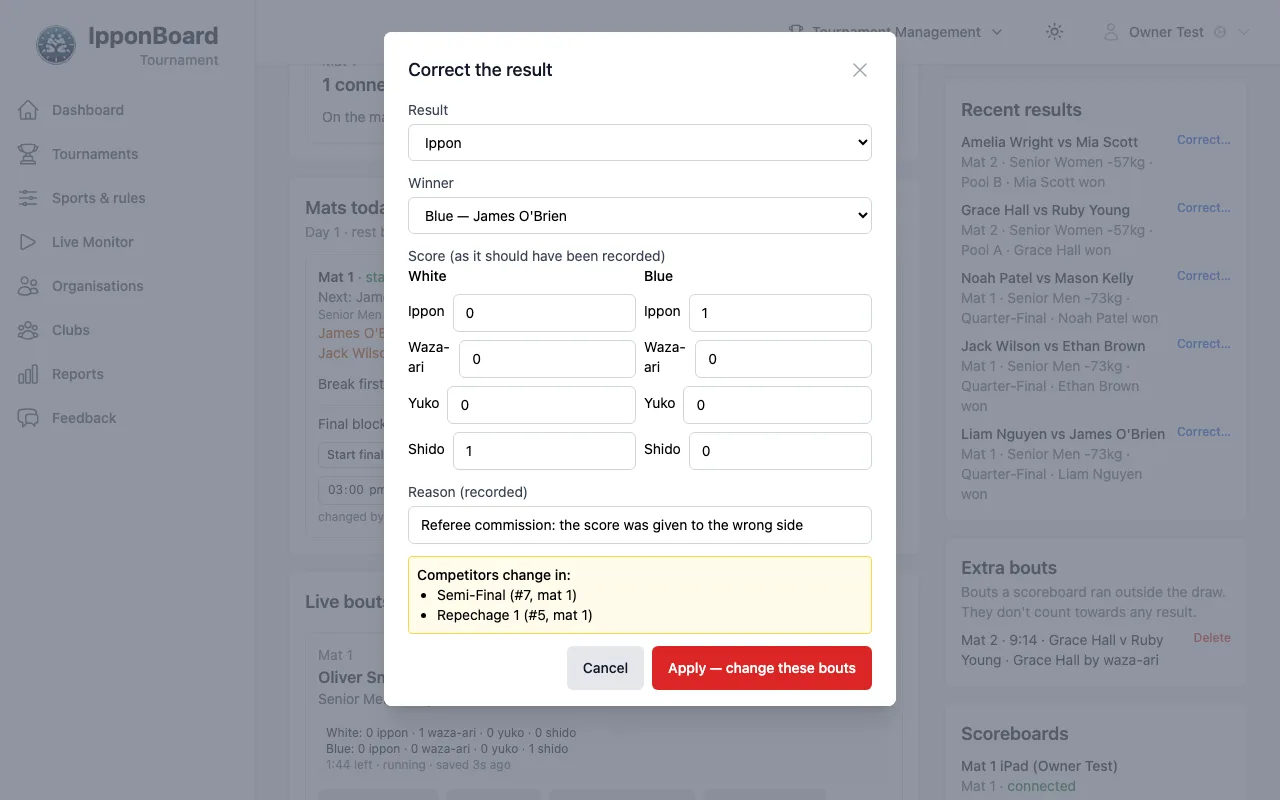
Correct a result
Under Recent results, click Correct…. Set the Result and Winner as they should have been, write the Reason (recorded), and click Check what changes. It lists the bouts the correction changes; click Apply — change these bouts (or Apply correction when nothing else changes).
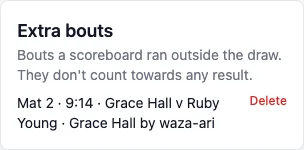
Extra bouts
A bout a board ran outside the draw (a warm-up, a friendly) is listed under Extra bouts. It doesn't count towards any result; Delete removes it from the list.
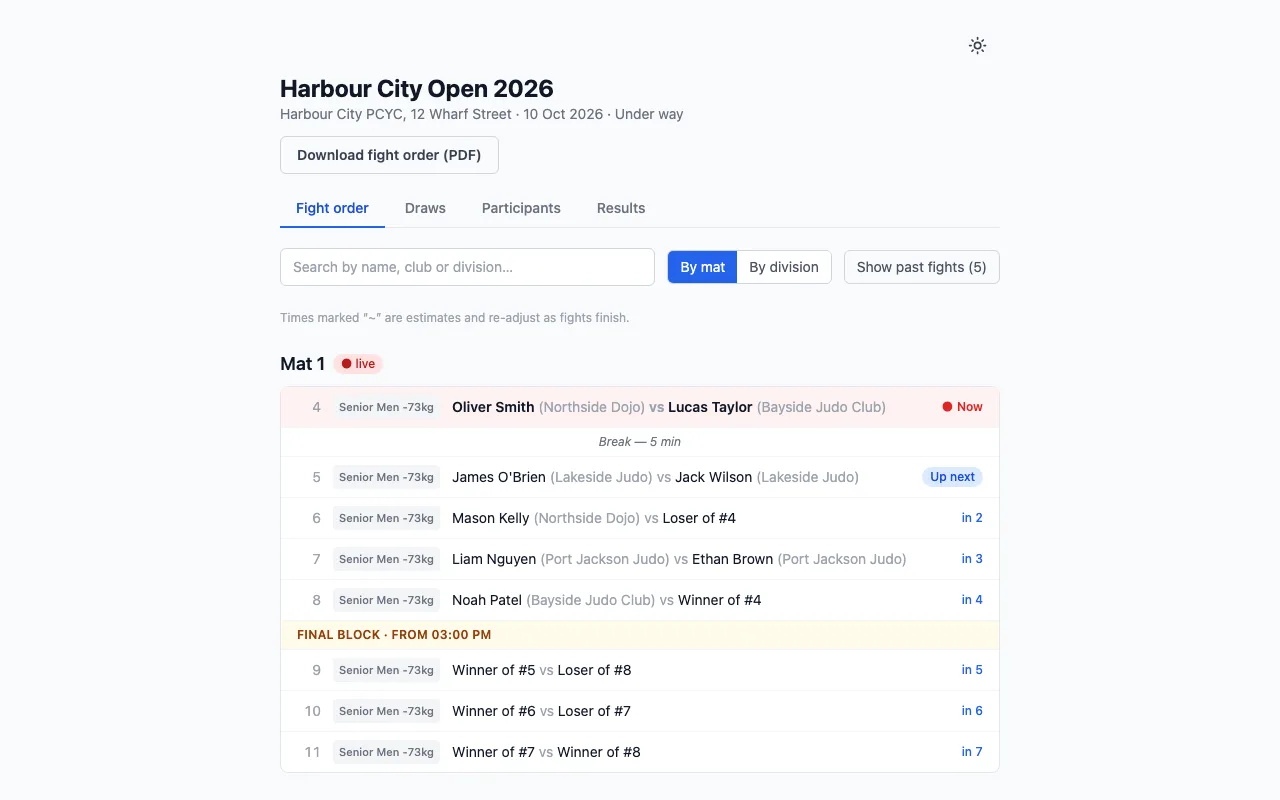
What everyone else sees
The public page's Fight order shows each mat live: the bout Now, Up next, breaks, the final block and estimated times. It refreshes by itself. More in Running the Day (Control).
C. After the event
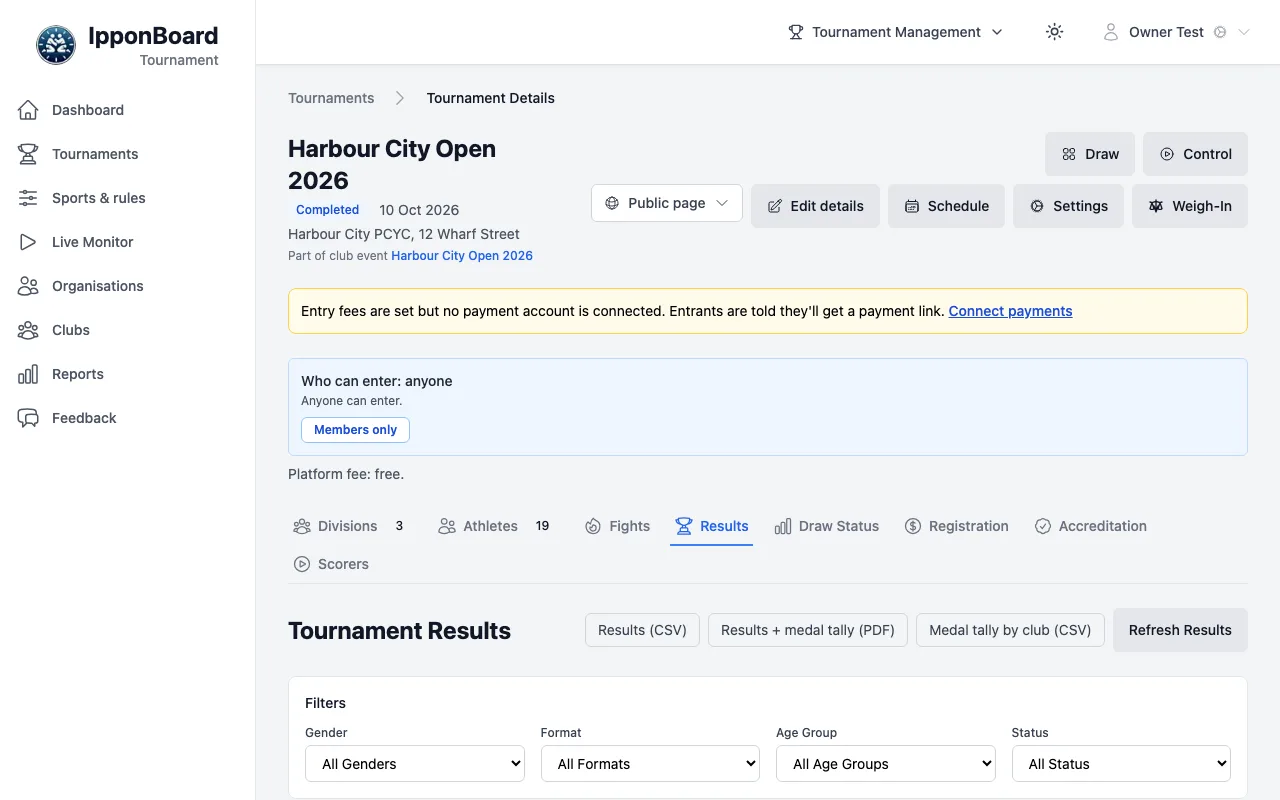
Read the results
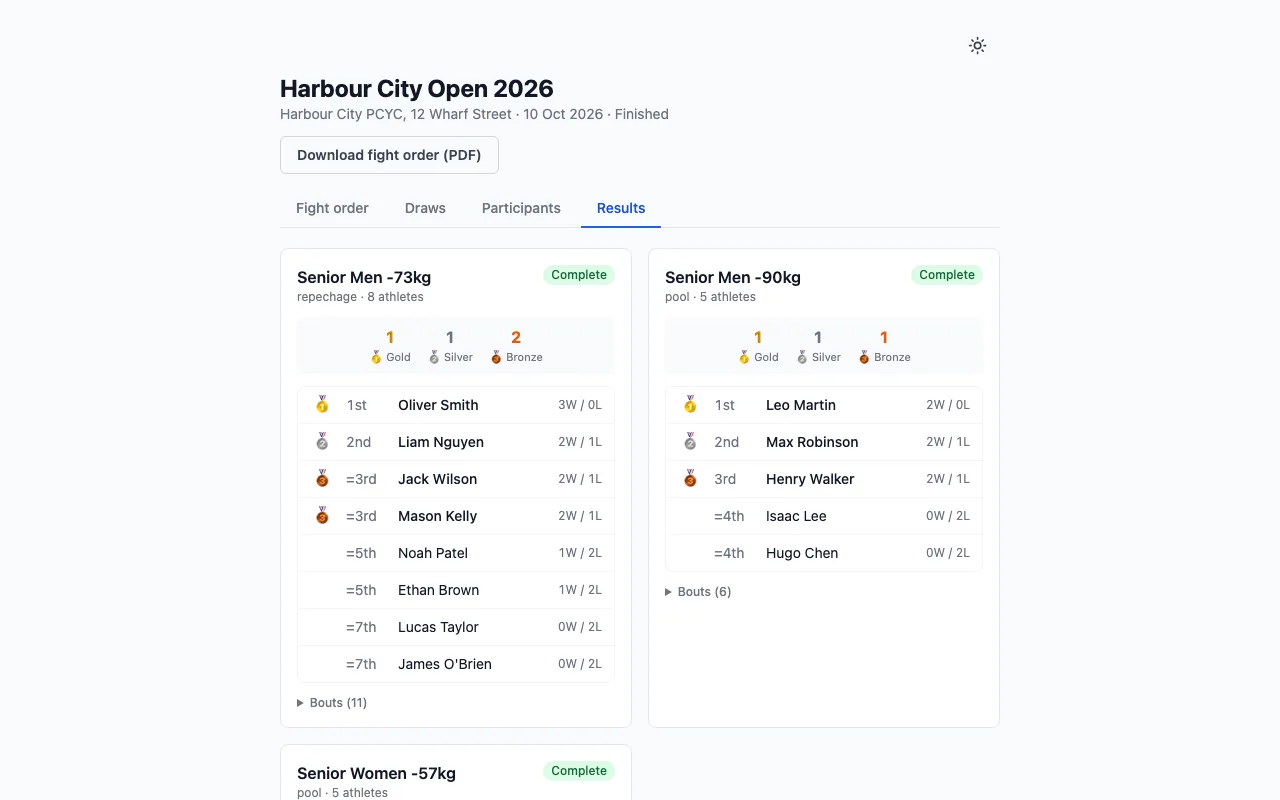
The Results tab shows each division as Complete or In progress, with its medals and top results. It loads when you open it: click Refresh Results for the latest. Medals only appear once the deciding bouts are fought.
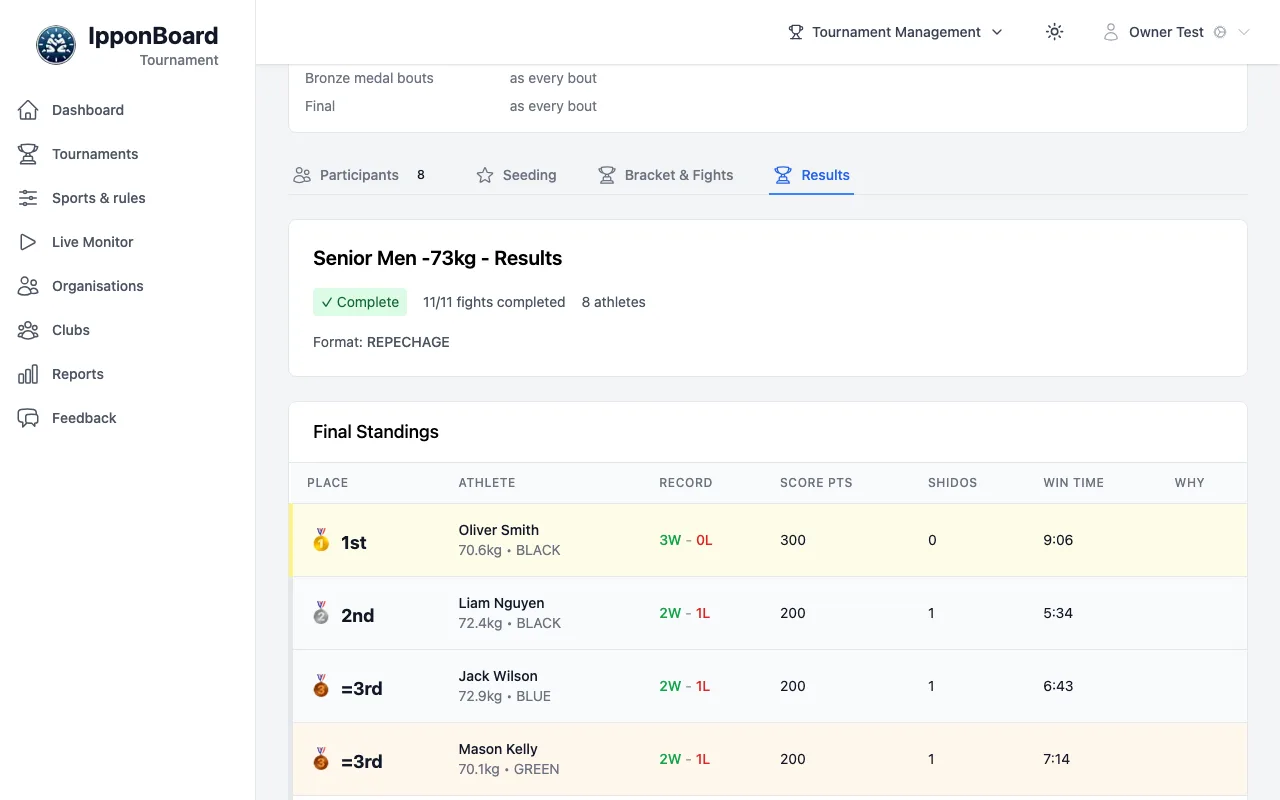
Hand out the medals
Click a division, then its Results tab: Final Standings lists each place with its record. That's the sheet for the podium.
Export and share
Results (CSV), Results + medal tally (PDF) and Medal tally by club (CSV) download the results. While Results & winners is on under Public page (it starts on), the public page has a Results tab.
Close the tournament
The button at the top moves the tournament on, one step at a time: Move to Registration Closed, Move to In Progress, then Move to Completed. There's no going back a step, so do the last one when the results are final.
The detailed guides, in order
- Your Organisation & Roles — Organise under your club or an organisation, and who can do what.
- Adding Athletes (CSV) — One at a time, or a whole roster from a spreadsheet.
- Registration Form & Custom Fields — What entrants are asked, and your own extra fields.
- Waivers & Agreements — Liability waiver, photos, code of conduct: signed on entry or at the desk.
- Registrant Self-Service — How competitors enter, get their link, and pay.
- Payments & Accreditation — Entry fees, who's paid, and the desk on the day.
- Clubs & Coaches — Competitors' clubs: picking, linking and merging them, and coaches filling in aptitude.
- Schedule, Rules & Weigh-in — Competition days, breaks and rest, bout times, weigh-in.
- Drawing the Tournament — The draw wizard, draw formats, and laying out the mats.
- Connecting the Scoreboard — Sign a board in to the event, pick its mat, and add volunteer scorers.
- Running the Day (Control) — Mats today, live bouts, correcting a result, extra bouts.
- Team Events — Team divisions, entering teams, and line-ups.
- Aptitude Matching — Come-and-try days: fair bouts matched by a 1–5 aptitude.
- Results & Medals — Standings, medals, exports and the public results.