Creating and managing plans
Make a membership plan, change it, add a member to it by hand, and turn it off.
5 minutes
Owner or Manager
Sidebar → Membership Plans
Create a plan
Open the form
In the sidebar, open Membership Plans and click Create Plan.
Name it and pick its type
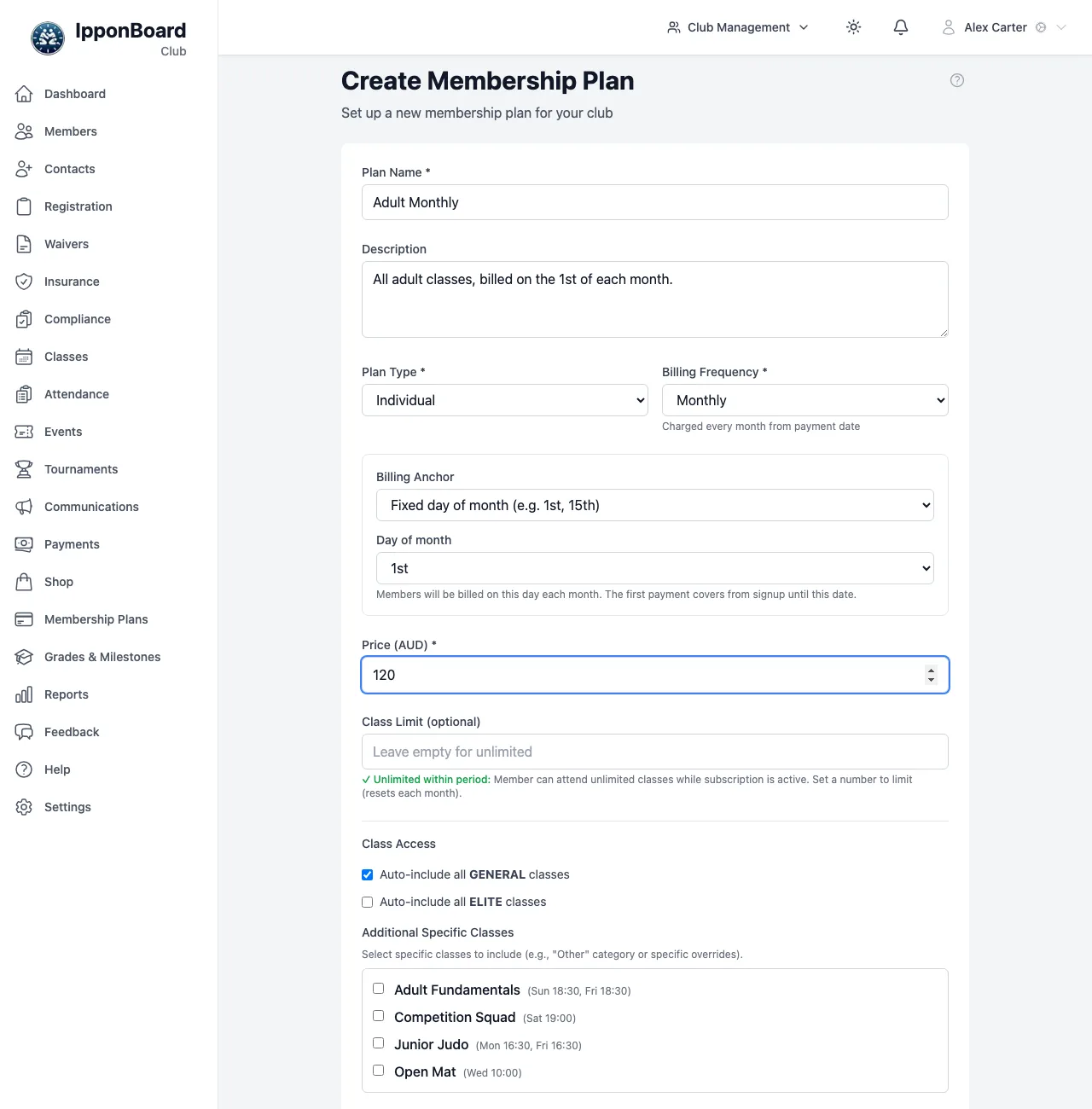
Fill in Plan Name (members see this, so keep it plain, like "Adult Monthly") and, if you like, a Description. Choose a Plan Type: Individual, Family, Elite Training or Custom. A Custom plan also asks for a Custom Plan Type Name.
Choose how it's billed
Pick a Billing Frequency: Monthly, Term-based, Fixed Duration or One-time (Drop-in). Monthly plans also have a Billing Anchor that sets which day members are charged. See Plan types and billing for what each one does.
Set the price
Enter the Price. If you want to cap how many classes a member can come to, fill in Class Limit (optional); leave it empty for unlimited. The text under the box explains what the limit means for the billing you picked.
Fill in the extra billing details
Some choices ask for more. A Family plan asks for Max Family Members and Price Per Additional Member. A Term-based plan asks for a Term Schedule and Terms Per Billing. A Fixed Duration plan asks for Duration Value and Duration Unit.
Choose the classes it covers
Under Class Access, tick Auto-include all GENERAL classesand/or Auto-include all ELITE classes, and tick any extra classes under Additional Specific Classes. See Class access.
Check the settings and save
Under Settings, check the boxes (explained below), then click Create Plan.
The settings boxes
- Plan is active: untick it to turn the plan off.
- Visible to members: untick it to hide the plan in the member portal, for example for a coach or scholarship plan you only assign yourself. Members already on it still see it.
- Show in quick billing: shows the plan in the list when staff take a payment in Payments. See Taking payments.
- Allow auto-payment: lets members pay this plan automatically from a saved card.
- Send payment reminders, with Send reminder (days before due date): emails members before a payment is due.
A plan's page
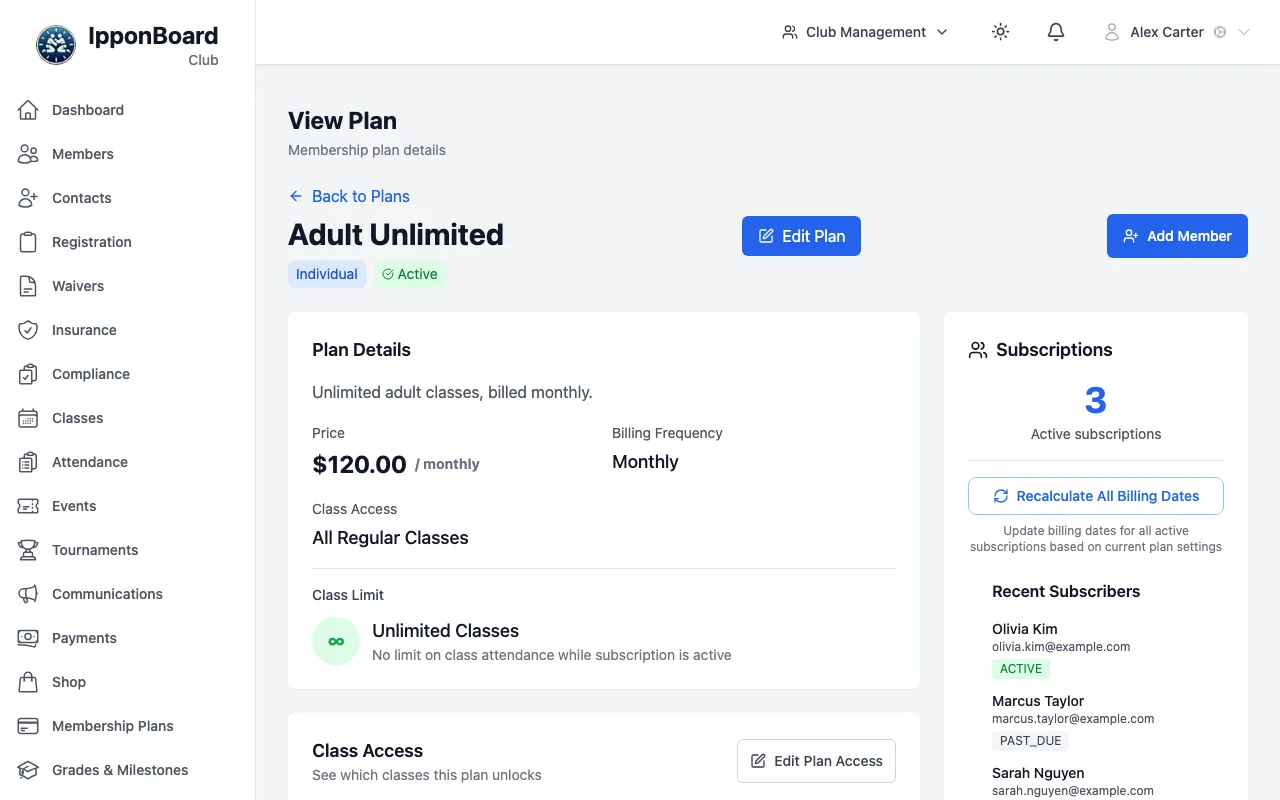
Click View Details on a plan card. The page shows the plan's details, the classes it covers, its settings and, on the right, its subscriptions and the most recent subscribers. From here you can:
- Edit Plan (or Edit Plan Access next to the class list) to change it.
- Add Member to put a member on the plan by hand (below).
- View All Subscribers to see everyone on the plan, with their status, start date, next billing date and auto-pay. Use Filter by Status to show only Active, Past Due, Cancelled or Pending. Click a row to open that subscription.
- Recalculate All Billing Dates (recurring plans with active subscribers) to work out each subscriber's next billing date again from their last payment, or their start date if they haven't paid yet.
Change a plan
Open the plan
Click the pencil on its card, or Edit Plan on its page.
Make your changes
The form is the same as when you created it.
Save
Click Save Changes.
If you change the Billing Anchor on a plan that already has active subscribers, the form shows each subscriber's Current billing date and New billing date. Click Save & recalculate all now to move them all straight away, or Save Changes to leave their dates alone until each member next pays. A date that would move earlier is skipped.
Add a member to a plan by hand
Use this to fix a mistake or move someone across from another system. It doesn't charge anyone. To take a payment, use Payments instead.
Open Add Member
On the plan's page, click Add Member.
Find the member
Type at least two letters of their name and click them in the list.
Family plans: pick the family
On a Family plan, tick the family members linked to that member under Select Family Members (Optional), then click Skip / Next.
Say how it was paid and assign
Choose a Payment Method (for example Cash, Bank Transfer, Invoice (Bill Later) or Waived (Scholarship/Coach)), add any Notes (Optional), and click Assign Plan.
Turn off or delete a plan
- Click the bin on an active plan's card and then Deactivate. The plan is hidden from members. The bin is greyed out while the plan has subscriptions. You can also untick Plan is active when you edit the plan.
- To delete it for good, tick Show inactive plans, click the bin on the inactive plan and then Delete Permanently. A plan that has ever had a subscription can't be deleted, so it stays inactive instead.