Get started with IpponBoard
Score on your board today, on its own. When you're ready, run a whole tournament with your boards on the mats.
Track A
Your board on its own
Works offline. No account and no tournament needed.
Track B
Running a tournament with your boards
Draws and mats at app.ipponboard.com; each mat's bouts on its board.
A. Your board on its own
Open IpponBoard on an iPad, a phone, a Mac or a Windows PC and it's ready to score. It works offline, with no account and no tournament. Here's the whole thing in 30 seconds:
Scoring a bout
Give and take off scores
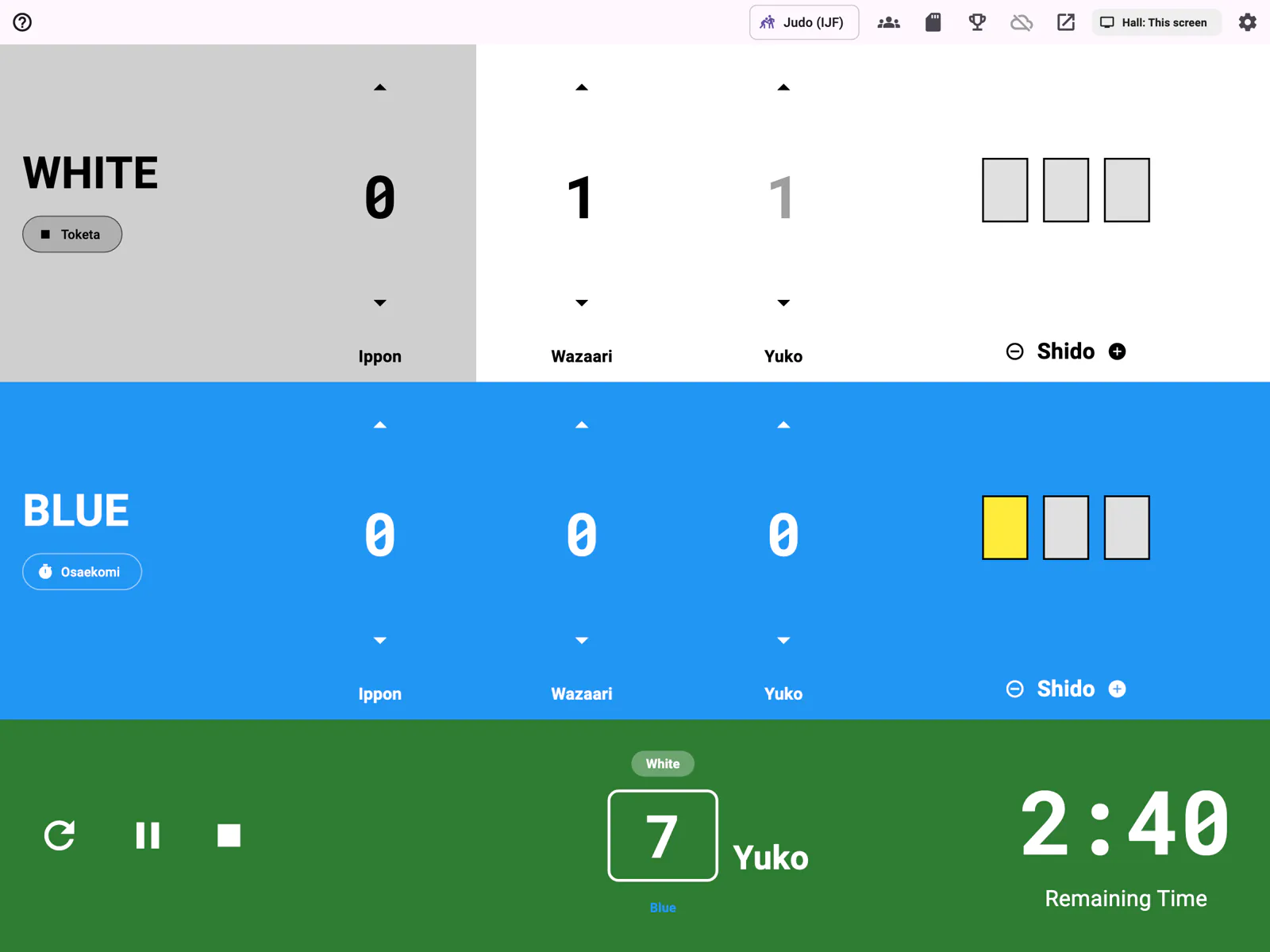
Tap the ▲ above a score to give one, and the ▼ below it to take one off. For shido, tap ⊕ to give one and ⊖ to take one off.
Run the clock
In the bar at the bottom (it turns green while the clock runs), ▶ starts the clock and ⏸ pauses it. With a keyboard, the space bar does the same. To set the time, pause the clock and tap the time.
Time a hold-down
Tap Osaekomi under the athlete who is holding. The count runs in the bar at the bottom and the button changes to Toketa: tap it when the hold breaks.
Next bout
Tap the round arrow ↻ at the left end of the bar at the bottom (its first button). The scores and the clock go back to the start.
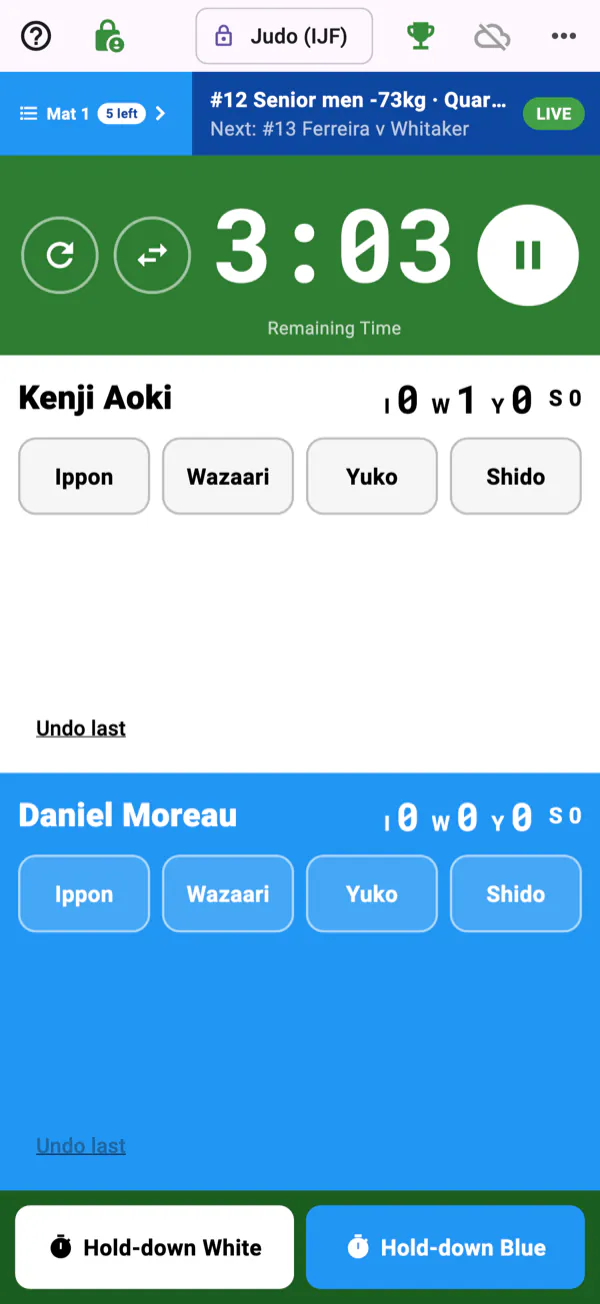
It runs on phones too. On an iPhone held upright, the board shows the essentials: every score, the clock and the hold-down, with the rest under More (⋯).
Choosing a sport and its rules
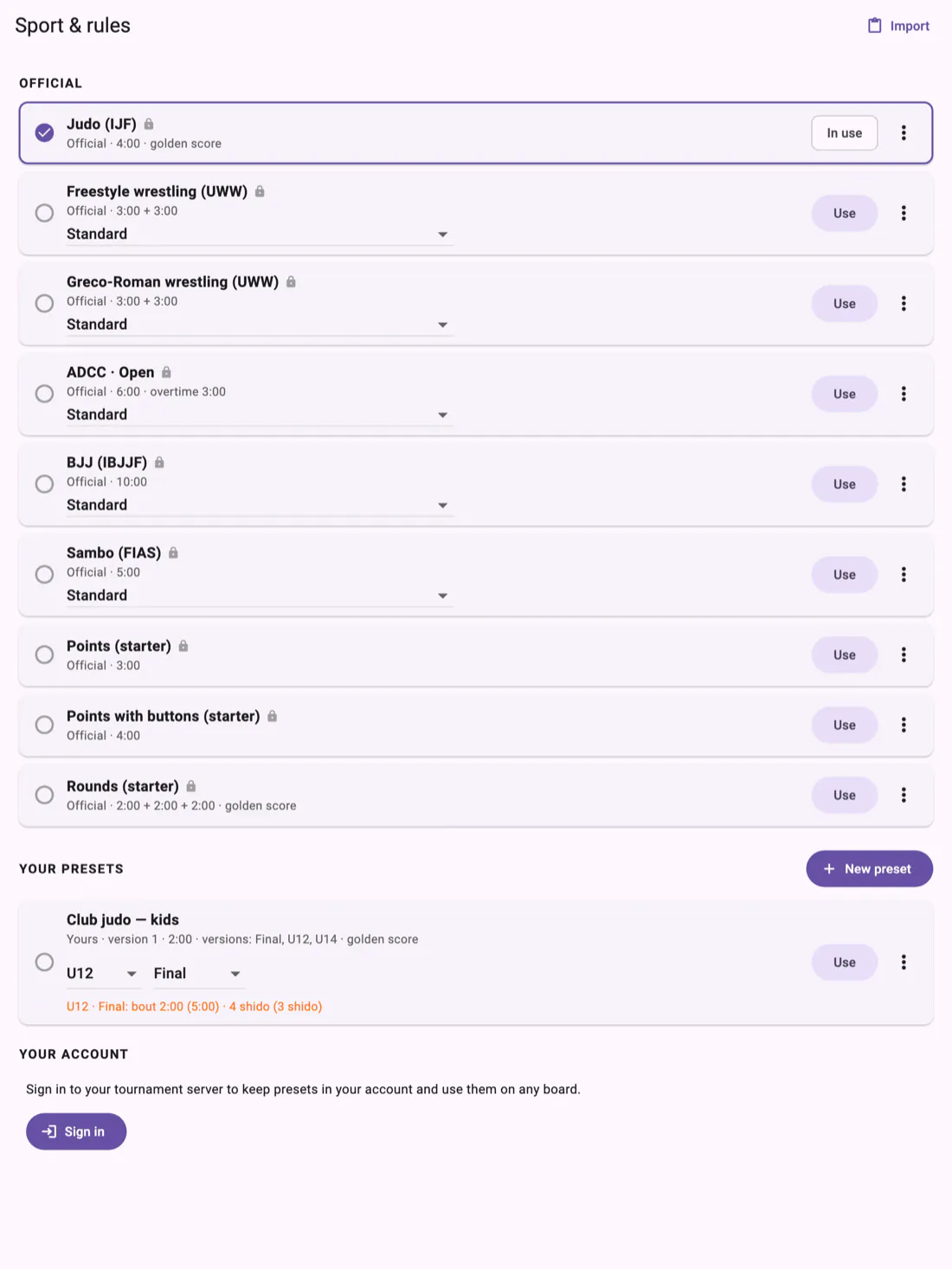
Open Sport & rules
Tap the sport button at the top of the board. It shows the rules in use, for example Judo (IJF).
Pick one and tap Use
Under Official are judo, freestyle and Greco-Roman wrestling, ADCC, BJJ, sambo and three simple starter boards. Some have a choice under their name (it reads Standard): set it first, then tap Use.
Back to the board
The board now scores with those rules. If a bout is under way, the board asks first, because switching clears its scores and clock.
Making your own rules
Start a preset
In Sport & rules, tap New preset. Or, to start from official rules, tap the menu button at the right of them (⋯, or ⋮ on Windows) and choose Duplicate and edit.
Set it up
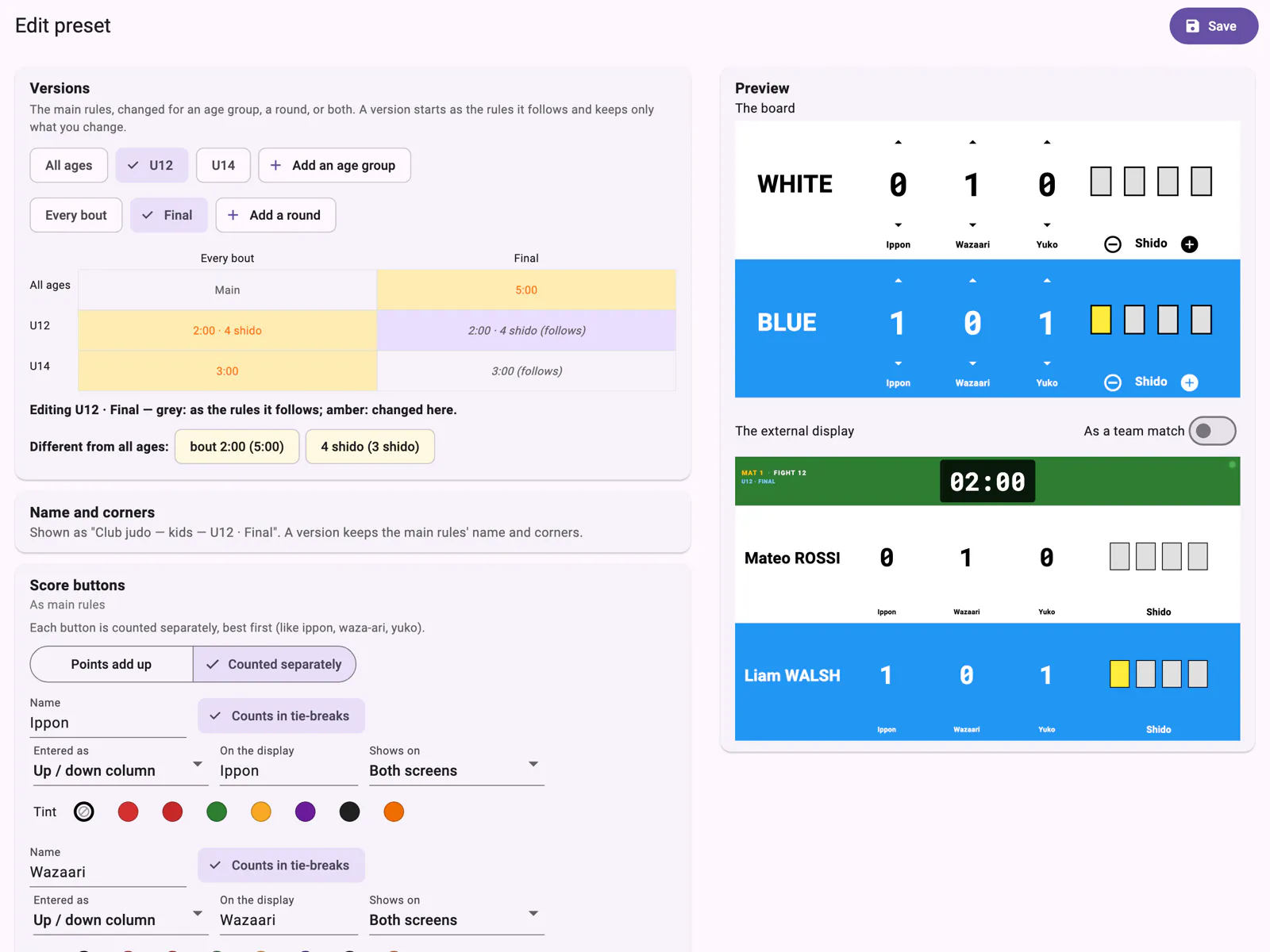
Give it a name under Name and corners, then work down the page: score buttons, penalties and warnings, the clock, the hold timer, how a bout is won, actions and extras. The Preview shows the board and the hall's screen as you go.
Versions by age and round
Under Versions, tap Add an age group or Add a round to change the rules for, say, U12 or the Final. A version keeps only what you change there; everything else follows the main rules. Versions with their own changes show amber in the grid.
Save and use it
Tap Save. Your preset is under Your presets. If it has versions, choose the age and the round in the boxes under its name, then tap Use.
The big screen for the hall
On a Mac or Windows PC
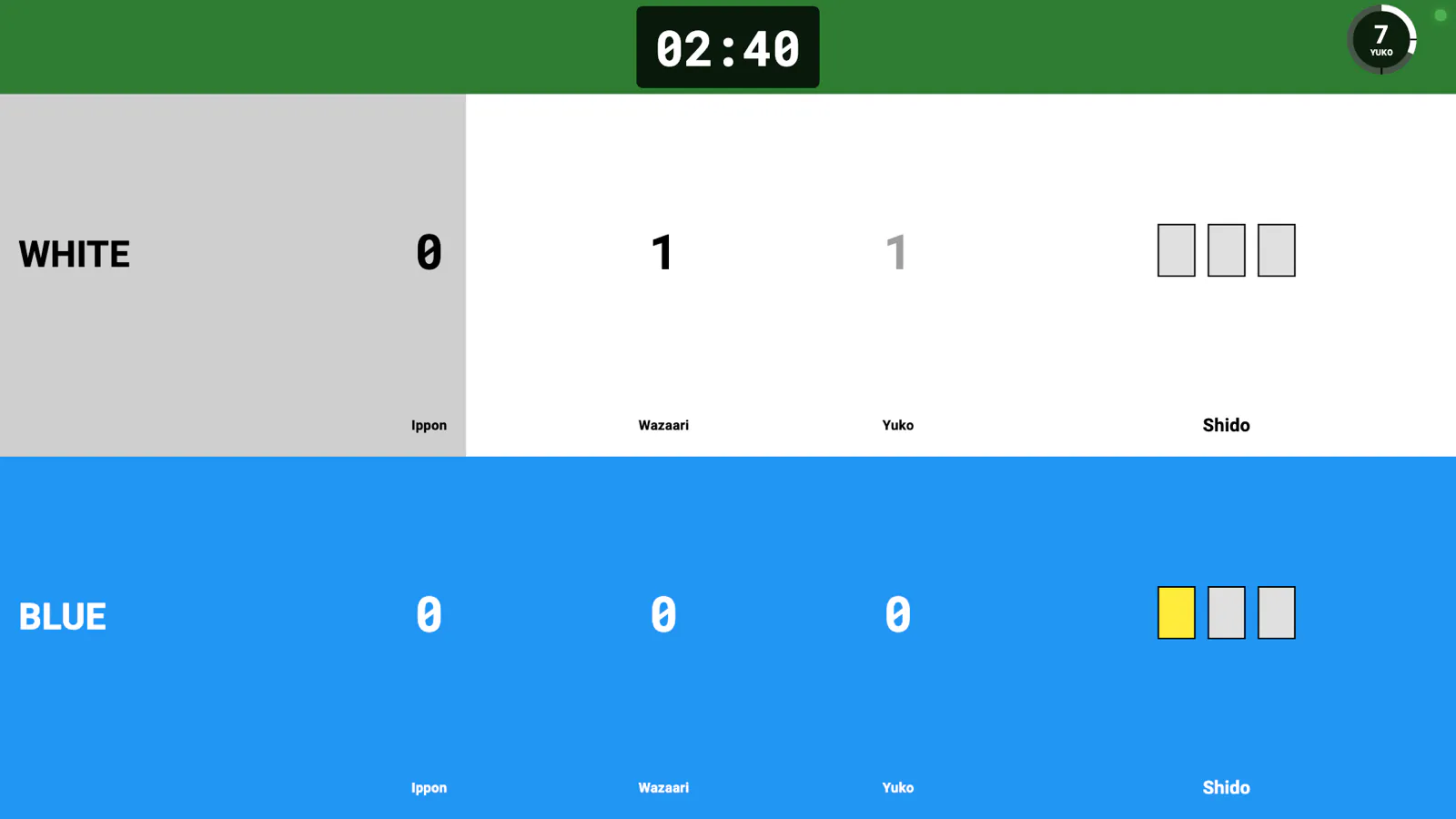
Tap the open-window icon at the top (Open Dedicated Scoreboard Window). A second window shows the scoreboard alone. Move it to the hall's screen; you keep the controls on yours.
On an iPad
Connect the hall's screen with a cable or Screen Mirroring (AirPlay). Then tap the Hall: button at the top: with a screen attached, TV screen lets you choose Scoreboard only or Mirror this screen.
Between bouts
The Hall: button also has Stand by… ("Please stand by", a ceremony, or your own words, until you turn it off) and Show the bout to bring the scoreboard back.
Quick team matches
Open Team match
Tap the team icon at the top of the board (Run a team match). It's on the board on its own; in a tournament, team matches come with the tournament's bouts.
Two team names
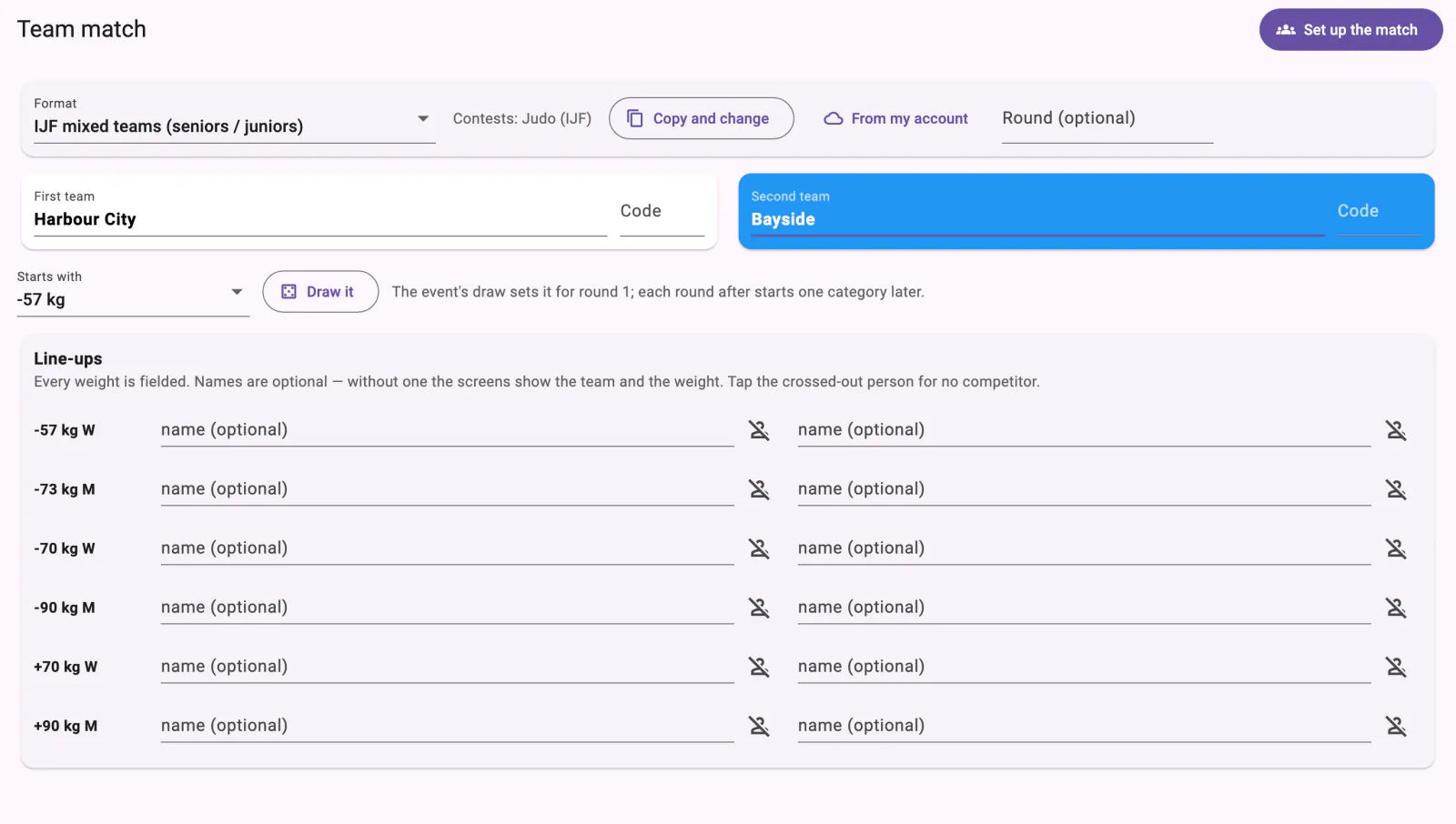
Choose a Format, then type the First team and Second team names. Two team names are all it needs.
Line-ups (optional)
Every weight is fielded. Names are optional: without one, the screens show the team and the weight. Tap the crossed-out person for no competitor at a weight.
Start
Tap Set up the match. To make your own format, tap Copy and change.
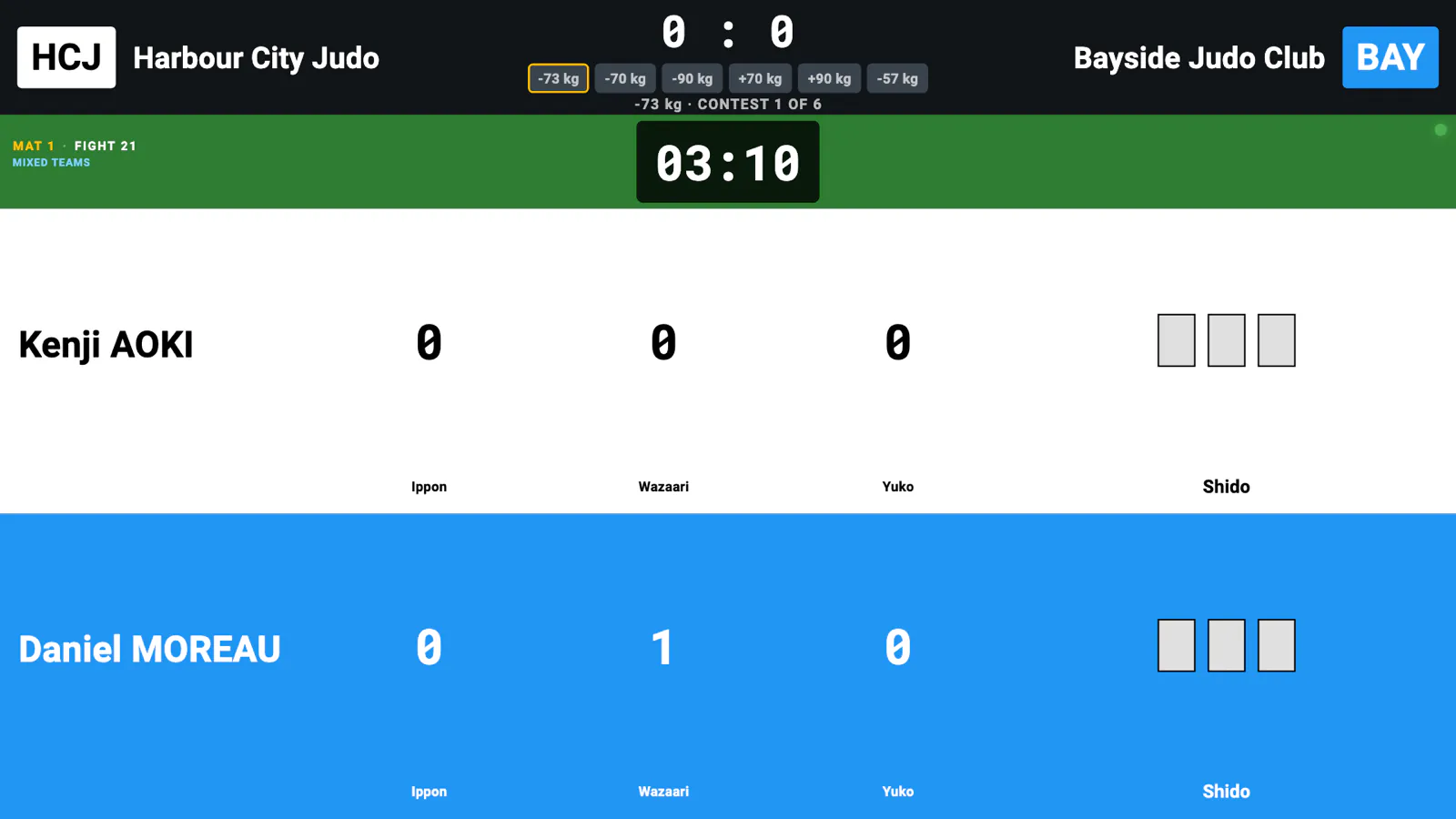
Signing in so your presets and team formats follow you
Create a free account from the board
Now and then the board asks about Your free IpponBoard account. Tap Create account: the sign-up page opens in your browser. Under Link your board, the board's code is already filled in (check it matches the board); when you create the account, the board signs itself in straight away (we also email you a link to verify your address). You don't type a password on the board, and if you're not near a board, Not using a board right now? Skip.
Already have an account?
An account from your club or a tournament works too. Tap Sign in there, or tap the cloud button at the top of the board and sign in with your email and password.
Save your presets and team formats
In Sport & rules, tap the menu button at the right of your preset (⋯, or ⋮ on Windows) and choose Save to my account…. For a team format you made (with Copy and change), use Save to my account… in the team match screen.
On another board
Sign in with the same account. Your presets are under Your account in Sport & rules (Download or Use), and team formats are under From my account.
B. Running a tournament with your boards
Set up the event at app.ipponboard.com: competitors, divisions, the draw and the mats. Then each mat's board scores its own bouts, and the results come back by themselves.
Getting a board into your tournament
Do this on each mat's board. It starts from the board on its own; the two buttons you need are at the right of the top bar: 🏆 Tournaments and ☁ Account.

Sign in on the board
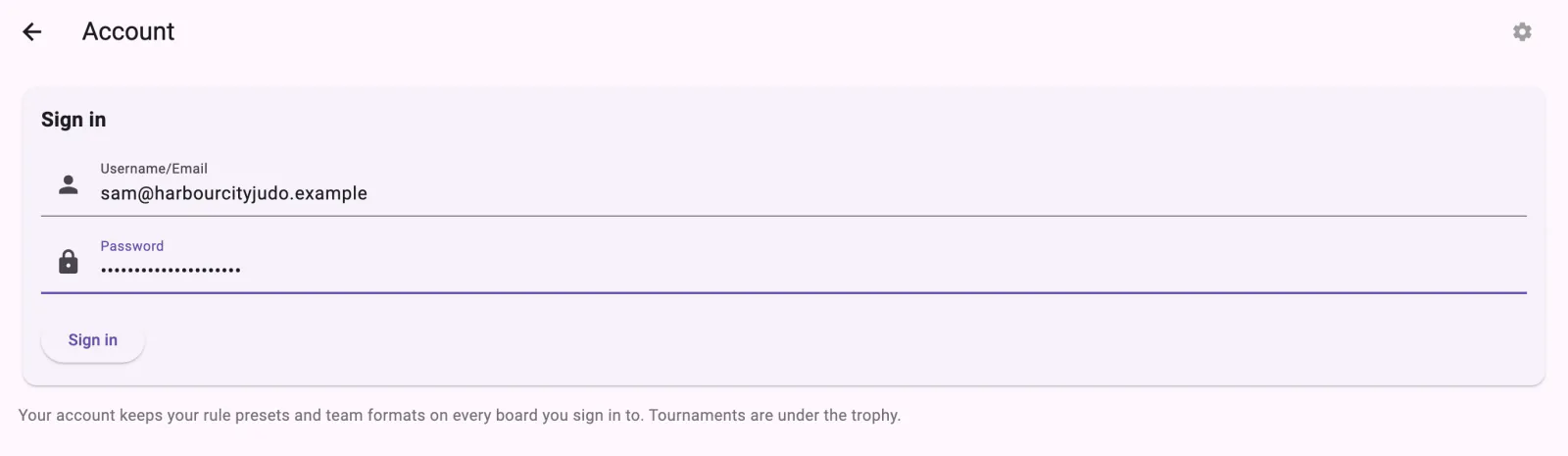
Tap ☁ Account (the cloud is crossed out while you're signed out). Under Sign in, type the Username/Email and Password of an account that's on the organising club or organisation, then tap Sign in.
Pick your tournament and connect
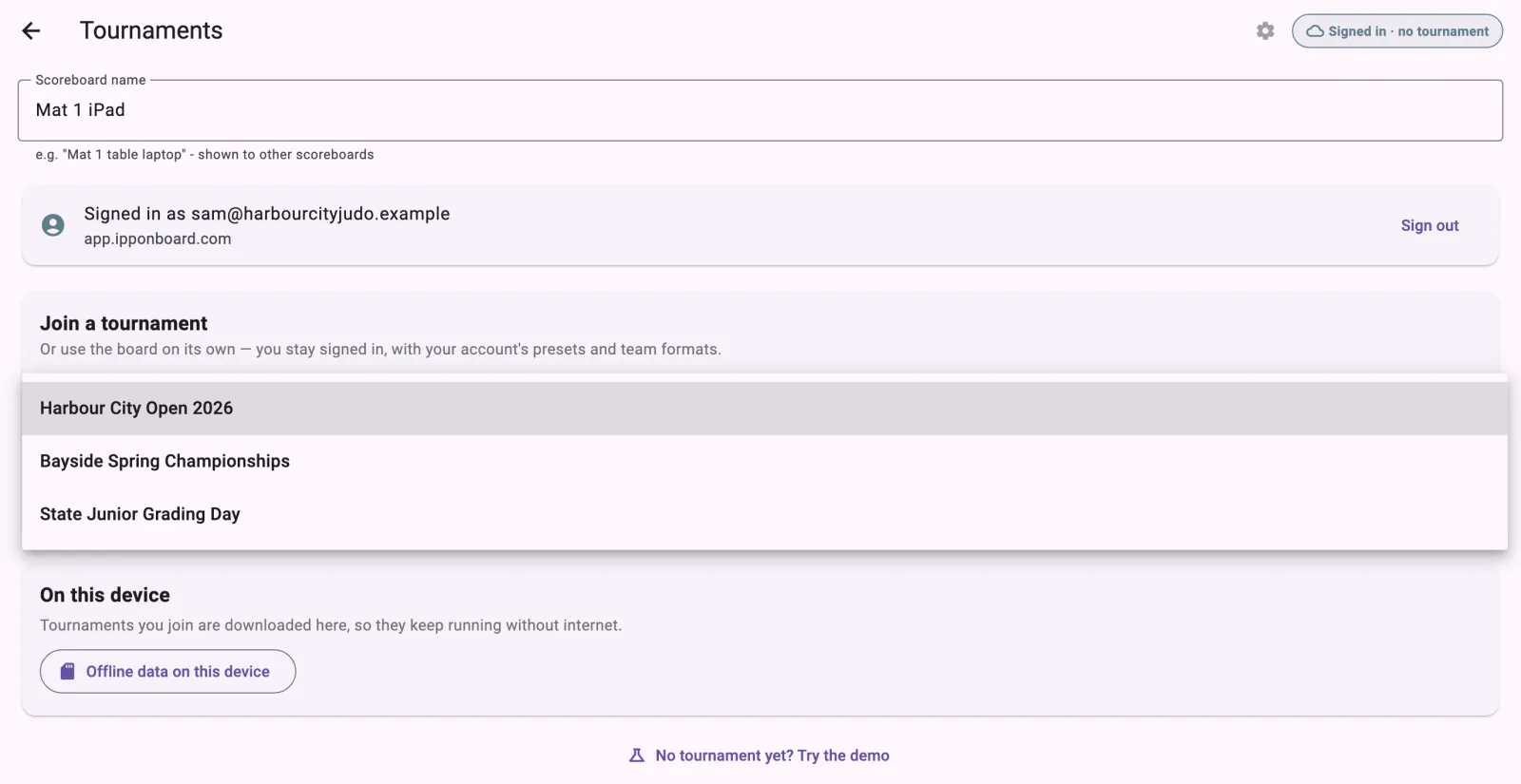
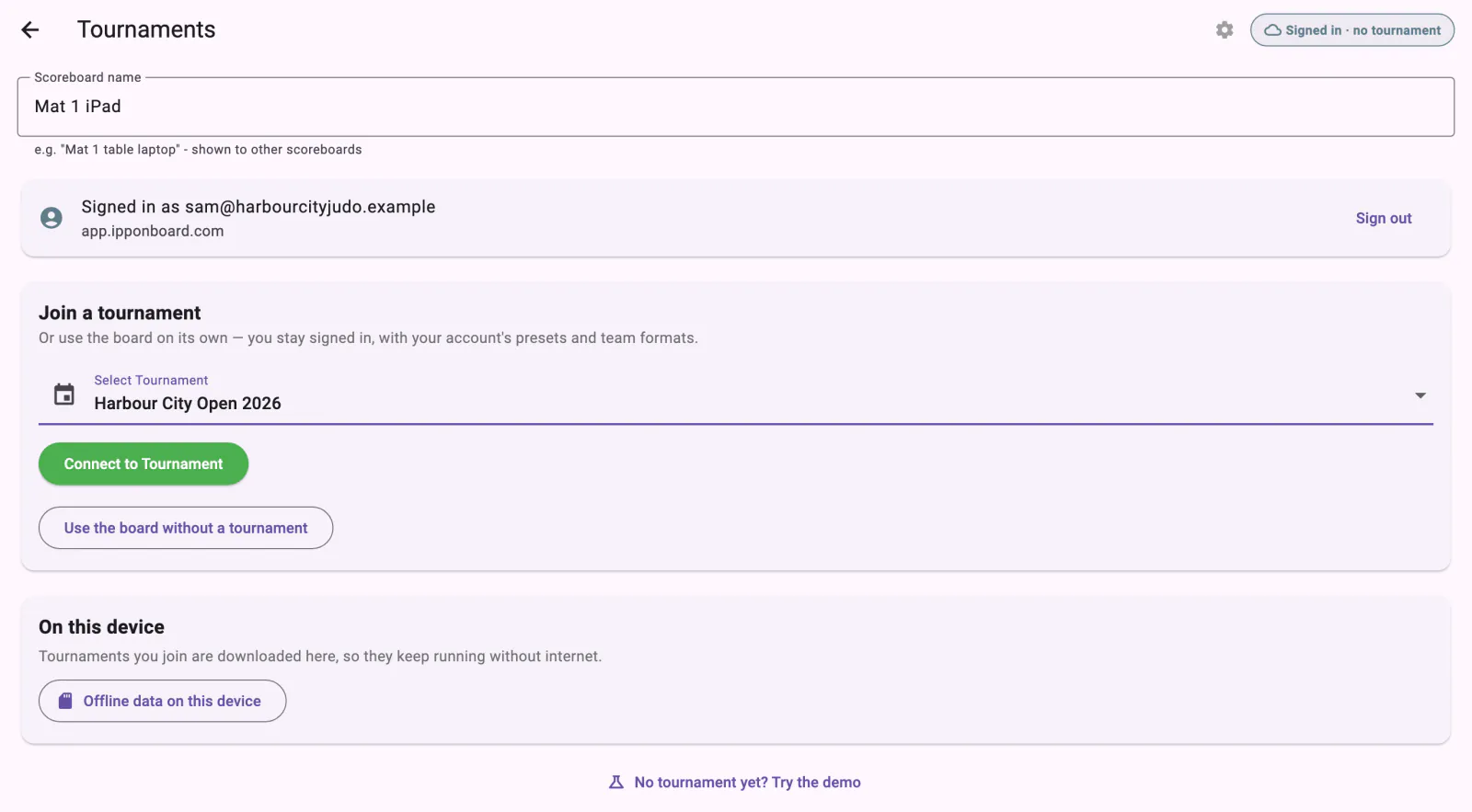
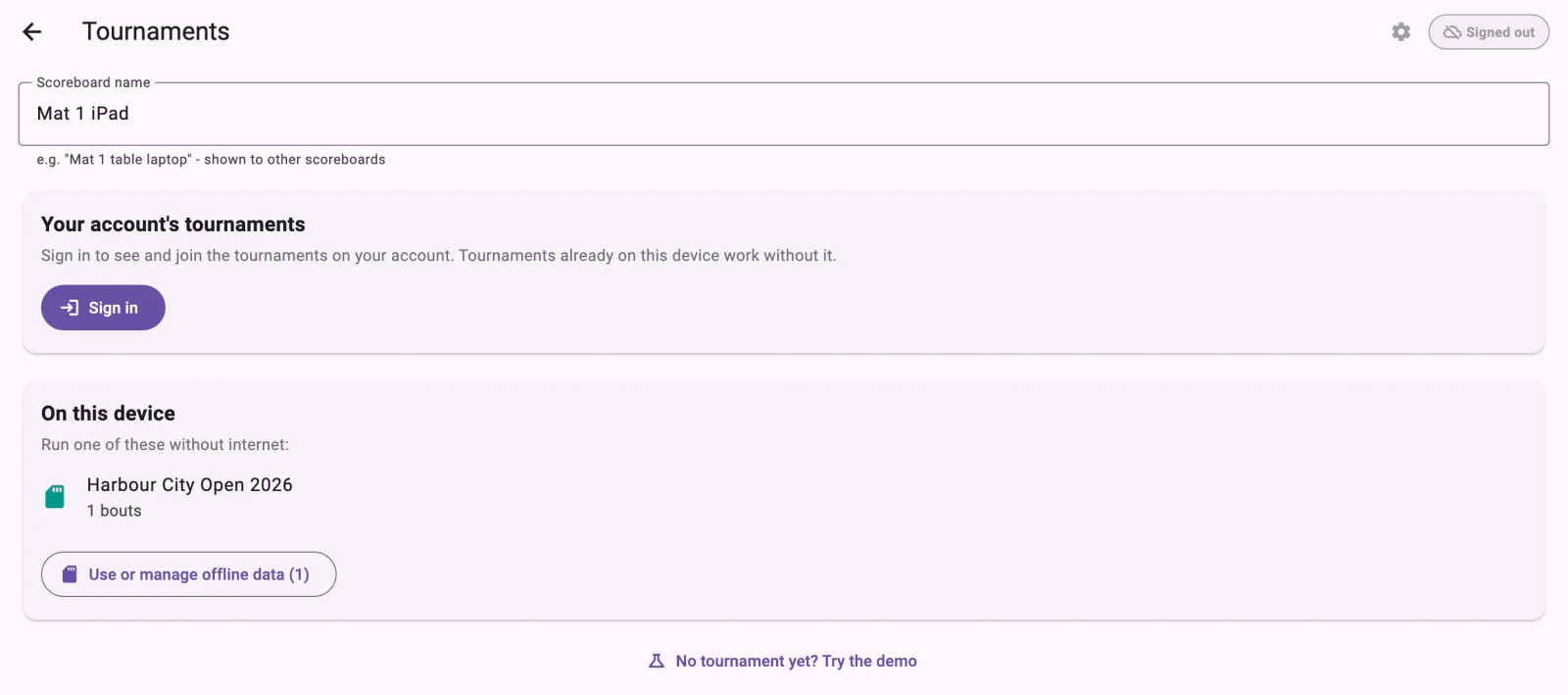
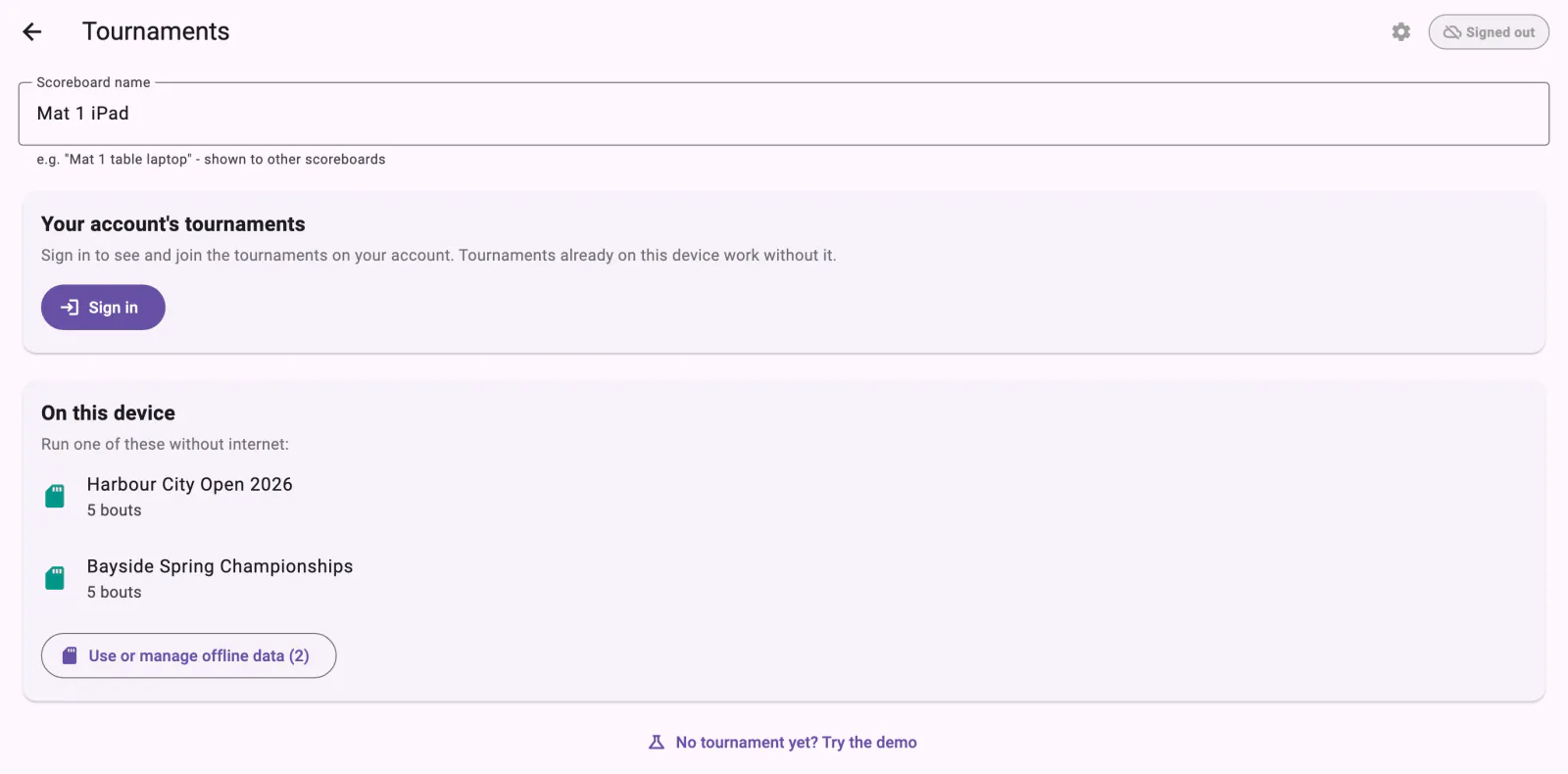
Tap 🏆 Tournaments. Under Join a tournament, open Select Tournament and pick yours (the list shows the tournaments your account can run), then tap Connect to Tournament. Give the board a Scoreboard name, for example "Mat 1 iPad", so other boards and the Control page can tell it apart: it's below the tournament sections on this screen, and also in Settings → This board.
Choose your mat, then start it
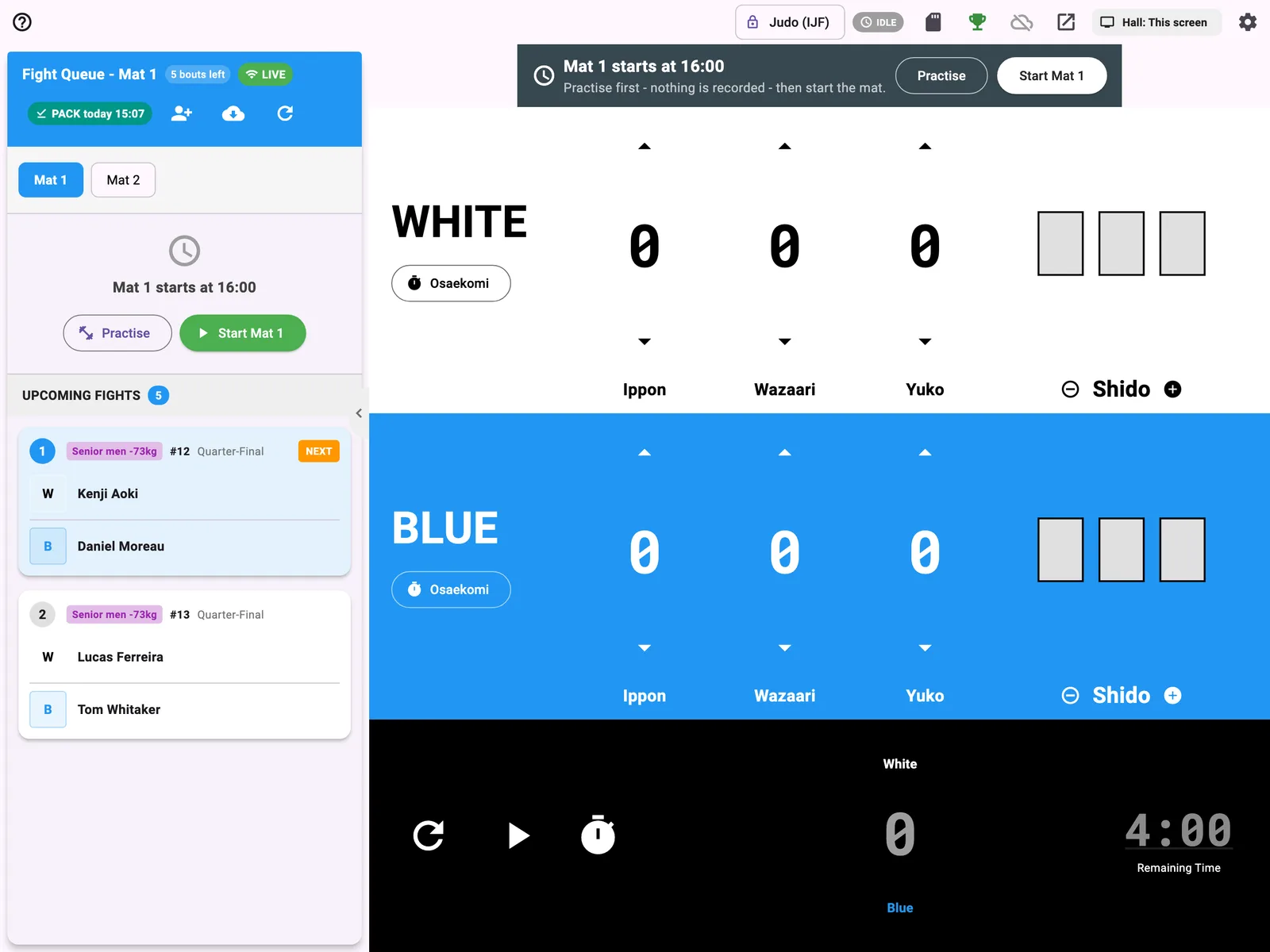
The board opens with the Fight Queue beside it. Tap your mat in the row of mat chips (Mat 1, Mat 2…); the header becomes Fight Queue - Mat N and shows only that mat's bouts.
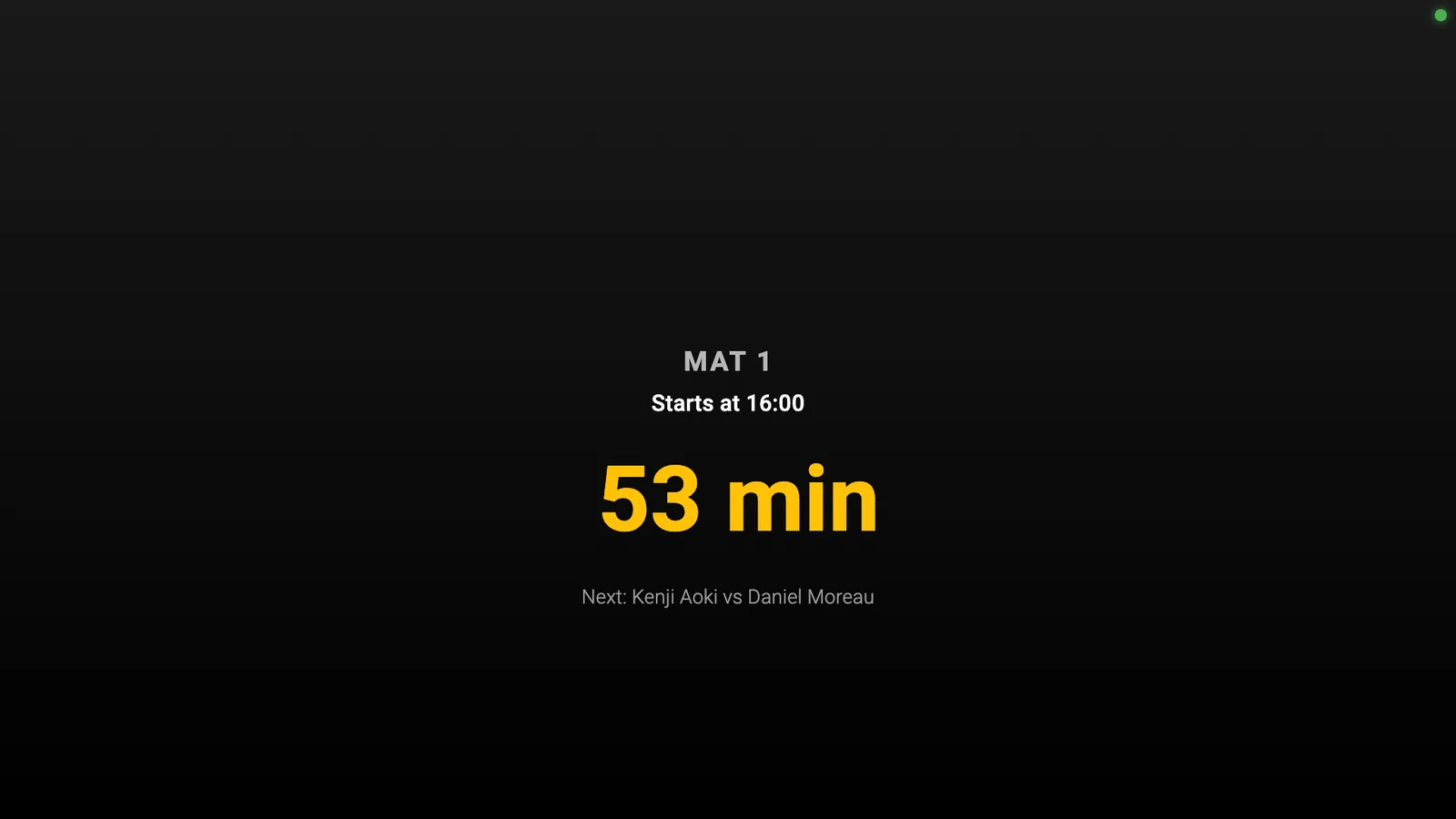
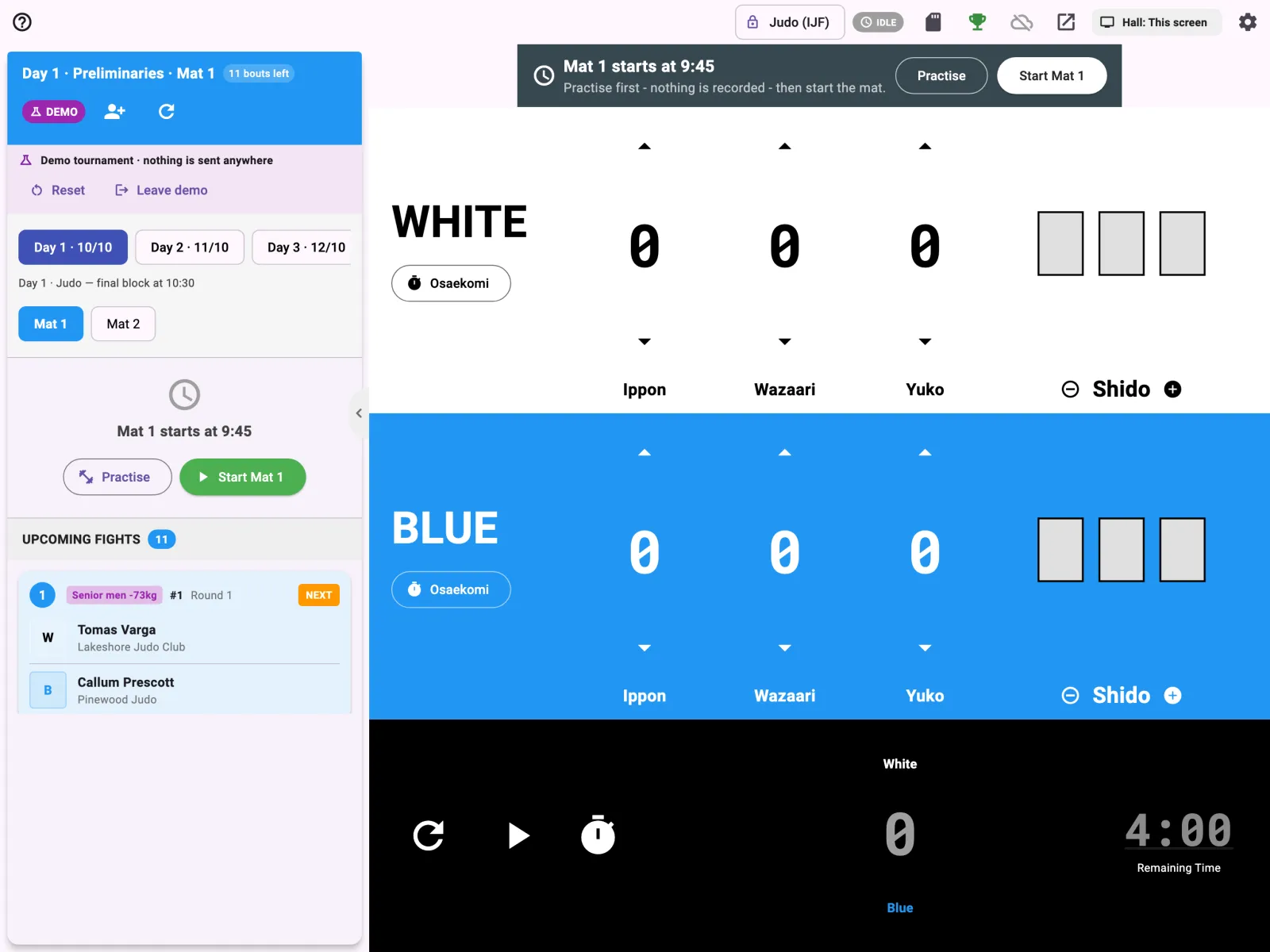
Until the mat starts for the day, the board says when it's due, for example Mat 1 starts at 9:00 (or Mat 1 · due to start 9:00, or Mat 1 · not started yet), and the hall's screen counts down to it. From there:
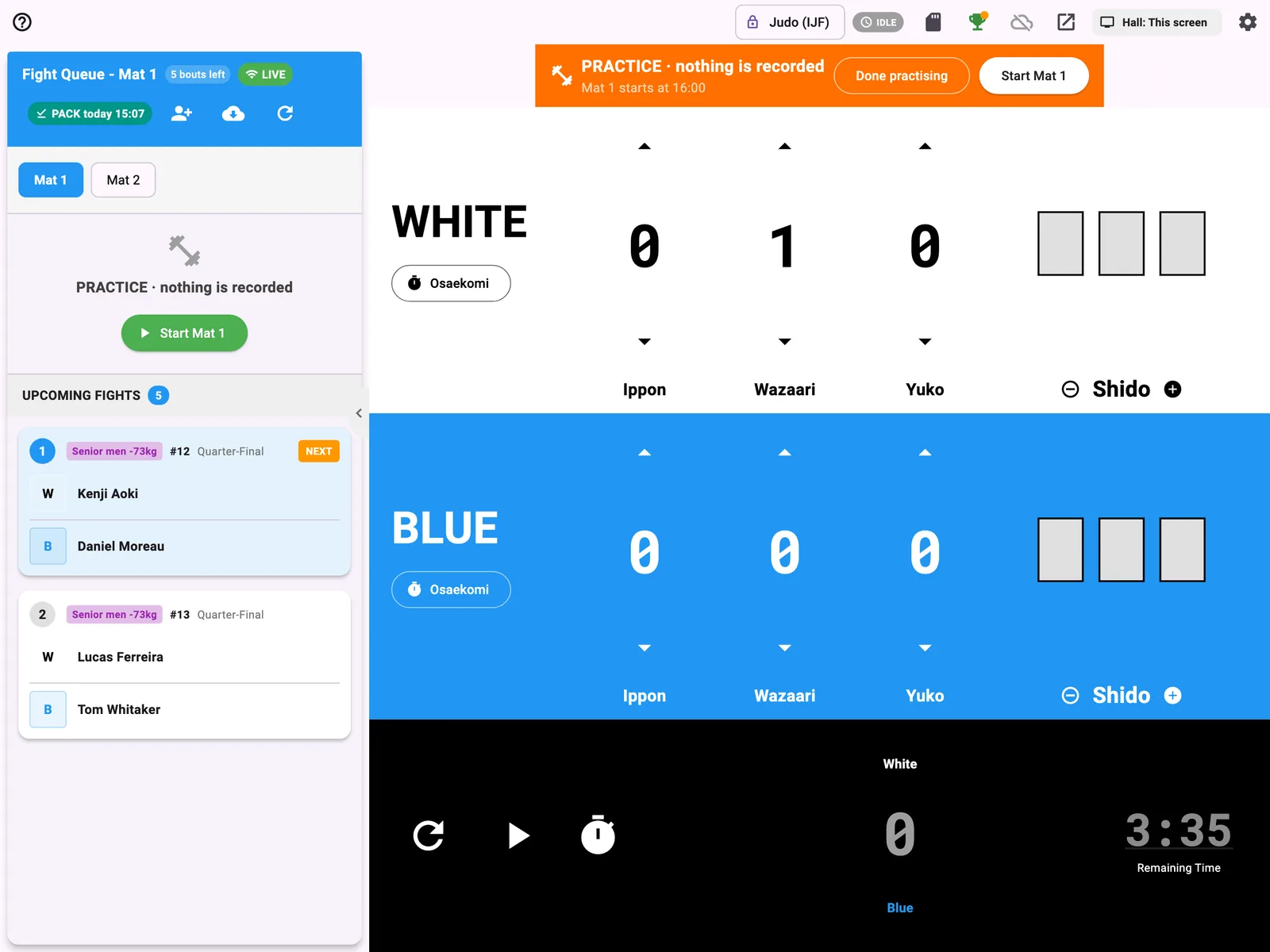
- Practise: the board shows PRACTICE · nothing is recorded. The clock, scores and hold-downs all work, and the hall's screen is marked PRACTICE, but nothing is saved or sent. Done practising goes back.
- Start Mat 1 starts the day: the first bout comes up, and the board shows Mat 1 started · Undo. Organisers see it on the Control page, for example Mat 1 · started 9:02. Picking a bout from the queue before the start also starts the mat.
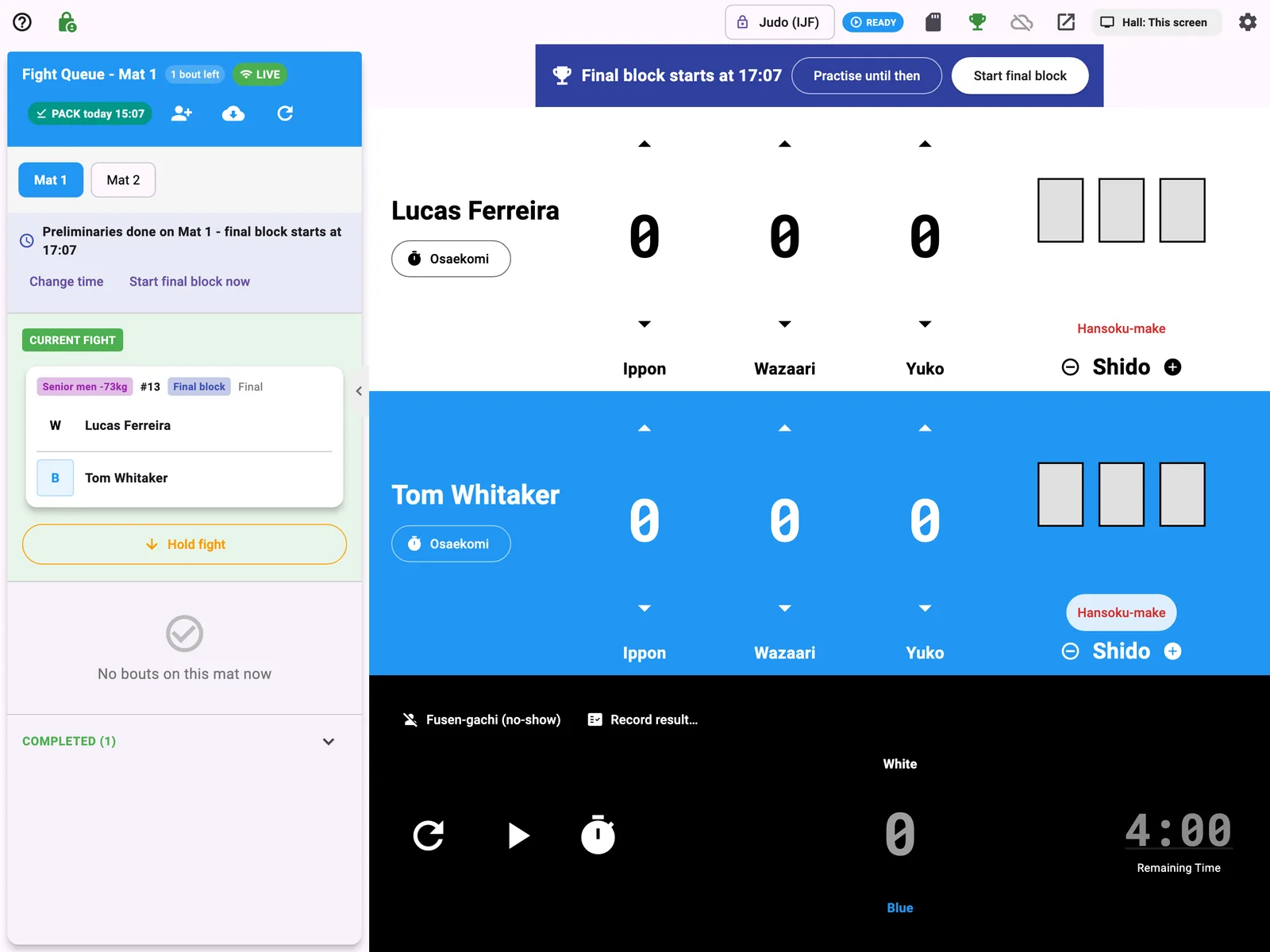
- Before the final block it waits the same way, for example Final block starts at 15:30, with Practise until then and Start final block.
Score the bouts as they come
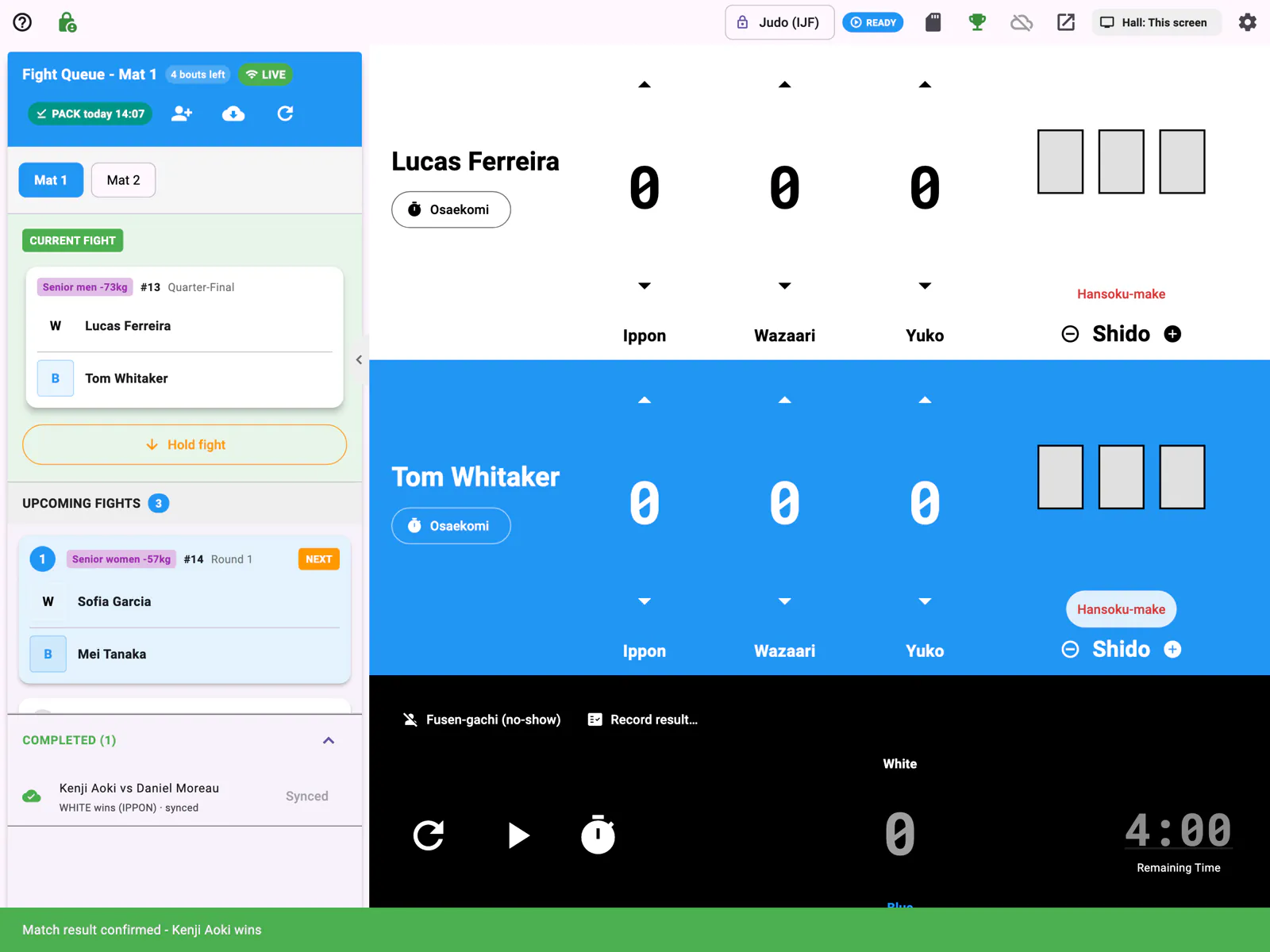
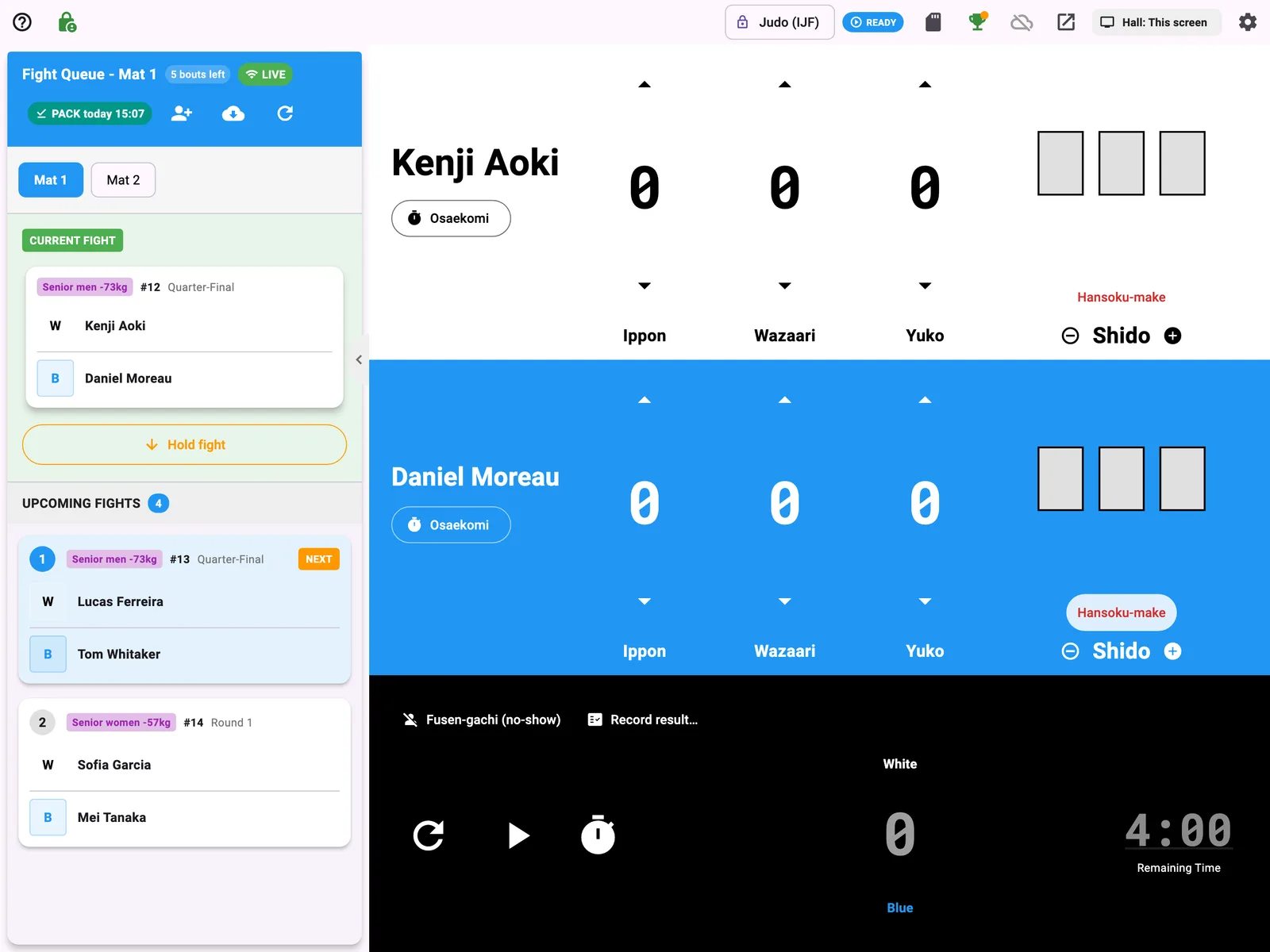
The current bout is on the board, and Upcoming fights lists the rest in order, with the next one marked NEXT. Score as usual: each result goes back to the tournament, and the next bout comes up.
No tournament yet? Try the demo
On 🏆 Tournaments, tap No tournament yet? Try the demo. It loads a demo tournament that runs the same way, with a DEMO badge, and Reset and Leave demo above the queue. Nothing is sent anywhere, and you don't need to sign in.
How each mat's bouts reach its board
When you draw the tournament, each division goes on a mat. Each mat's board shows that mat's queue: the current fight and what's next. Score as usual; each result goes back to the tournament, and the brackets and results update by themselves.
The tournament guides, in order
- Get started with tournaments — Set up your first tournament, run the day, and the results — with videos.
- Your Organisation & Roles — Who can run the event, and who can score.
- Adding Athletes (CSV) — Bring in a whole roster at once.
- Payments & Accreditation — Entry fees, and the desk on the day.
- Schedule, Rules & Weigh-in — Competition days, breaks and rest, bout times, weigh-in.
- Drawing the Tournament — Formats, the draw and putting divisions on mats.
- Connecting the Scoreboard — Sign a board in to the event and pick its mat.
- Running the Day (Control) — Every mat at a glance, and correcting a result.
- Results & Medals — Standings and medals as the bouts finish.
Using the board offline
On its own, the board never needs the internet. In a tournament, it keeps going when the venue's internet drops.
The tournament is on the board
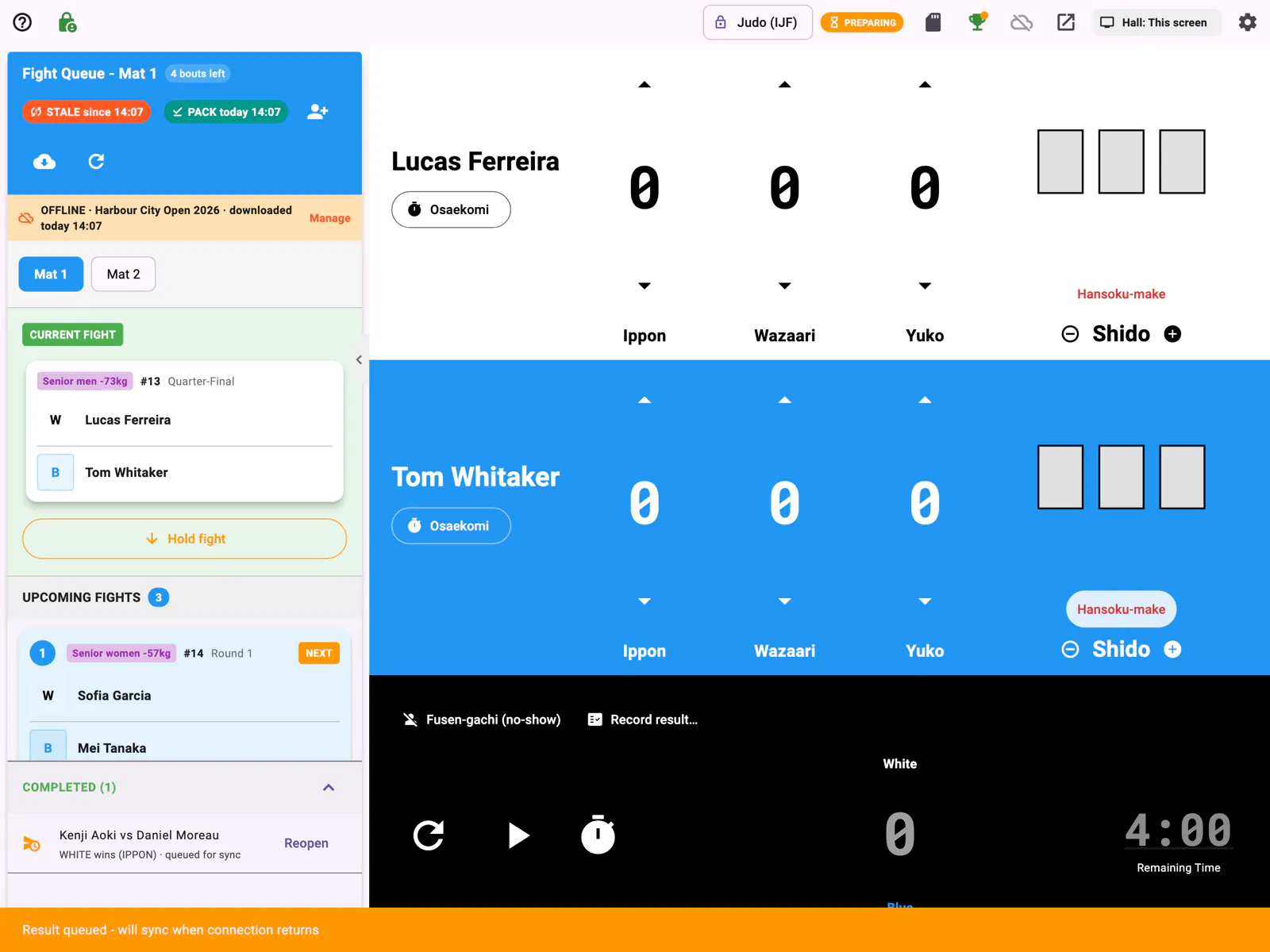
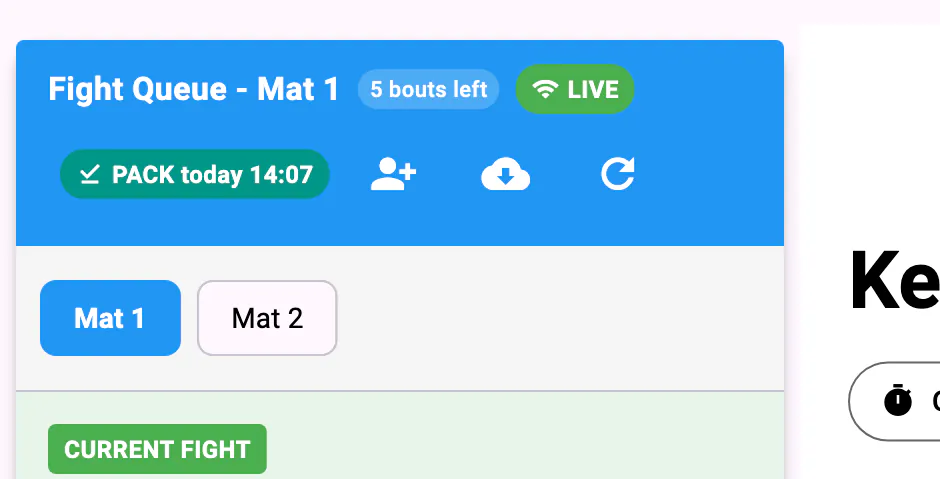
There's nothing to download by hand: connecting to a tournament downloads it to the board by itself. The PACK chip in the queue's header shows when, for example PACK today 14:07.
Tournaments on this device
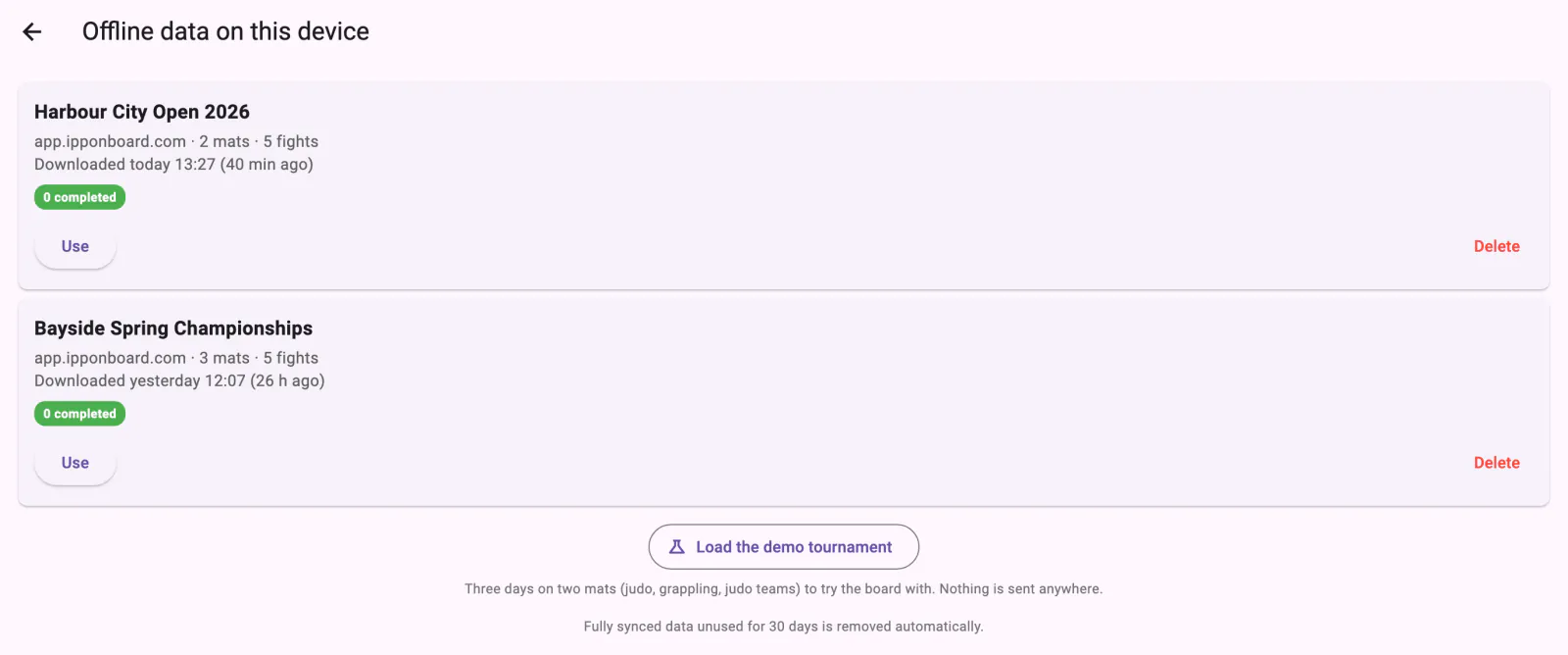
On 🏆 Tournaments, On this device lists the tournaments downloaded to this board. They run without internet, and without signing in. Tap Use or manage offline data (N) to open the list: for each tournament, when it was downloaded, its mats and bouts, how many are completed, and any results not yet sent. Use runs it, Delete removes it, and Update downloads the one in use again while the board is connected.
When the internet drops
The board keeps scoring from its copy. The queue shows OFFLINE, each result is kept on the board (Result queued - will sync when connection returns, and queued for sync under Completed), and the next bout loads as usual. When the connection is back, the waiting results are sent by themselves and the queue shows LIVE again.