Set up your club details
Your logo, name, timezone, contact details and currency, then your check-in rules and term dates.
Do this first. Your club's details show on your public sign-up page, the member portal and your club's emails. Owners and managers can change them. For every field in detail, see Club Information.
Club Information
Open Settings
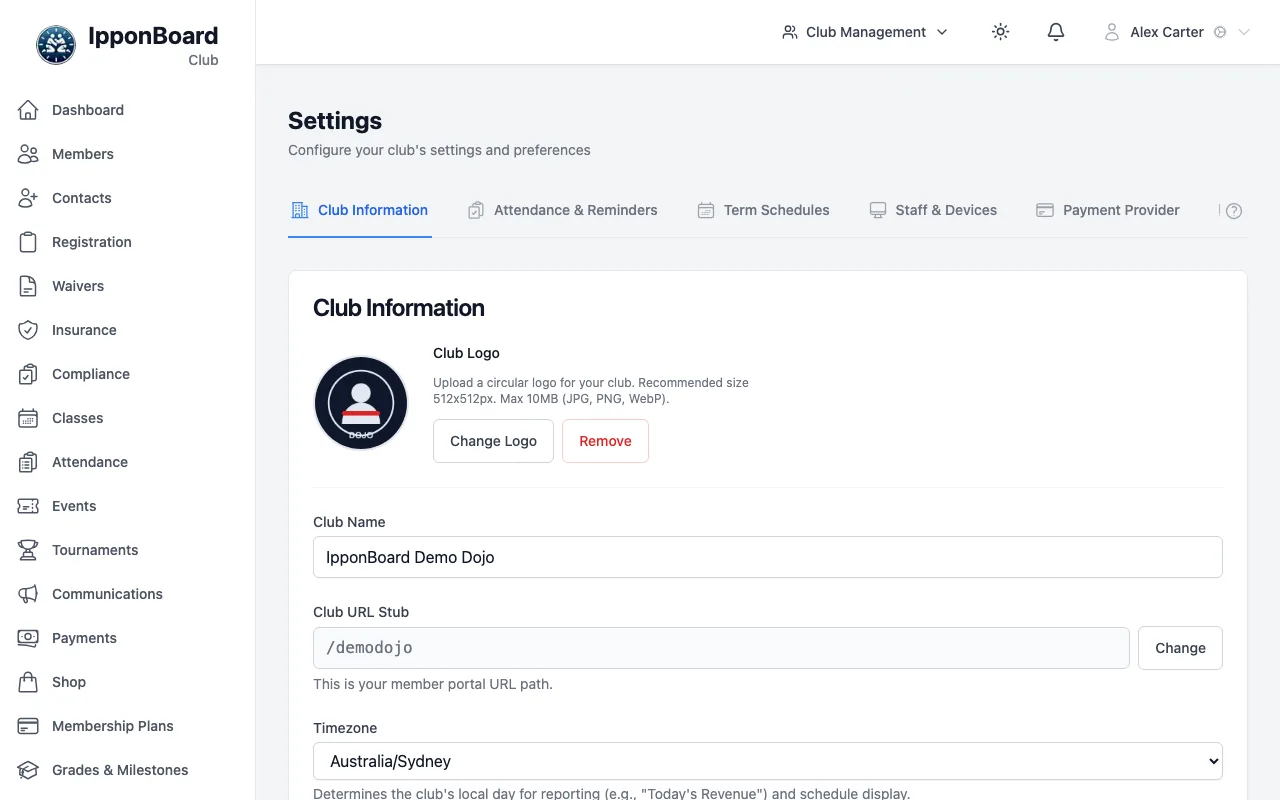
In the sidebar, tap Settings. It opens on the Club Information tab. For a guided walk through this page, tap the ? button at the right of the tabs.
Add your logo
Tap Upload Logo (Change Logo once there is one) and choose an image (JPG, PNG or WebP, up to 10MB). It is cropped to a square and shown in a circle, so a square logo of about 512 × 512 pixels works best. You can skip this and add it later.
Name and timezone
Check the Club Name, then set the Timezone. The timezone sets your club's "today" for reports (such as today's revenue) and the times on your class timetable. The Club URL Stub is the address you chose in the wizard; leave it unless you really need to change it.
Contact and location
Start typing your Address and pick it from the list: a map shows the pin, and you can drag it to the exact spot. Add your Phone, Email and Website. New members see these on your sign-up page.
Currency (and two optional extras)
Pick your Default Currency before you make membership plans: it's the currency for all your club's payments. The Monthly Revenue Target (adds a goal to your dashboard) and Member Portal Shop are optional.
Save
Tap Save Changes at the bottom of the Club Information card.
Check-in rules and term dates
The tour carries on to two more tabs. Both have sensible defaults, so a quick look is enough to start.
- Attendance & Reminders: what happens at check-in when a waiver is missing, a payment is overdue or insurance has run out (no check, a warning, a grace period, or a block), plus guardian check-in, age thresholds and drop-ins. Tap Save Changes when you're done. See Payment enforcement.
- Term Schedules: only if you charge by school term or season. Tap Add Schedule, give it a name, a year and the term dates. If you only use monthly or one-off plans, skip it. See Plan types.