Insurance
Track the insurance or federation registration your members need: what counts, who has it, and what happens at check-in when they don't.
This guide is for club owners and managers whose members need cover to train, such as a state or national judo registration or insurance bought through the club. It's optional: if your club doesn't need it, leave it switched off. By the end you'll have an insurance type, members recording their cover, and a check-in rule for people without it.
Who can use it: Owners and managers set up insurance types, approve or cancel records, and choose the check-in rule. Coaches and front-desk staff can see the Insurance page and add a record from a member's profile.
Track A
Set up insurance
An insurance type, then the check-in rule.
Track B
Keep records up to date
Approve submissions, add cover yourself, find who's missing.
A. Set up insurance
Create an insurance type
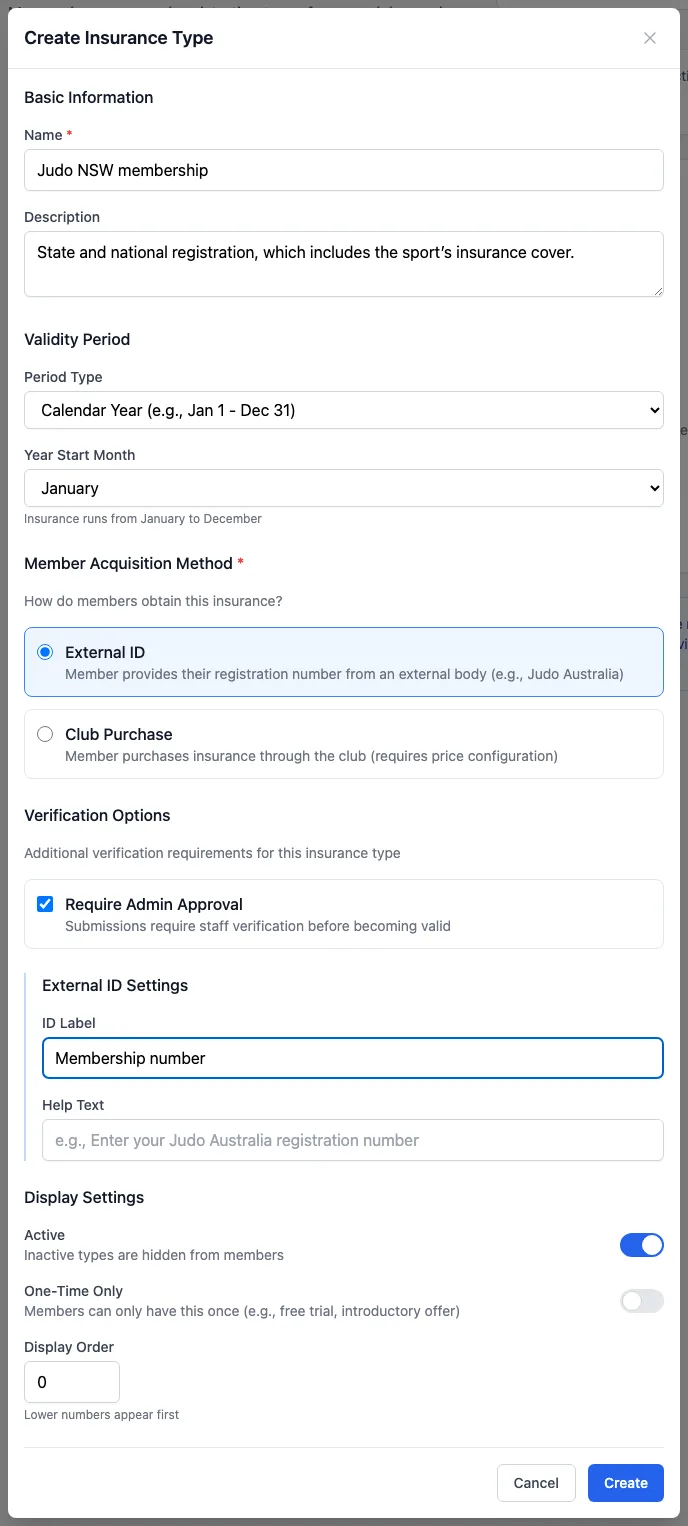
Go to Insurance in the menu and click Add Insurance Type. Give it a Name, choose how long it lasts (Period Type, for example a calendar year from January), and choose the Member Acquisition Method: External ID if members already have a number from a federation, or Club Purchase if they buy it from you. Leave Require Admin Approval ticked if you want to check each number before it counts. Click Create.
Choose what happens at check-in
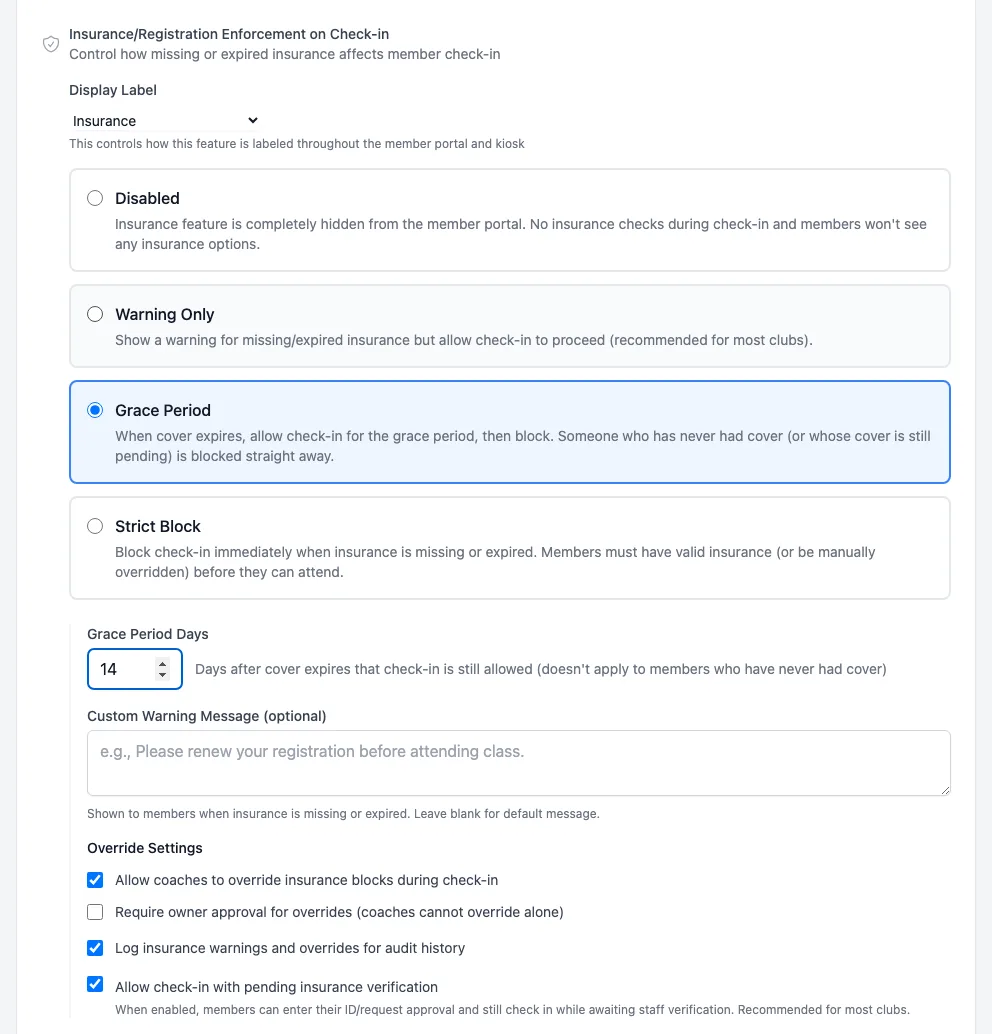
Click Enforcement Settings (it opens Settings → Attendance & Reminders). Under Insurance/Registration Enforcement on Check-in, pick Warning Only, Grace Period or Strict Block, and click Save Changes at the bottom of the page.
Members add their cover
Once enforcement isn't Disabled, members see an insurance page in the member portal where they enter their number or buy cover (see Insurance in the member portal). What they submit lands on your Insurance page to approve.
B. Keep records up to date
Approve what members submit
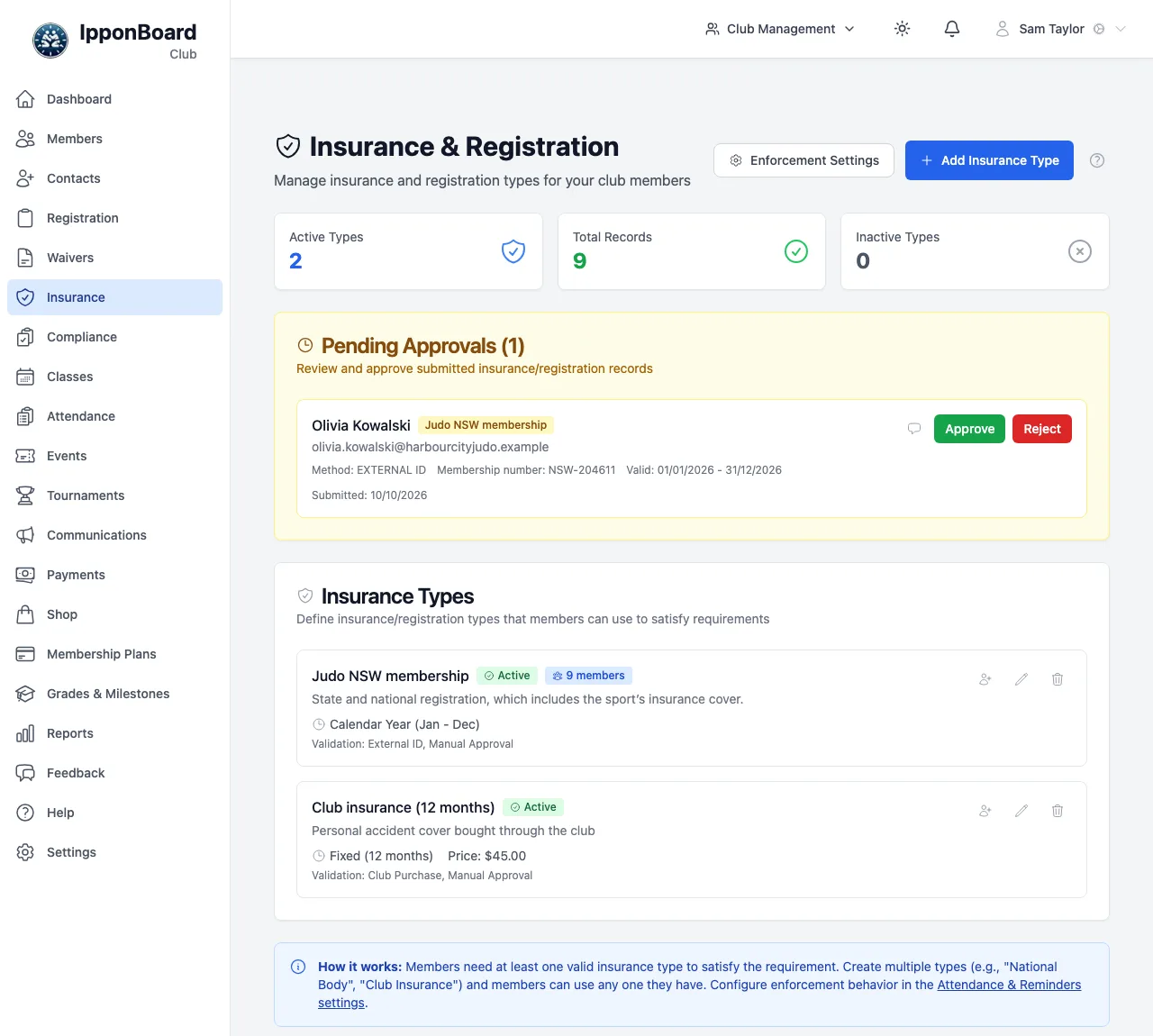
Submissions waiting for you show under Pending Approvals at the top of the Insurance page, with the number they entered and the dates it covers. Check it, then click Approve (the speech-bubble icon adds a note first) or Reject.
Add a member's cover yourself
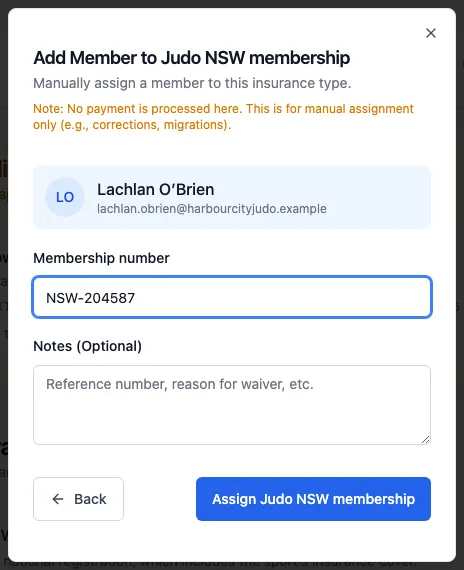
Click the add-member icon on an insurance type, search for the member, enter their number and click Assign …. The record is valid straight away. No payment is taken here.
Find who's missing
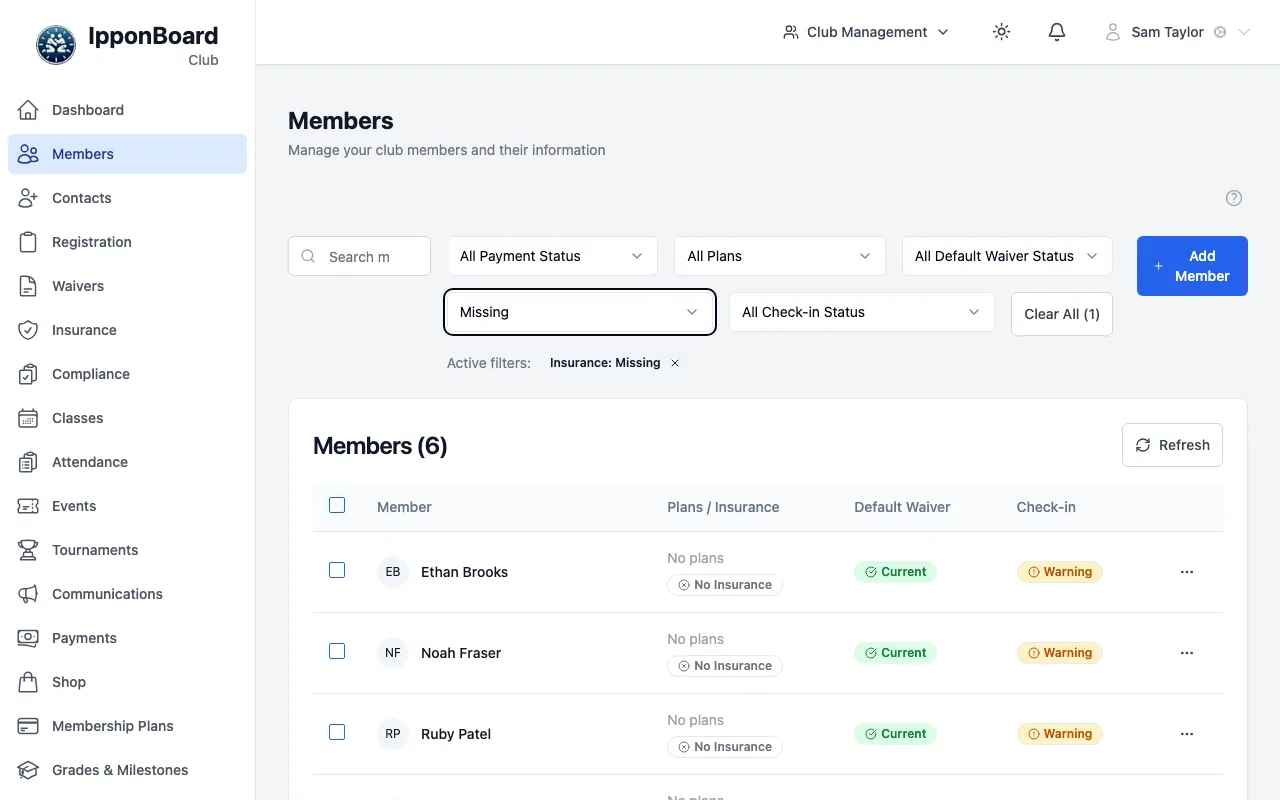
On Members, set the All Insurance Status filter to Missing, Pending or Expired. The Plans / Insurance column shows each member's status.
The detailed guides, in order
- Insurance types: How long cover lasts, how members get it, and whether you approve it.
- Records: Approving what members submit, adding cover yourself, cancelling.
- Enforcement: Warning, grace period or block when cover is missing or expired at check-in.
- Who's covered: Finding members with missing, pending or expired cover.