Get started with your club's member portal
For members, parents and guardians. Join your club, check in to class, pay, and look after your children, all from your phone.
Your club runs on IpponBoard. Once you've joined, the member portal is where you check in, see your plan, pay, sign waivers and register for events, for yourself and for your children. It works on any phone or computer; there's nothing to install. Pick what you need:
Track A
Join your club
The registration form, your login, your first plan.
Track B
Every week
Check in, see your plan, pay.
Track C
Your family
Add your children and look after their membership.
A. Join your club
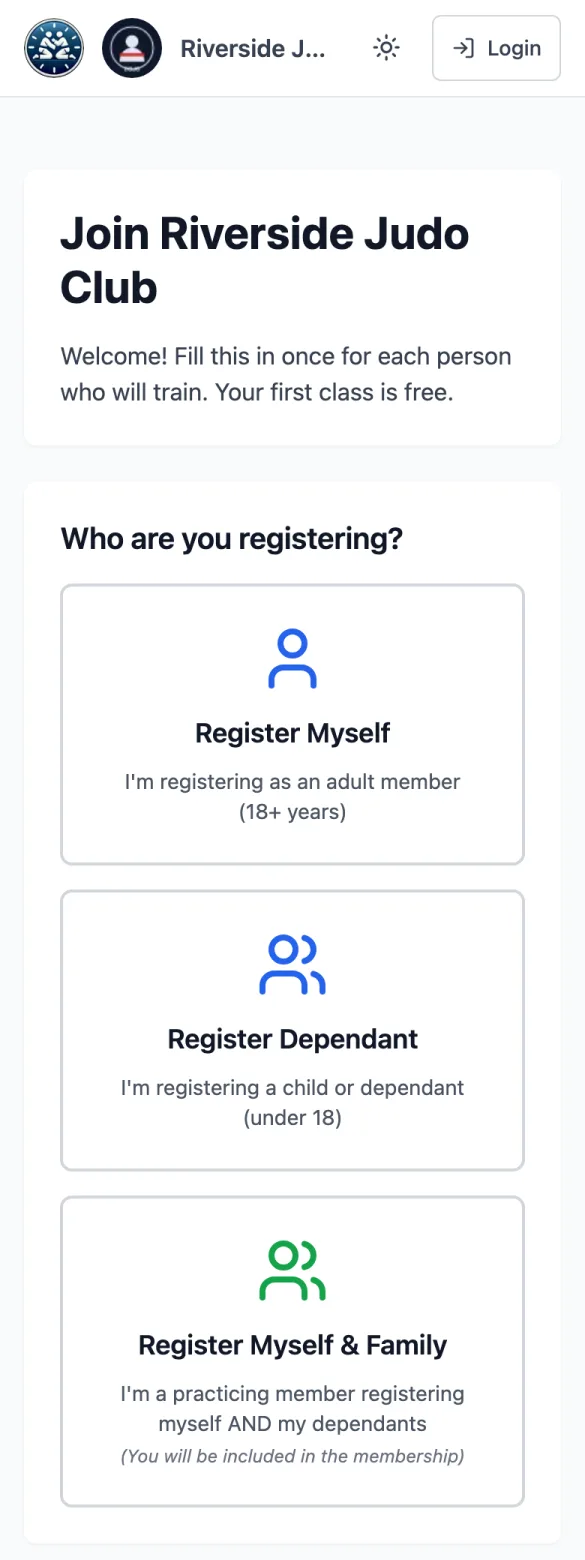
You join with your club's online registration form: one form for you, your children, or the whole family. Here's a parent registering his son on a phone:
Open your club's registration form
Your club gives you the link (on its website, by email, or on a QR poster at the dojo). On the club's sign-in page it's New member? Register here. At the top, choose who you're registering: Register Myself (an adult), Register Dependant (a child; you're their guardian) or Register Myself & Family (you train too, and you're adding your children).
Fill in your details
Your name, email and phone, then each child's name and date of birth, any medical information, and an emergency contact (tick Use guardian as emergency contact to use yours). Add Another Dependant adds a brother or sister, and Add a second parent or guardian links the other parent. Tap Continue.
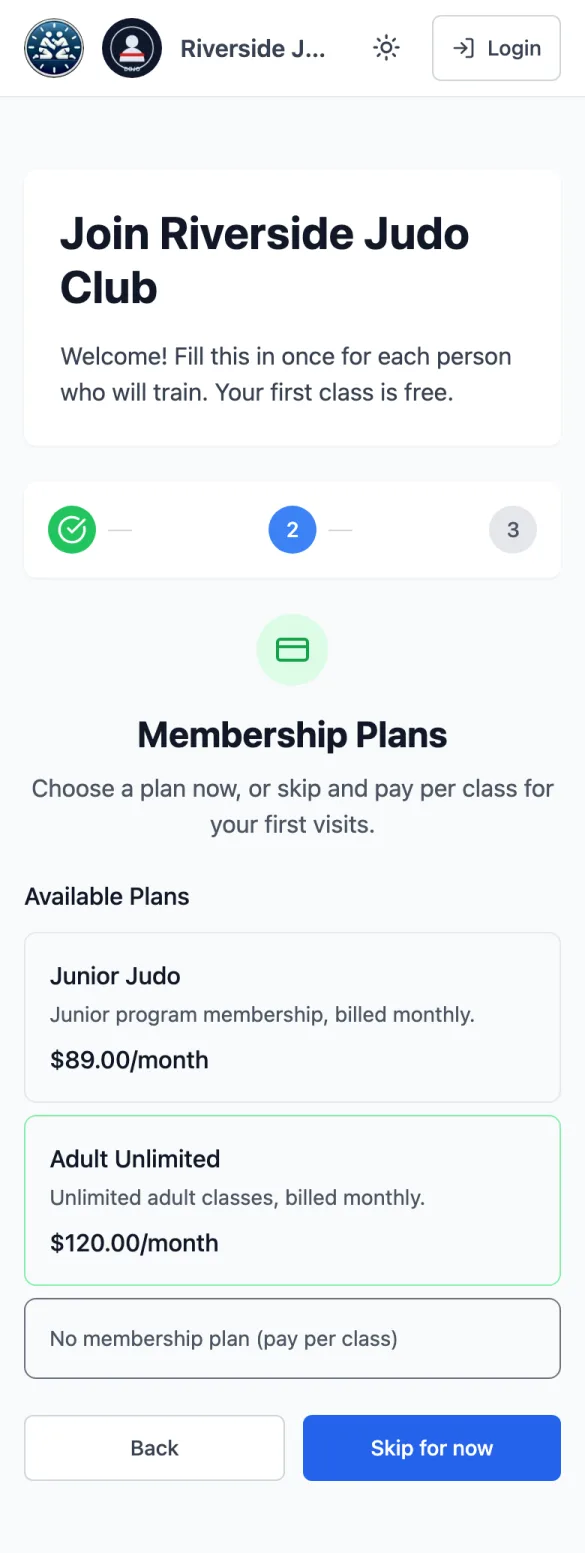
Choose a plan, or skip it
If your club offers plans on the form, pick one, or tap Skip for now to sort it out later in the portal. (Some clubs also ask for your insurance or national registration here.)
Sign the waiver and submit
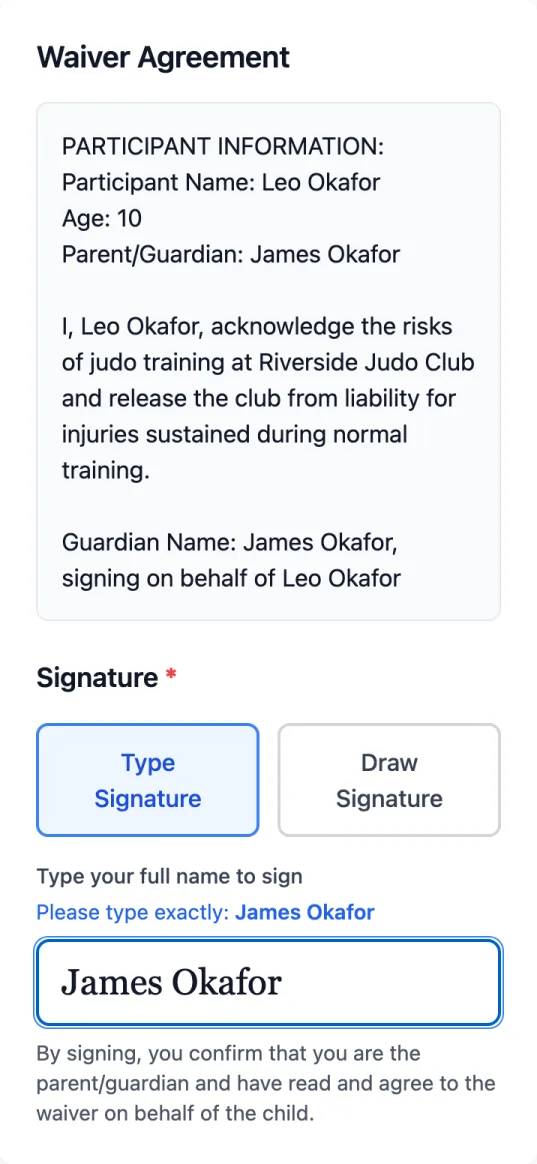
Read the club's waiver, then sign: Type Signature and type your name exactly as shown, or Draw Signature with your finger. Tap Submit Registration (or Review & pay if you chose a plan that's paid now).
Set up your login from the email
You'll see Registration Submitted!. Most clubs check new registrations first; once yours is approved you get an email with a link to Set Up Your Account. Choose Set Up Passkey (Face ID, Touch ID or Windows Hello) or Set a Password. There's no password on the form itself.
Sign in and look at your dashboard
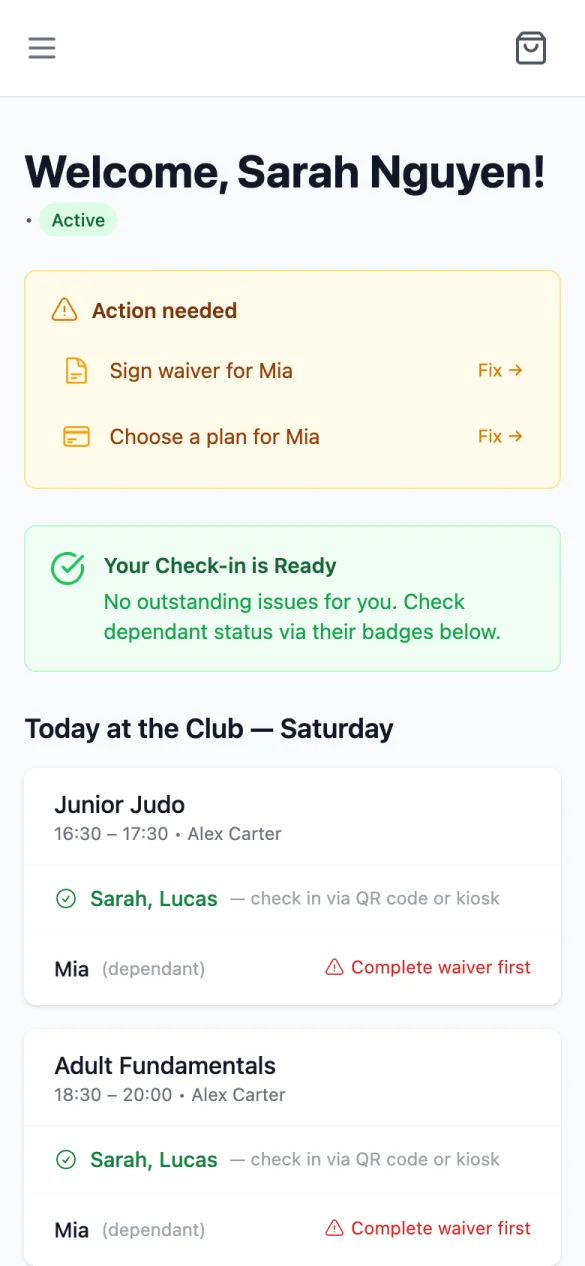
Sign in on your club's page (Sign in to …) and you land on your Dashboard. Anything the club still needs from you (a waiver, a plan, your insurance) is listed under Action needed, each with Fix →.
B. Every week: check in, your plan, paying
At the dojo you check in by scanning the QR code for your class. It takes a few seconds:
Scan the class QR code
Point your phone's camera at the club's QR code and open the link. Under Select a Class, the class you scanned is marked Scanned; tap it (or another of today's classes).
Tick who's training and check in
If you're signed in, it says Welcome back, …! and lists you and your children. Tick everyone who's training (Select All ticks the lot) and tap Check In (1); the number counts who's ticked. Checked in! Have a great class. means you're done.
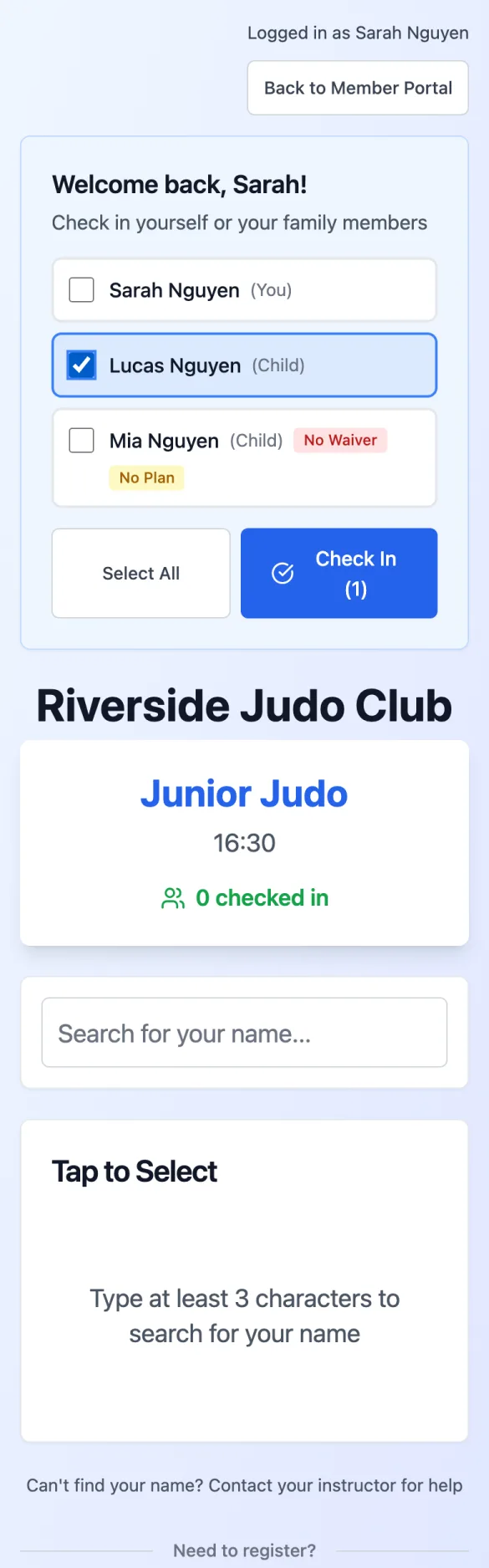
Not signed in?
Tap Member Login at the top, or type at least three letters of a name in Search for your name..., tap each person, then tap Check In 1 Person.
See your plan
Open the menu (☰, top left) and tap Membership Plans. Your plans show Active with who they're for and when they renew; tap one to open Manage Subscription (auto-pay, cancel, renew).
Pay what's due
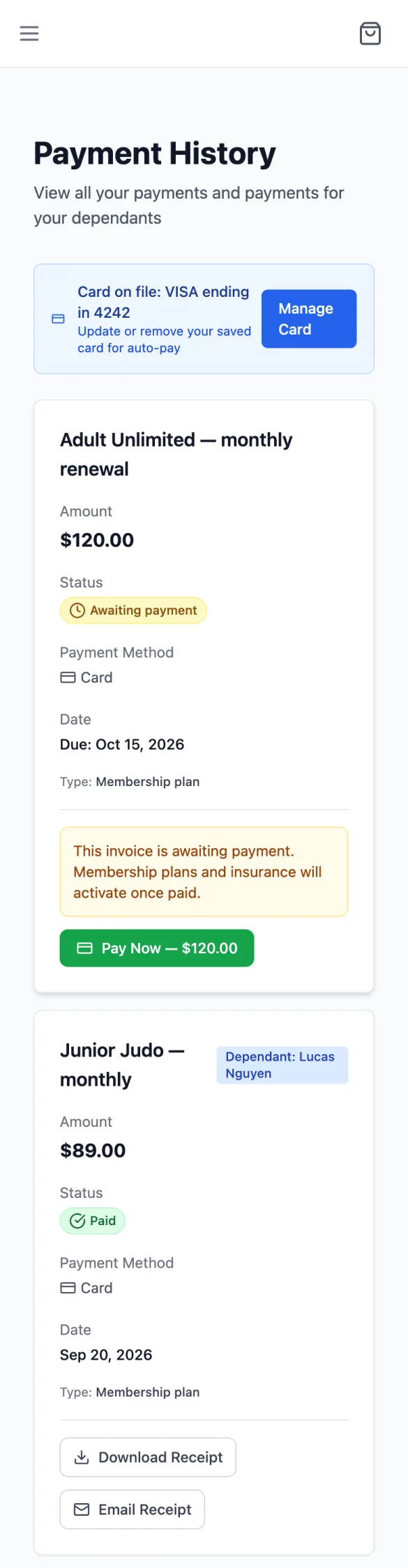
Payment History lists what you've paid and anything the club has invoiced you. An unpaid invoice has Pay Now. Keep a card on file under My Profile → Payment Methods to pay faster.
C. Your family
One login looks after the whole family: your own membership and each child's.
Register your child at the club
In the portal, My Dependants → Register Dependant opens your club's registration form for a child (the same form as in Track A). Children you've already added to your account can be picked from a list.
See how they're going
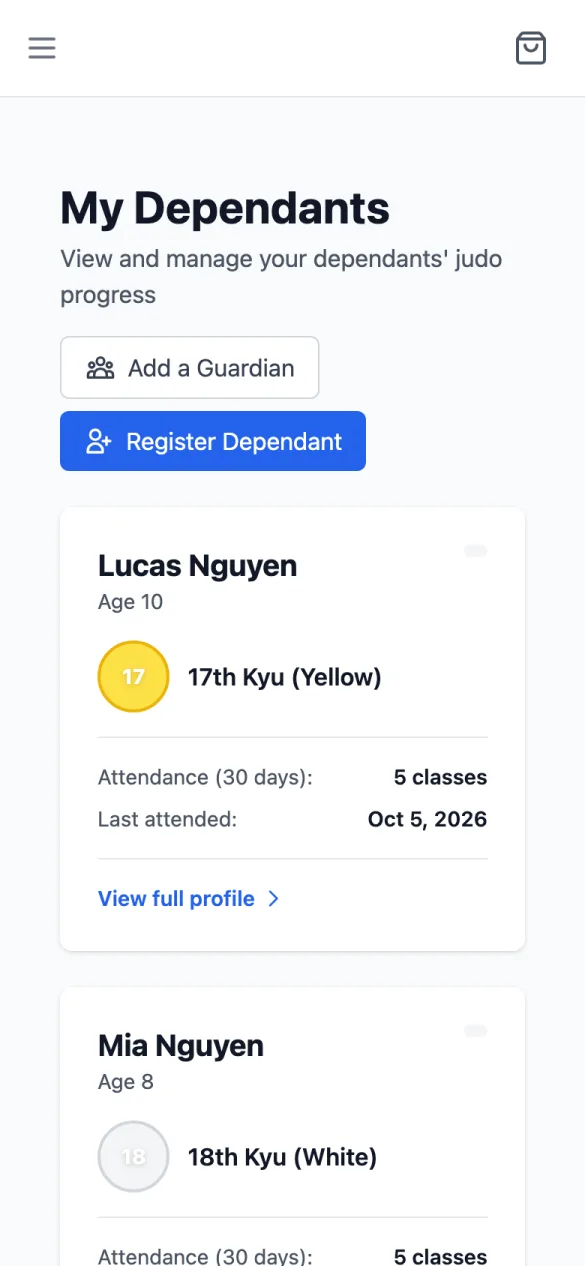
My Dependants shows each child's belt and recent attendance. Tap View full profile for their attendance, grades, payments and waivers, and Edit Details to update them.
Sign their waiver and buy their plan
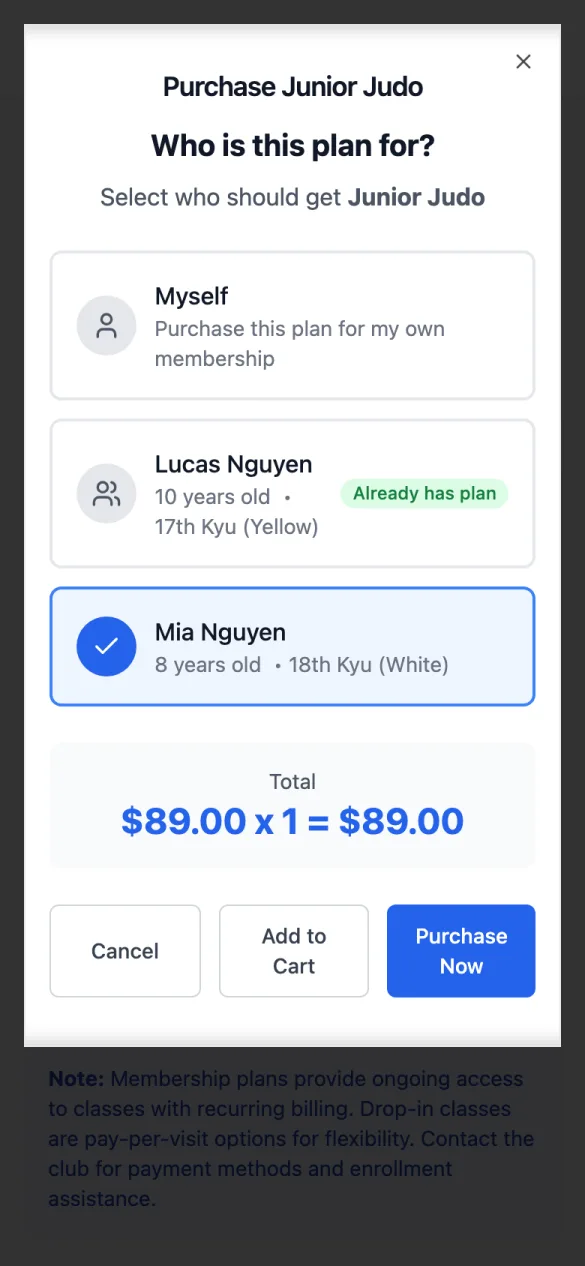
On Waivers, a child who still needs one shows Sign Now. On Membership Plans, Purchase for Dependant asks Who is this plan for?; tick the child.
Share them with the other parent
Add a Guardian on My Dependants adds another parent or guardian to a child (they get a login invite). Or, in My Account → Co-Guardians, Invite your partner to share all your children.
Give an older child their own login
In My Account, open the child under My Dependants, then Settings → Create Login for …, with their email and a password.
On a computer
What you see depends on your club
The detailed guides, in order
- Joining & Signing In: The club's registration form, your login, and finding your way around.
- My Profile & My Account: Your details, emergency contact, medical information and password.
- Your Children: Add a child, register them at the club, and share them with another parent.
- Waivers: Sign the club waiver for yourself or a child.
- Checking In: Scan the class QR code and check in, then see your attendance.
- Plans & Payments: Buy a plan, manage it, pay an invoice and keep a card on file.
- Events: Find club events, register and see your registrations.
- Shop: Buy club gear with the cart and checkout.
- Belt Progress: Your belt, what you need for the next one, and telling the club you graded.
- Achievements: Milestones and awards for you and your children.
- Insurance / Registration: Add your national body number or buy cover through the club.
- Feedback: Tell the IpponBoard team about a problem or an idea.