Inviting staff
Give your coaches and managers their own login with the right role, and set up a front-desk account.
Staff are people on your member list with a staff role. The role decides which pages they see in the sidebar. For adding ordinary members, see Adding members.
The staff roles
Owner
Everything, including Platform Billing and connecting Stripe or Square. Only an owner can make someone else an owner.
Manager
Runs the club day to day: members, plans, events, communications, reports and settings. Can see Platform Billing and the payment provider but not change them, and can pair Square Terminals.
Coach
Members, classes, attendance, gradings and events. Payments and reports as your club allows (Settings → Staff & Devices → What coaches can do: by default they take payments, see 30 days of them and the attendance report). No Settings or Communications.
Front desk (Transactional)
For the front desk, as a person’s role or a shared kiosk login: check-ins, attendance, adding members and taking payments. No Settings, Reports or Communications.
A club can have more than one owner and any number of managers and coaches. For the full list, see Roles & permissions.
When you create the club
The last step of the club wizard, Team, lets you invite people straight away. Tap Add staff member, type their first name, last name and email, and pick Owner, Coach, Manager or Front desk. Each person gets an email once your club is created.
Give someone a staff role
Owners and managers can do this. Your coaches are often members already; if not, add them first.
Find them in Members
In the sidebar, tap Members and open the person. Not there yet? Tap Add Member, and be sure to give their email.
Edit their profile
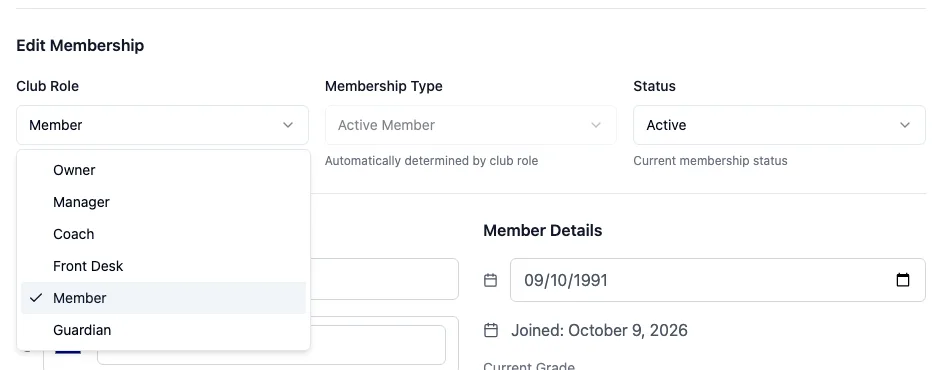
On the Profile tab, tap Edit Profile. An Edit Membership section opens.
Pick the Club Role
In Club Role, choose Coach, Manager, Owner or Front Desk, then tap Save Changes. Their access changes straight away.
Make sure they can log in
Scroll to Account Actions on the same tab:
- Enable Login: they have no login yet. Check their name and email and tap Enable Login Access. They get an email with a link to set a password or a passkey.
- Resend Setup Email: they have a login but never finished setting it up.
- Neither shows? They already have a login: they just sign in as usual.
A front-desk or kiosk account
A front-desk account isn't a person on your member list: it's a shared login for a tablet or desk computer. Make one in Sidebar Settings → Staff & Devices → Create Account. See Staff & Devices.
When someone leaves
Open their profile, tap Edit Profile, set Club Role back to Member and tap Save Changes. They keep their member login but lose the staff pages. For a front-desk device, revoke it in Staff & Devices.