Shop
Sell gis, belts and club gear: add your products, sell them at the desk, and let members buy them in the member portal.
For club owners and managers who sell things. You'll add a product with sizes and stock, sell one at the desk, and decide whether members can buy from the member portal.
Who can use it: Owners and managers add and change products and the shop settings. Coaches and front-desk staff can see the shop, adjust stock and sell.
Track A
Add your products
Name, price, sizes and stock.
Track B
Sell them
At the desk, and in the member portal.
A. Add your products
Open the shop
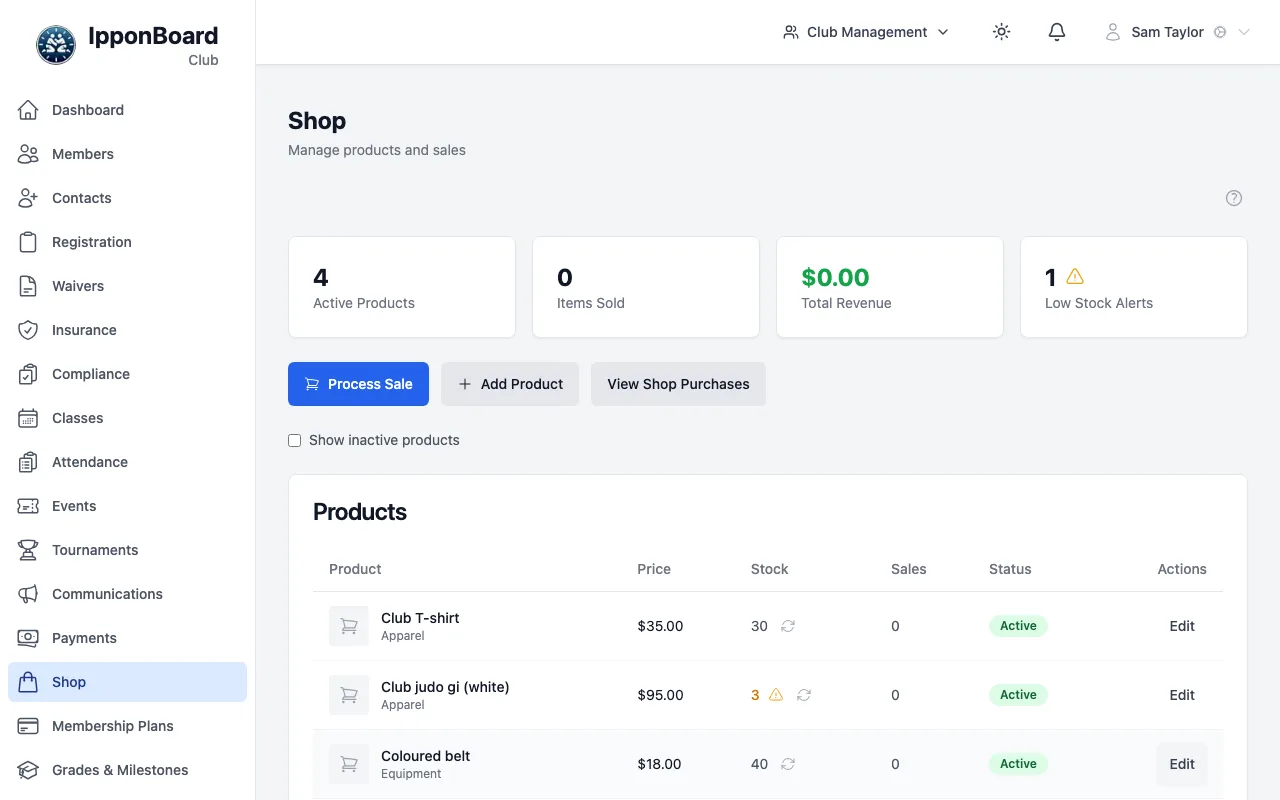
Click Shop in the menu. The top shows your Active Products, Items Sold, Total Revenue and Low Stock Alerts. Click Add Product.
Fill in the product
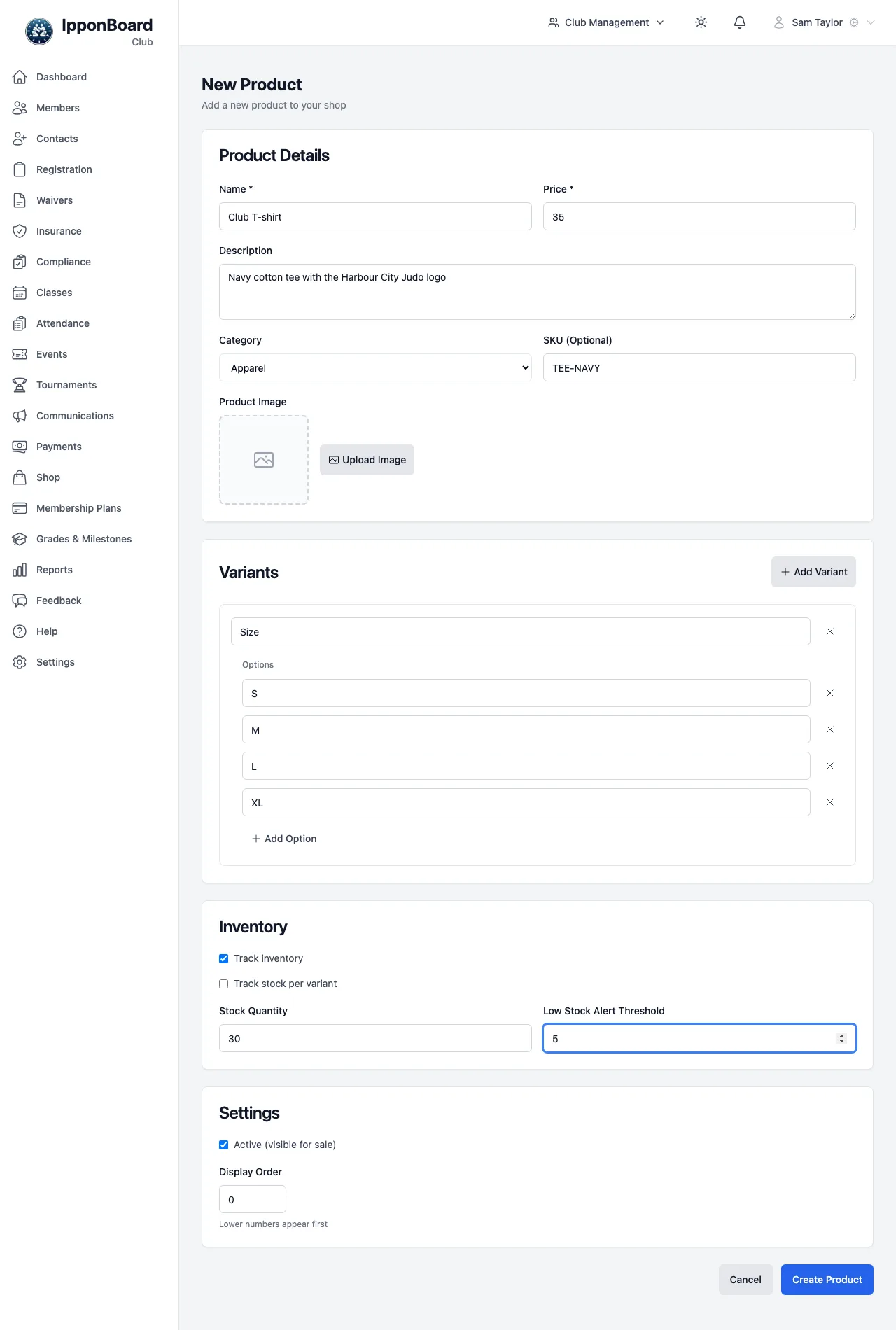
Under Product Details: the Name, Price, a Description, the Category (Apparel, Equipment, Accessories or Other) and, if you use them, a SKU and a picture. For sizes, click Add Variant, name it ("Size") and add each option.
Set the stock, and create it
Under Inventory, tick Track inventory and enter the Stock Quantity and a Low Stock Alert Threshold. Leave Active (visible for sale) ticked and click Create Product.
Your product list
The product appears in Products with its price, stock and sales. A warning sign next to the stock means it's at or below its alert level.
B. Sell them
At the desk
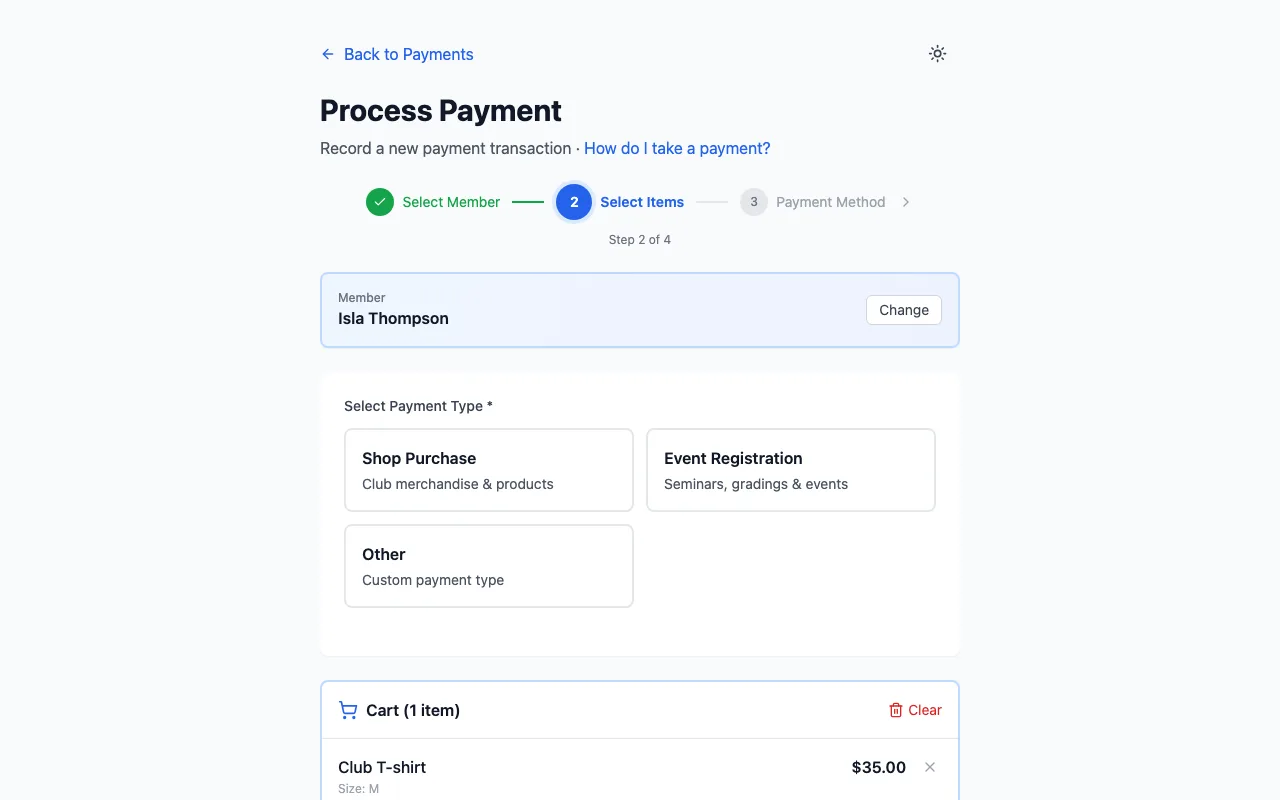
Click Process Sale. It opens Process Payment: choose the member, then Shop Purchase under Select Payment Type.
Pick the product and size
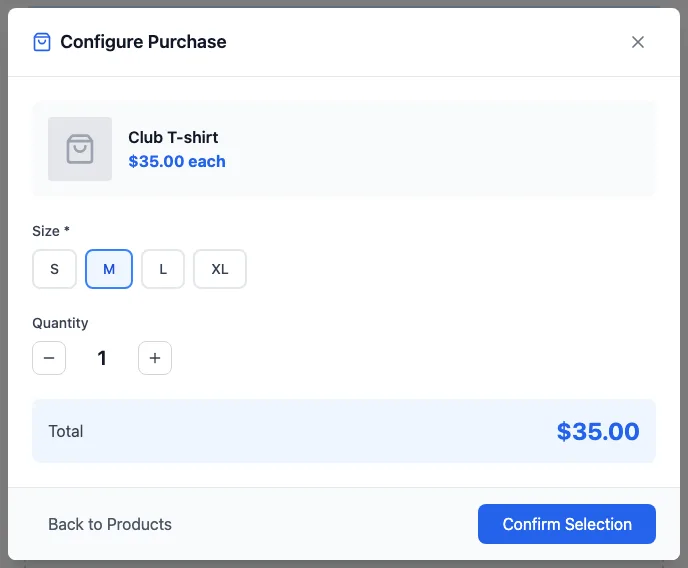
Click the product, choose the size and quantity, and click Confirm Selection. It goes into the cart. Then take payment as for anything else (see Processing Payments). Stock goes down by what you sold.
In the member portal (optional)
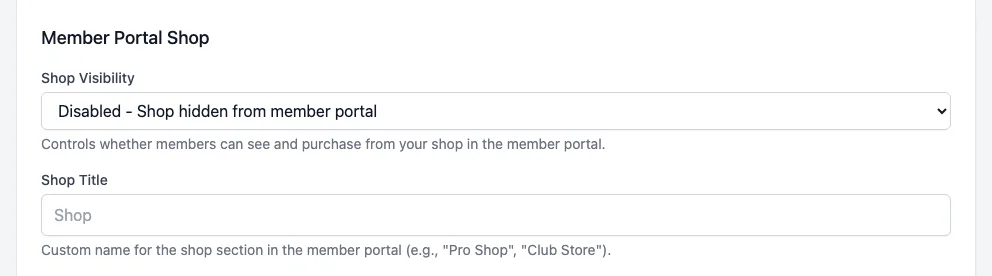
The member portal shop is off until you turn it on. Go to Settings, Club Information, find Member Portal Shop and set Shop Visibility to View Only (members browse) or Full Access (members browse and pay online). Click Save Changes.