Get started with your club
For club owners, managers and front-desk staff. Set your club up once, then run your classes and take payments from one place.
New club? Start here
Set up your club
Six steps, about 40 minutes: payments, plans, classes, staff and members.
Every day
Running the front desk
Taking payments, checking people in, drop-ins, refunds and who owes.
Everything here happens in the club app: sign in at app.ipponboard.com and pick your club. The menu down the left side (Members, Classes, Attendance, Payments, Settings and the rest) is where each guide starts. What you see in it depends on your role: owners and managers see everything, coaches a little less, and front-desk accounts only what the desk needs.
Track A
Set up your club
Club details, payments, plans, classes, staff and members.
Track B
Run a class night
Check people in at the desk, on a kiosk, or by QR code.
Track C
Take payments
Process a payment, refunds, and where the money goes.
A. Set up your club
Do this once, in this order. Each step takes a few minutes, and you can come back to any of it later. Here's a new club being set up, from Create Club to its dashboard:
Create your club
On app.ipponboard.com, go to Register and choose Create Club. The club wizard has seven steps: Your Account, Club Basics, Classes, Pricing, Waiver, Sign-up Link and Team. Only the first two are needed; the rest can be skipped and done later. Finish with Create my club, then click Open my club dashboard. Verify your email address from the link we send you: until then, your club's sign-up page, events and directory listing stay hidden from the public.
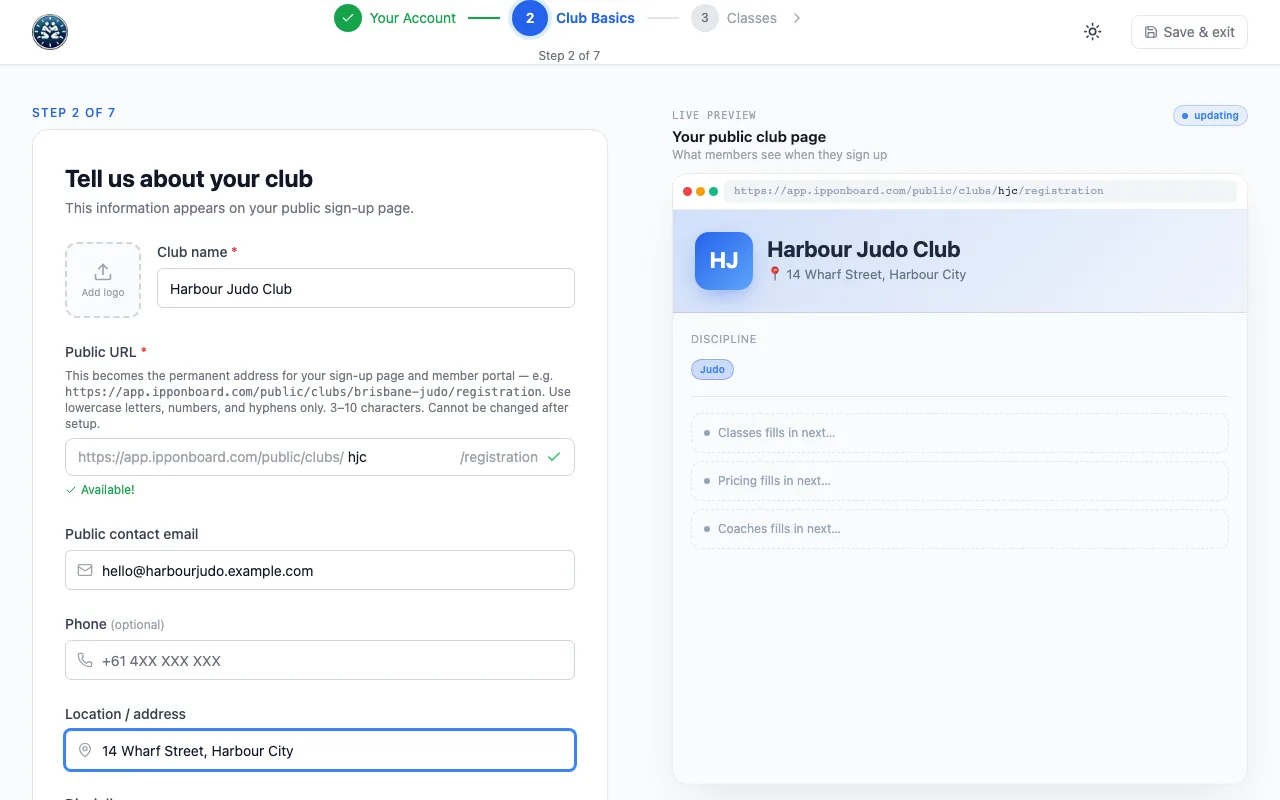
Check your club's details
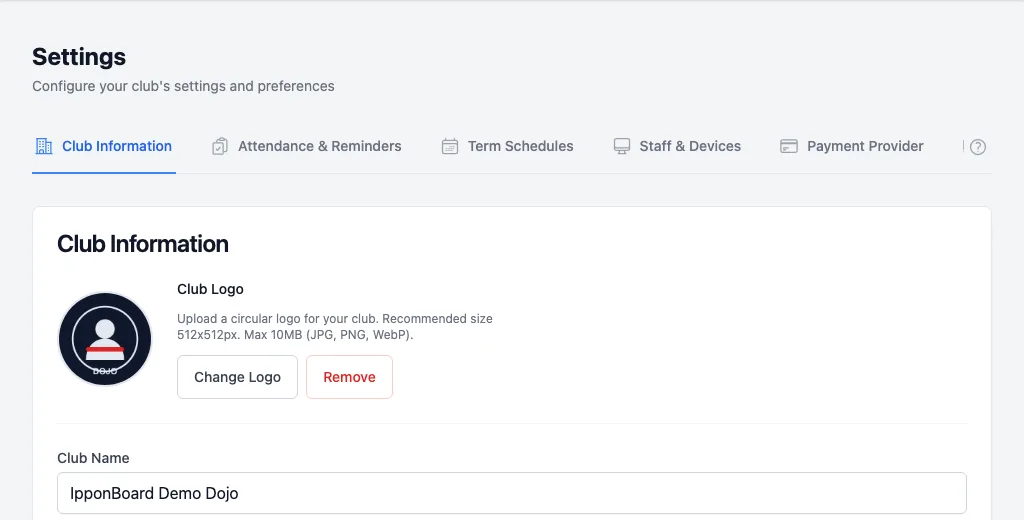
Open Settings. The Club Information tab has your logo, name, web address, timezone, contact details and currency. Click Save Changes when you're done. The other tabs are Attendance & Reminders, Term Schedules, Staff & Devices, Payment Provider and Platform Billing.
Connect a payment provider
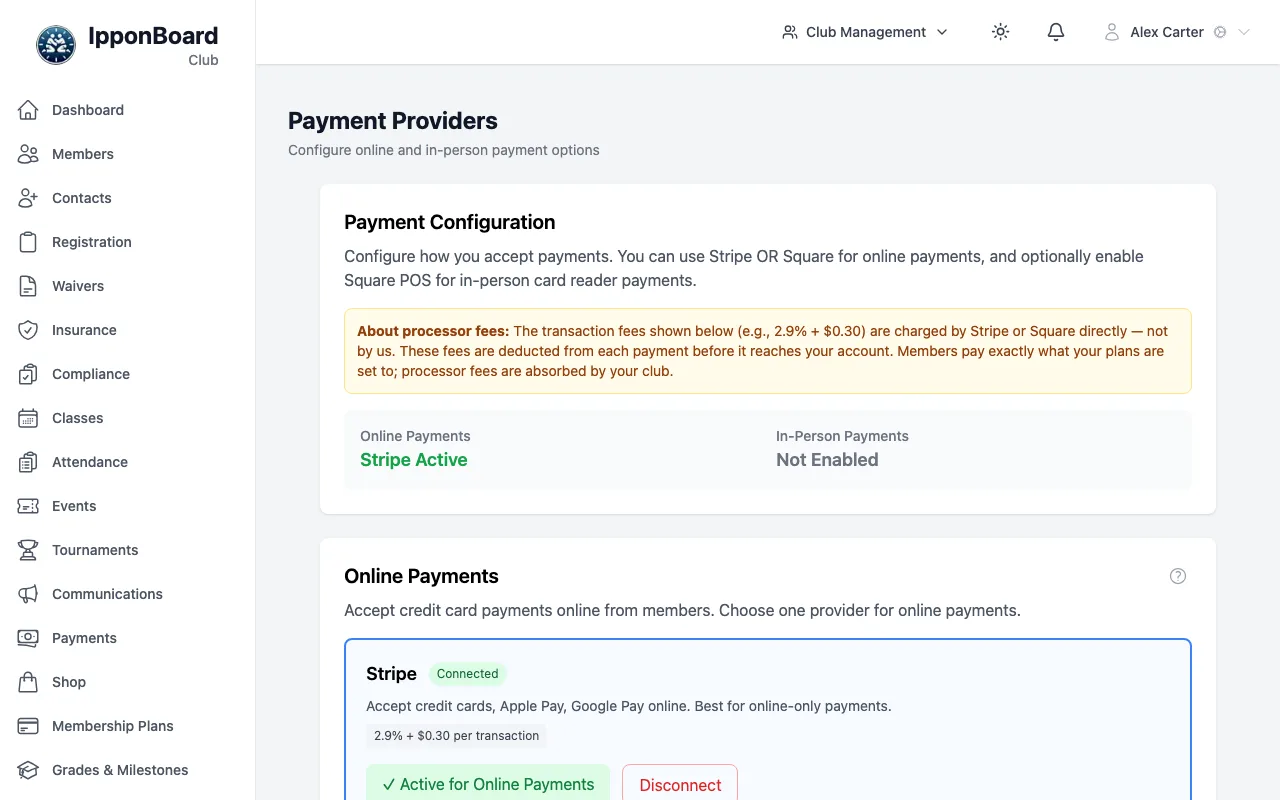
The owner opens Settings → Payment Provider. For card payments online, click Connect Stripe Account and finish the sign-up on Stripe's site, then click Enable for Online Payments. For in-person cards there's Square Terminal and Square POS on the same page. Cash and bank transfers need nothing set up.
Make your membership plans
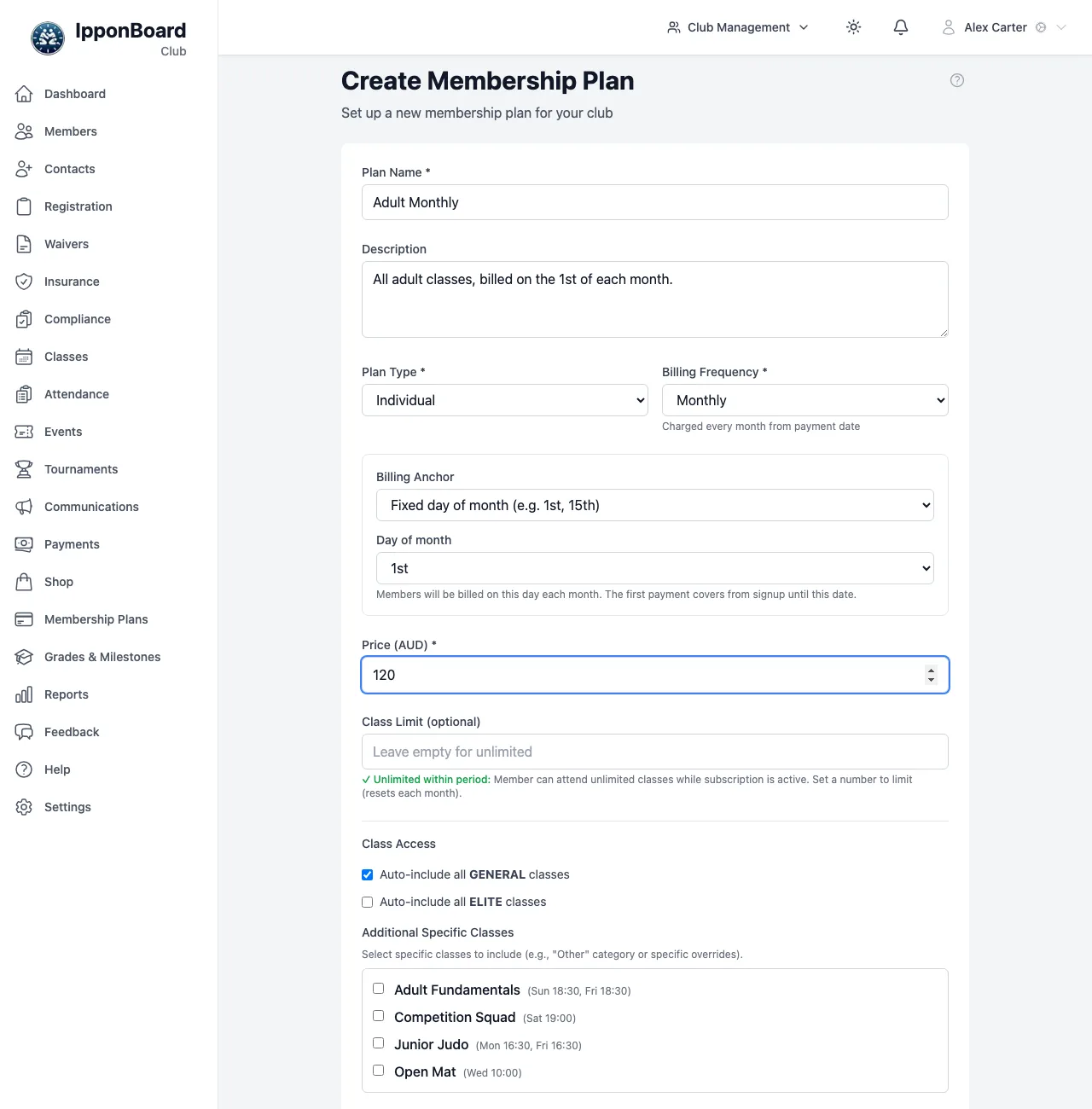
In Membership Plans, click Create Plan. Give it a Plan Name, pick a Plan Type and a Billing Frequency (monthly, by school term, for a fixed length, or one time), set the Price, and choose which classes it covers under Class Access. Click Create Plan at the bottom.
Put your classes on the timetable
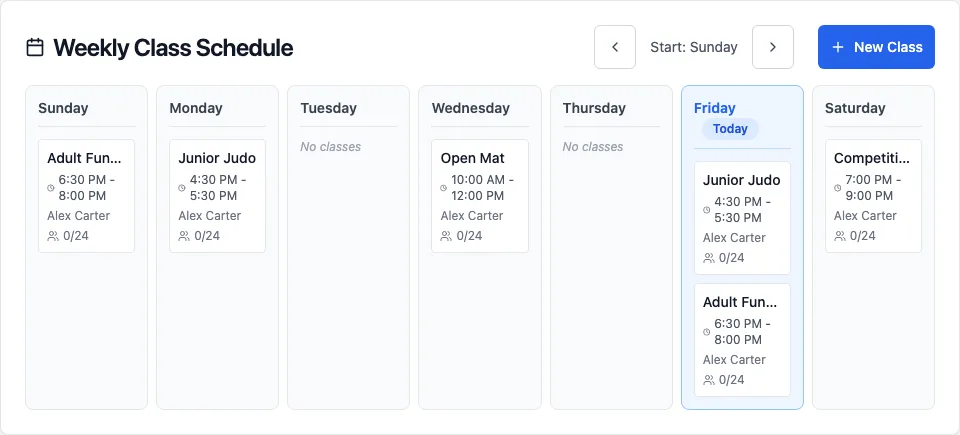
In Classes, click Create New Class. Give it a Class Name and an Access Category, then add each day it runs under Class Schedule (Add Day for another one). Click Create Class. Calendar shows the week at a glance.
Bring in your staff
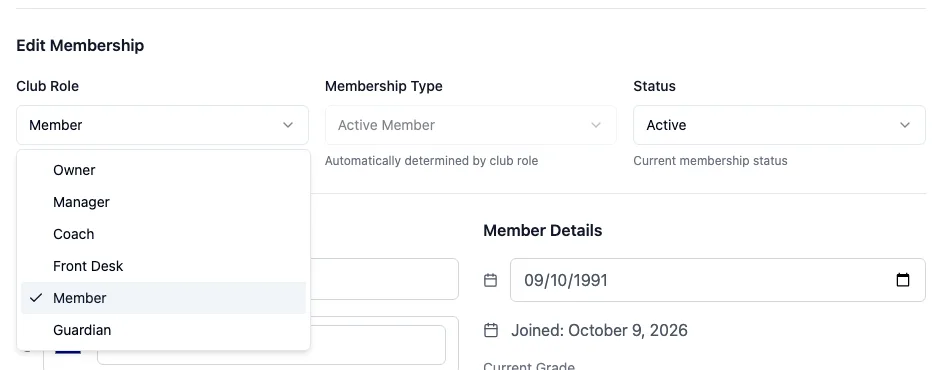
Coaches and managers are members with a role. Open them in Members, click Edit Profile, choose their Club Role and click Save Changes. If they don't have a login yet, use Enable Login under Account Actions. For a shared front-desk login, use Settings → Staff & Devices → Create Account.
Add your members
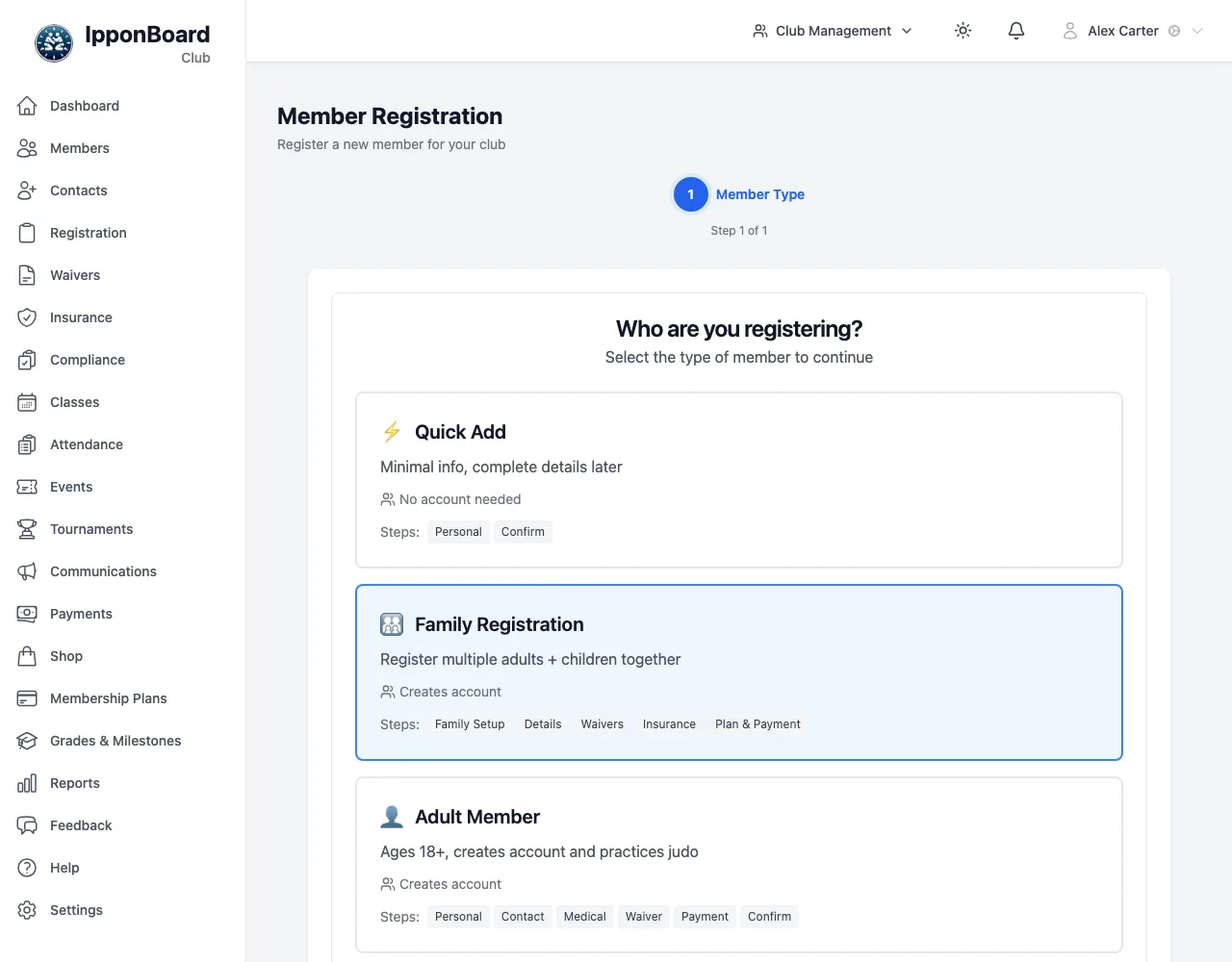
In Members, click Add Member and pick who you're adding: Quick Add, Family Registration, Adult Member, Junior Member, Guardian Only or Drop-in Guest. Or let people sign themselves up: Registration has your public sign-up link and its QR code.
B. Run a class night
There are three ways to check people in, and you can mix them on the same night: staff tick names on Track Attendance, members tap their own name on a kiosk, or they scan the class's QR code with their phone.
Pick the class
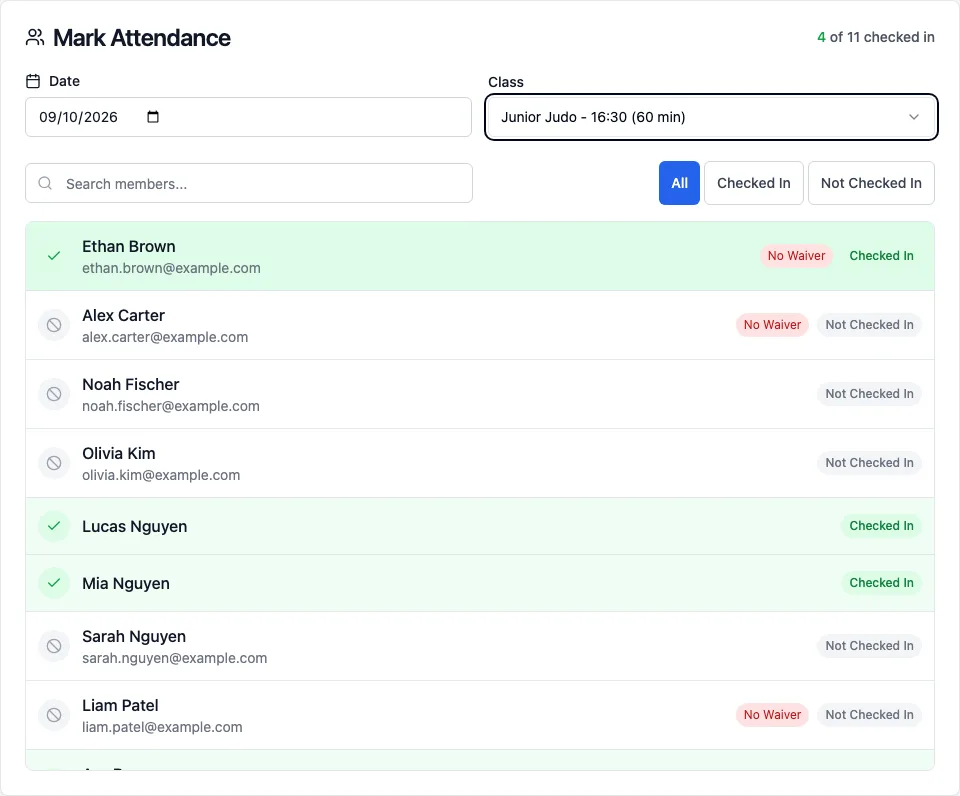
Open Attendance. On the Track Attendance tab, check the Date and choose the Class. General Check-in is for open mats and anything not on the timetable.
Tick people in
Click a name to check them in; it turns green and saves straight away. Click again to take it off. Search members... and the Checked In and Not Checked In buttons help on a busy night.
Or let members check themselves in on a kiosk
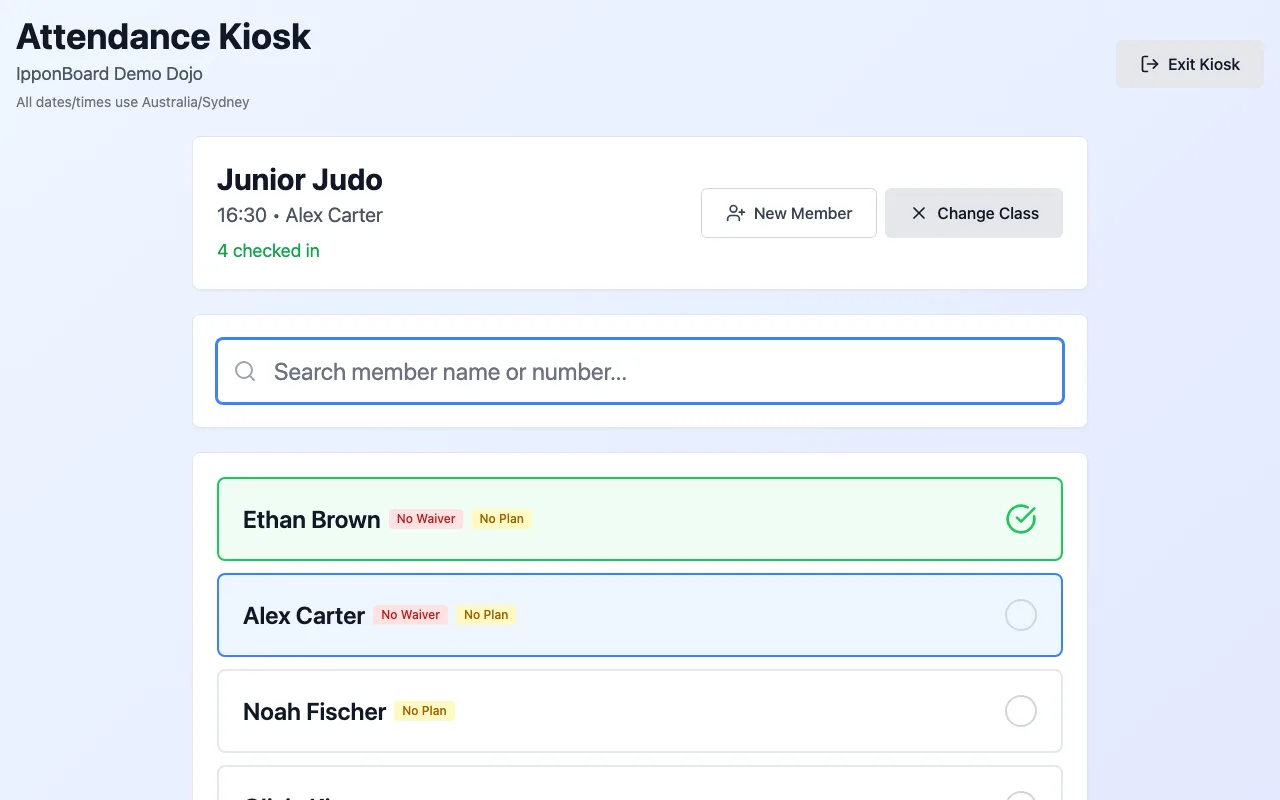
On a tablet at the door, click Open Kiosk Mode, choose the class, and members tap their own name. A shared front-desk login (Settings → Staff & Devices) keeps the tablet signed in. Exit Kiosk is at the top right.
Or put the QR codes on the wall
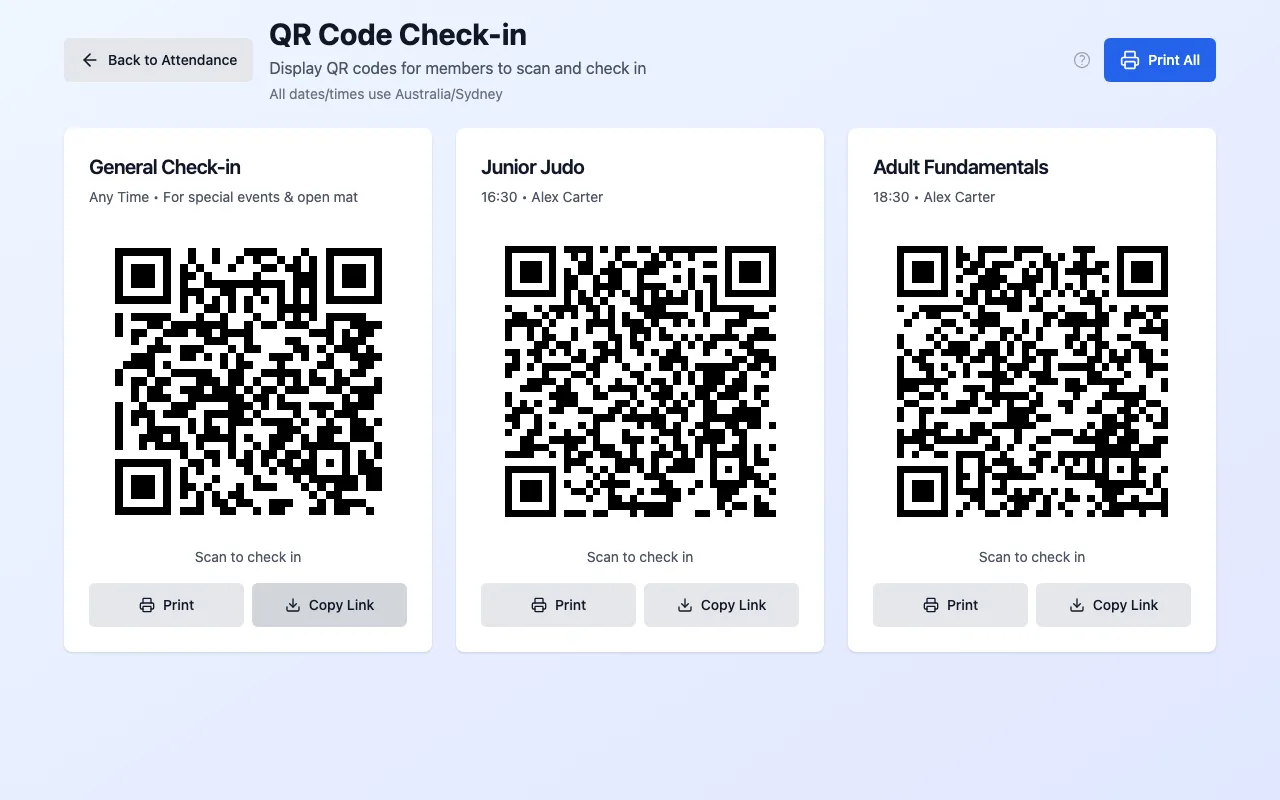
QR Code Check-in shows a code for each class and one for general check-in. Use Print or Print All. Members scan it with their phone and check in there.
Decide what happens when someone hasn't paid
In Settings → Attendance & Reminders, choose Disabled, Warning Only, Grace Period or Strict Block under Payment Enforcement on Check-in, and click Save Changes. With Warning Only, a member who owes money sees Payment Due on the kiosk, with Check In Anyway and a Pay button with the amount.
See who came
The Reports tab on the Attendance page lists check-ins by date, class and member, with Export CSV and Export PDF. Statistics shows the totals.
C. Take payments
Every payment at the desk goes through Process Payment: the member, what they're paying for, then how they pay. Here's a month's membership paid in cash:
Select Member
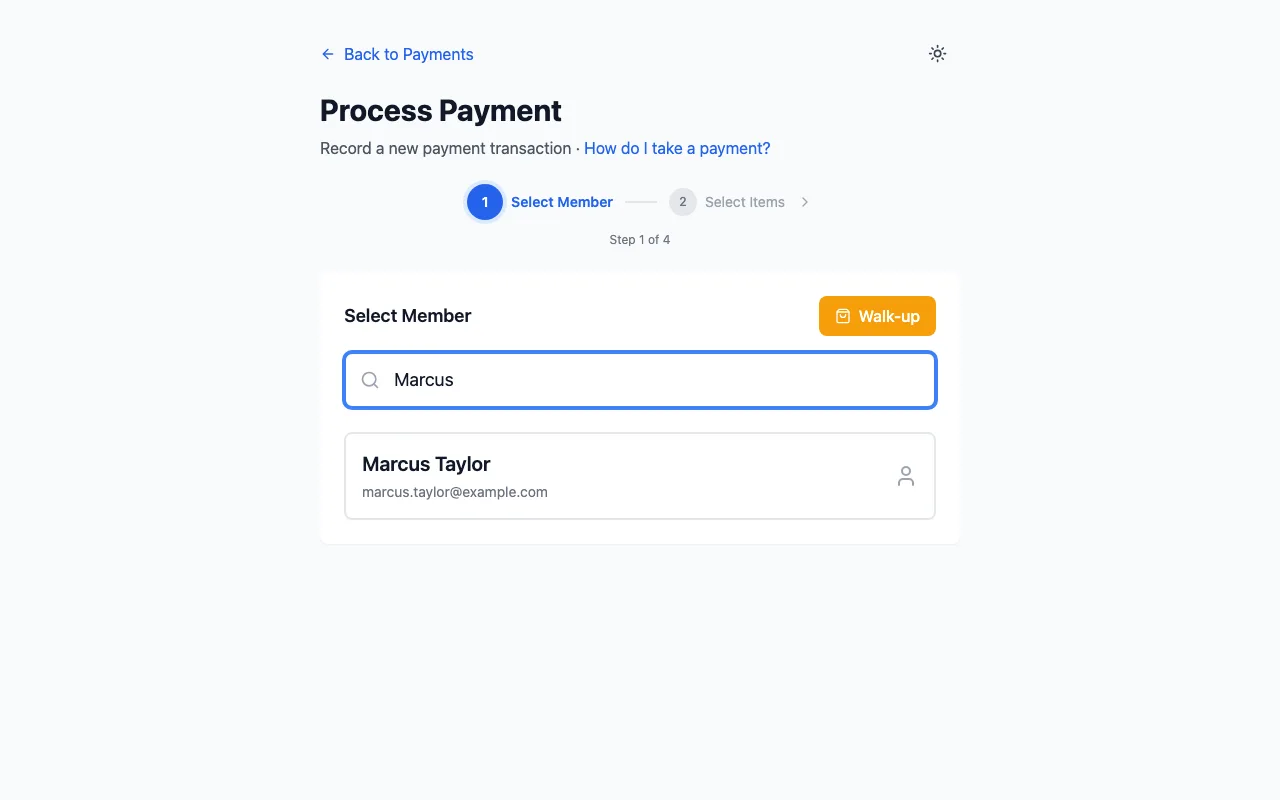
Open Payments and click Process Payment. Search for the member by name or number and click them. For someone who isn't a member, use Walk-up.
Select Items
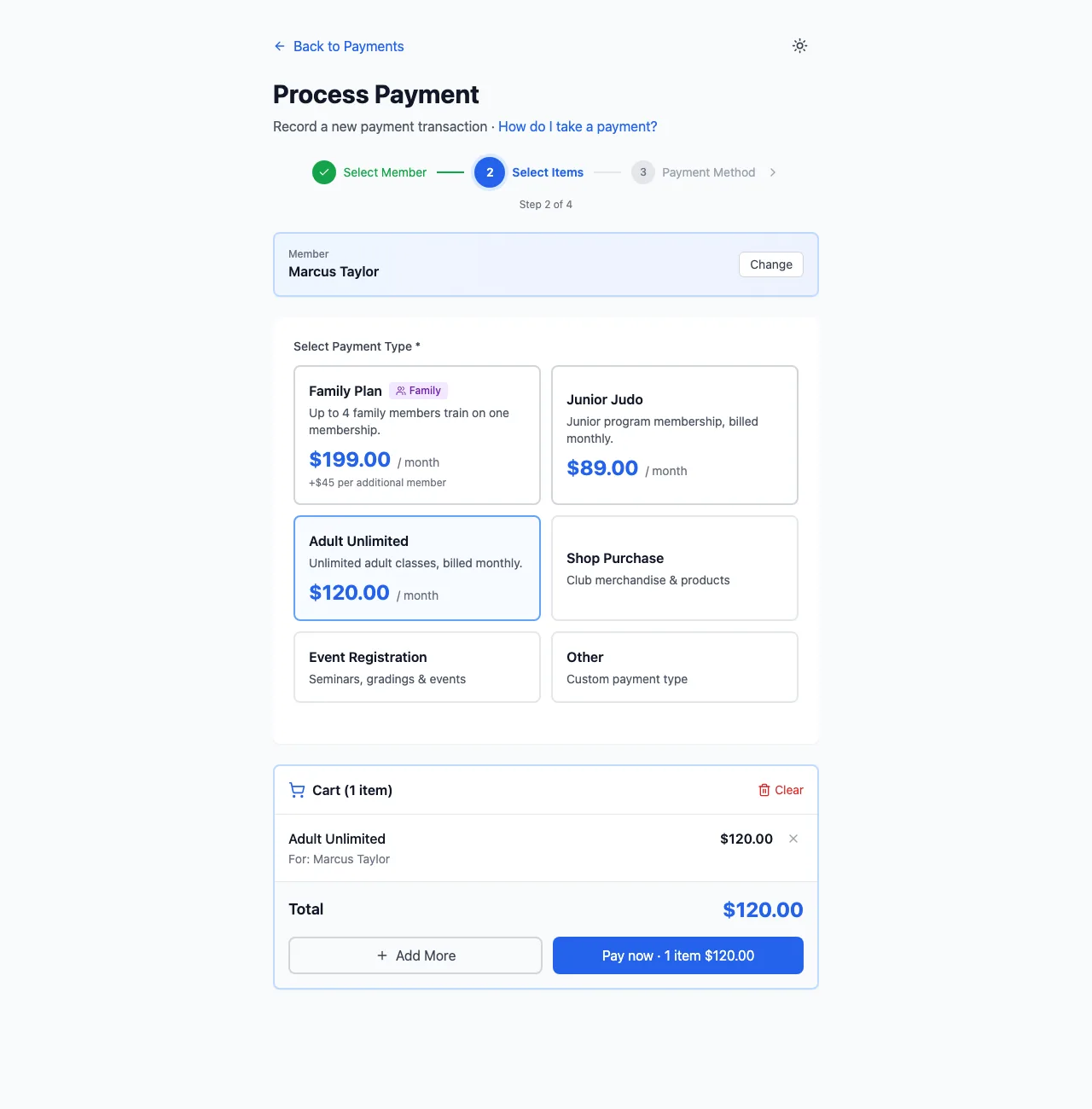
Click what they're paying for: a membership plan, Shop Purchase, Event Registration or Other. If the member has family on their account, you're asked who it's for: pick them and click Pay now (or Add to cart to add something else first). With the cart ready, its button says Pay now · 2 items $165.00.
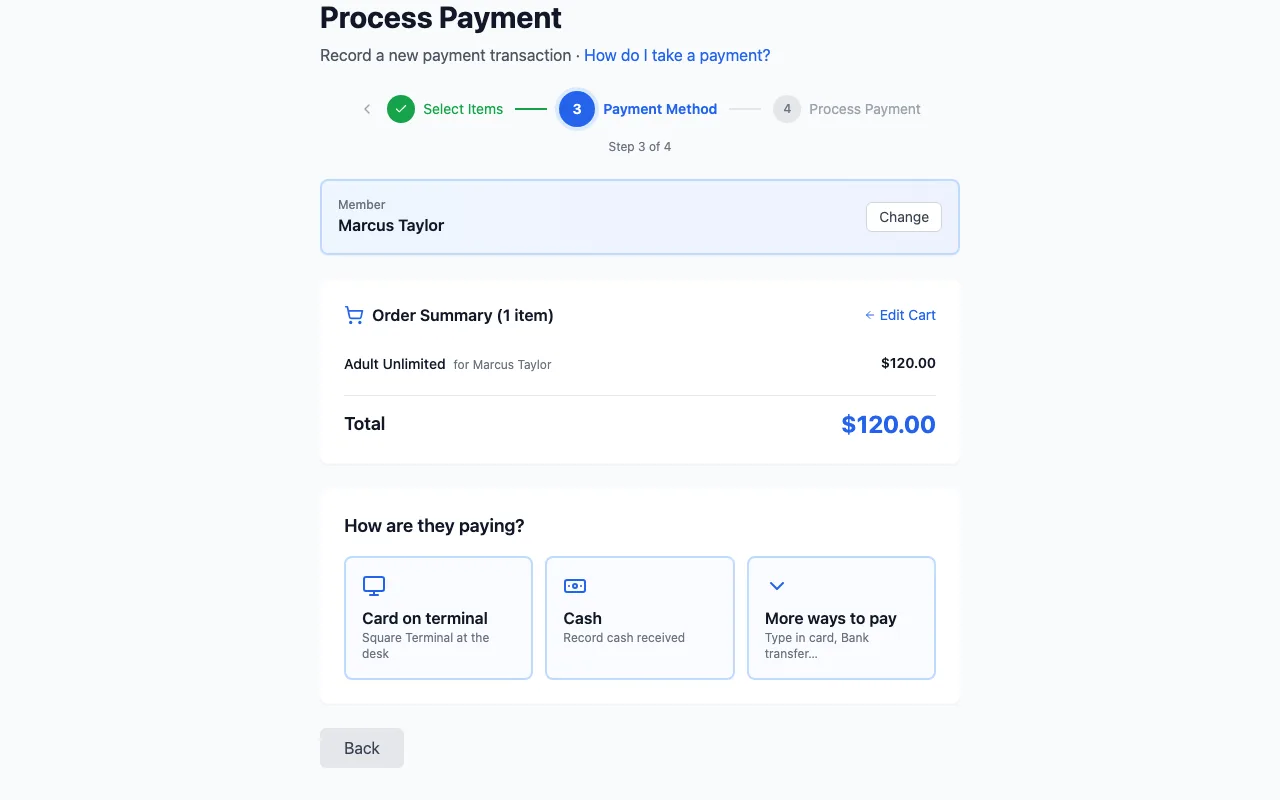
How are they paying?
Tap a big button: it goes straight to that method. Card on terminal sends the amount to your Square Terminal and Cash records cash you've received; a member with a saved card also gets Charge Visa ••4242 first. Everything else (Bank transfer, Type in card, Split (part cash, part card), Email a pay link, Cheque…) is behind the More ways to pay tile. Which ones you see depends on what's set up in Payment Provider.
Finish it
The last button says exactly what happens: Record $120.00 cash, Charge $45.00 to Visa ••4242 or Send to terminal ($45.00). Nothing is charged before it. You'll see Payment Recorded! and the payment is in the Payments list.
Refunds
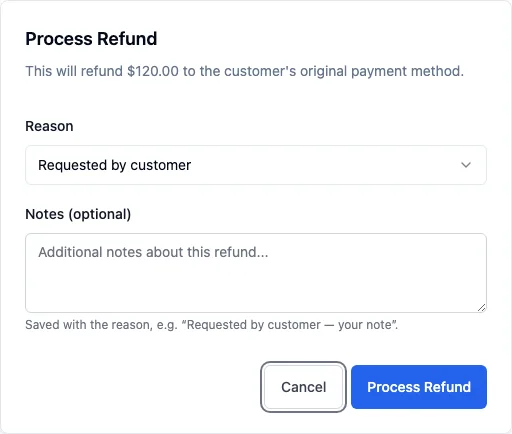
Open the payment from the Payments list and click Process Refund. Choose a reason and click Process Refund. It refunds the whole amount to the card it came from. Owners and managers can refund Stripe and Square card payments; for cash, cheque or a transfer, give the money back and click Record Refund.
Payouts
Card payments go to your own Stripe or Square account, and they pay the money out to your bank. You manage payouts in Stripe or Square; each payment's page in the app shows its fees and what reached the club.
The detailed guides, in order
- Set up your club — Six steps, about 40 minutes: create the club, payments, plans, classes, staff, members.
- Settings — Club information, check-in rules, term dates, front-desk devices and billing.
- Payments — Connect Stripe or Square, take payments, refunds and payouts.
- Membership Plans — What members pay, how often, and which classes each plan covers.
- Classes — Your weekly timetable, enrolments and who can come to each class.
- Members — Adding members, public registration, profiles, families and roles.
- Attendance — Track Attendance, the kiosk, QR self check-in and payment checks.
The rest of the club app
- Waivers — Waiver templates, signatures and check-in rules.
- Insurance — Insurance and registration records.
- Grading — Grades, requirements and milestones.
- Events — Seminars, gradings and other events, with registrations.
- Communications — Announcements and emails to members.
- Contacts — Leads and enquiries.
- Shop — Products, stock and orders.
- Reports — Attendance, money and membership reports.