Creating an event
Name, type, dates, place, capacity and who can register; then publish it.
Who can use it: Owners and managers.
Open Create New Event
Go to Events in the menu and click Create Event.
Basic Information
Event Name and Event Type are required. The types are Bring a Friend, Grading, Seminar, Camp, Competition, Social, Workshop, Trial Class, Open Mat and Other. Add a Description: people see it on the event page.
Date & Time and Location
Start Date is required; End Date, Start Time and End Time are optional. Add the Location and any Location Notes (parking, which door).
Capacity & Access
Leave Capacity empty for no limit. Access Type is who can register:
- Public: anyone with the link.
- Members Only: club members only.
- Invitation Only: needs an invitation code.
- Admin Only: only staff can register people.
Tick Require approval if you want to approve each registration, and Enable waitlist so people can join a waitlist once it's full.
Registration Settings
Registration Outcome says what happens to someone who registers and isn't a member yet: Event Only (just the registration), Drop-in Member, Contact Only (added to Contacts as a lead once the registration is confirmed), Full Account or Link Existing (signed-in members only). Registration Opens and Registration Closes set the window.
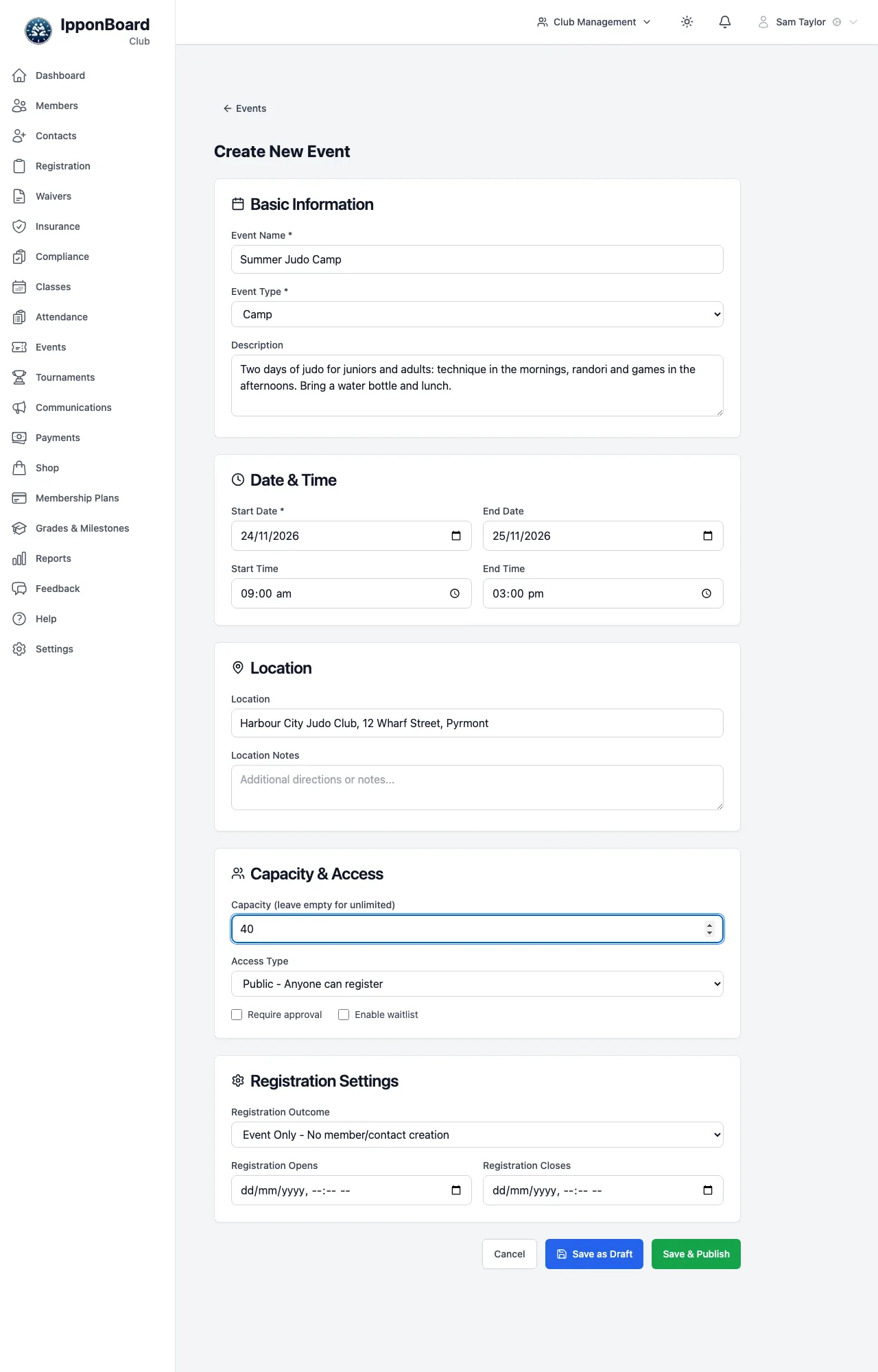
Save as Draft, or Save & Publish
Save as Draft keeps the event hidden while you add sessions and prices (Settings & Sessions on the event). Save & Publish publishes it straight away. You can publish a draft later with Publish Event.
The event page and its Quick Actions
Each event has a page with its details, sessions and prices. Quick Actions on the right lead to everything else: View Registrations, Edit Event, Settings & Sessions, Check-In, Reports, Duplicate Event, Publish Event or Unpublish Event, Cancel Event, and Delete Event for drafts.
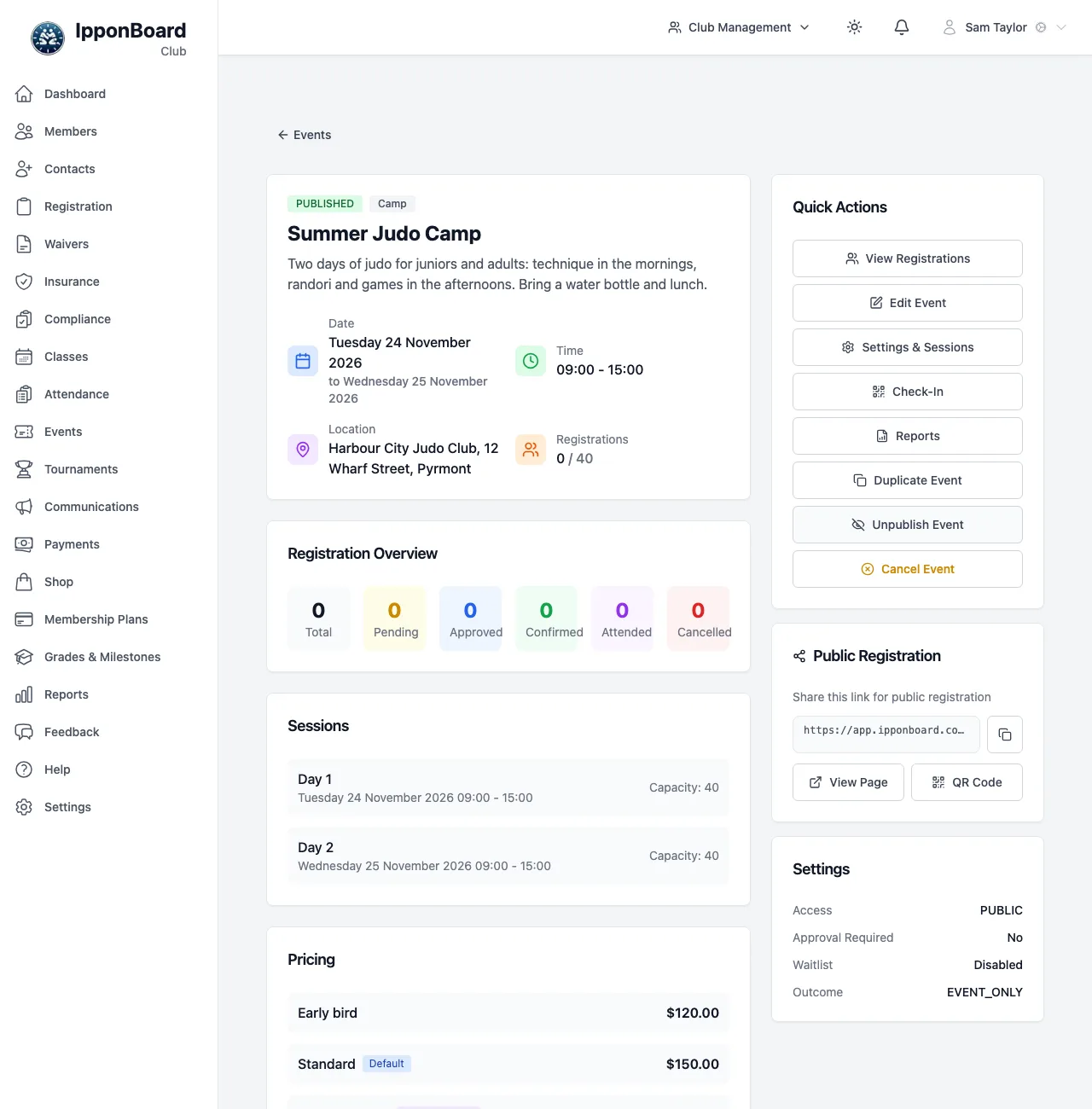
- Statuses. New events are DRAFT; publishing makes them PUBLISHED; Cancel Event makes them CANCELLED.
- Publishing needs a start date that hasn't passed and, if Enable online payment is on, at least one active price.
- Unpublishing isn't possible once someone has a confirmed, approved or attended registration.
- Cancelling cancels every registration and emails them. Refunds aren't made for you: refund paid registrations from Payments.
- Duplicate Event copies the settings, prices and sessions into a new draft named "(Copy)".
- Renaming an event changes its web address, so share the link again after a rename.