Grades & Milestones
Record each member's belt, see how close they are to the next one, and celebrate the things they achieve along the way.
This guide is for club owners, managers and coaches. By the end you'll have awarded a grade, seen a member's progress towards their next belt, and recorded a milestone. Members see their own grades and milestones in the member portal (see Belt Progress).
Who can use it: Owners, managers and coaches award grades, record milestones, review grade requests and set requirements. Only owners and managers can delete a grade or milestone. Front-desk staff can see grades and milestones.
Track A
Award a grade
Pick the member, the belt, the date. Done.
Track B
Progress, requests and milestones
Who's close to their next belt, grades members send in, and achievements.
A. Award a grade
Awarding a belt, then recording a milestone, in under 20 seconds:
Open Grades & Milestones
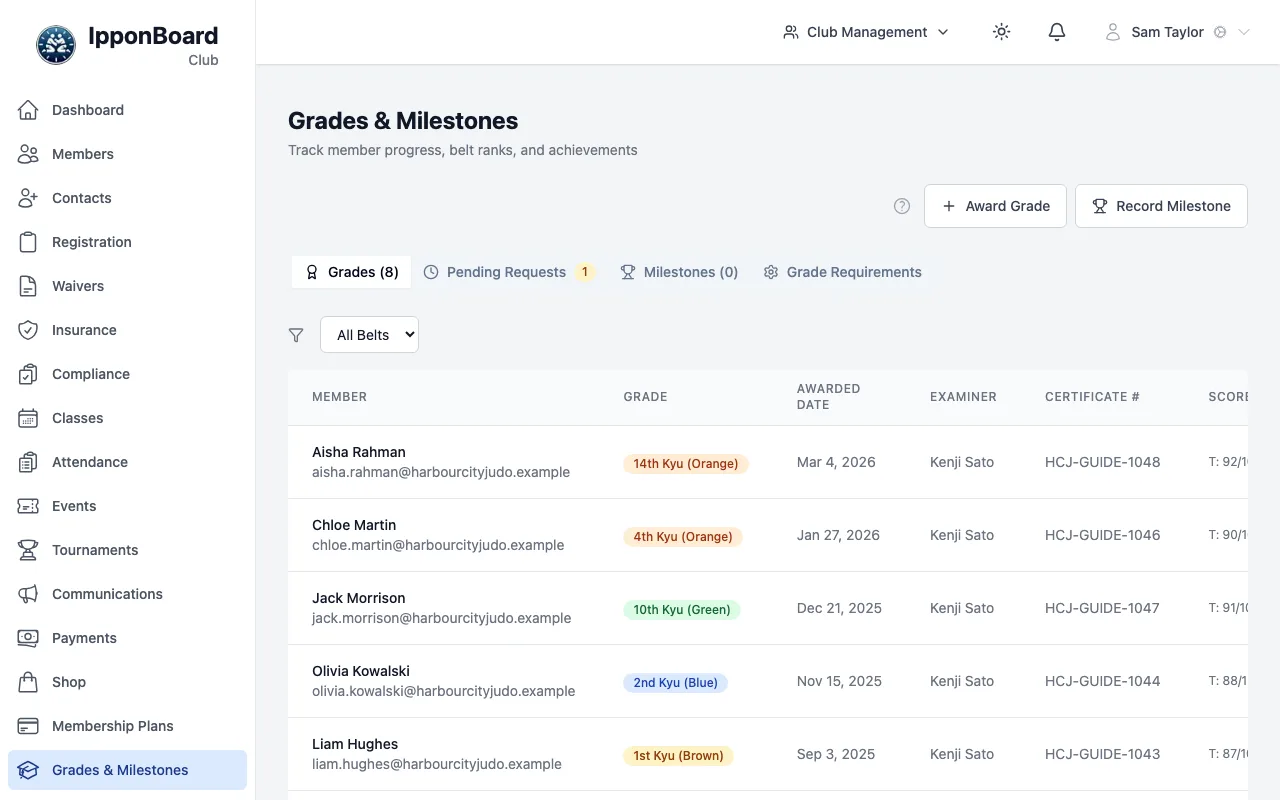
Click Grades & Milestones in the menu. The Grades tab lists every grade awarded, newest first, with the examiner, certificate number and scores. Filter it by belt colour with All Belts.
Choose the member
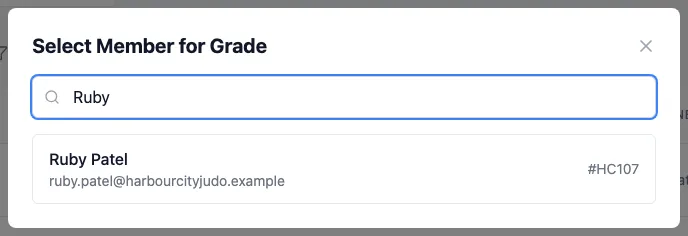
Click Award Grade and search by name, email or member number. Click the member.
Choose the type of grade, then the belt
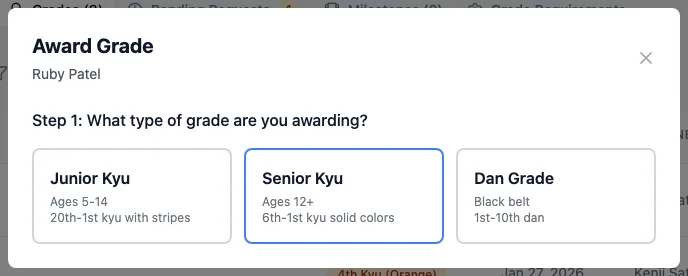
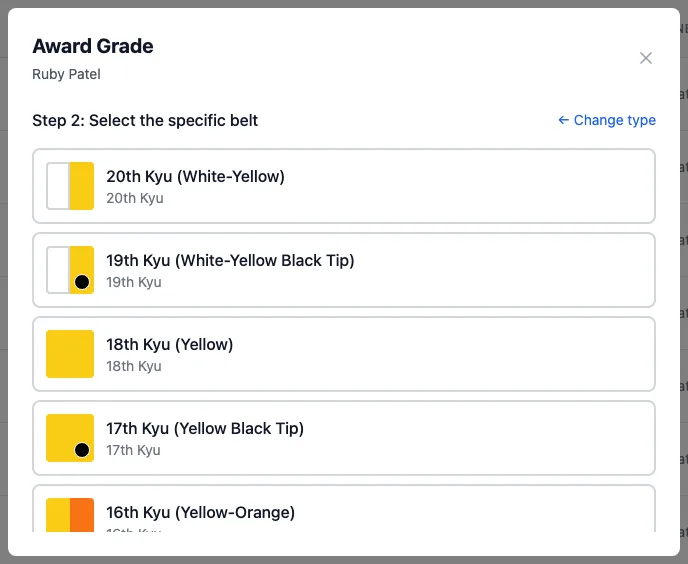
Step 1 asks what type of grade it is: Junior Kyu, Senior Kyu or Dan Grade. Step 2 lists that type's belts, in order. Click the belt.
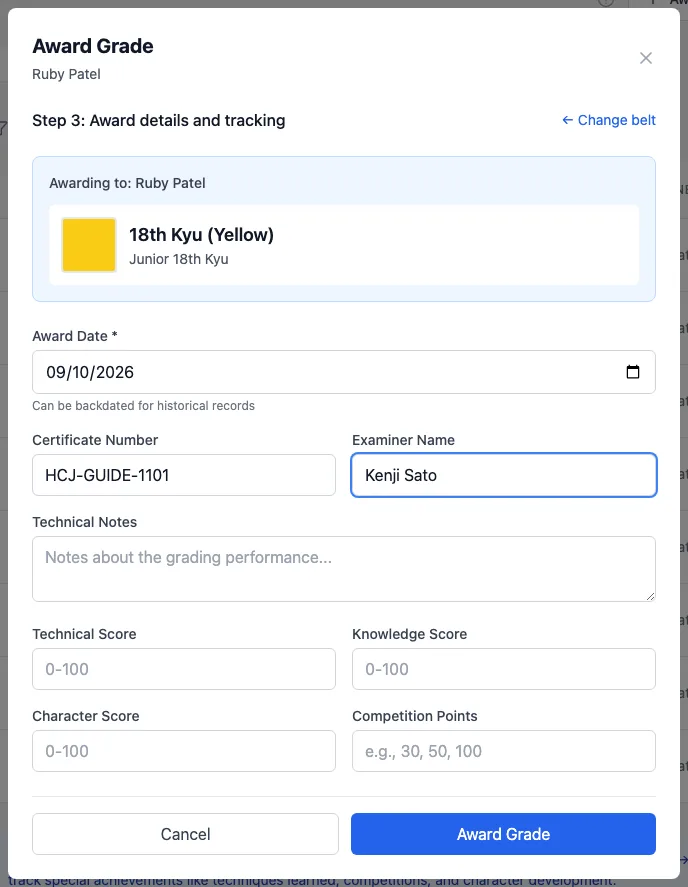
Fill in the details and award it
Step 3 needs an Award Date (it can be in the past, for grades from before you used IpponBoard). The Certificate Number, Technical Notes, scores and Competition Points are optional. Click Award Grade.
B. Progress, requests and milestones
See how close someone is to their next belt
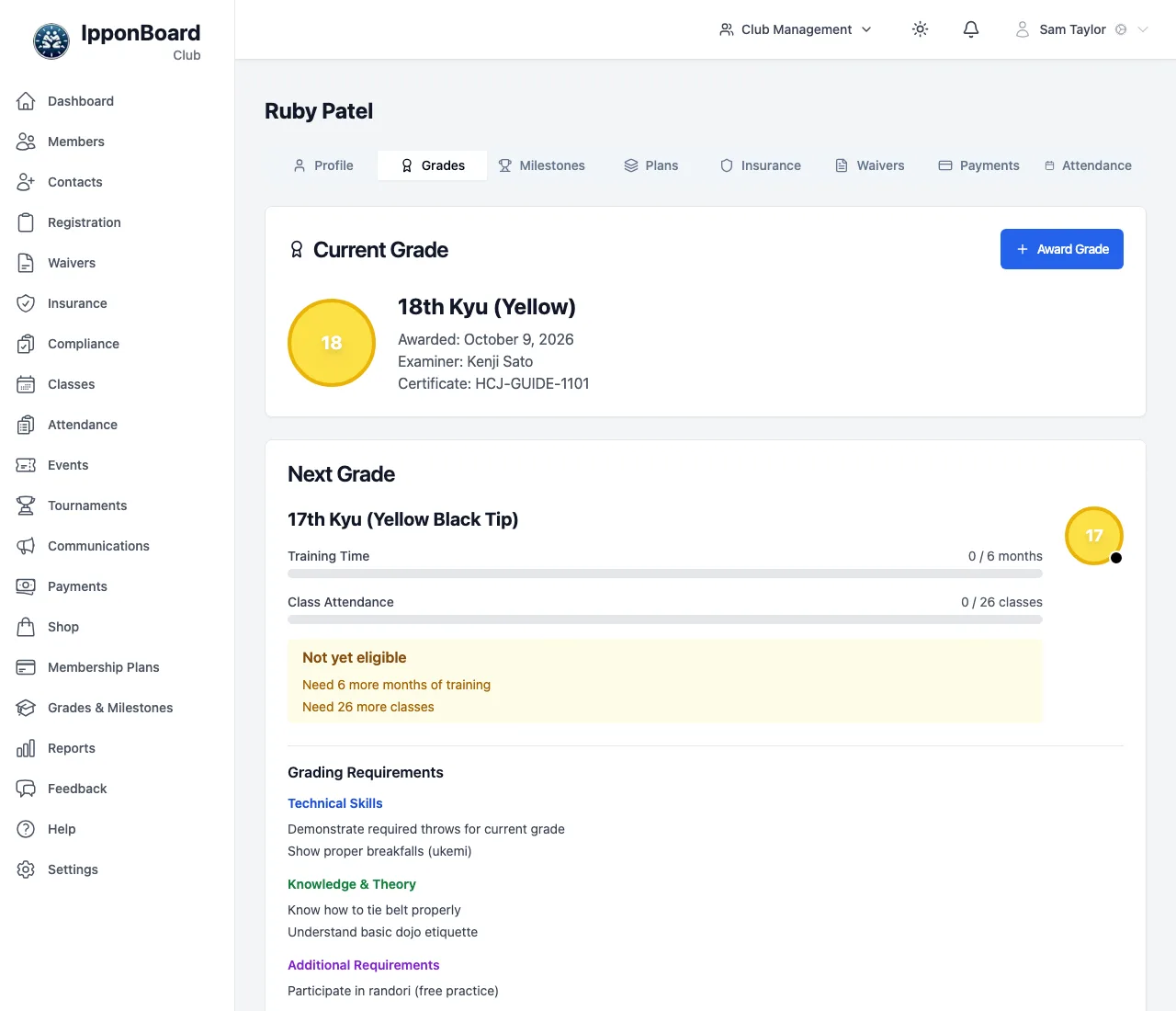
On a member's profile, the Grades tab shows their Current Grade and the Next Grade: months of training and classes attended since their last grade, against what the next belt needs, and that belt's Grading Requirements. Below is their Grade History.
Review grades members send in
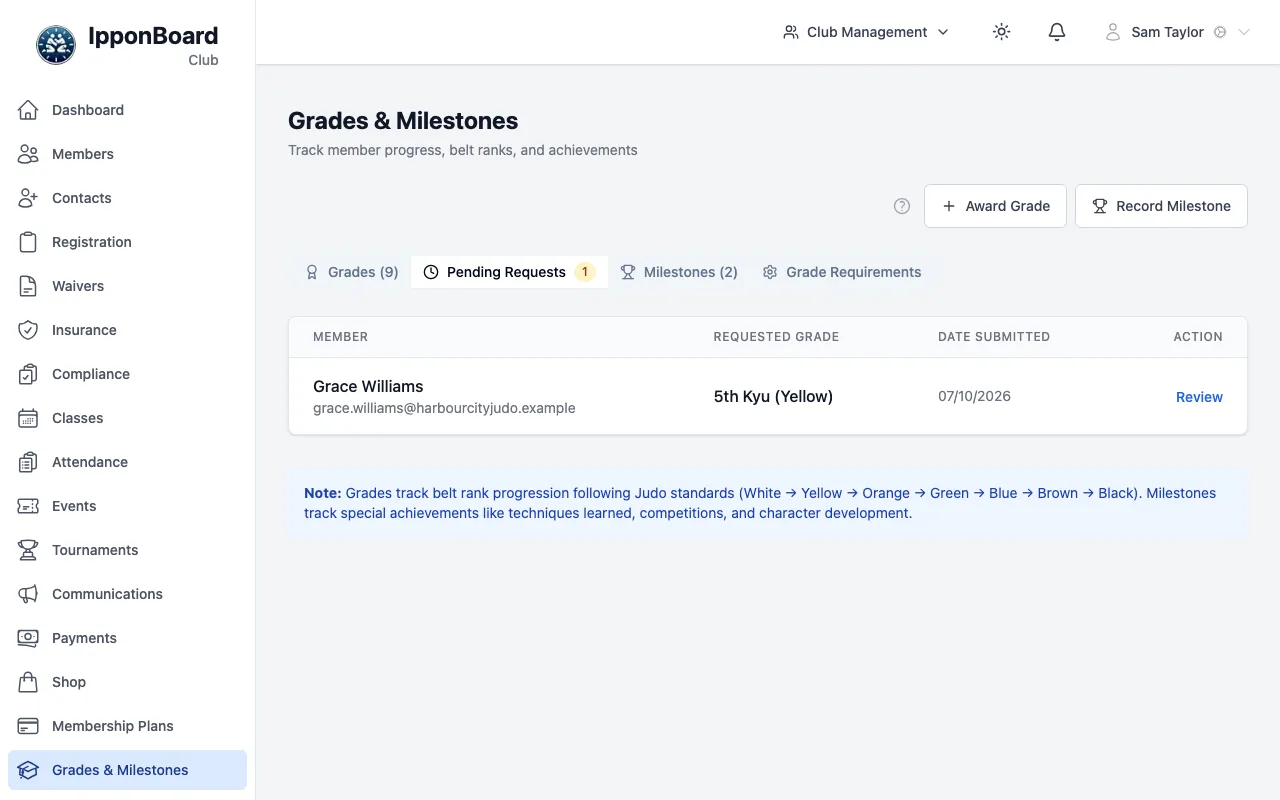
Members can tell you about a grade from the member portal (I have graded). It appears on the Pending Requests tab. Click Review, then Approve (you can correct the details first) or Reject with a reason the member will see.
Record a milestone
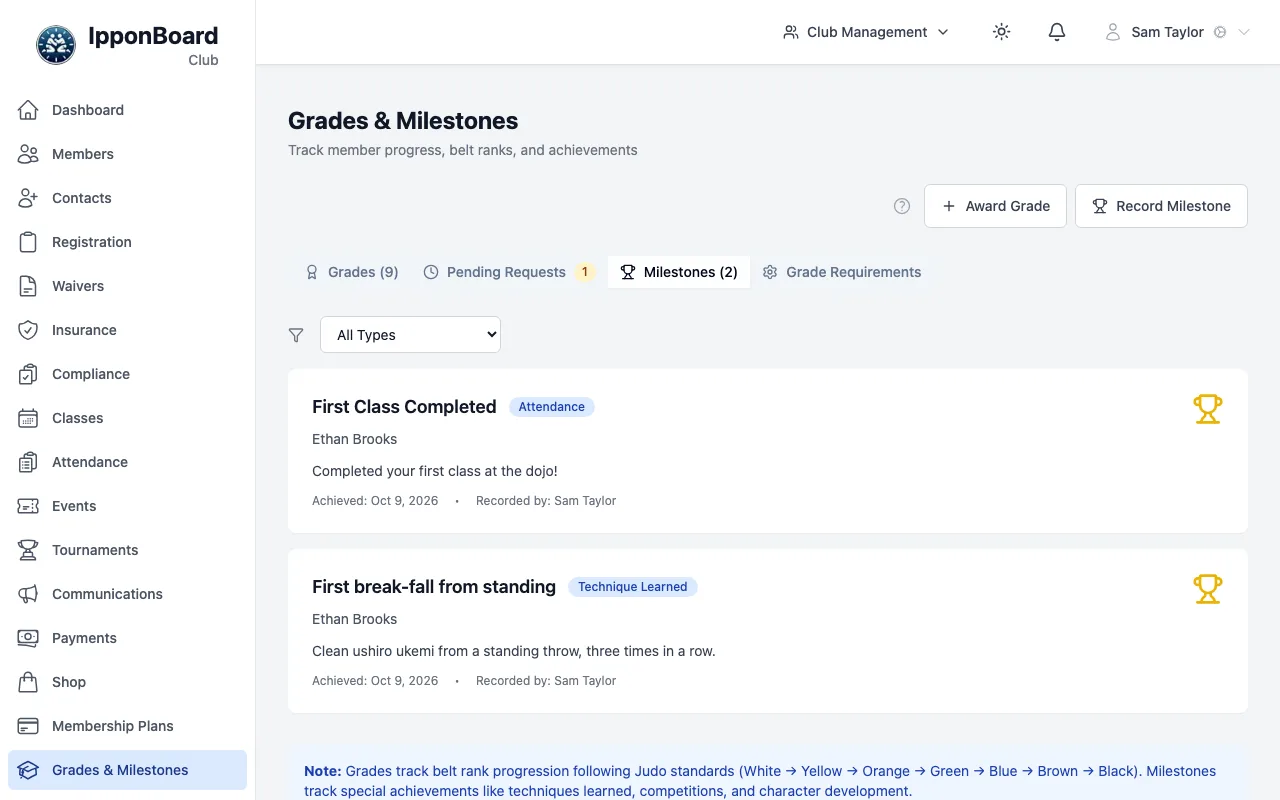
Click Record Milestone, choose the member, then pick a Milestone Type, give it a Title and an Achieved Date, and click Record Milestone. Attendance milestones (first class, 10 classes and so on) are added for you.
The detailed guides, in order
- Grades: Awarding a grade, grade requests from members, and grade history.
- Requirements: Time, classes and syllabus for each belt; a member's progress.
- Milestones: Achievements you record, and the automatic attendance ones.