Communications
Tell members what's happening: a post on the member portal, an email, or both. And make the club's emails your own.
For club owners and managers. You'll send your first announcement, then set up the emails the club sends: your own templates, the automatic emails, and the footer.
Who can use it: Owners and managers (Communications in the menu).
Track A
Send an announcement
A portal post, an email, or both.
Track B
Set up your emails
Templates, automatic emails and the footer.
A. Send an announcement
Choose how to send it
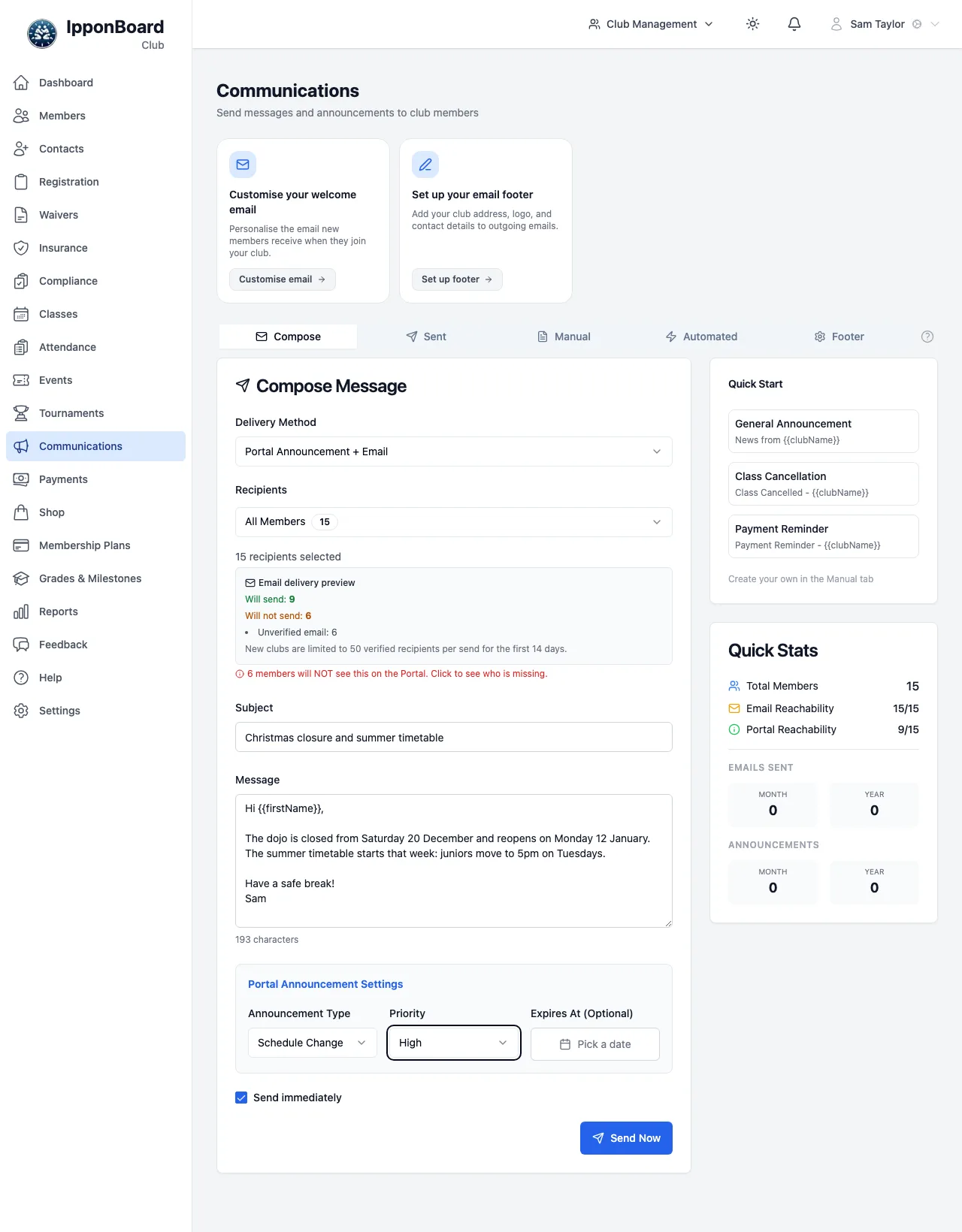
Go to Communications. On the Compose tab, pick the Delivery Method: Portal Announcement Only, Email Blast Only, or Portal Announcement + Email.
Choose who gets it
Recipients can be All Members, Active Members, Coaches & Staff, the members on a plan or in a class, or a Custom List you tick. The Email delivery preview shows how many will get the email and why the others won't.
Write it and send
Fill in the Subject and Message. {{firstName}} puts each person's first name in. For a portal post, set the Announcement Type, Priority and, if you like, when it expires. Click Send Now, or untick Send immediately to schedule it.
What members see
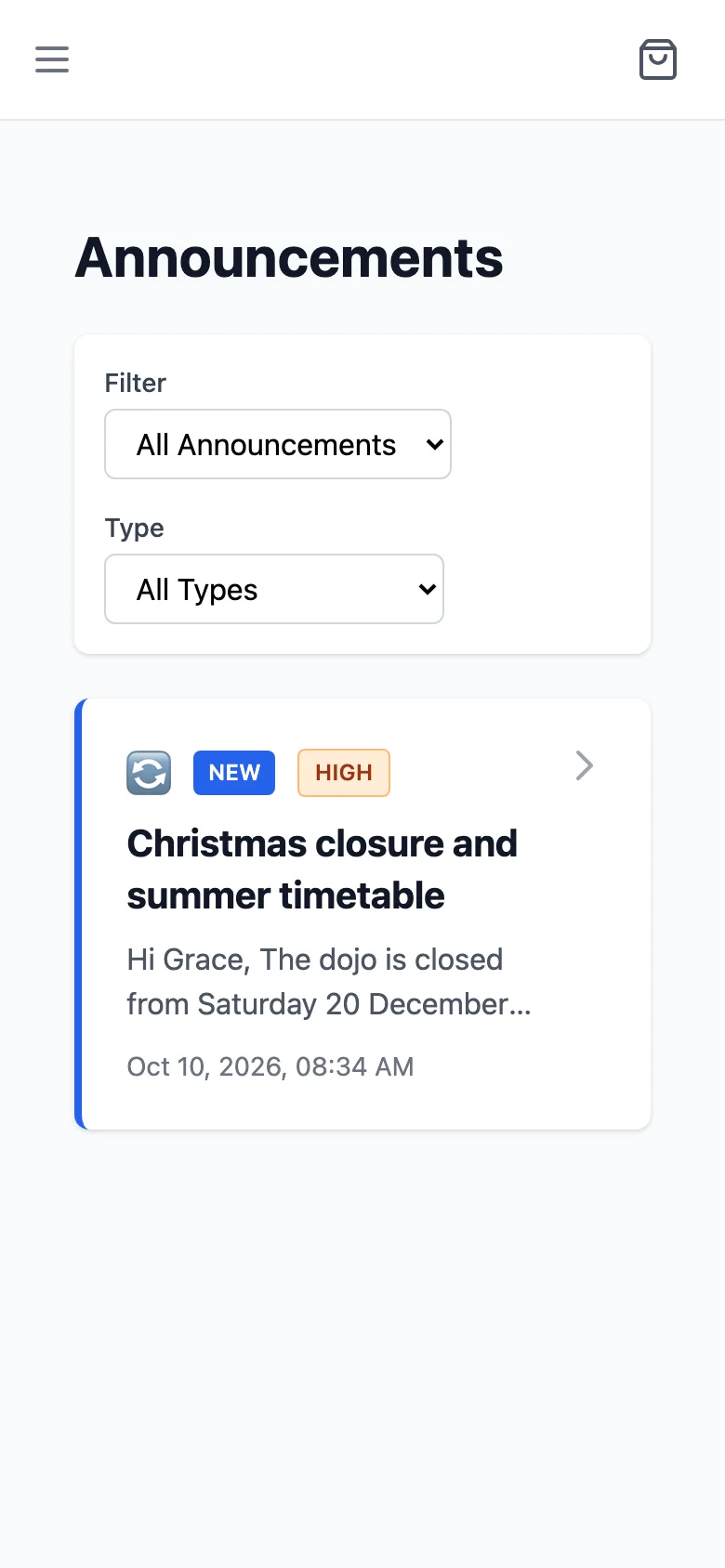
The post appears on the member portal's Announcements page and dashboard, marked new until they read it. It also shows on your Sent tab.
B. Set up your emails
Your own templates (Manual)
On the Manual tab, New Template saves a subject and message you send often, like a grading reminder. They appear under Your Templates on Compose.
The automatic emails (Automated)
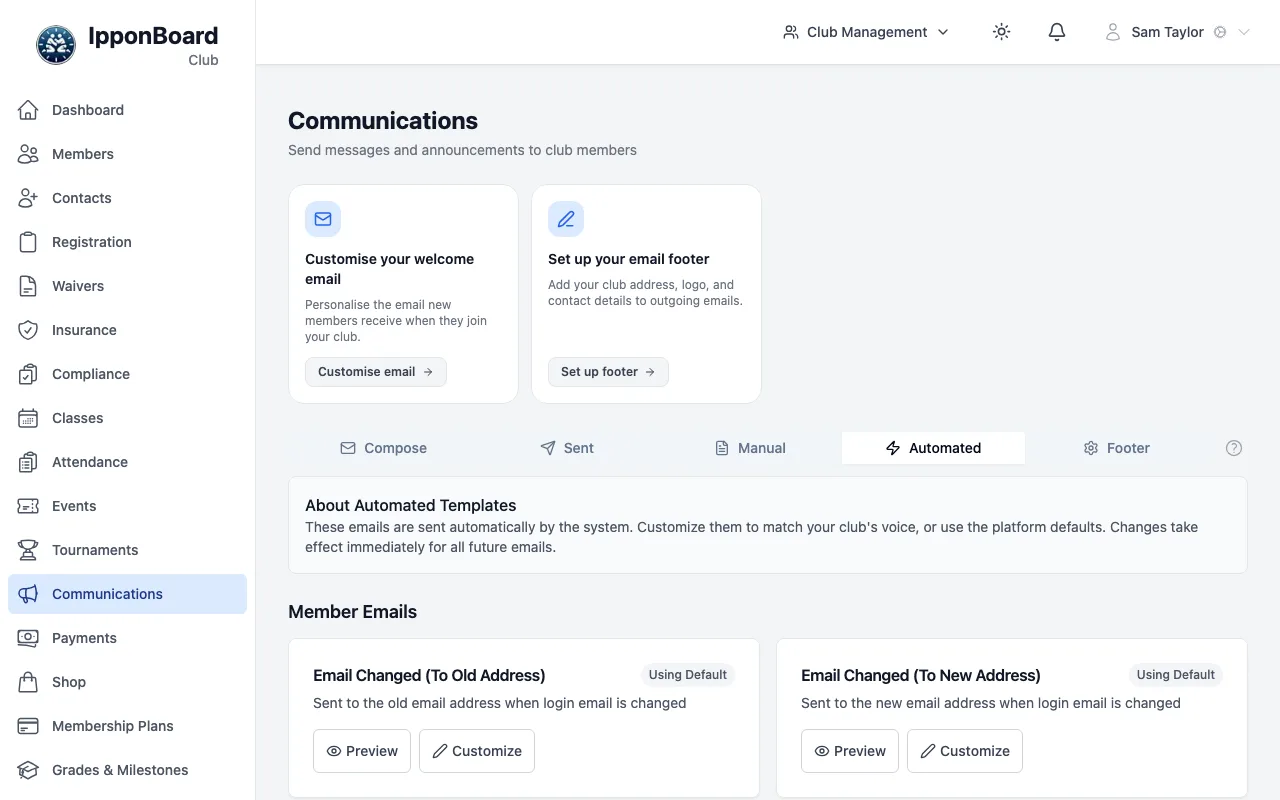
The Automated tab lists the emails the club sends for you: welcome, receipts, payment reminders, waiver requests, event confirmations and more. Click Customize on one to change its wording, or Preview to see it.
The footer
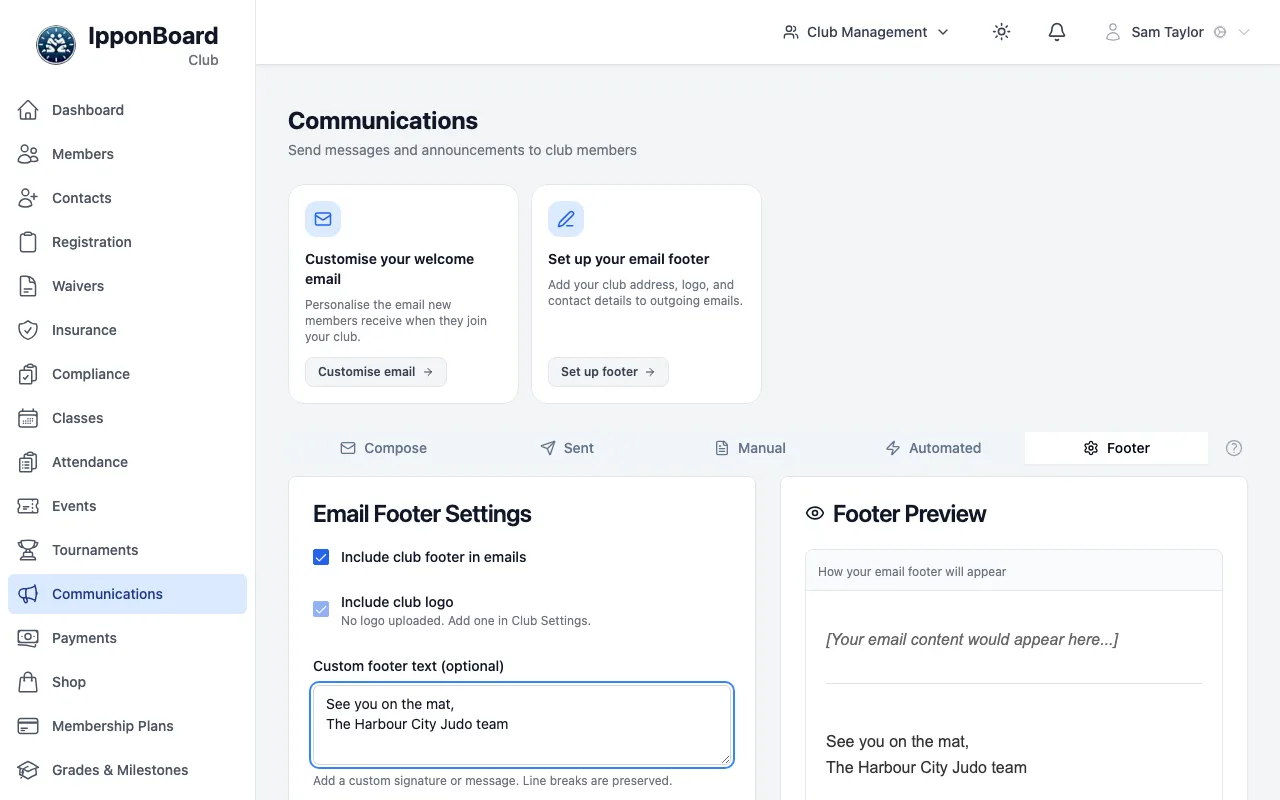
The Footer tab adds your logo, address, phone, website and a sign-off to the bottom of club emails. Click Save Settings.
The detailed guides, in order
- Announcements: Posts on the member portal, with or without an email.
- Bulk messaging: Emailing everyone, a plan, a class or a list you pick.
- Email templates: Your own templates, the automatic emails, and the footer.