Public Registration
Let new members sign themselves up online, then review what comes in.
Your club has its own online registration form. New members (or their parents) fill it in themselves: their details, emergency contact, medical info, waiver, and, if you like, insurance, a membership plan and payment. You share the link or a QR code, and the submissions land in your Registration page.
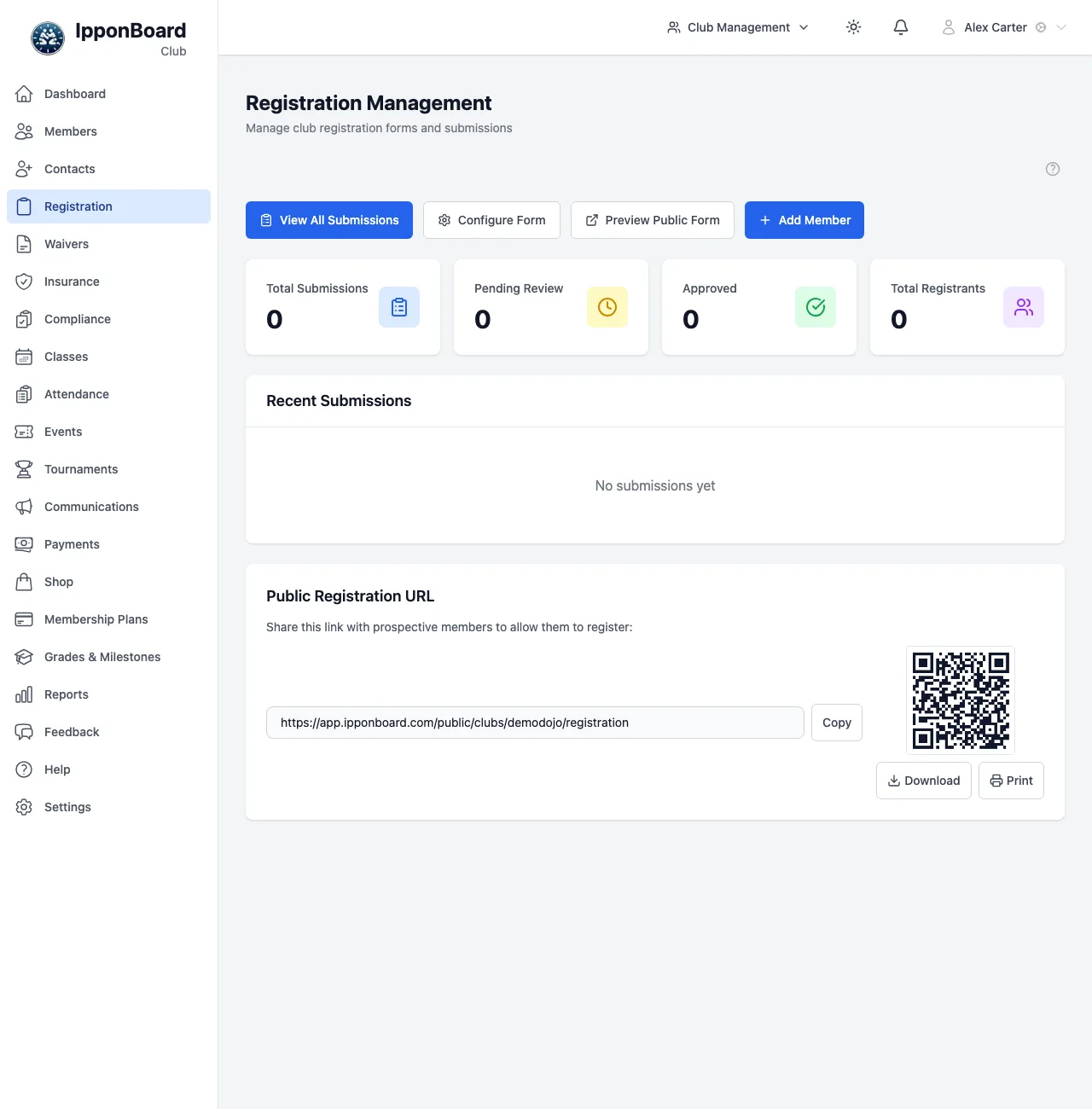
Open it from the sidebar: Registration.
What's on the page
- Buttons: View All Submissions, Configure Form, Preview Public Form (opens your form in a new tab) and Add Member (the staff wizard, see Adding members).
- Counts: Total Submissions, Pending Review, Approved and Total Registrants.
- Recent Submissions, each with its status (PENDING, APPROVED or REJECTED). Click one to open it.
- Public Registration URL: your link with a Copy button, and a QR code you can Download or Print.
If the form is switched off, a yellow Registration Form Disabled notice shows at the top with a Go to Configuration button.
Setting up the form
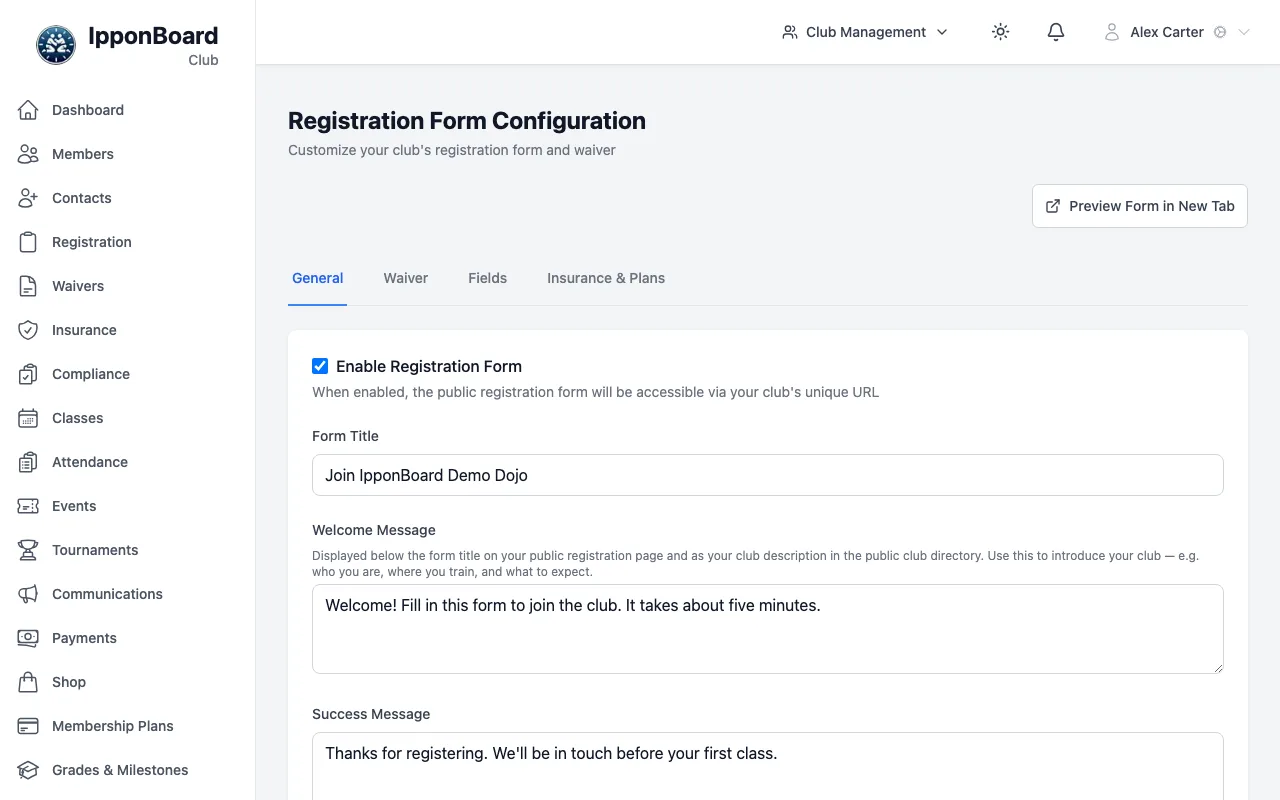
The form settings are on Registration → Configure Form. The page has four tabs: General, Waiver, Fields and Insurance & Plans.
Turn the form on
On General, tick Enable Registration Form. Give it a Form Title, a Welcome Message (it also appears as your club's description in the public club directory) and a Success Message people see when they finish.
Choose the form options
Under Form Options:
- Require manual approval before conversion: you check each submission before anyone becomes a member. Leave it off and members are created straight away.
- Send email notifications: your club is emailed about each new submission, and when approval is on the person gets a "we've got it" email.
- Collect emergency contact information and Collect medical information.
Click Save Configuration.
Check the waiver
The Waiver tab shows which waiver template the form uses (your default one), its version and whether drawn and typed signatures are allowed. To change it, click Manage Waiver Templates. See Waiver templates.
Add your own questions (optional)
On Fields, click Add Field for things like uniform size or previous experience. Set the Field Label, the Field Type (Text, Text Area, Dropdown, Radio Buttons, Checkbox or Date) and Applies To (All Registrants, Adults Only or Minors Only), and tick Required field if it must be answered. Then Save Configuration.
Add insurance and plans (optional)
On Insurance & Plans, tick Enable Insurance Step and/or Enable Membership Plans Step. Choose which insurance types and plans to offer, mark any as Required, and decide whether people may skip the step. Click Save Insurance & Plans.
Try it
Click Preview Form in New Tab (top right) to see exactly what new members will see.
What people fill in
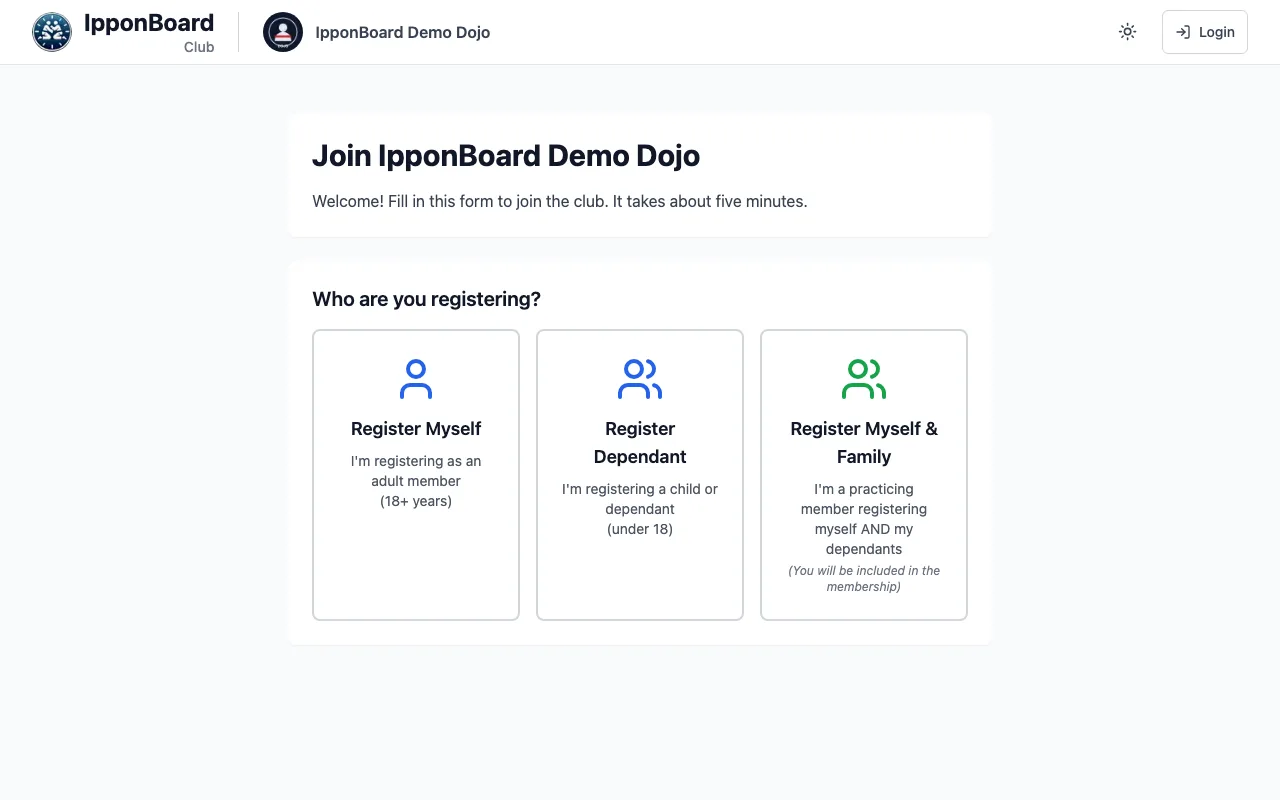
The form first asks Who are you registering?, with three choices: Register Myself, Register Dependant (a child) and Register Myself & Family. Then it goes through these steps (only the ones you've turned on):
- Personal Info: name, date of birth, contact details, address, plus emergency contact, medical info and your own questions if you collect them.
- Insurance (or your club's name for it): enter an existing membership number, or buy it through the club.
- Plans: choose a membership plan.
- Waiver: read and sign, by drawing or with Type Signature. A parent signs for a child.
- Payment: if they chose anything to pay for, they pay online, or at your terminal if your club offers that. With nothing to pay, the last button is Submit Registration.
If someone enters an email that already has an account, the form asks them to log in (or reset their password) instead of creating a second account.
Reviewing submissions
With manual approval on, each submission waits for you as PENDING.
Open the submission
On Registration, click View All Submissions. Filter by status if you like, then click View on a submission.
Check the details
The page shows the person who submitted it and everyone they registered. Click View Details on a registrant to see all their answers.
Approve or reject
Add Review Notes if you want, then click Approve Submission or Reject Submission. Approving creates the club members, links children to their guardian and sends the welcome emails.
Who can do what
- All staff, including front-desk accounts, can open the Registration page, copy the link and use Add Member.
- All staff can view submissions; owners and managers approve and reject them.
- The Configure Form page opens for owners and managers.