Classes
Your weekly timetable: the classes you run, who's enrolled, and who can come.
A class is a session that runs every week, such as "Junior Beginners, Monday and Wednesday 5pm". Membership plans decide which classes a member can come to, and attendance is marked against a class.
Open them from the sidebar: Classes.
Creating classes
Add a class, its days and times, and change or remove it later.
Checking in
Mark who came to a class.
The Classes page
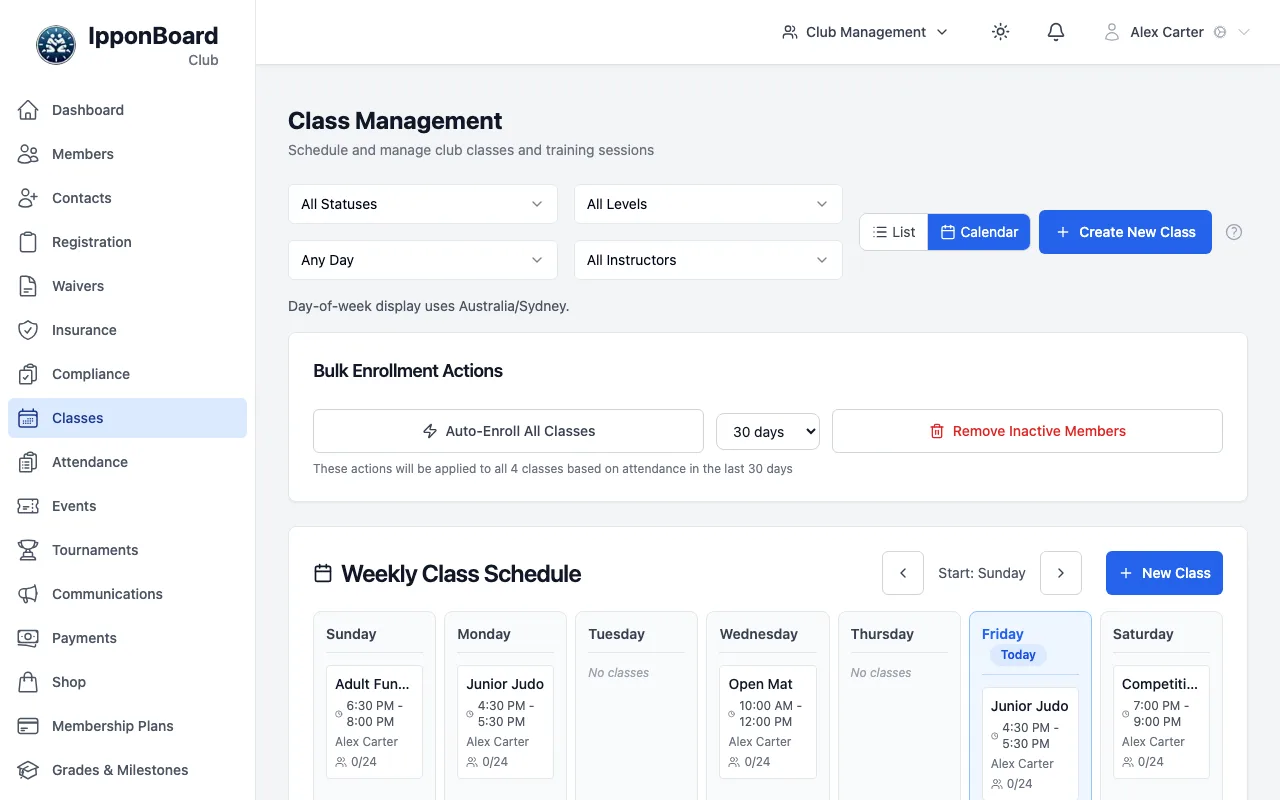
- List shows each class with its days and times, category, how many are enrolled and the instructor. Calendar shows the week laid out by day, which makes gaps in your timetable easy to spot.
- Filter the list by day, instructor or status (Active or Inactive).
- The ⋯ menu on a class has Mark Attendance, View Details, Edit Class, Deactivate (or Activate) and Delete Class.
- Create New Class adds a class. See Creating classes.
app.ipponboard.com
A class's page
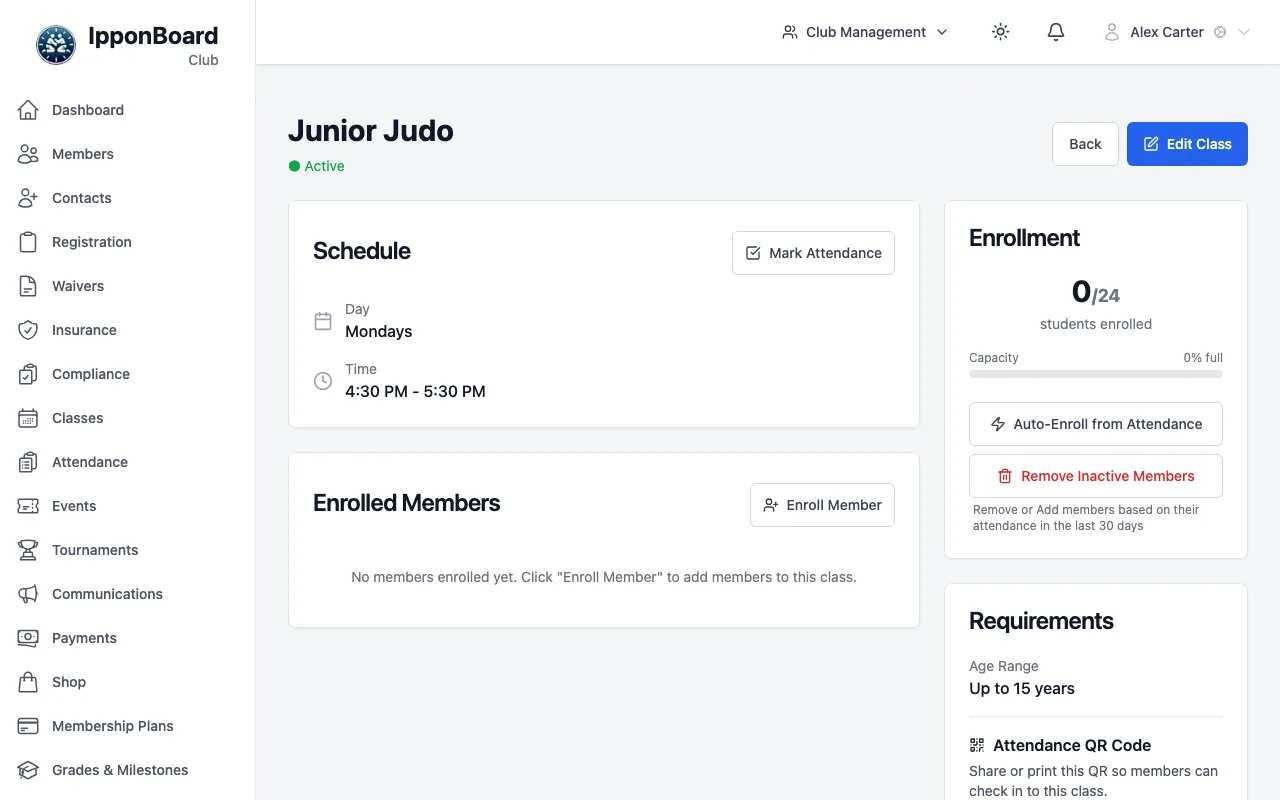
Click a class to open it. Here you'll find:
- Schedule, with Mark Attendance.
- Enrolled Members: the members who regularly train in this class. Enroll Member adds someone; the remove button next to a name takes them off.
- Enrollment: how full the class is against its capacity, with Auto-Enroll from Attendance and Remove Inactive Members (below).
- Requirements: the age range and belt levels you set.
- Attendance QR Code: members scan it to check themselves in. Download or Print it for the dojo wall. See QR self check-in.
- Plans with Access: the membership plans that cover this class, and Manage Plan Access.
app.ipponboard.com
Keeping enrolments up to date
Rather than adding everyone by hand, let attendance do it:
- Auto-Enroll from Attendance finds members who've come to the class lately but aren't enrolled, and enrols them.
- Remove Inactive Members finds enrolled members who haven't come lately, and takes them off.
- Both show you the list first, so you can check before you confirm. Choose how far back to look: 30, 60, 90 or 180 days.
- To do every class at once, use Auto-Enroll All Classes or Remove Inactive Members under Bulk Enrollment Actions on the Classes page.
Who can do what
- Owners and managers can create, edit, turn off and delete classes, and apply the auto-enrol and remove actions.
- Coaches can also enrol and remove members, and preview the auto-enrol lists.
- Front-desk (transactional) staff can see the classes and the timetable. See Roles and permissions.
Set a class's Access Category with your plans in mind. Plans can cover every General or every Elite class automatically. See Class access.