Waivers & agreements
Ask everyone who enters your tournament to sign a liability waiver, say yes or no to photos, and agree to your code of conduct, then see at the desk who still has to sign.
This page is for tournament organisers: a club's owners and managers, or an organisation's owners and managers. You write your agreements once, choose which ones each tournament asks for, and entrants answer them on the entry form. A parent or guardian agrees for anyone under 18 on the tournament's first day.
These are tournament agreements. They are separate from a club's member waivers, which members sign when they join or renew (see Waivers in the club guides). A club can copy one of its waivers in as a tournament agreement.
Organisers
Set up your agreements
Start from the templates, adapt them, choose them for a tournament.
Entrants
How entrants sign
While entering, or later from their link or My tournaments.
On the day
Who still has to sign
The Accreditation tab: chase them up, or sign at the desk.
Here's the whole thing in half a minute: the organiser starts from the templates, a parent signs while entering their daughter, and the desk takes the signature of someone who was entered to sign later.
A. Set up your agreements
Open the tournament and go to the Registration tab (or step 3, Registration, of the setup wizard). Agreements is at the bottom, under the registration form, custom fields and Withdrawals and changes.
Build your agreement library
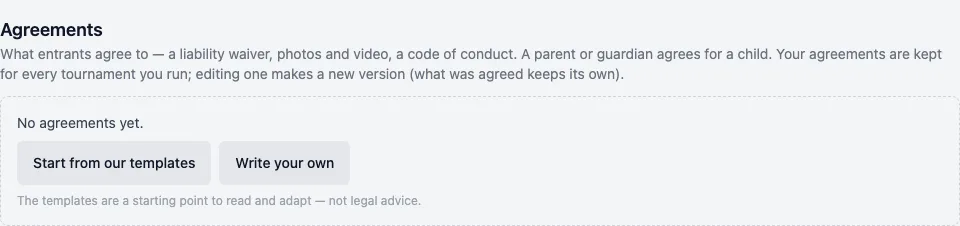
Your agreements belong to the club or organisation running the tournament, not to the one tournament. You build the library once and use it for every tournament you run. The first time, it says No agreements yet. Click Start from our templates to add three to adapt (a Liability waiver, Photos and video and a Code of conduct, with your club's or organisation's name in them), or click Write your own.
Edit them, or add your own
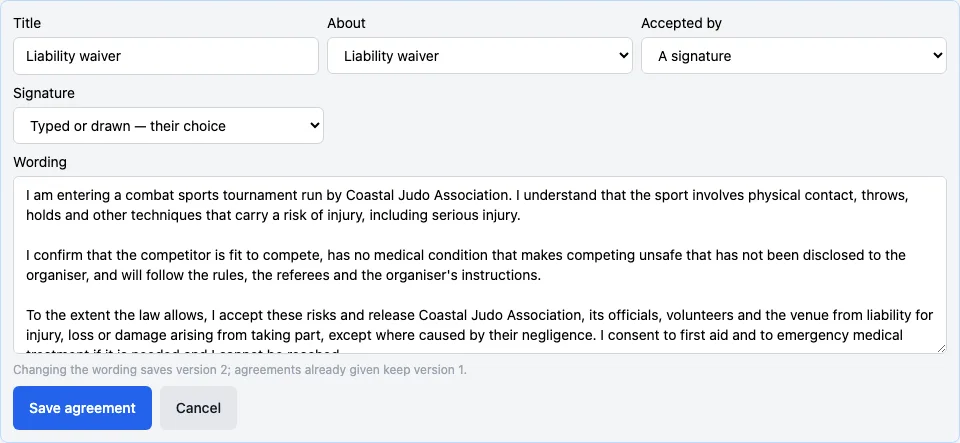
Edit opens an agreement: its Title, what it's About (Liability waiver, Photos and video, Code of conduct or Other), whether it's Accepted by Ticking “I agree” or A signature, and the Wording. A signed one also has Signature: Typed or drawn — their choice, Drawn only (finger or mouse) or Typed name only. Click Save agreement.
- New agreement writes another one. Add any missing templates adds back any of the three templates you don't have one of.
- For a club's tournament, Copy one of the club’s waivers… brings in one of the club's active member waivers, with its wording as it stands now and signed the ways that waiver allows.
- Remove takes an agreement out of your library straight away (there's no confirmation). Answers already given are kept, but no tournament asks for it any more.
Choose them for this tournament
Tick each agreement this tournament asks for. Beside each, choose Required to enter (they must agree, or they can't enter) or Their choice (yes / no) (they answer Yes or No, and can enter either way). A liability waiver and a code of conduct start as required; photos and video start as their choice. Then click Use these for this tournament.
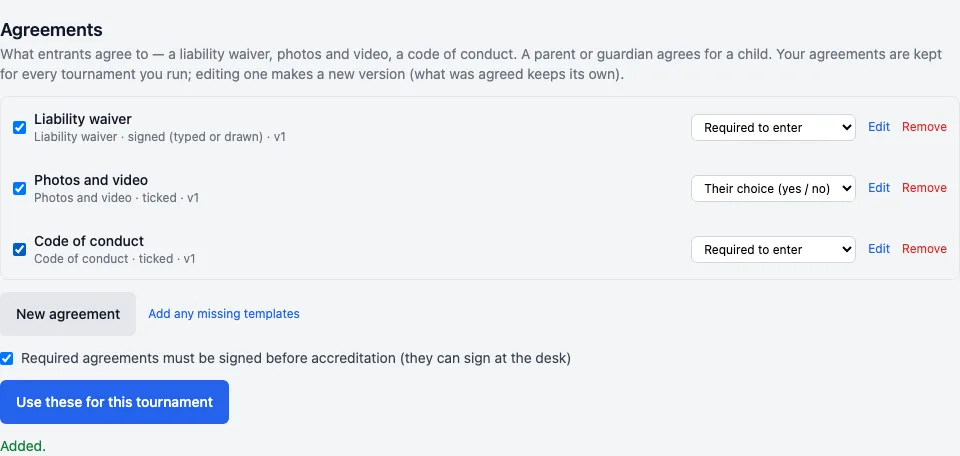
Nothing is asked until you click Use these for this tournament: ticking boxes alone doesn't save them. Your next tournament starts with the same library to choose from.
Signed before accreditation?
Required agreements must be signed before accreditation (they can sign at the desk) is on to start with, and saves with Use these for this tournament. It matters when the tournament uses accreditation (Athletes must pass accreditation (only they are weighed in and drawn) on the Accreditation tab). While it's on:
- accredit refuses anyone with a required agreement unsigned, with "Agreements to sign first: … take them at the desk".
- With Paid entries are accredited automatically, a paid entry still isn't weighed in or drawn until its required agreements are signed.
Turn it off and unsigned agreements still show on the Accreditation tab, but don't hold anyone up. Agreements that are their choice (like photos) never hold anyone up.
B. How entrants sign
Sign while entering
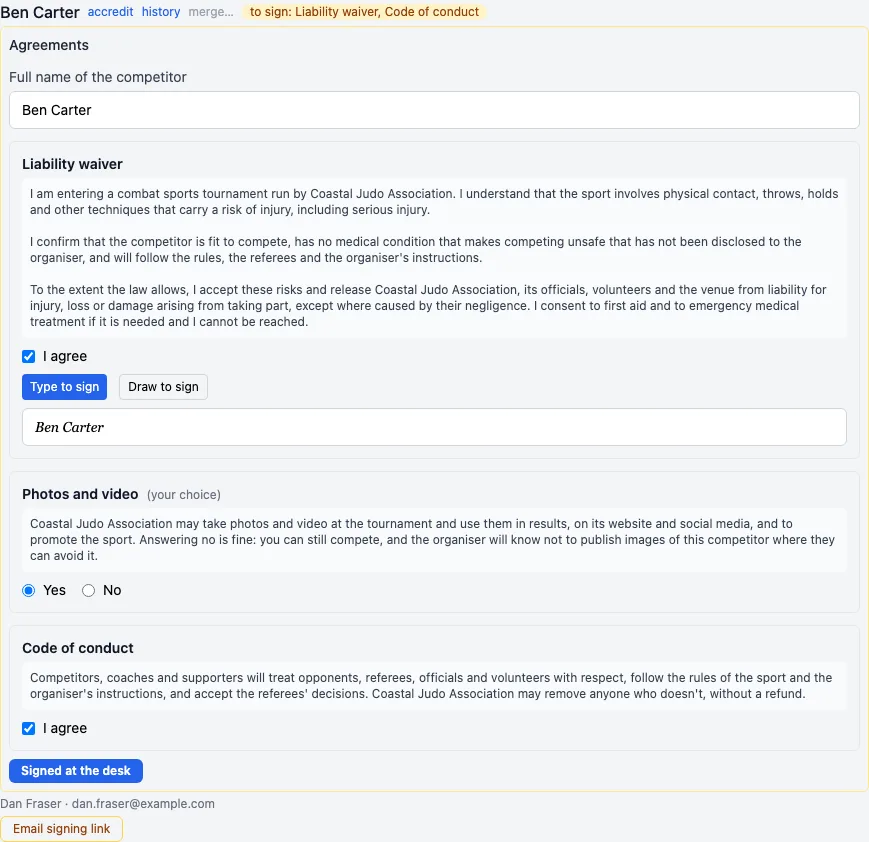
On the public entry form (Registrant Self-Service), each competitor has an Agreements part under their details, with each agreement's wording. For a competitor under 18 on the tournament's first day it says a parent or guardian agrees, and asks I’m their parent or I’m their guardian. An adult agrees for themselves.
- The full name of whoever is agreeing (the competitor, or the parent or guardian).
- A required agreement: tick I agree. One that's their choice is marked (your choice), with Yes and No.
- A signed one: Type to sign (their name) or Draw to sign (with a finger or the mouse), as the agreement allows.
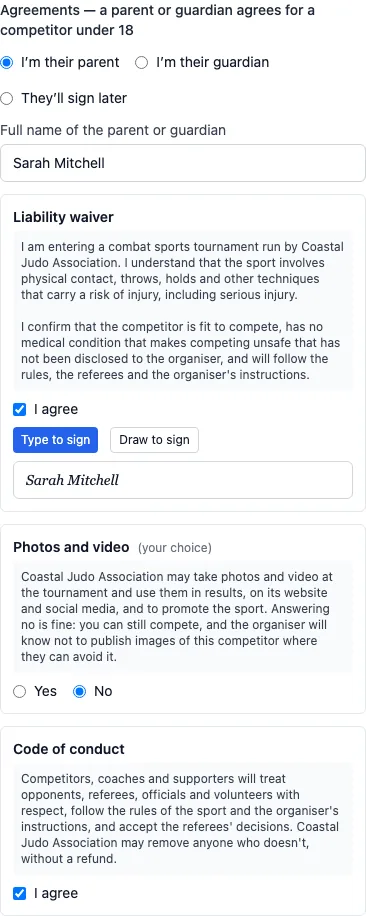
If a required one isn't agreed, the entry doesn't go through: the form names the competitor and the agreement that must be agreed to enter.
Or sign later
Someone entering other people (a coach entering their players, or anyone signed out) can pick They’ll sign later. The entry goes in unsigned. A signed-in person entering themselves signs there and then. Later, they sign in one of these ways:
- The private link in the entry's confirmation email (or in a signing link you send) opens My entries, with Agreements to sign and a Sign for … button for each competitor. No password needed.
- My tournaments, on their account page, when the entry is under their account (theirs, or their child's): the entry says To sign: …, with Sign agreements.
- At the desk on the day (below).
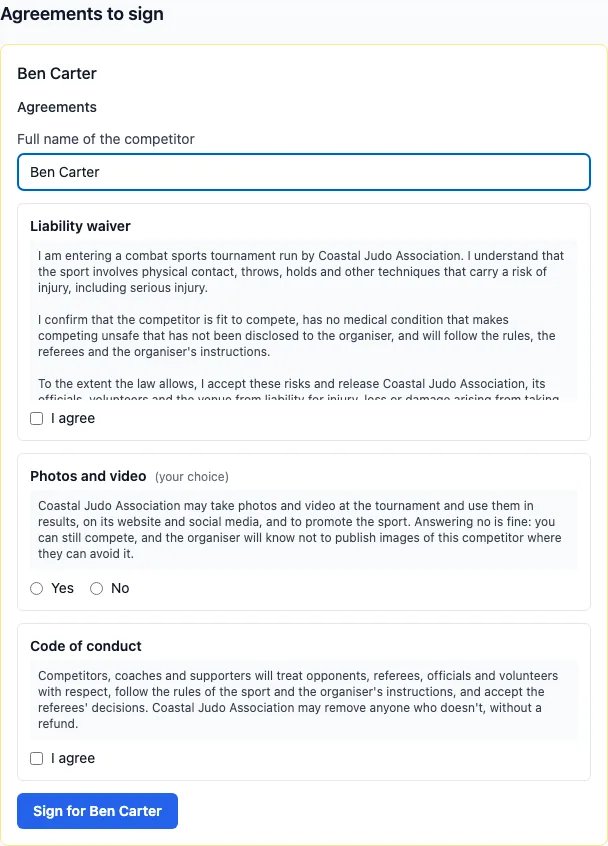
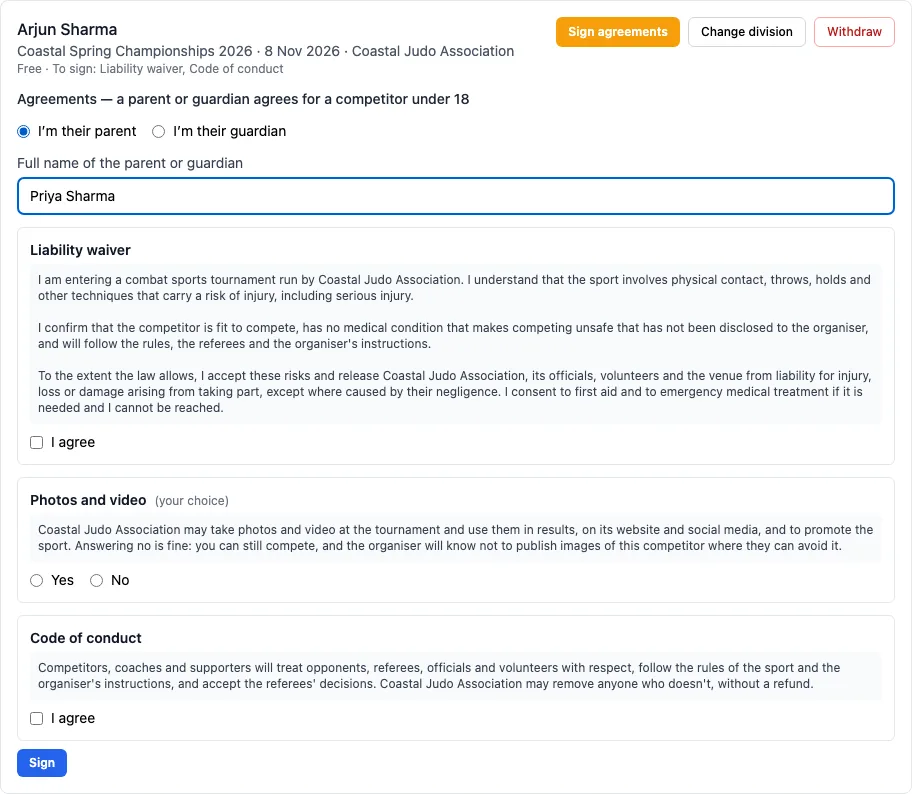
Signing later asks every agreement again, and the answers replace any given before.
C. On the day: who still has to sign
See who still has to sign
On the Accreditation tab, Agreements lists each required agreement with how many have signed (1 of 3 signed), then 2 competitors have something to sign and 1 no photos. Click either to list just those people (the Show menu's Agreements to sign and No photos). When it's done it says Everyone has signed.

In the list, a competitor with something unsigned has a to sign: … tag, and anyone who said no to photos has a no photos tag, so your photographer knows.
Send a signing link
On an entry with something unsigned, Email signing link emails whoever made the entry: who still has to sign what, and a link to sign (their My entries page). The tab confirms "Signing link emailed to …". Someone you added yourself on the Athletes tab has no entry email, so they sign at the desk.
Sign at the desk
Click the to sign: … tag. The same agreements open under their name: the competitor (or for a child, the parent or guardian) gives their name, agrees and signs, and you click Signed at the desk. Then accredit them as usual.