Waivers
Write your waiver once, get every member to sign it online, and always know who's covered.
This guide is for club owners and managers. By the end you'll have a waiver template, signing links sent to the members who haven't signed, and a list that shows who's current, who's expired and who's missing. New members sign the waiver as part of registration; this is how you catch everyone else.
Who can use it: Owners and managers write templates. Owners, managers and coaches send signing requests. Front-desk staff can see who has signed and ask a single member from their profile.
Step 1
Set up your waiver and get it signed
Template, signing requests, and the signed copy.
Step 2
Make it count at check-in
Stop check-in until the waiver is signed.
1. Set up your waiver and get it signed
Here's the whole thing, from a new template to a signed waiver, in under a minute:
Write the template
Go to Waivers in the menu, open the Waiver Templates tab and click Create Template. Give it a Template Name, then either write the Template Text or start from one of the Quick Load Pre-built Template buttons (Generic Martial Arts Waiver, Judo Specific Waiver or BJJ Specific Waiver) and edit it for your club. Choose the Expiry Policy and how people can sign, then click Save Template.
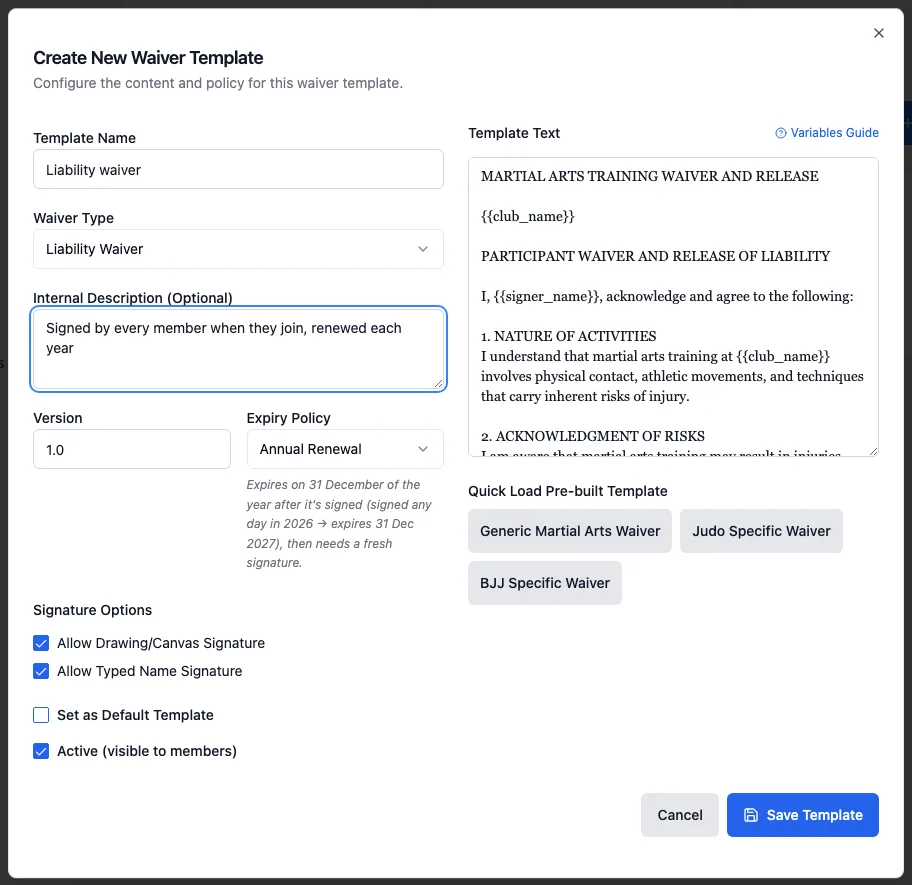
Your first template becomes the club's Default. The default is the waiver that check-in looks for.
See who hasn't signed
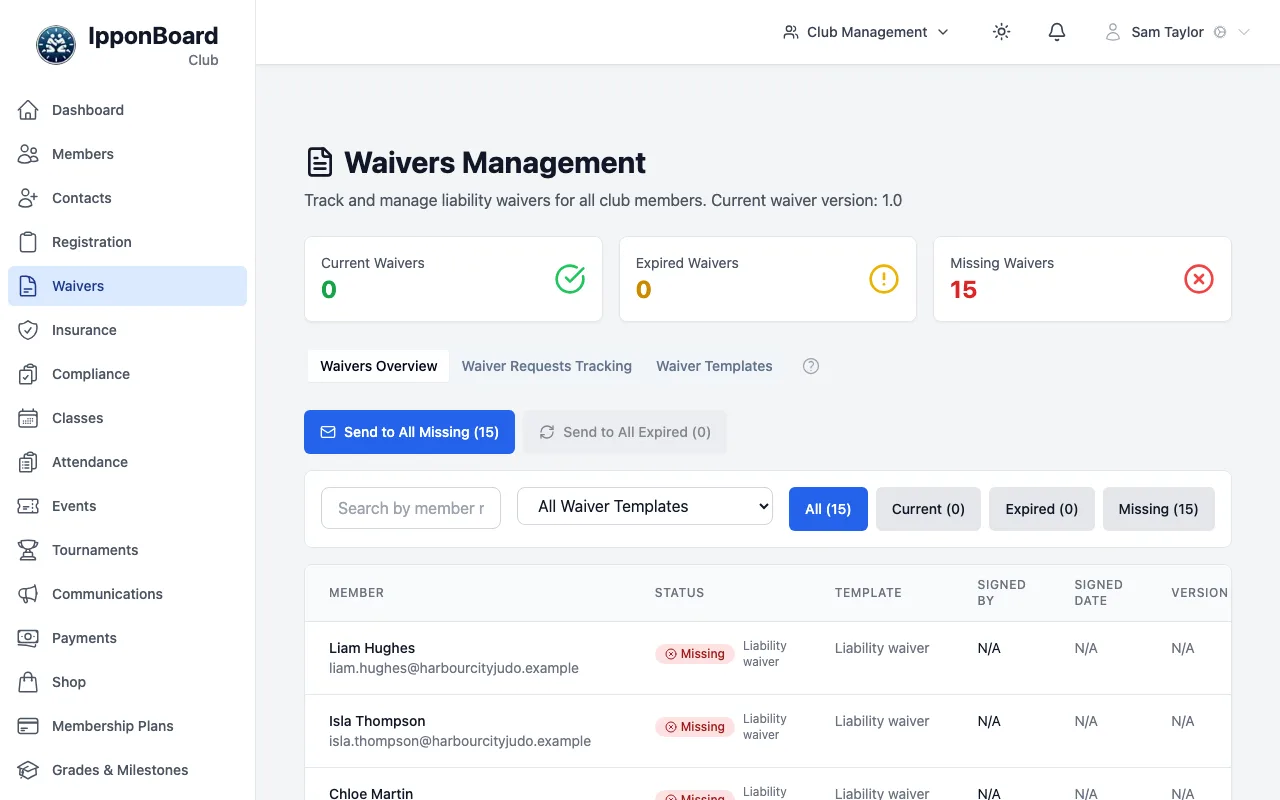
The Waivers Overview tab lists every member with their status: Current, Expired or Missing. The counts at the top add them up.
Ask them to sign
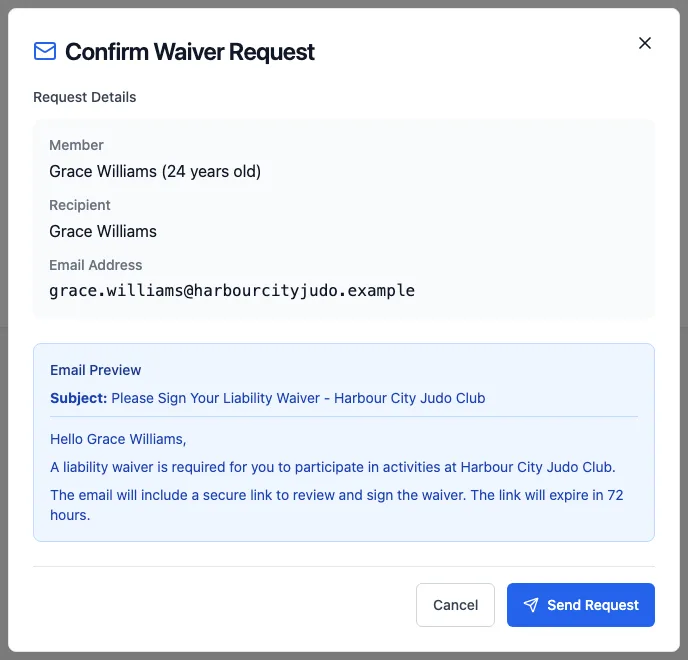
Click Send to All Missing to email a signing link to everyone missing the waiver (pick the Waiver Template, check the list, then Send Requests). To ask one person, open their profile, go to the Waivers tab and click Send Waiver Request. The email goes to the member, or to their guardian if they're under the club's adult age, and the link lasts 72 hours.
They sign from the email
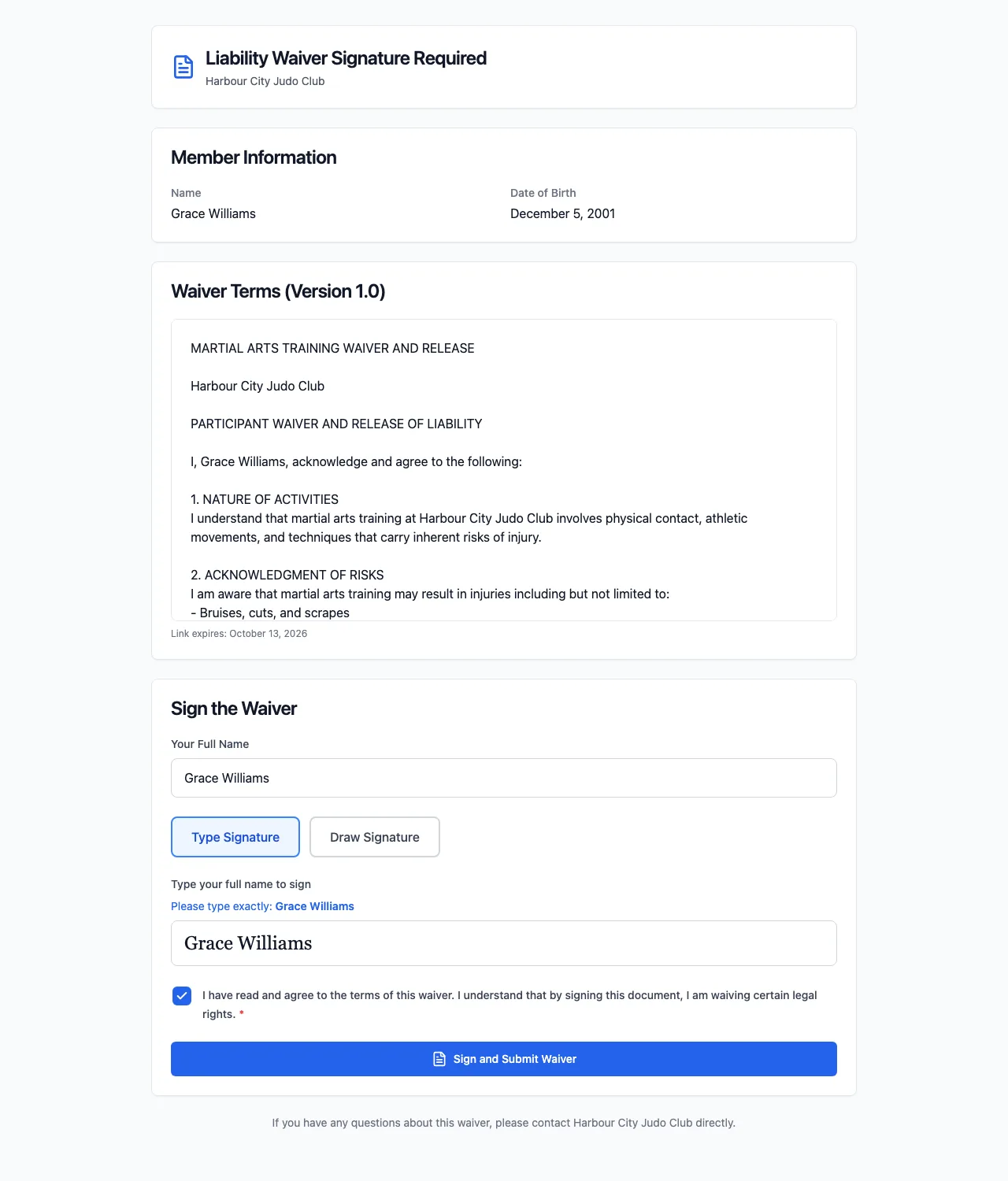
The link opens the waiver with their name filled in. They type their full name, sign (Type Signature or Draw Signature), tick the agreement and click Sign and Submit Waiver. They don't need to log in.
Check it's done
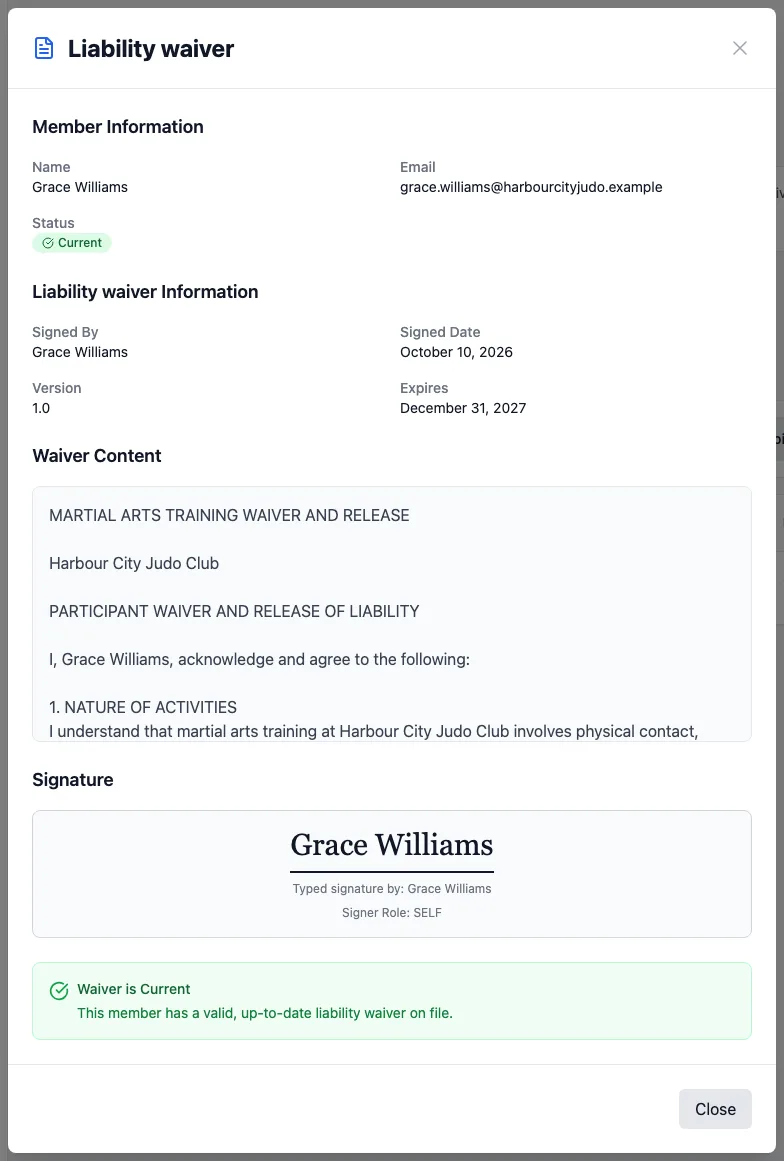
Back on Waivers Overview they're now Current. Click View to see the signed copy: who signed, when, the version, when it expires, the text they agreed to and their signature. The Waiver Requests Tracking tab shows every request you've sent and whether it's been signed.
2. Make it count at check-in
Turn on the check-in rule
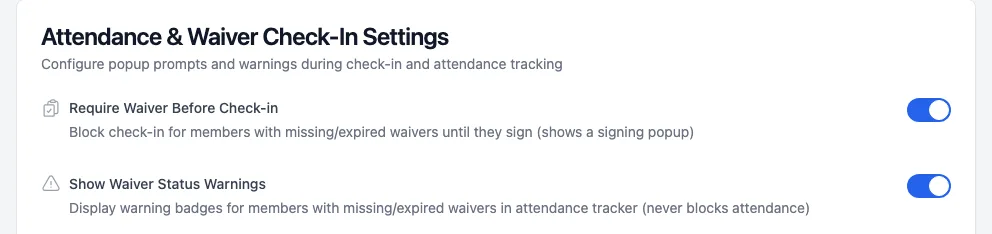
Go to Settings, open Attendance & Reminders, and under Attendance & Waiver Check-In Settings turn on Require Waiver Before Check-in. Members without a current signature on the default waiver can't check in until they sign.
What happens at the door
At the kiosk or a class QR code, a member who hasn't signed sees Waiver Required and can tap Sign Waiver Now to sign there and then. With the rule off, Show Waiver Status Warnings only shows a warning and never stops anyone.
For what members see, read Signing a waiver in the member portal guide.
The detailed guides, in order
- Templates: Writing a waiver, how long it lasts, how people sign.
- Requesting signatures: Emailing signing links to everyone missing or to one member; resending and cancelling.
- Tracking: Who's signed, who's missing, and the signed copy.
- Enforcement: Blocking check-in, or just warning, until the default waiver is signed.