Registration Form & Custom Fields
Choose what entrants are asked, and add your own fields, deciding who fills each one in.
Both are on the tournament's Registration tab (and in step 3 of the setup wizard). Changes save as you make them.
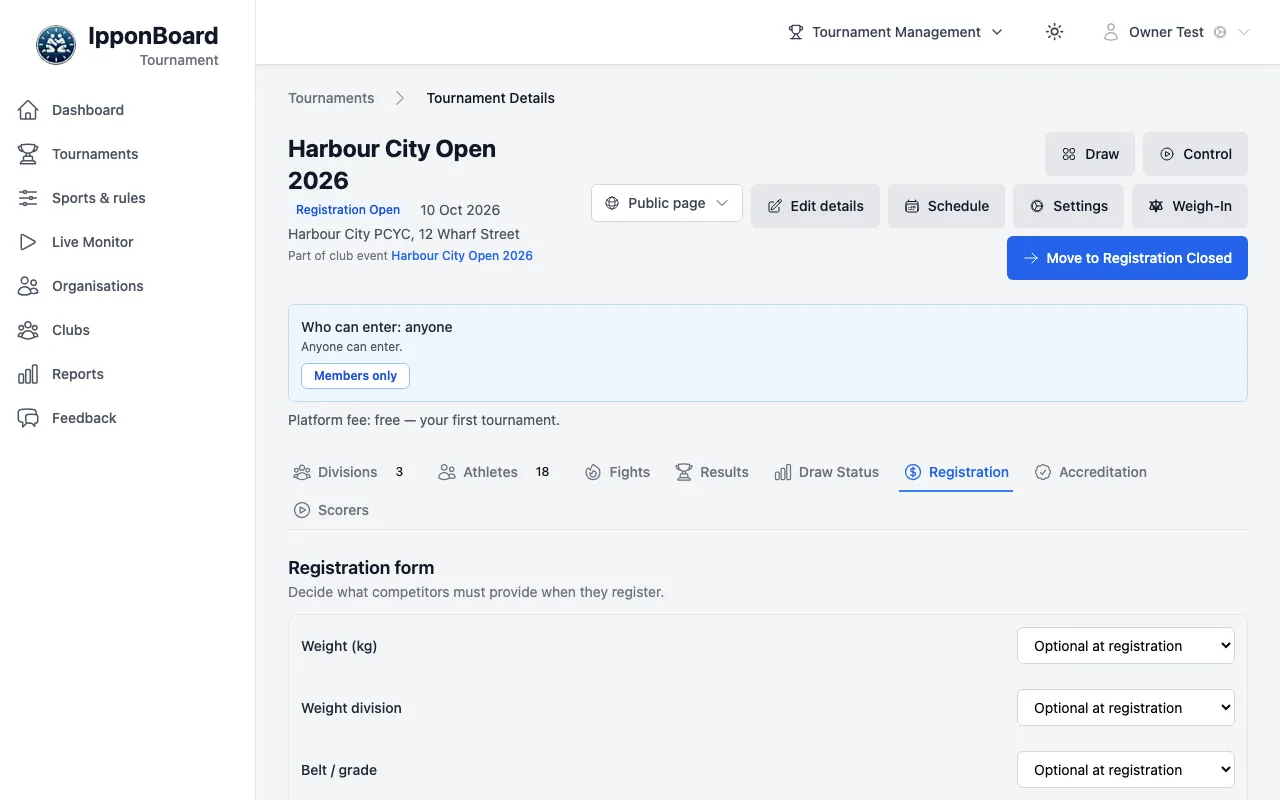
The registration form
Under Registration form, set Weight (kg), Weight division, Belt / grade and Club each to Compulsory at registration, Optional at registration or Not asked. Date of birth is always compulsory: it works out the age group.
Adding a custom field
Name it and pick a type
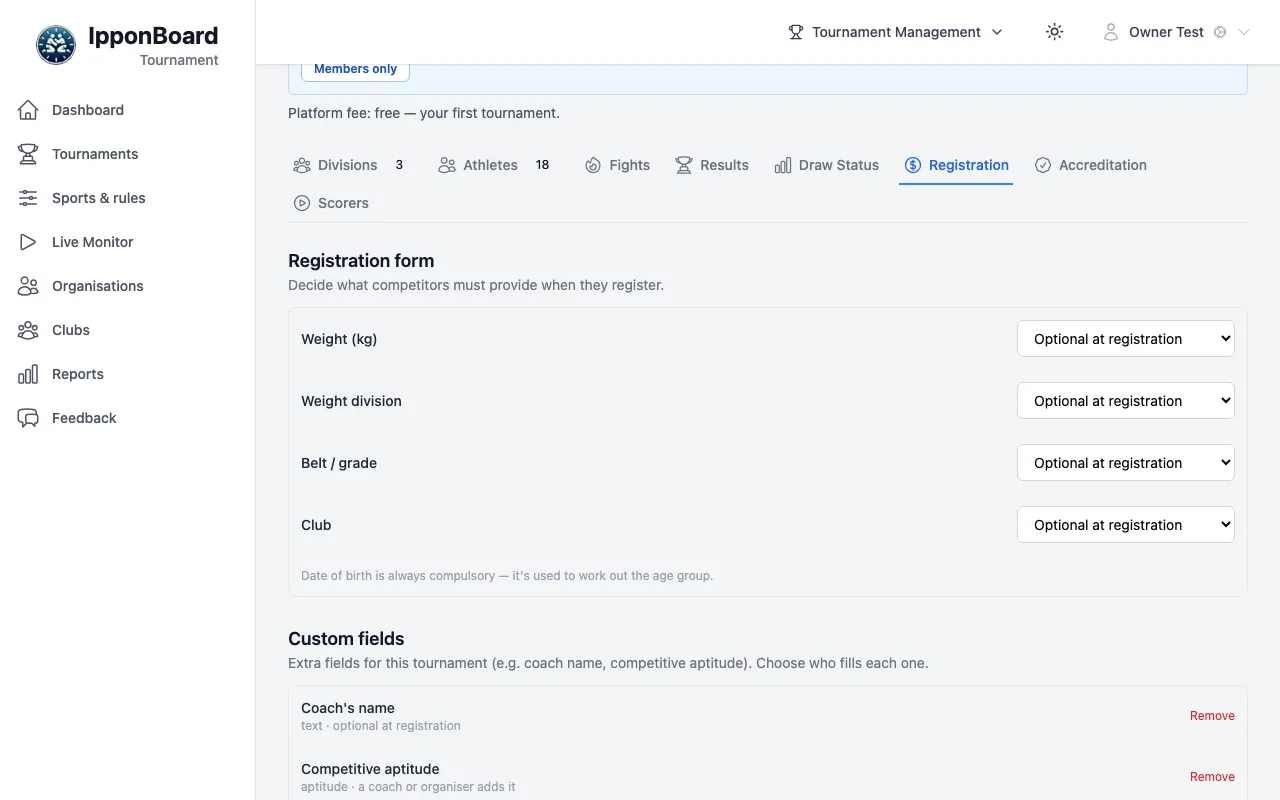
Under Custom fields, type the label (for example "Coach's name") and choose its type: text, longtext, number, select (a list: type the options, separated by commas), checkbox, date or aptitude (a 1–5 rating).
Choose how it's collected
Pick from How is this field collected (below), then click Add field.
Changing one later
A field shows its type and how it's collected, with Remove. To change one, remove it and add it again.
Compulsory at registration
On the registration form; they must fill it in.
Optional at registration
On the registration form; they can leave it blank.
Not on the form — a coach or organiser adds it
Competitors never see it. Their club's coach fills it in from the coach view; this is how competitive aptitude works.
Not on the form — the organiser adds it (before the draw)
Competitors and coaches never see it; only the organiser fills it in.
Not used for this tournament
Kept in the list, but asked nowhere.
Where the values come from
- The public registration form asks the fields collected at registration.
- The organiser's Add Athlete form shows every field in use.
- Coaches fill in the coach fields from their club's page (Clubs & Coaches).
- A CSV import reads an Aptitude column; other custom fields aren't imported.
- The Matching tab of an aptitude-matched tournament lets you set a missing aptitude.