Contacts & Leads
Keep track of people who are interested in joining, follow them up, and turn them into members.
For whoever answers enquiries at your club. When someone rings, walks in after watching a class, or messages the club page, add them here so nobody falls through the cracks. By the end you'll have added a lead, moved them along the pipeline and made them a member.
Who can use it: Owners, managers, coaches and front-desk staff (Contacts in the menu).
Step 1
Add a lead
Who they are, where they came from, what they're after.
Step 2
Follow up and convert
Move them through the pipeline, then make them a member.
1. Add a lead
Open Contacts
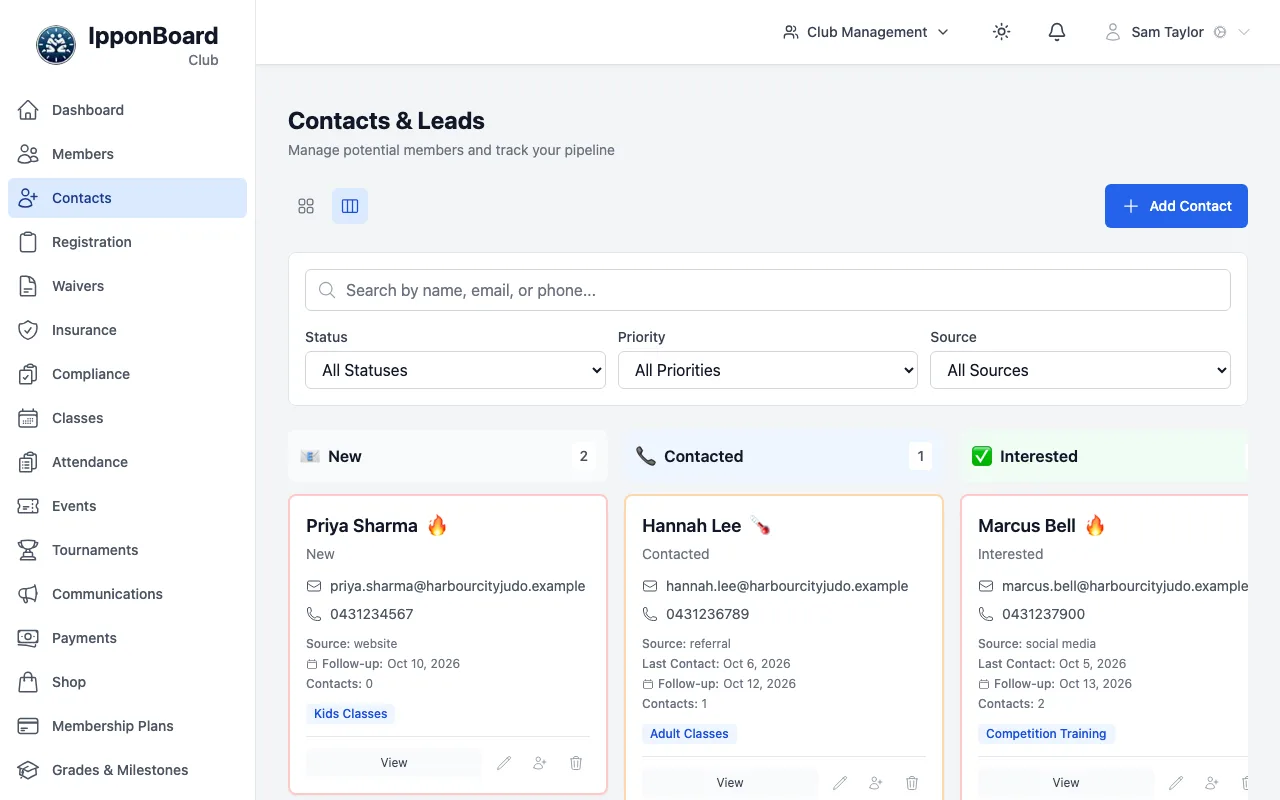
Go to Contacts in the menu. The page opens on the pipeline: one column per status, from New to Converted.
Add the contact
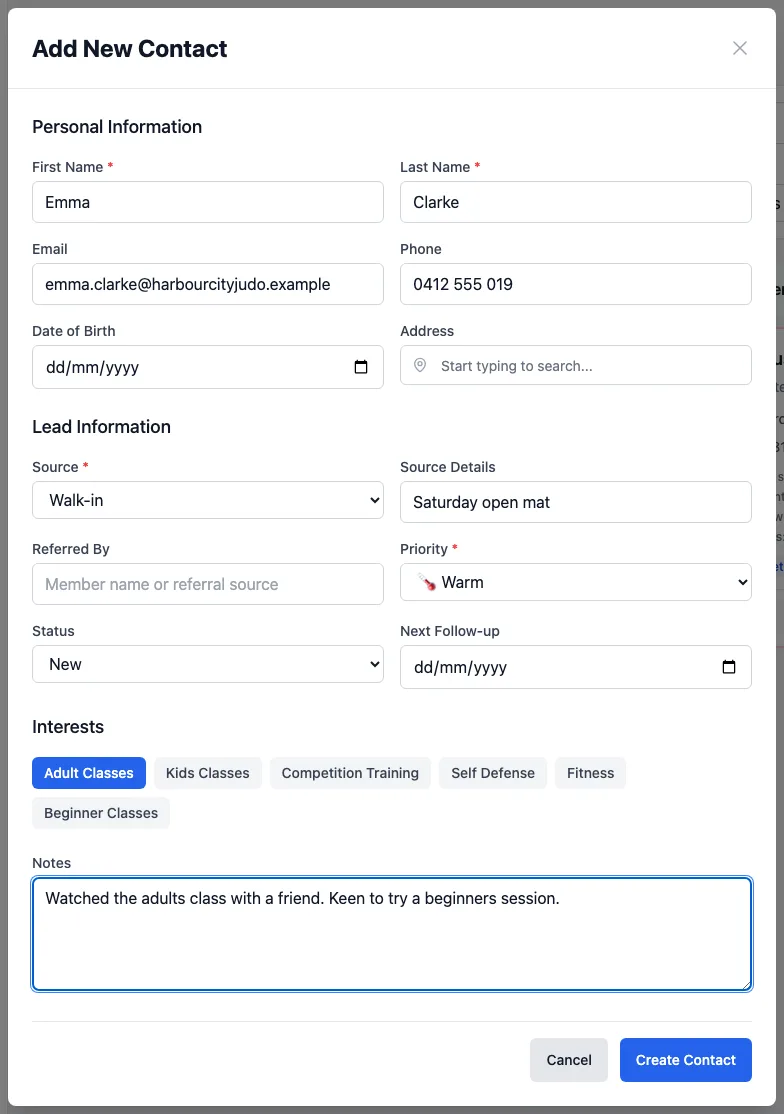
Click Add Contact. Only the First Name, Last Name, Source and Priority are required. Add an email or phone so you can reach them, and anything useful in Source Details, Referred By, Interests and Notes. Set a Next Follow-up date if you've promised to call back. Click Create Contact.
2. Follow up and convert
Work the pipeline
Each card shows the contact's status, email, phone, source, follow-up date and how many times you've been in touch. The flame, thermometer or snowflake is the priority (Hot, Warm or Cold). Use Status, Priority, Source and the search box to narrow it down.
Update the status after each conversation
Click the pencil on a card (or View, then Edit) and change the Status: Contacted, Interested, Trial Scheduled, No Response or Not Interested. Each status change adds one to their contact count and sets the last-contact date.
Convert them to a member
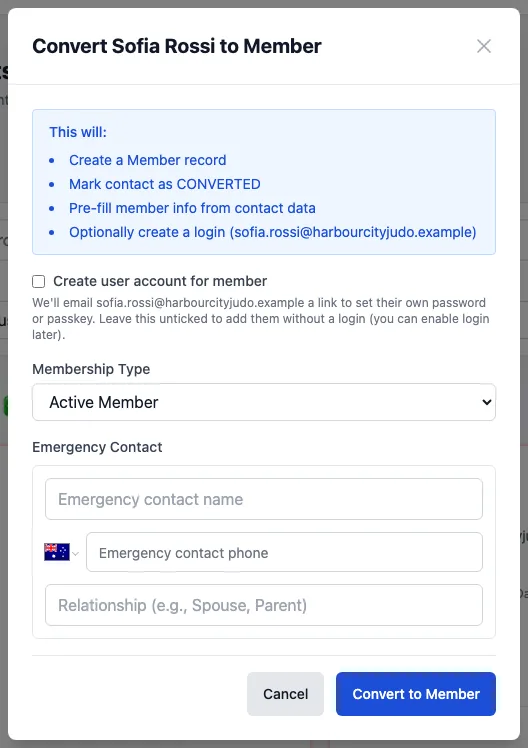
When they join, open the contact with View and click Convert to Member (or the person-plus button on the card). Choose the Membership Type, add an emergency contact, and click Convert to Member. They now appear in Members, already filled in, and the contact moves to Converted.
The detailed guides, in order
- Lead tracking: Statuses, follow-ups, and converting a lead into a member.