Feedback

Report bugs, request features, and provide feedback about the IpponBoard platform.

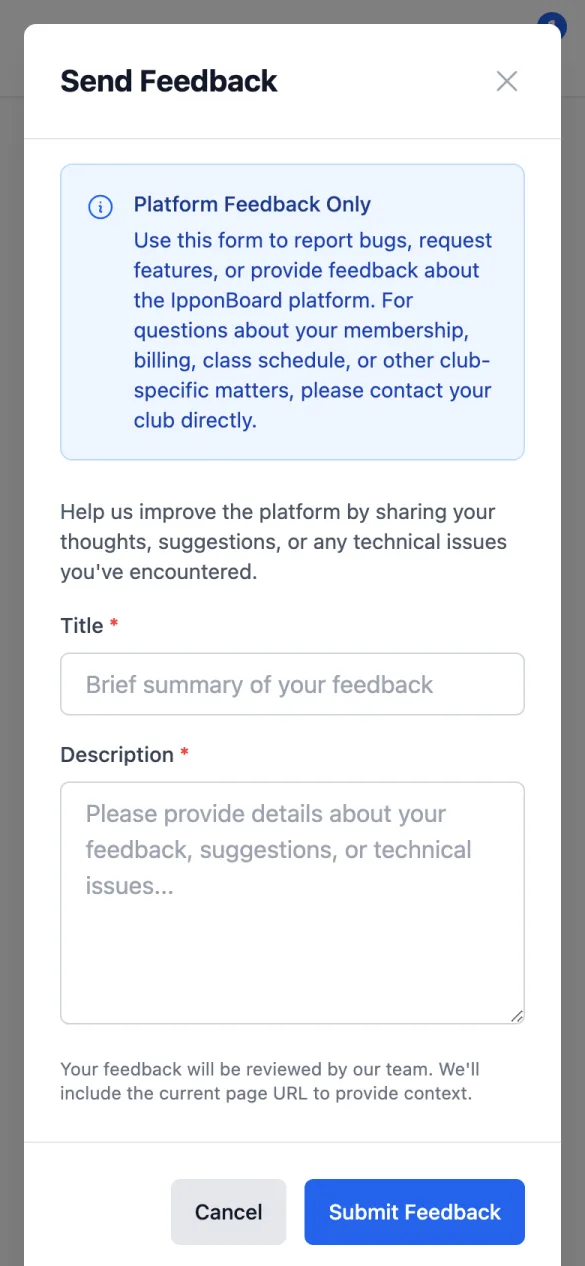
The Feedback page lets you communicate directly with the IpponBoard platform team to report issues, suggest features, or share general feedback about the system.

Important: This feedback system is for platform issues only - things like bugs in the website, feature requests, or problems with the app. For questions about your membership, billing, class schedule, or other club-specific matters, please contact your club directly.

Submitting Feedback

1

Click 'Submit New Feedback'

Use the button in the top-right corner to open the feedback form.

2

Enter a title

Write a brief, descriptive title that summarizes your feedback (e.g., "Check-in button not working on mobile" or "Feature request: Export attendance history").

3

Describe the issue or suggestion

Provide as much detail as possible. For bugs, include steps to reproduce the problem. For feature requests, explain what you'd like to see and why it would be helpful.

4

Submit

Click submit to send your feedback. You'll be able to track its status on the feedback page.

Feedback Status

Each feedback item has a status badge showing where it is in the review process:

OPEN

Your feedback has been submitted and is waiting to be reviewed.

IN REVIEW

The team is actively looking into your feedback.

COMPLETED

Your feedback has been addressed - the bug is fixed or feature is implemented.

CLOSED

The feedback has been closed without action (may be a duplicate, not reproducible, or out of scope).

Viewing Your Feedback

The feedback list shows all items you've submitted. Each card displays:

  • Title: Your feedback title
  • Description preview: The first few lines of your description
  • Date: When you submitted it
  • Replies: Number of responses from the team
  • Unread badge: Shows if there are new replies you haven't seen
  • Status badge: Current status (Open, In Review, Completed, Closed)

Click on any feedback item to view the full conversation thread.

Replying to Feedback

When the team responds to your feedback, you'll receive an email notification. To reply:

  • Click on the feedback item to open the detail view
  • View the full conversation thread
  • Respond directly via email reply if you receive a notification

Email replies are automatically added to the conversation thread.

Be specific when reporting bugs! Include what you were trying to do, what happened, and what device/browser you were using.
Check existing feedback before submitting to see if your issue has already been reported. This helps the team prioritize common issues.
Remember: This is for platform feedback only. Club-specific questions (membership, billing, schedule) should go directly to your club.

Frequently Asked Questions