Plan types and billing
The four plan types, and the four ways a plan can be billed.
Every plan has a Plan Type (who it's for) and a Billing Frequency (how often it's paid). You choose both at the top of the plan form.
Plan type
- Individual: one member.
- Family: one main member plus family members on the same plan. You set Max Family Members and a Price Per Additional Member. The family members come from the people linked to the main member's account (for example their children). See Pricing.
- Elite Training: a label for competition or squad plans. Which classes it covers is still set under Class Access, usually by ticking Auto-include all ELITE classes.
- Custom: your own label, typed into Custom Plan Type Name (for example "Seniors" or "Coaches"). It shows on the plan card instead of the type.
Billing frequency
Monthly
Charged every month. The Billing Anchor sets which day:
- Rolling — bill from signup date: each member pays on the same date they started.
- Fixed day of month (e.g. 1st, 15th): everyone pays on the same day, chosen under Day of month (1st to 28th, or Last day of month).
- Nth weekday of month (e.g. first Monday): everyone pays on, say, the first Monday, chosen under Which occurrence and Day of week.
With a fixed day or weekday, a new member's first payment covers them from when they sign up until that day.
Term-based (follows school terms)
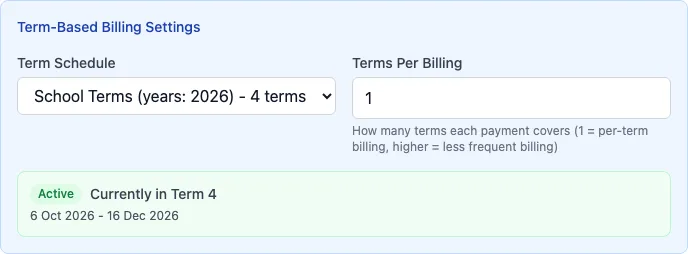
Charged per term, using a term schedule you set up in Settings. Pick the Term Schedule and how many terms each payment covers in Terms Per Billing (1 is every term; 4 on a four-term year is once a year). The form then shows the current or next term and its dates, so you can check it.
Fixed Duration (weeks/months)
Covers a set length of time from the payment date, set with Duration Value and Duration Unit (weeks or months), for example a 10-week beginners' course. It's listed with the recurring plans.
One-time (Drop-in)
A single payment that doesn't renew. These are listed on the Drop-In Plans tab. Use the Class Limit to make it a pass: 1 for a single drop-in, 10 for a ten-class pass. The classes can be used any time and don't expire; check-in stops once they're used up. A one-time plan with no class limit gives unlimited classes for good, so the form warns you.
Set up a term schedule
Do this before you make a term-based plan.
Open Term Schedules
In the sidebar, open Settings and the tab Term Schedules. Click Add Schedule.
Fill it in
Enter the Schedule Name (for example "School Terms"), the Year and the Number of Terms, then each term's dates under Term Dates.
Save it
Click Create Schedule. Only schedules marked Active show up in the plan form.
Next year
Click Copy to Next Year on the schedule and adjust the dates. Plans that use the schedule's name pick up the new year.