Member Profiles
Everything about one member: details, grades, plans, waivers, payments and attendance.
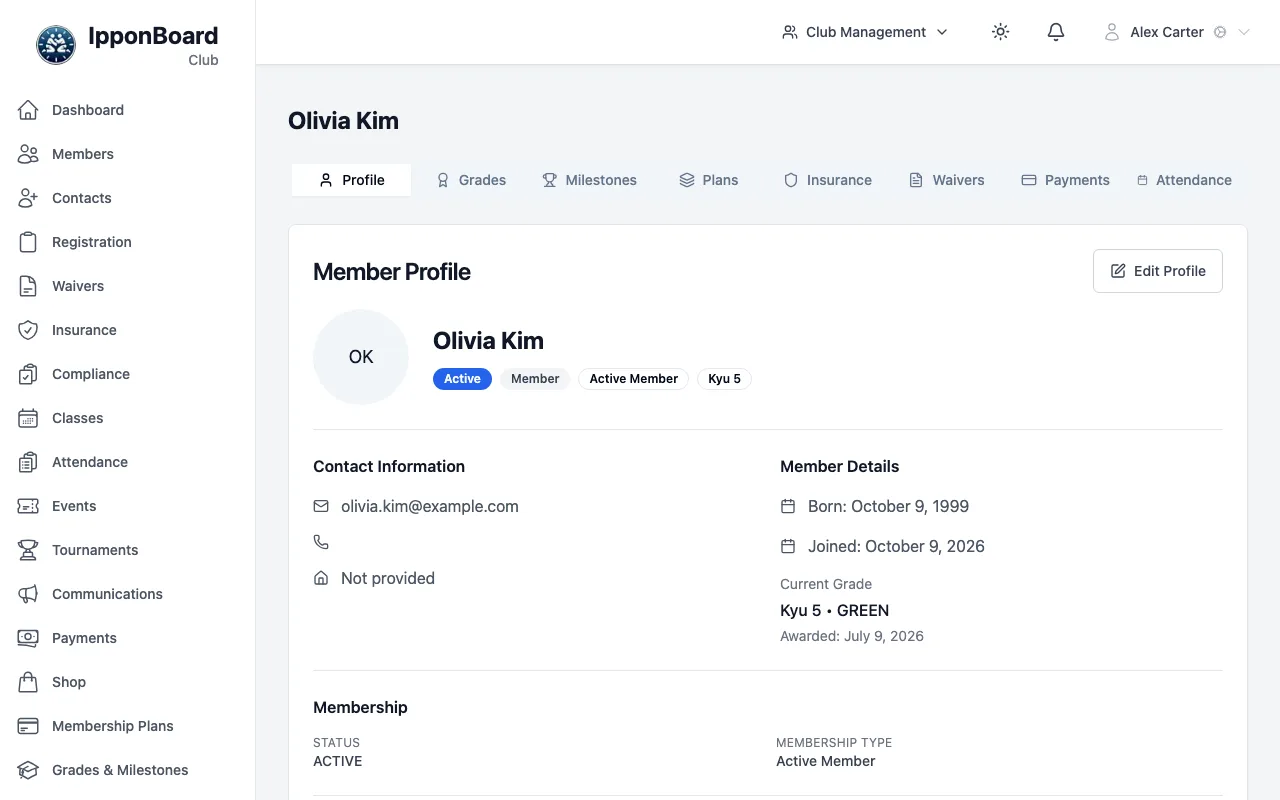
Each member has a profile page. Open it from sidebar Members: click the member's row, or use the ⋯ menu → View Profile. The member's name is at the top, with their member number if your club uses them.
The tabs
- Profile: contact details, date of birth, current grade, membership status, emergency contact, medical info, guardians and dependants, and account actions (see below).
- Grades: grade history and Award Grade. See Grading.
- Milestones: achievements, with Add Milestone.
- Plans: the member's plan subscriptions. Click one to open it.
- Insurance (shown with your club's own name for it): insurance records, with Add Record.
- Waivers: signed waivers and their status, with Send Waiver Request to email a signing link.
- Payments: their payment history.
- Attendance: the classes they've checked in to.
Editing a member's details
Start editing
On the Profile tab, click Edit Profile. (From the members list, ⋯ → Edit Member opens the profile ready to edit.)
Make your changes
Change their name, contact details, address, emergency contact or medical info. Under Edit Membership you can also set their Club Role, Membership Type (Active Member or Guardian Only) and Status (Active, Pending, Suspended, Expired or Cancelled).
Save
Click Save Changes, or Cancel to leave it as it was. If you change the email of someone who has a login, you're asked to confirm first, because it changes the email they log in with.
Managers and owners can edit and delete members, but a manager can't edit or delete another manager or an owner, and nobody can delete or demote the club's last owner. Coaches and front-desk accounts can view profiles but not change them.
Account actions
At the bottom of the Profile tab, under Account Actions:
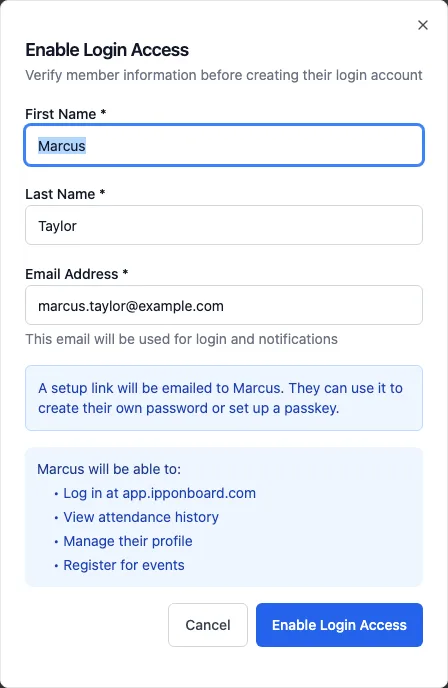
- Enable Login: shows when the member has no login yet (for example a Quick Add or junior member). Check their name and email, then click Enable Login Access. They're emailed a link to set their own password or passkey. If you have a welcome email template, you can tick Also send club welcome email.
- Resend Setup Email: shows when they have a login but haven't finished setting it up (for example the link expired).
- Send Reset Email: emails them a link to reset their password.
Owners, managers and coaches can use these.