Requesting Signatures

Send waiver requests to members and automate signature collection.

Once you've created waiver templates, you can send signature requests to members. Waivers can be requested automatically during registration or manually for specific members.

Automatic Waiver Requests

The most efficient way to collect waivers is to configure automatic requests. Based on your template settings, waivers are automatically sent when:

New Member Registration

When a new member joins, they're prompted to sign required waivers as part of the registration flow. They must sign before completing their membership purchase.

Event Registration

For events that require specific waivers (like competitions), members are prompted to sign during registration if they haven't already.

Annual Renewal

When a waiver expires (based on your template settings), a renewal request is automatically sent to the member.

Sending Manual Requests

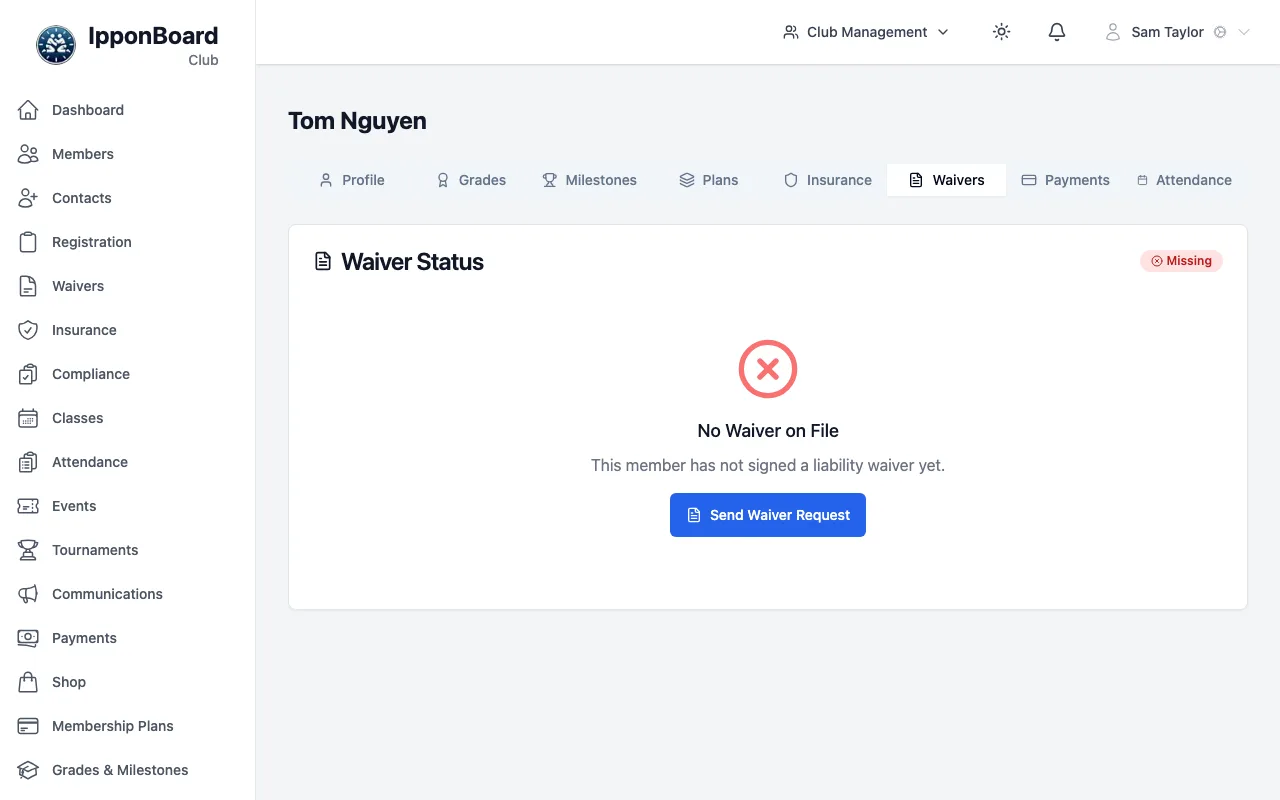
You can also manually send waiver requests to specific members:

1

Go to Waivers

Navigate to Waivers from the main navigation.

2

Click Request Signature

Click the "Request Signature" button to open the request form.

3

Select members

Search and select the members who need to sign. You can select multiple members at once.

Select members and waiver to send

Request Waiver Signature

John SmithSarah Johnson
4

Choose the waiver template

Select which waiver template you want them to sign from your active templates.

5

Add a personal message (optional)

Include a note that will appear in the email. Useful for explaining why the waiver is needed or providing context.

6

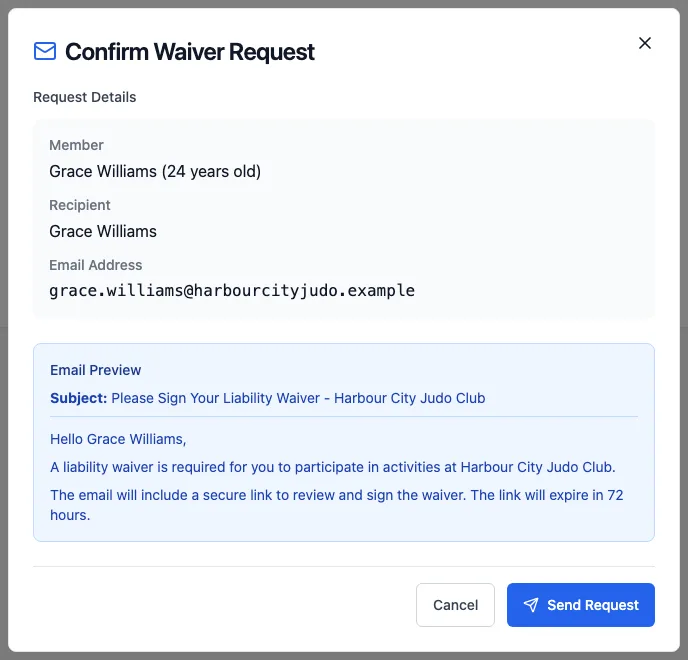
Send the request

Click "Send Request". Members will receive an email with a link to sign the waiver.

Bulk Waiver Requests

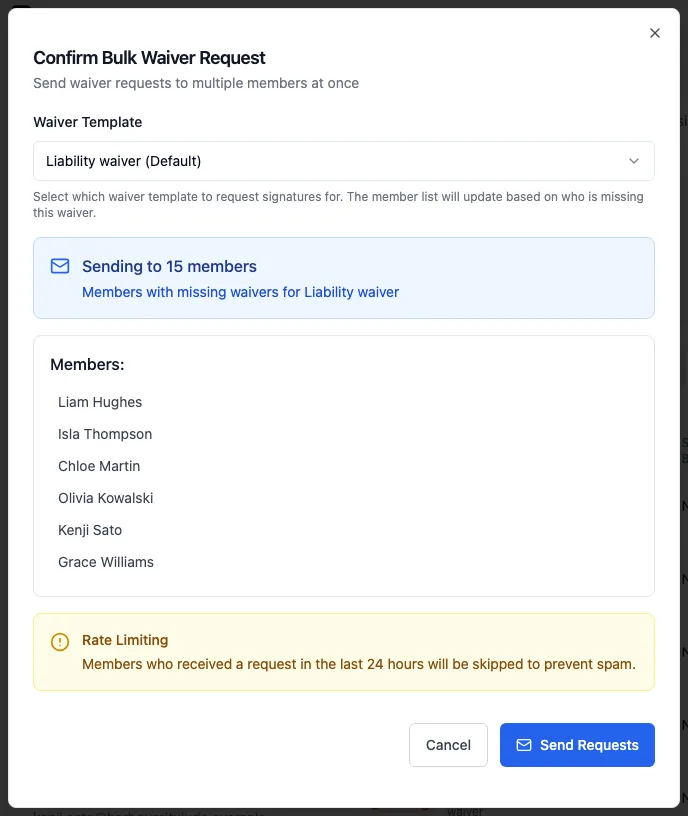
For situations where you need to request waivers from many members at once:

Request from All Members

From the waiver tracking page, use "Request All Unsigned" to send requests to everyone who hasn't signed a particular waiver.

Request from Filtered Group

Filter members by plan, status, or other criteria, then send waiver requests to the filtered group.

Request from Event Registrants

From an event's management page, send waiver requests to all registered participants who haven't signed.

What Members Experience

When you send a waiver request, here's what the member sees:

  1. Email notification with a link to sign the waiver
  2. Full waiver text displayed in the Member Portal
  3. Signature pad where they sign with finger or mouse
  4. Confirmation with option to download a signed copy

Members can also see pending waivers in their profile and sign them at any time before the request expires.

Reminders & Follow-ups

Automatic Reminders

Members with pending waiver requests receive automatic email reminders after 3 days and 7 days if they haven't signed.

Manual Reminders

From the waiver tracking page, click "Send Reminder" next to any pending waiver to manually resend the request.

Expiration Notices

Members are notified 30 days before their waiver expires, giving them time to renew before it affects their access.

Configure automatic waiver requests during registration to ensure 100% compliance from day one.
For guardians signing on behalf of minors, the system clearly identifies the guardian relationship in the signed document.
Waiver requests expire after 30 days if not signed. You can always resend a new request if needed.

Frequently Asked Questions