Selling
Sell at the desk, let members buy in the member portal, find your sales, and refund one.
Who can use it: Owners, managers, coaches and front-desk staff can sell. Only owners and managers can refund or change the member portal shop.
Sell at the desk
Start a sale
On the Shop page, click Process Sale (or go to Payments and start a payment). Choose the member.
Choose Shop Purchase
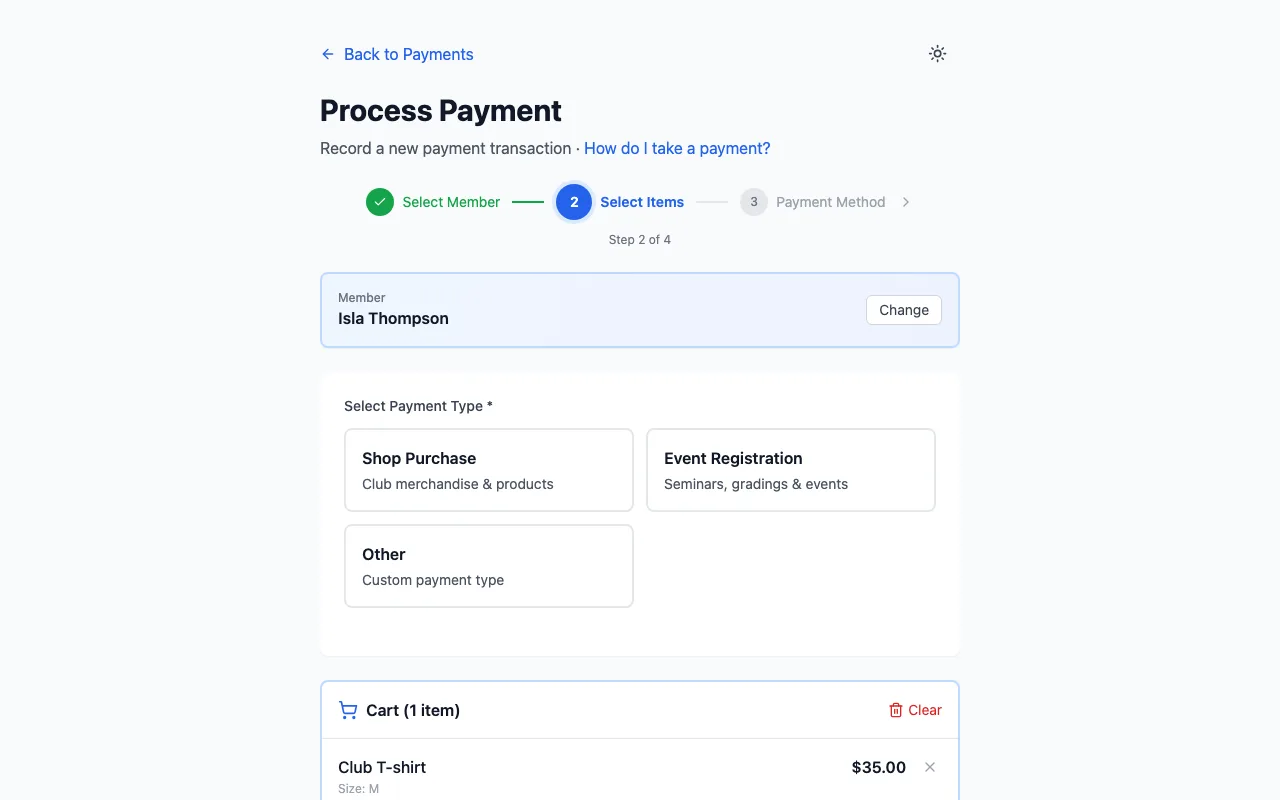
Under Select Payment Type, click Shop Purchase.
Pick the product
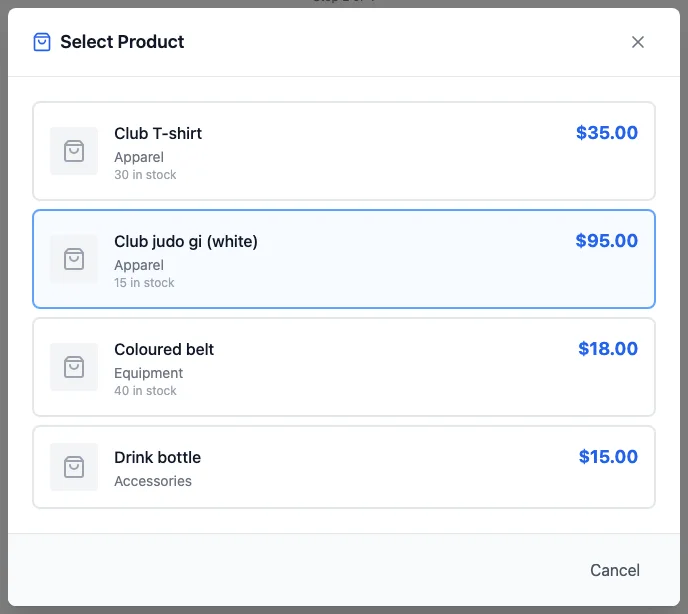
Select Product lists what's on sale, with the price and how many are in stock. Click one.
Size and quantity
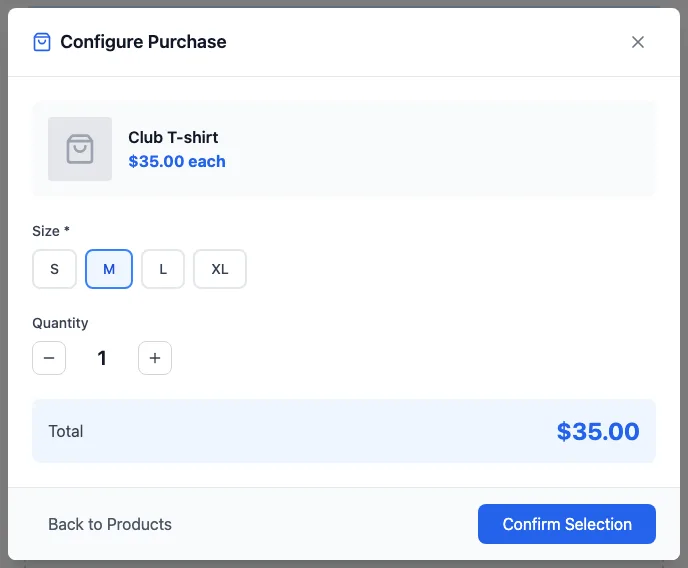
In Configure Purchase, choose the size (or other option) and the Quantity, check the Total, and click Confirm Selection.
Take payment
The item is in the cart. Add anything else, then carry on to the payment method, the same as any payment (see Processing Payments).
Members buying in the member portal
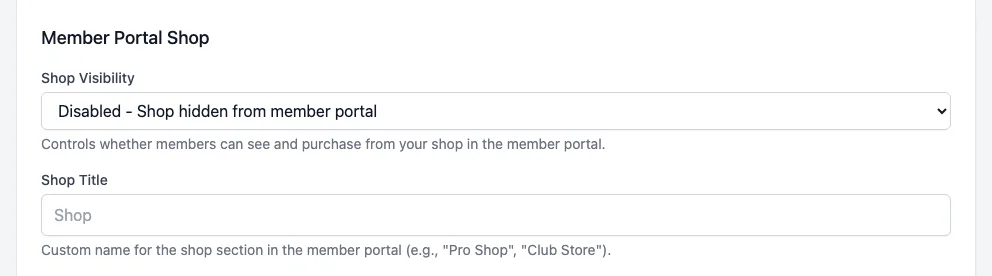
In Settings, Club Information, the Member Portal Shop part sets Shop Visibility:
- Disabled (the default): no shop in the member portal.
- View Only: members can browse but buy from you in person.
- Full Access: members can browse and pay online.
Shop Title renames it (for example "Pro Shop"). Click Save Changes. Members see your active products, add them to the cart with plans and event fees, and pay at checkout (see the member guide, Buying from the Shop). Hand the item over when they next come in.
Find your sales
Every sale is a payment. View Shop Purchases on the Shop page (owners and managers) lists them with the product, size, buyer, quantity, amount and status. You can also go to Payments and set the type filter to Shop Purchase. Each product's sales and revenue are also on its Product Details, and the totals are at the top of the Shop page. An item paid in the same cart as a plan or event fee stays with that payment in Payments instead.
Refund a sale
Find the payment in Payments and use Process Refund (see Refunds). A refund doesn't put the item back in stock; if it comes back, use Adjust Stock.