Creating classes
Add a class with its days and times, then change, pause or remove it later.
3 minutes
Owner or Manager
Sidebar → Classes
Create a class
Open the form
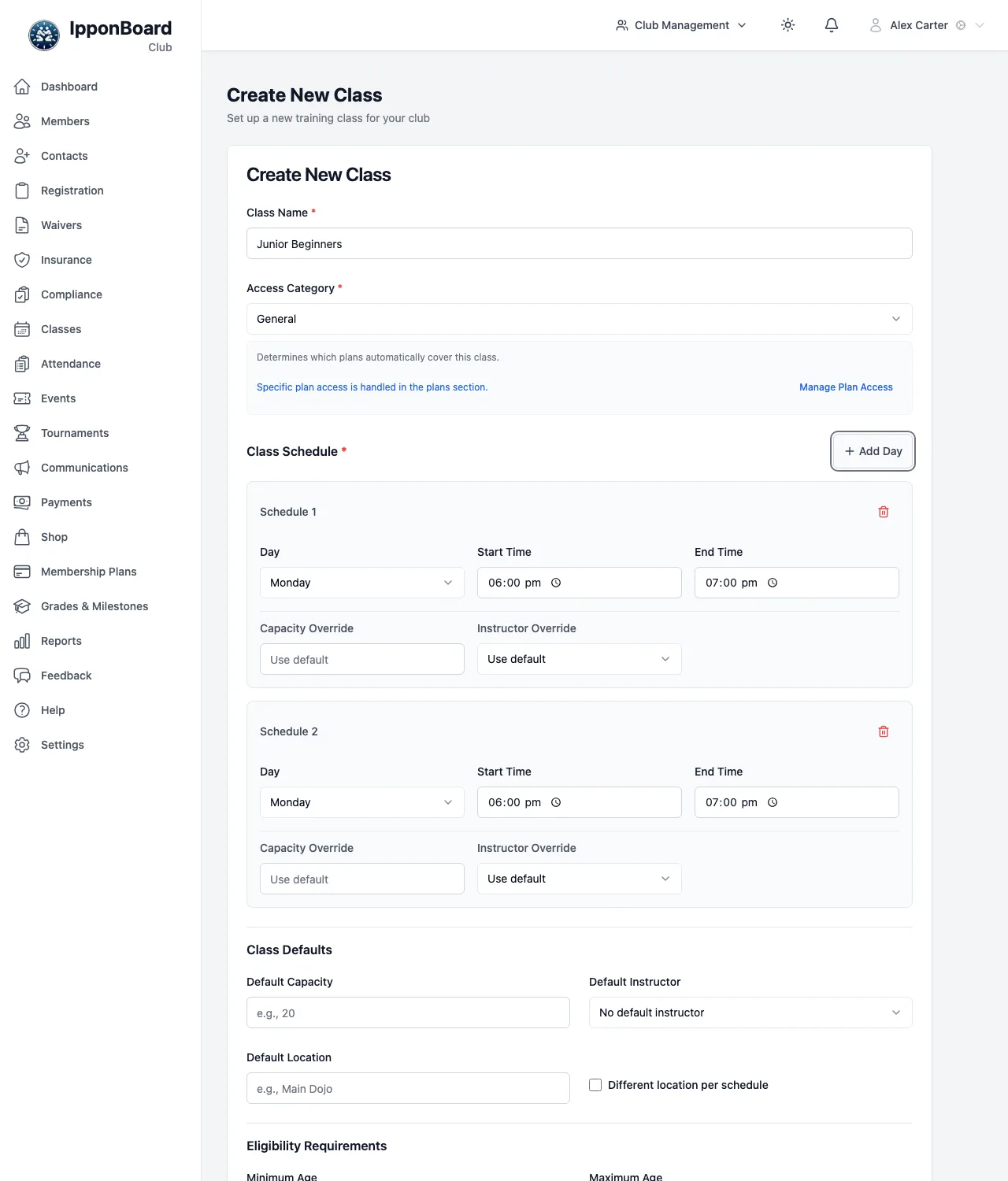
In the sidebar, open Classes and click Create New Class.
Name it and pick its category
Fill in Class Name (for example "Junior Beginners") and choose an Access Category: General, Elite or Other. The category decides which membership plans cover the class automatically. See Class access.
Set the day and time
Under Class Schedule, pick the Day, Start Time and End Time. If the class runs on more than one day, click Add Day for each extra day. A day can have its own Capacity Override and Instructor Override; leave them on the default otherwise.
Set the defaults (optional)
Under Class Defaults, set a Default Capacity (the most people per session), a Default Instructor and a Default Location. Tick Different location per schedule if the days are in different places.
Set who it's for (optional)
Under Eligibility Requirements, set a Minimum Age and Maximum Age, and a Minimum Belt Level and Maximum Belt Level. They show on the class's page.
Members only, or open to all
Under Class Access, choose Open to all (members and drop-in visitors) or Members only (only members whose plan covers this class).
Save
Leave Class is active ticked and click Create Class.
Instructors
The instructor lists show people with the Coach role in your club. To add someone, give them that role first. See Roles and permissions.
See the weekly timetable
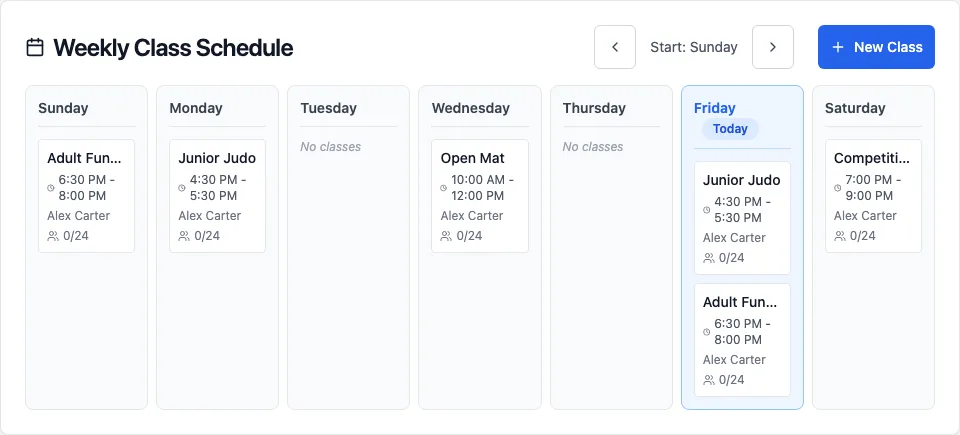
On the Classes page, click Calendar. It shows a column for each day with every class and its times; click a class to open it. The arrows change which day the week starts on. Days and times use your club's time zone.
Change a class
Open the form
Click Edit Class on the class's page, or in the ⋯ menu on the Classes page.
Make your changes
The form is the same as when you created it. To stop running it on a day, click the bin on that day's schedule.
Save
Click Update Class.
Pause or delete a class
- To pause a class, choose Deactivate in its ⋯ menu. It keeps its history. Choose Activate to bring it back.
- Delete Class removes it for good, but only if no attendance has ever been marked for it. Otherwise, deactivate it instead.