Attendance Reports
Who came to which class, filtered by date and class, as CSV or PDF.
Who can use it: Owners and managers.
1
Open the Attendance tab
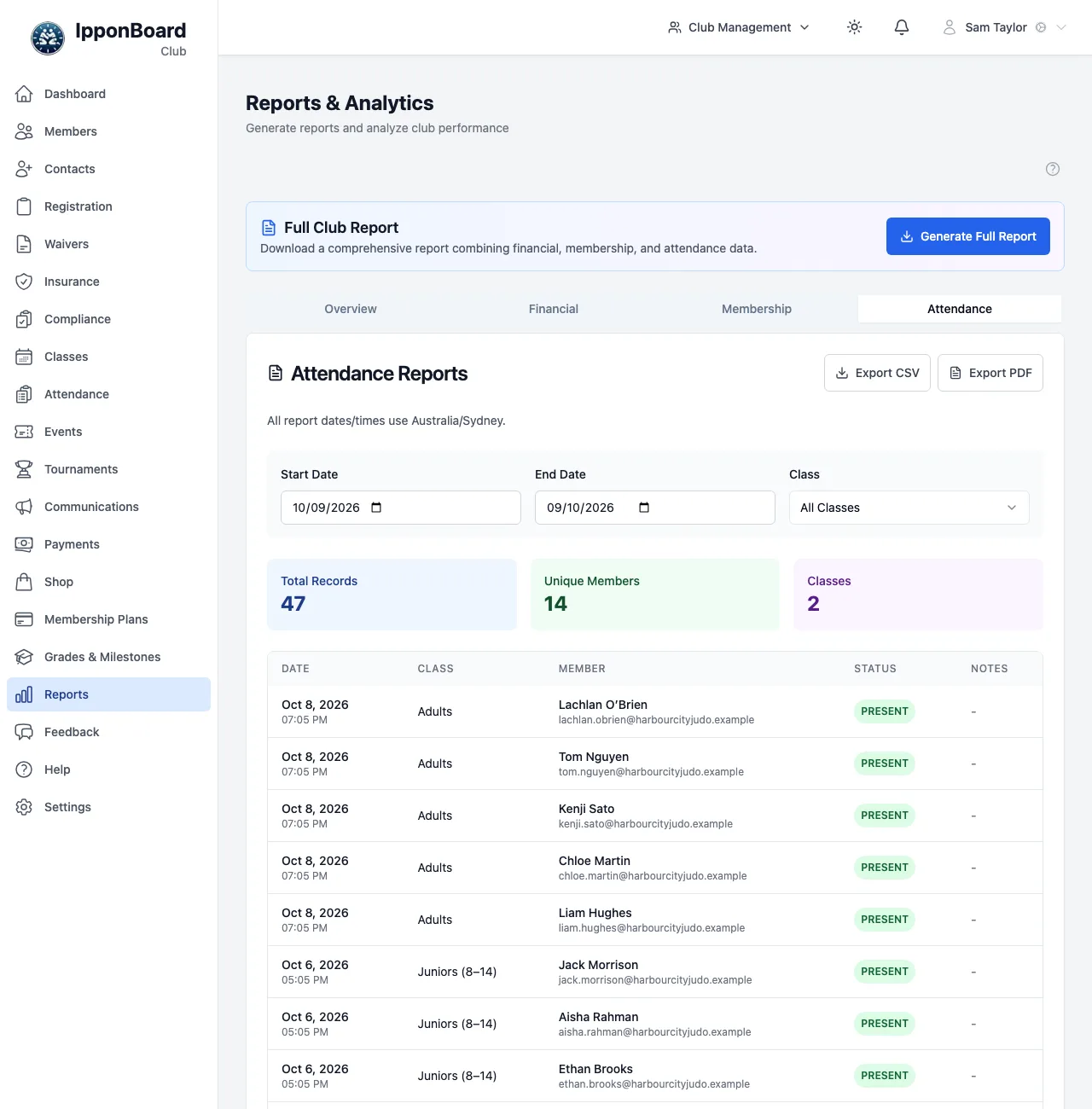
Go to Reports and open the Attendance tab. It lists every class check-in in the date range (the last 30 days to start with): the date and time, the class, the member and their email, the status (for example PRESENT) and any notes. Times are in your club's time zone, shown above the filters.
2
Filter
Set a Start Date, an End Date, or a Class (or All Classes). Total Records, Unique Members and Classes update to match. Clear both dates to see all check-ins.
app.ipponboard.com
3
Download
Click Export CSV for a spreadsheet (date, class, member name, email, status, notes) or Export PDF for a printable list. Both use your filters.
A very long range (more than 10,000 check-ins) shows only the most recent 10,000, and the tab says so. Choose a shorter range, or use Generate Full Report for totals by class and by day.
To remove a check-in made by mistake, use Attendance → Reports instead: there, each row has a bin button (you confirm first). This tab is read-only.
Attendance in the other reports
- The Overview tab shows check-ins in the last 30 days and how many different people came.
- The full club report (Generate Full Report) has attendance by class, by day of the week, and your top attenders.