Attendance Reports
Look back over check-ins, see the numbers, and export them.
Past check-ins live on the Attendance page, in the Reports and Statistics tabs. Each member's own history is on their profile.
The Reports tab
Open it
Sidebar Attendance → tab Reports.
Filter
Set a Start Date and End Date, and pick a Class (or leave it on All Classes). The totals above the table update: Total Records, Unique Members and Classes.
Read the list
Each row has the Date, Class, Member, Status and Notes, newest first.
Export
Export CSV downloads the filtered list as a spreadsheet; Export PDF downloads it as a PDF.
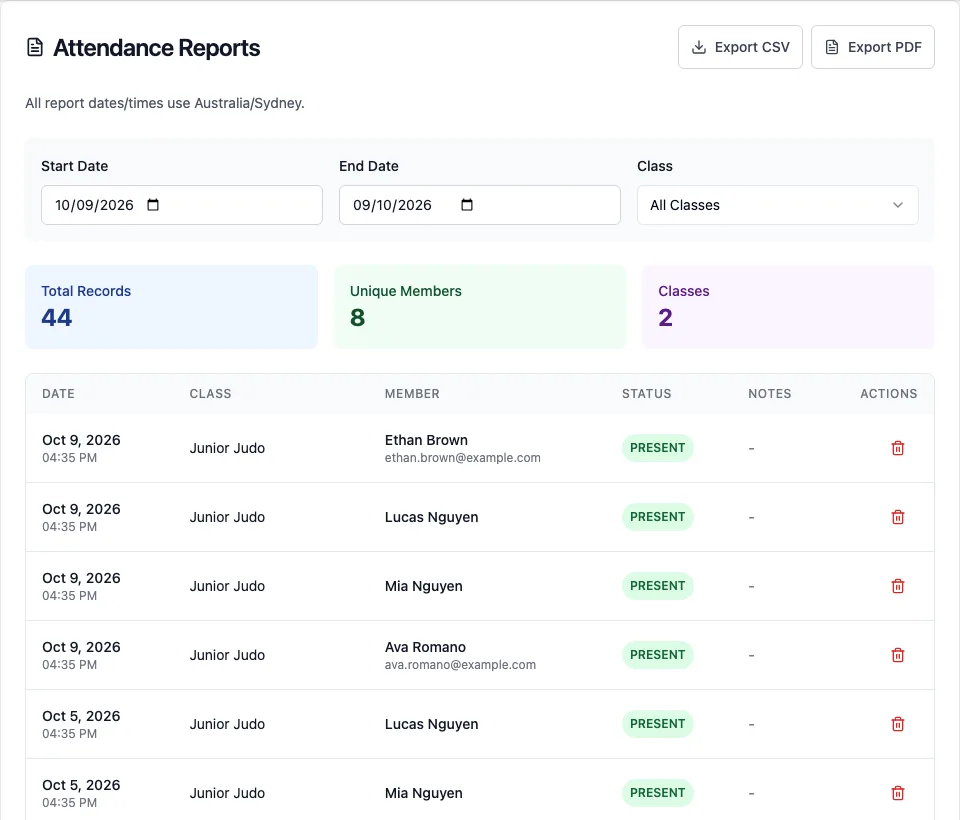
To remove a check-in made by mistake, click the remove button at the end of its row, then Remove in Remove Attendance Record. Owners, managers and coaches can do this. If it was a paid drop-in, the payment record is kept.
The Statistics tab
Overall Statistics shows Total Attendances, Active Members, Active Classes, Avg per Class and Avg per Member. Class Statistics lists each class with its number of sessions and members.
One member's attendance
Open the member from sidebar Members, then the Attendance tab. It shows their check-ins for the Last 30 Days, Last 90 Days and Last Year, and their Attendance History.
In the club's Reports
Owners and managers also have sidebar Reports. Its Overview shows total attendances, its Attendance tab has the same filtered list and exports, and Generate Full Report makes one PDF or CSV of finances, membership and attendance for a date range. See Reports: attendance.