Staff & Devices
Front-desk (kiosk) accounts for shared tablets and desk computers, and the devices signed in with them.
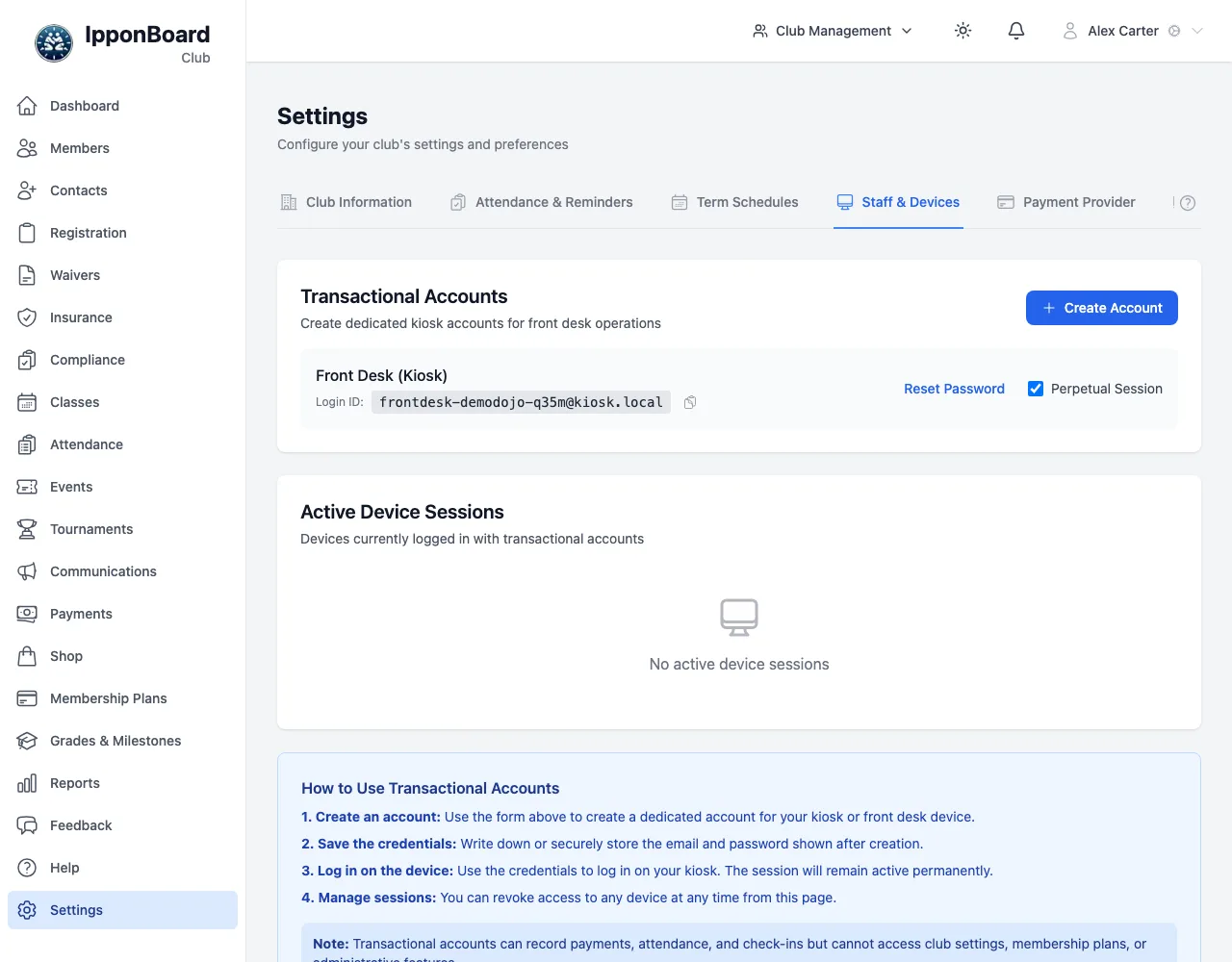
Sidebar Settings → Staff & Devices. Owners and managers use this tab for front-desk accounts: shared logins (the Transactional role) for a kiosk tablet or the front-desk computer. A front-desk account can check members in, take attendance and take payments, but can't open Settings, Reports or Communications.
The same tab has What coaches can do: whether coaches take payments, how far back they see payments (Off, Last 30 days, Last 90 days or All) and which reports they see (Off, Attendance only, Attendance & membership or Everything). Owners and managers change it; see Roles & Permissions.
Coaches and managers aren't set up here: they get a role on their member profile. See Inviting staff.
Make a front-desk account
Create Account
Under Transactional Accounts, tap Create Account.
Name it
Type an Account Name, for example "Front Desk" or "Check-in Kiosk", and tap Create Account. A login ID and password are made for you.
Save the login
The Login ID and Password show once only: copy them somewhere safe, then tap I've Saved These Credentials.
Sign in on the device
On the kiosk or desk computer, sign in with that login ID and password. With Perpetual Session ticked next to the account, the device stays signed in until you revoke it.
To use a kiosk for check-ins, see Kiosk mode.
Look after the accounts and devices
- Reset Password: makes a new password and shows it once, under New Password - Save It Now. The device has to sign in again with it.
- Active Device Sessions: each device signed in with a front-desk account, and when it was last active. Revoke signs one device out; Revoke All signs them all out.
- Revoked Sessions: devices you've signed out recently.